
Put the right customer on the sale
Find an existing customer before making a new record. Check the selected name before taking payment.
In this chapter
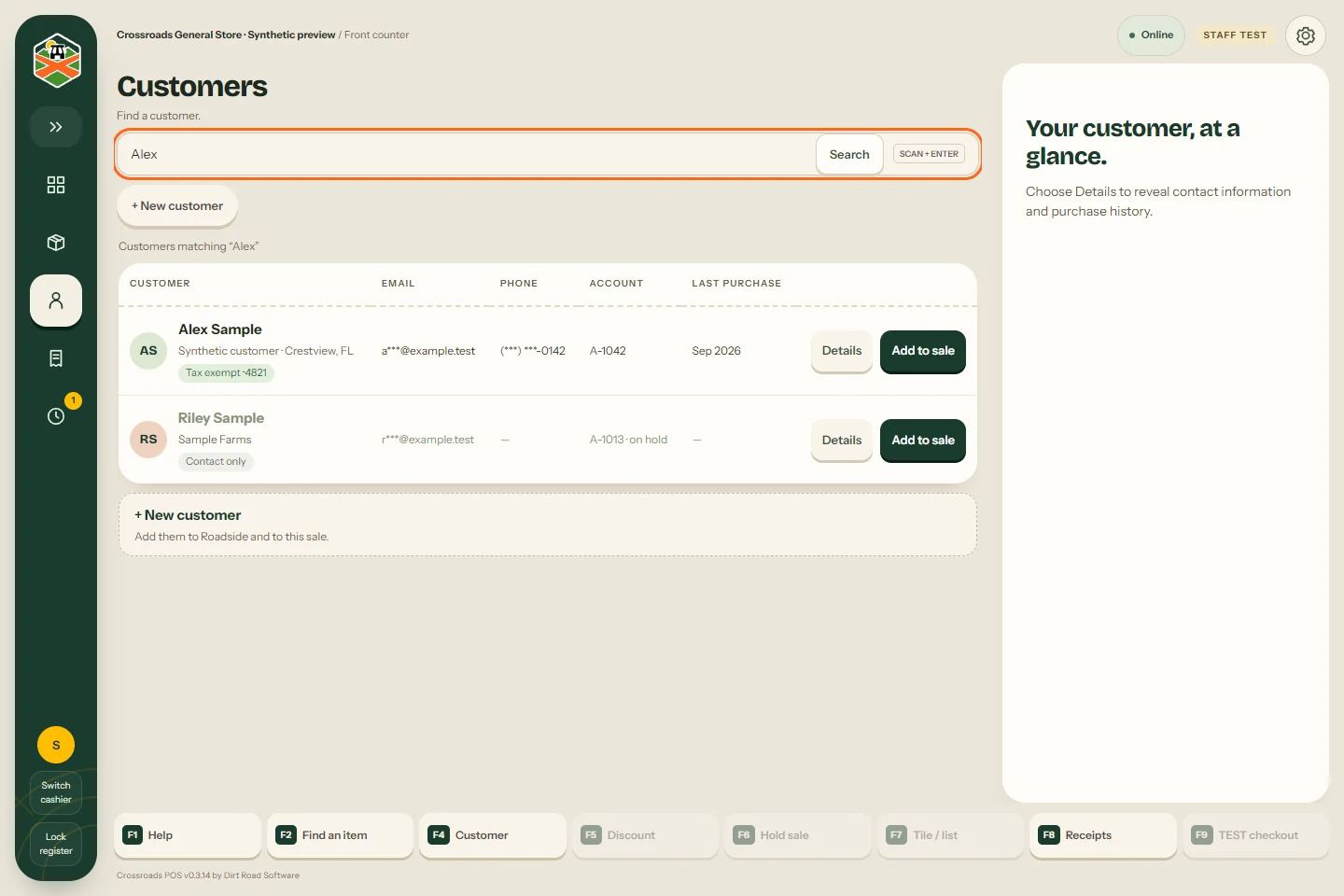
Find and select a customer
- Press Walk-in · Add customer in the sale panel, or open Customers from the left rail.
- Type at least three characters of a name, email address, phone number or account number.
- Check the matching person or business. Use Details when you need to confirm contact information.
- Choose the customer for the sale and check the name now shown above the basket.
Contact information stays partly hidden in search results. Open details deliberately, and avoid leaving a customer’s information visible to the next person in line.
To remove a selected customer, press Use walk-in customer. Check the total again: customer pricing or a saved tax treatment may affect it.
Add someone new
If your role permits it, choose + New customer. Search first, then enter the person or business details requested. If Crossroads POS finds a possible duplicate, review that match before creating another record.
Customer creation, contact linking and email signup are separate results. Check the saved result for each. A new customer record does not by itself mean an email signup was recorded.
Correct contact details
Open the customer’s details and use the edit controls your role allows. Save the change and wait for its result before repeating it. If the result is unanswered, keep the pending change for recovery rather than creating a second customer.
Email-list permission
Use the email signup option only when the customer agrees. Email-list tools collect subscriber records for export. They do not send newsletters.
Customer accounts and tax treatment
Check the customer and the total shown by the register. Ask a Manager to review an unexpected tax treatment or account match in Roadside. Fencepost CRM owns customer accounts and receivables; selecting a customer here does not record an account payment or authorize a charge.
Something here does not match your screen? Write to support@dirtroadsoftware.com with the name of the screen, what you pressed and what you expected. A picture of the screen helps.