
Look up stock and product details
Inventory helps you find the right item and check the stock information available to this register.
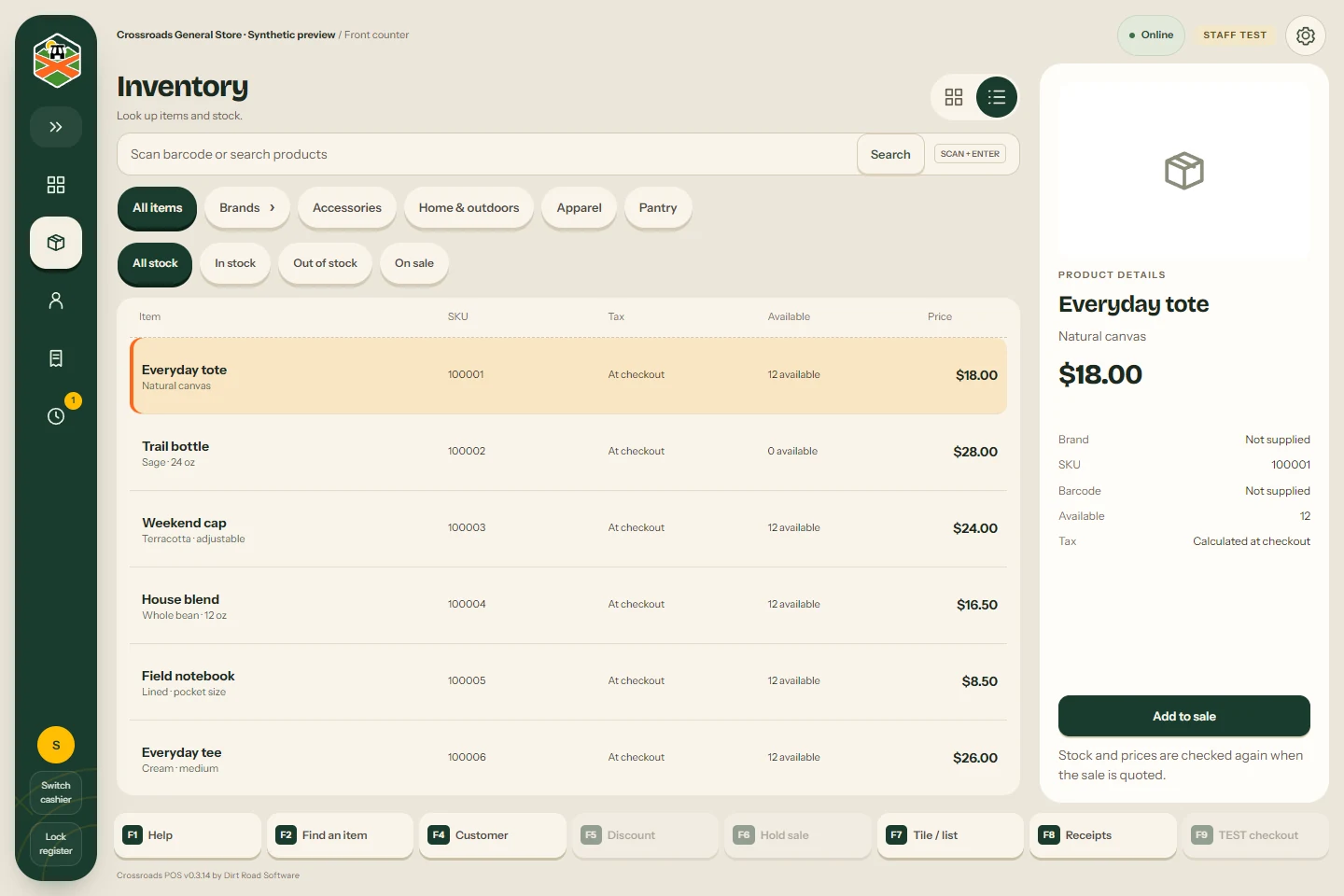
Find the product
Open Inventory on the left rail. Search by product name or SKU, or browse categories and brands. Use the available department and stock filters to narrow the list.
Select a row to inspect its size, photo and stock information. Check the specific size or variant, not only the product name. A variant is one sellable choice of a product, such as a bag size or a boot size.
Put the item on a sale
Use the add-to-sale action in product details when available. Return to Register and check the selected size and quantity in the basket. If the item is sold by weight, complete the weighing window.
A shared product record
Products added in Roadside, including with Fetch with AI, are the same product records Crossroads POS rings up and Storehouse ERP uses for inventory, purchasing and receiving.
Use Roadside’s product tools to correct catalog details. Storehouse ERP owns purchasing, receiving, inventory control and price books. The register’s stock tools support checkout.
When stock looks wrong
Check the size, selected location and connection state first. A saved offline snapshot may be older than the current store record. Ask a Manager to review a stock shortage or correction in the appropriate stock screen. A held basket does not reserve the item.
The Roadside product chapter covers product editing. Your store’s package and role determine which management screens you can open.
Something here does not match your screen? Write to support@dirtroadsoftware.com with the name of the screen, what you pressed and what you expected. A picture of the screen helps.