
Discounts, notes and held sales
Apply the store’s permitted adjustments, or save a basket while you help another customer.
In this chapter
Apply a coupon or counter discount
With items in the basket, press Discounts. Enter a coupon code or choose one of the available counter discounts. The choices come from your store’s setup and your permissions.
For an open discount, choose Percent or Amount ($), then enter the value. Choose the affected items when requested. Fill in any required reference and press Add discount. Press Apply and refresh total to return the changes to the sale.
Check the deduction and new total. If the register asks for Manager approval, the Manager chooses their own name and enters their Counter PIN. Do not enter someone else’s PIN.
Dollar fields fill from the cents side: typing 6250 enters $62.50. Backspace removes the last digit. Percent fields use the percentage you type.
Add a sale note
Press Sale note, enter the note and press Save note. Use it for information that belongs with this sale. Avoid putting PINs or payment-card details in a note.
Hold the basket
- Check the items and selected customer.
- Press Hold sale, then Save held draft. The register saves the draft and starts a fresh basket.
- Open Held sales when the customer returns. Choose the saved basket and resume it.
- Check its items and refreshed total before checkout.
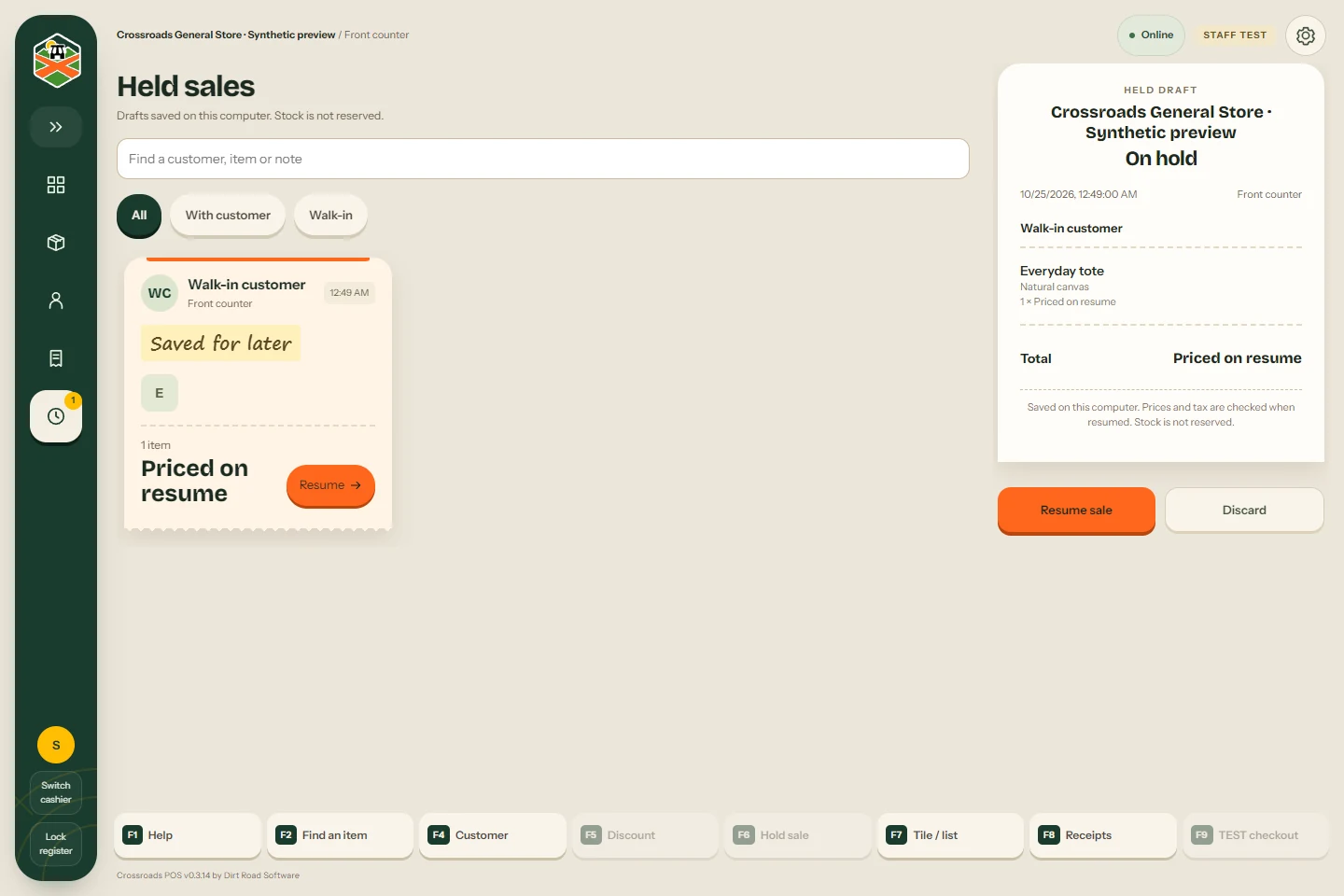
A held sale is not paid and does not reserve stock. Connected held baskets are saved on this computer and register. Return to the same register to resume one.
Clear an unwanted draft
Clear asks you to confirm removal of the current draft’s items and customer. Check that you are clearing the intended basket. An unanswered payment is saved work to resolve, not an ordinary draft to clear.
Something here does not match your screen? Write to support@dirtroadsoftware.com with the name of the screen, what you pressed and what you expected. A picture of the screen helps.