
Find a receipt, reprint or refund
Use the saved original receipt to handle a past sale. A reprint does not create another sale.
In this chapter
Find a sale
Open Receipts. Search by receipt number, customer or total. Choose This register or All registers as needed, and use More sales to load older results.
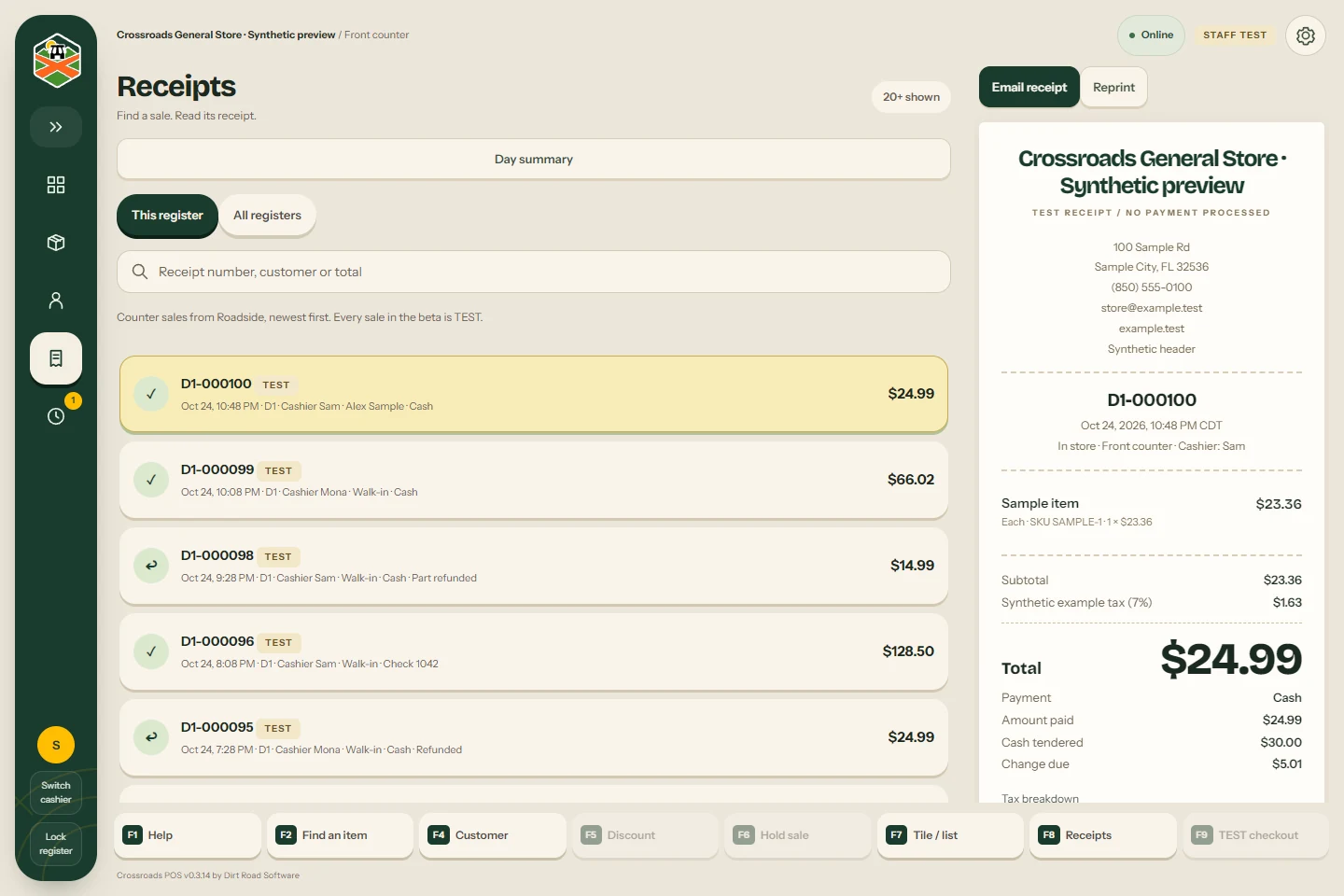
Select the sale and compare its receipt number, date and total before taking an action. A customer’s details can also link to their purchase receipts when your role allows it.
Print or email
Use Reprint from the selected receipt for another paper copy. In the Windows register, the configured receipt printer receives one copy directly. Check the paper before pressing again if nothing appears.
Use Email receipt for an emailed receipt and check the destination requested by the form. Review the send or delivery status shown. Do not assume a failed or unanswered email reached the customer.
Printer selection belongs to this PC. See Settings and hardware for paper size and the Windows printer choice.
Issue a refund
Refund controls appear only when your role and the sale allow them. Open the original receipt and press Refund. Check the amount left to refund.
- Enter the refund amount within the remaining total.
- Choose the reason. Add a note when the form requires one.
- For a counter payment, choose how it is returned: Cash or Store check. Enter the store check number if applicable.
- For a full refund, check the Return items to stock with a full refund choice against what the store actually received.
- Confirm once and wait for the recorded result.
A partial amount refund does not put items back into stock. It is an amount adjustment, not an item-by-item return. Handle any separate stock correction through the store’s authorized stock process.
An unanswered refund
Return to Receipts and use Recover saved refund for the existing attempt. The original cashier may need to recover it. Do not issue a fresh refund while the first result is unknown. Ask a Manager or support to resolve an uncleared-check restriction or another refusal.
Something here does not match your screen? Write to support@dirtroadsoftware.com with the name of the screen, what you pressed and what you expected. A picture of the screen helps.