
Find an item and build the basket
Scan a barcode or choose a product. The sale panel keeps the selected items and the current total together.
In this chapter
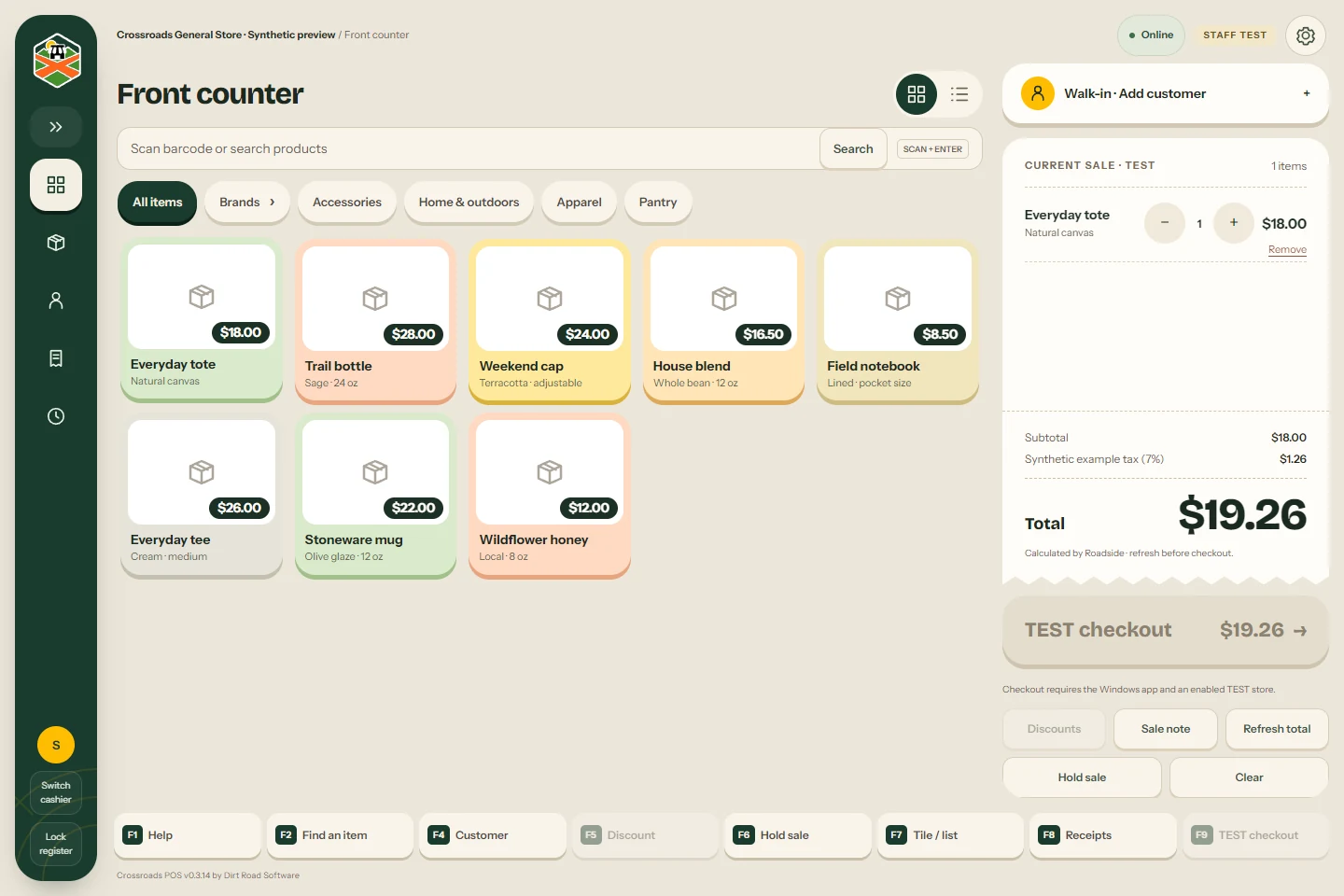
Read the screen
The left rail opens Register, Inventory, Customers, Receipts and Held sales. The top bar identifies the store and register. Its connection indicator and gear button open Register settings.
The main area holds search and product choices. Your basket is the Current sale panel. It shows the customer, quantities, adjustments and total before checkout.
Scan a barcode
- Keep the register open and scan the item. A keyboard-style scanner sends the barcode followed by Enter.
- Check the product and size added to the basket. A barcode assigned to a particular size selects that size.
- Scan the next item. Repeated scans of a counted item increase its quantity.
If a barcode is unknown, acknowledge the message and check the package. The scan box clears for the next attempt. Search for the item by name or SKU, the store’s own item code. Ask a Manager to correct the catalog if the barcode is missing.
Browse or search
Type part of the product name in search. All items returns to the full catalog; Brands browses by maker. Choose a category to see its products and any smaller categories inside it. The breadcrumb path takes you back to a parent category.
Swipe the category row on a touchscreen or drag it with a mouse to reach more choices. With a category focused, the arrow keys move along the row. Tile and list views show the same products.
Some products open an options picker. Choose the color or size shown there, then check the selected item in the basket. Other sizes appear as separate tiles. Scanning a size’s own barcode selects it directly.
Change a counted quantity
Use the + and − controls on a basket line, or its quantity field. Check the total after a change. Remove removes that line. Weighed lines show their recorded weight instead of a counted quantity.
Use Refresh total if you need a fresh price check from Roadside. A stock problem or required approval must be resolved before checkout. Do not substitute another product to bypass a stock message.
Keyboard shortcuts
| Key | Action | Key | Action |
|---|---|---|---|
| F1 | Help | F6 | Hold sale |
| F2 | Find an item | F7 | Tile / list |
| F4 | Customer | F8 | Receipts |
| F5 | Discount | F9 | Checkout |
Something here does not match your screen? Write to support@dirtroadsoftware.com with the name of the screen, what you pressed and what you expected. A picture of the screen helps.