
Prepare statements on a schedule and review late invoices
With the Fencepost CRM farm tools, Roadside can make each month's statements on the closing day and hold them for a person to review. Invoice review walks through the invoices that are past due, one customer at a time.
In this chapter
Have Roadside prepare each month's statements
Included on the Whole Store plan.
With the schedule on, Roadside makes each month's statements by itself once the month closes, the same statements a person makes with Make statements. Then it waits for someone to look them over. It sends nothing to customers. Sending and printing stay a person's job, from the month's page (Look the statements over, then send or print them, in Chapter 13).
Open Follow-up under Customers and press Monthly statement preparation. The page is headed Monthly statements. Staff and Read only people see it with the line Changing this schedule or recording a review requires permission to manage charge accounts and edit follow-ups.
- Preparation
- Roadside making a month's statements on its own, for a person to review before they are sent.
- Closing day
- The day of the month a statement period ends.
Statements close on the last day of the month, and the Closing day line reads Last day of each month, unless Dirt Road has set another day for your store. The day is shown here and set nowhere in Roadside. To change it, write to support@dirtroadsoftware.com.
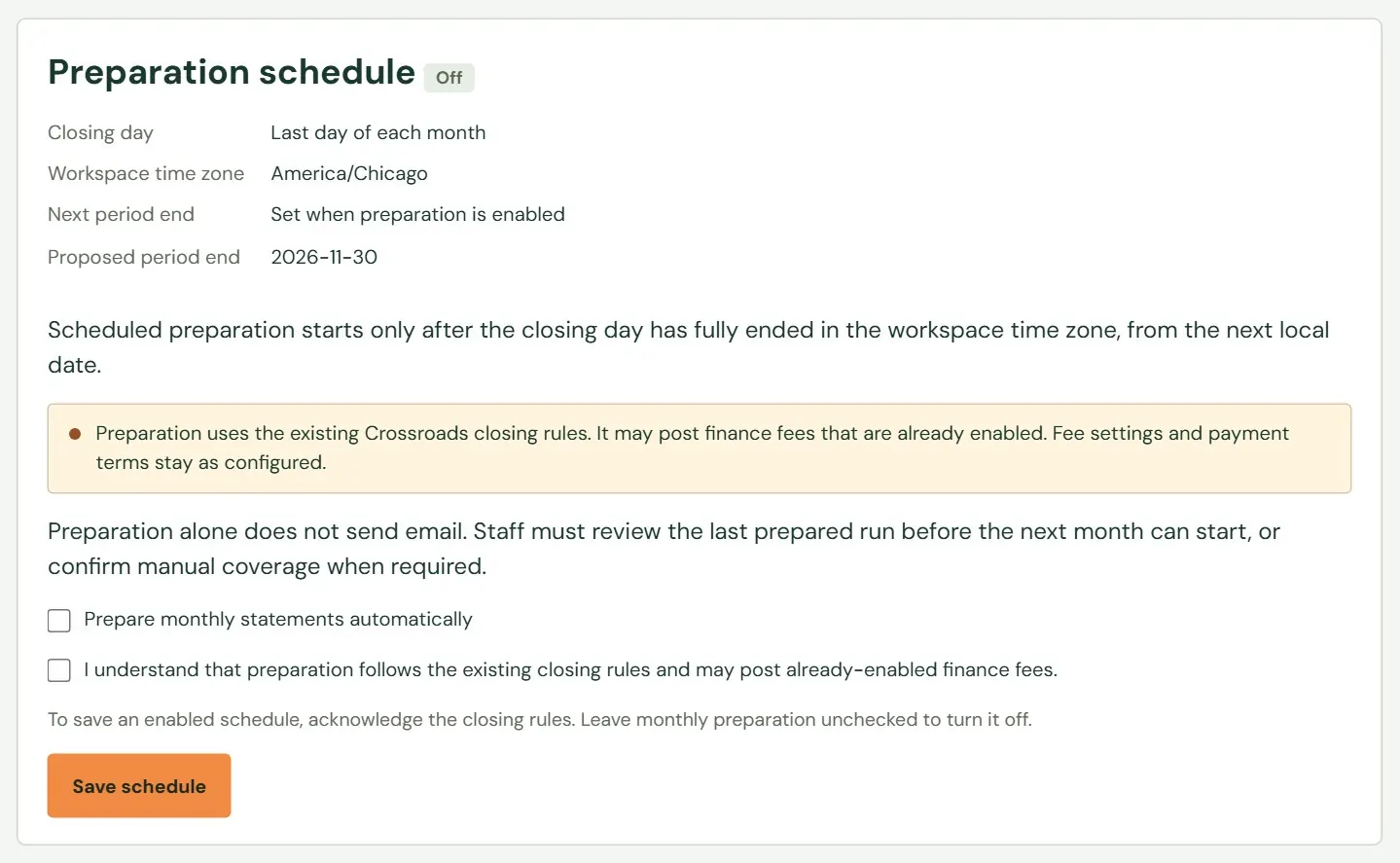
- 1Closing day: the last day of each statement period.
- 2Next period end: the month Roadside prepares next.
- 3Prepare monthly statements automatically: tick to turn the schedule on.
- 4Save schedule keeps your choice.
- Read the facts at the top of Preparation schedule. Closing day, Workspace time zone, and, while the schedule is off, Proposed period end: the first month Roadside will prepare.
- Tick Prepare monthly statements automatically.
- Tick I understand that preparation follows the existing closing rules and may post already-enabled finance fees. Saving the schedule on needs both ticks.
- Press Save schedule. The message reads Monthly statement preparation enabled.
With the schedule on, statements are made each month without anyone pressing a button. If the store has finance charges or late fees turned on, each month's preparation adds them to the accounts that are past due (Turn on a finance charge, in Chapter 14). Nothing goes to customers until a person sends it.
Preparation starts once the closing day has fully ended in the store's time zone, so a month that closes on the 31st is prepared from the 1st. It worked when the badge beside Preparation schedule reads On, and Next period end and First scheduled period end show dates.
To turn it off, untick Prepare monthly statements automatically and press Save schedule. The message reads Monthly statement preparation turned off. If a refusal asks you to reload the page, the dates moved while it was open: reload it, check the dates and save again. Where a message or reason on this page mentions Crossroads closing rules or Crossroads runs, it means your charge-account statements under Charge accounts, Statements.
Statements can still be made by hand on any day (Make the month's statements, in Chapter 13).
Review a prepared month, then send it
Included on the Whole Store plan.
Recent preparations, lower on the Monthly statements page, has a card for each month Roadside prepared, up to 50 of them, each headed Period ending and the date. Each month must be reviewed before Roadside prepares the next one.
| Badge | What it means |
|---|---|
| Waiting to prepare | The month has closed and Roadside starts on it shortly. |
| Preparing | The statements are being made. |
| Ready for review | Made. Look them over, send or print them, then mark the month reviewed. |
| Reviewed | Someone marked it reviewed. The card gives the date and time. |
| Blocked | Roadside could not prepare it. The line under the badge says why. |
| Preparation failed | Making the statements stopped. The line under the badge says what to check. |

- 1Period ending: the last day the month's statements cover.
- 2Ready for review: this month waits for a person.
- 3Open statement run opens the month's statements to look over and send.
- 4Mark reviewed records your review so next month can start.
- Find the card that reads Ready for review and press Open statement run. The month's page opens, headed Statements for and the date.
- Look the statements over, then print and send them there (Look the statements over, then send or print them, in Chapter 13).
- Go back to Monthly statements and press Mark reviewed. The message reads Staff review recorded. No statements were sent.
Mark reviewed sends nothing. It records that a person looked, and lets next month's preparation start. Statements go to customers only when someone presses Send on the month's page. A month that is never reviewed holds back every later month.
It worked when the card reads Reviewed and Next period end at the top moves on a month. Only the latest ready month takes a review. Another is refused with Only the current ready preparation can be acknowledged., and a month whose statements did not all finish with The statements must finish successfully before review is acknowledged.
A month that is blocked
The line under a Blocked badge names the cause:
- Earlier statements still being made, or an earlier run that stopped. Open Statements under Charge accounts, open that month, and press Make again if it stopped.
- The person who turned the schedule on no longer has permission. A Store owner or Manager ticks both boxes on Preparation schedule and presses Save schedule to approve it again.
- The statement closing day changed. Check the dates, tick the boxes and save the schedule again. If the card also shows Review manual statement coverage, the schedule card has no Save schedule: use the coverage review below.
- A later month was already made by hand. The card shows Review manual statement coverage, below.
When statements were made by hand
If someone made statements with Make statements for a later date than the month Roadside was due to prepare, the card shows Review manual statement coverage, with the dates the hand-made statements cover and the next period Roadside proposes. If the closing day changed as well, the schedule card has no Save schedule while this is waiting and, when the schedule is on, offers Turn off schedule instead.
- Press Review manual statement run and check those statements.
- Tick I reviewed the manual statements and approve advancing this schedule to and the date.
- Press Confirm coverage and advance schedule. The message reads Manual statement review recorded and schedule advanced. No statements were sent. The hand-made statements stay as they were.
When no month has been prepared yet, the list reads No scheduled statements have been prepared.
Go through the invoices that are past due
Included on the Whole Store plan.
Invoice review lists every charge-account invoice whose due date has passed with money still open, grouped by customer, so you can work down it before calling people. It changes nothing and sends nothing. Open Follow-up under Customers and press Invoice review. All four roles can use it.
The card at the top, headed Live invoices, gives the date the page counts from and the store's time zone. Its note is worth keeping in mind: a customer can hold credit not yet applied and an open invoice at once, so an invoice listed here is not by itself the amount to collect.
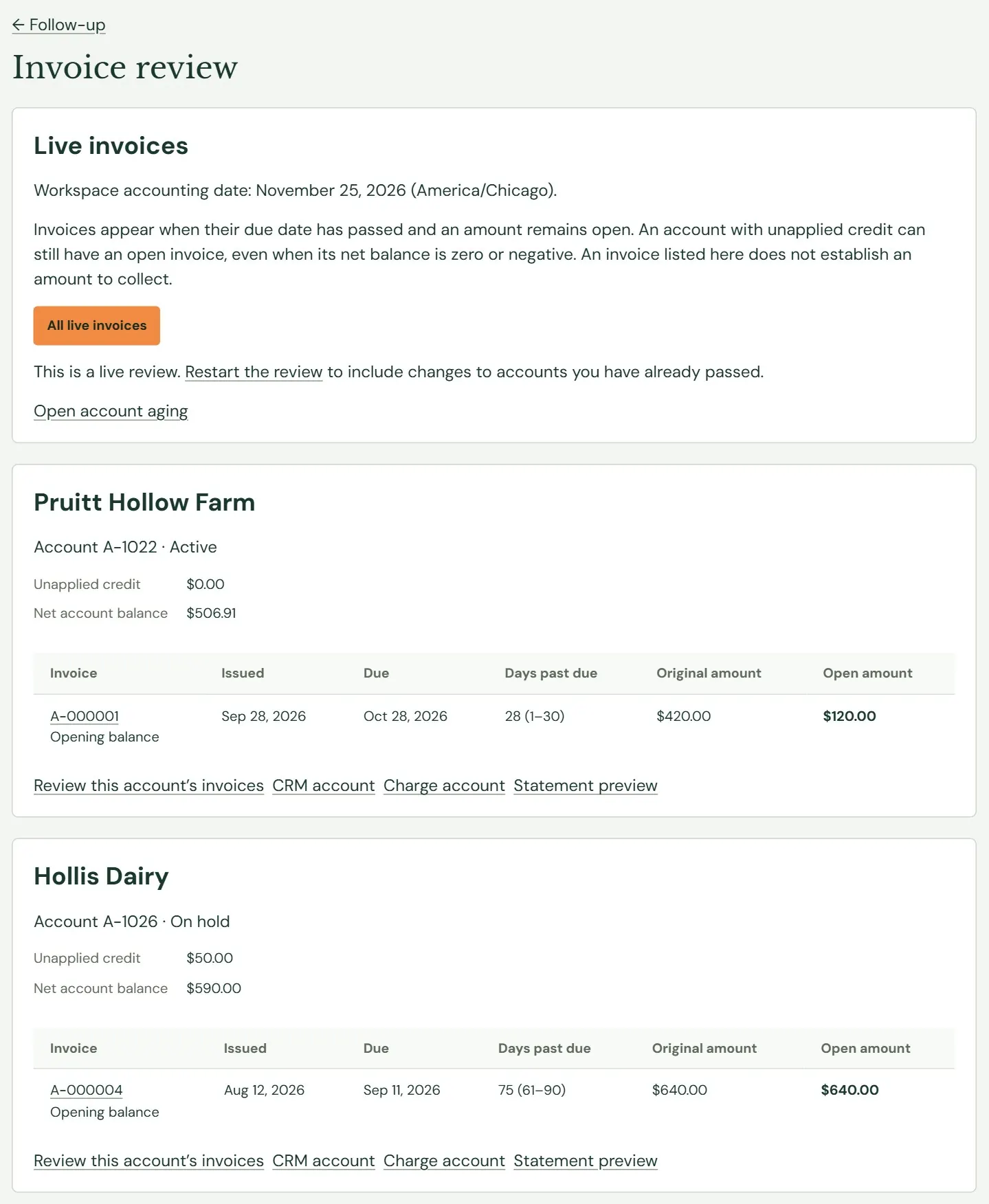
- 1Unapplied credit: money the customer has paid that is not yet on an invoice.
- 2Net account balance: what the customer owes after that credit.
- 3Days past due: how long each invoice has been overdue.
- 4Open amount: what is still unpaid on the invoice.
- 5Statement preview: open the customer's statement to today.
- Read each customer's card. It gives the name, Account with the number and Active, On hold or Closed, then Unapplied credit and Net account balance.
- Read the invoices. The columns are Invoice, Issued, Due, Days past due, Original amount and Open amount. Under each number, a word names the kind, such as Finance charge or Late fee, and an invoice from a sale has Open order.
- Use the links under the table. Review this account’s invoices shows that customer alone. The next link opens the customer's account, Charge account opens its charge account, and Statement preview its statement to today.
- Press Continue review for the next batch. Each page holds up to 50 invoices from up to 20 customers.
Days past due here count from each invoice's due date, so they can differ from the columns on Aging, which count from the invoice date unless the store's aging is set to count from the due date (See who is overdue, in Chapter 13). When a customer pays, take the payment on their account (Take a payment on account, in Chapter 12). To promise a call and keep track of it, add a follow-up (Add a follow-up for a customer, in Chapter 16).
It worked when Continue review reaches a page that reads No open past-due invoices to display in this batch.
When the review needs a fresh start
The review reads the accounts as you go. If an account changes while you are working through it, the page says so: The account changed since the previous page. Restart from the first page to see the current invoices., or This page link is no longer valid for the current review. Start a fresh review. for an old link. Press the link in the message, or Restart the review in the top card, to begin again with every change included.
Something here does not match your screen? Write to support@dirtroadsoftware.com with the name of the screen, what you pressed and what you expected. A picture of the screen helps.