
See, move and retire a register
Dirt Road connects each counter computer to your store. Know where Roadside lists your registers, how to move one to another location, and how to cut off a register you no longer have.
In this chapter
See the store's registers
Included on every plan except Static Website and Online Store.
Roadside shows your registers in several places, each for a different job. Start with the At the counter today card on Today, which is there once the store has a register.
- Register
- A counter computer or a web browser that rings up sales. Each register numbers its sales with its own letters, such as D1.
- Register ID
- The eight-character code printed on a register's receipts. It stays the same when the register is renamed.
The card has a line for each register, with its letters and name. For a register in use the line adds Expected in drawer, the cash that should be there. Under it, for a counter computer, Roadside says when the register last contacted it, or Not heard from today, or Never connected. A register in a web browser has no such line.
| Screen | What it shows of a register | Who opens it |
|---|---|---|
| Today, the At the counter today card | Each register's letters and name, the cash expected in its drawer, and a counter computer's last contact with Roadside | Store owner, Manager, Staff, Read only |
| Sales, then Day summary | The day's sales and each register's drawer (Read the register's sales, cash and checks for a day, in Chapter 3) | Store owner, Manager, Staff, Read only |
| Register locations | Each register's name, letters, Register ID and the location it sells from (Move a register to another location, in Chapter 1) | Store owner, Manager |
| Store account, then Retire a register | Every counter computer that was connected to the store, with the buttons that cut one off (Retire a register or report it lost, in Chapter 1) | Store owner, Manager |
Registers, under Store settings, is not a list of registers. It holds how the registers sell: manual items (Decide whether cashiers may type in an item, in Chapter 10) and offline selling (Let registers keep selling while offline, in Chapter 6). A receipt carries the Register ID and never the register's name, so match the code on a receipt to the ID column of Register locations to tell which register printed it.
Get a counter computer connected
Included on every plan except Static Website and Online Store.
Dirt Road connects each counter computer to your store: to add one or replace one, write to Dirt Road with the name you want and the location it should sell from. It is connected when it shows on the At the counter today card and on Register locations, with its own letters. Installing the register is part of your plan's setup, and no screen in Roadside lets a Store owner or a Manager connect one.
- Pairing code
- A one-time code that connects one counter computer to the store. Dirt Road makes it. The register's own screen calls it Connection code.
- Decide what to call the computer. Name it for where it sits, such as Front counter.
- Write to Dirt Road. Open a ticket from Support (Send a question about Roadside, in Chapter 40 of Core Roadside), or write to support@dirtroadsoftware.com. Give the name, and the location it should sell from if your store has more than one.
- When a replacement is working, retire the computer it replaces (Retire a register or report it lost, in Chapter 1).
It worked when the register is on the At the counter today card and on Register locations, with its own letters. It starts at your store's default location, and each person's first sign-in on it goes through Roadside (Confirm your sign-in for the register, in Chapter 1). Your plan includes a set number of registers, and a register in a web browser counts as one.
A computer whose Crossroads POS opens on Connect this computer and asks for a Connection code is not connected to your store. The code comes from Dirt Road, works once, and lasts 15 minutes.
Roadside has no form to rename a register. A Manager or Store owner renames it at the computer, with Name register in Register settings: see Open Register settings in the Crossroads POS manual. Its letters and its Register ID stay the same.
Confirm your sign-in for the register
Included on every plan except Static Website and Online Store.
When a person signs in at a counter computer with their Roadside login, the register opens a Roadside page in that computer's web browser. Anyone on your team can finish it, Read only people included. What they may do at the register still follows their role.
- Read the line under Sign in at the register. It names the register, your store and a person, such as Sign in to Front counter (D1) at Sample Feed & Country Store as Priya Nolan. A browser that is not signed in to Roadside asks for your usual sign-in first.
- If the name is not yours, press Not you? Sign in as someone else. The browser is signed out and Roadside's sign-in opens.
- Confirm it is you when asked. A browser that was already signed in says This browser was already signed in. Confirm it's you. Type your Password and, with two-step sign-in, the six-digit Authenticator code.
- Press Sign in to the register. The page reads You're signed in at the register.
- Go back to the register. Press Back to the register when the page has that button. Otherwise the page shows a code to type at the register, which works once, in the next 5 minutes. Then close the window.
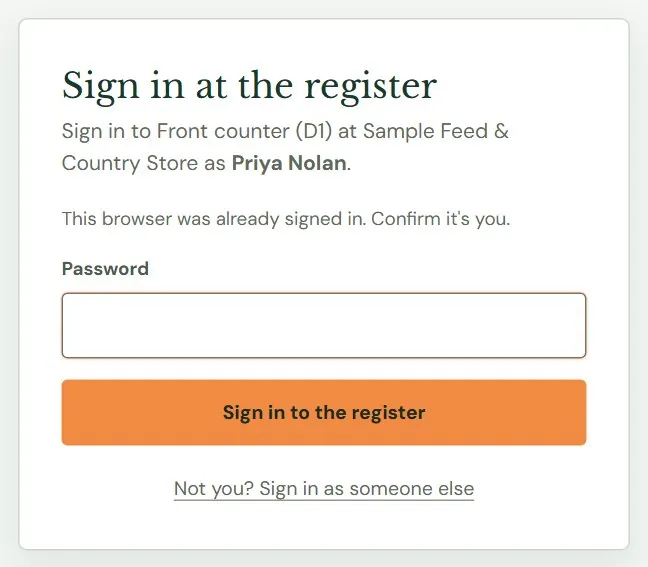
- 1Check the register, the store and the name before you go on.
- 2Type your Roadside password.
- 3Sign in to the register finishes the page.
- 4Not you? Sign in as someone else signs this browser out so you can use your own login.
The register then shows your name. If the page reads This sign-in has run out, the register's link was used already or is more than 10 minutes old, so start again at the register. Not on this store's staff means the browser is signed in as someone who is not on your store's team: press Sign in as someone else.
From then on, a person signs in at the register with their Counter PIN: see Sign in with your PIN in the Crossroads POS manual. Set your own Counter PIN, in Chapter 2 shows how to set one.
Move a register to another location
Included on every plan except Static Website and Online Store.
Each register sells the stock at its location and charges the sales tax there. A register starts at your store's default location, so a store with one location never needs this page. Move a register when the computer sits somewhere else, such as the feed dock.
Roadside's menu has no line for Register locations. The page opens at your Roadside address with /pos/registers/locations on the end. If you would rather not type an address, ask Dirt Road to move the register for you.
Saving changes which location's stock count and sales tax every later sale on that register uses. A register that is offline when you save keeps selling from the old location until it is back online. Check the location's name before you save.
- Open Register locations and find the register. The table gives each register's name and letters, its ID and its Location.
- Press the pencil button at the end of its row. Its label is Move. A card opens headed Move and the register's name, and says where it sells from.
- Choose the Location. Only active locations are listed, and your default one is marked (default).
- Press Save location. Roadside confirms with a message such as Moved Feed dock to Main store. It sells Main store's stock from its next sale.
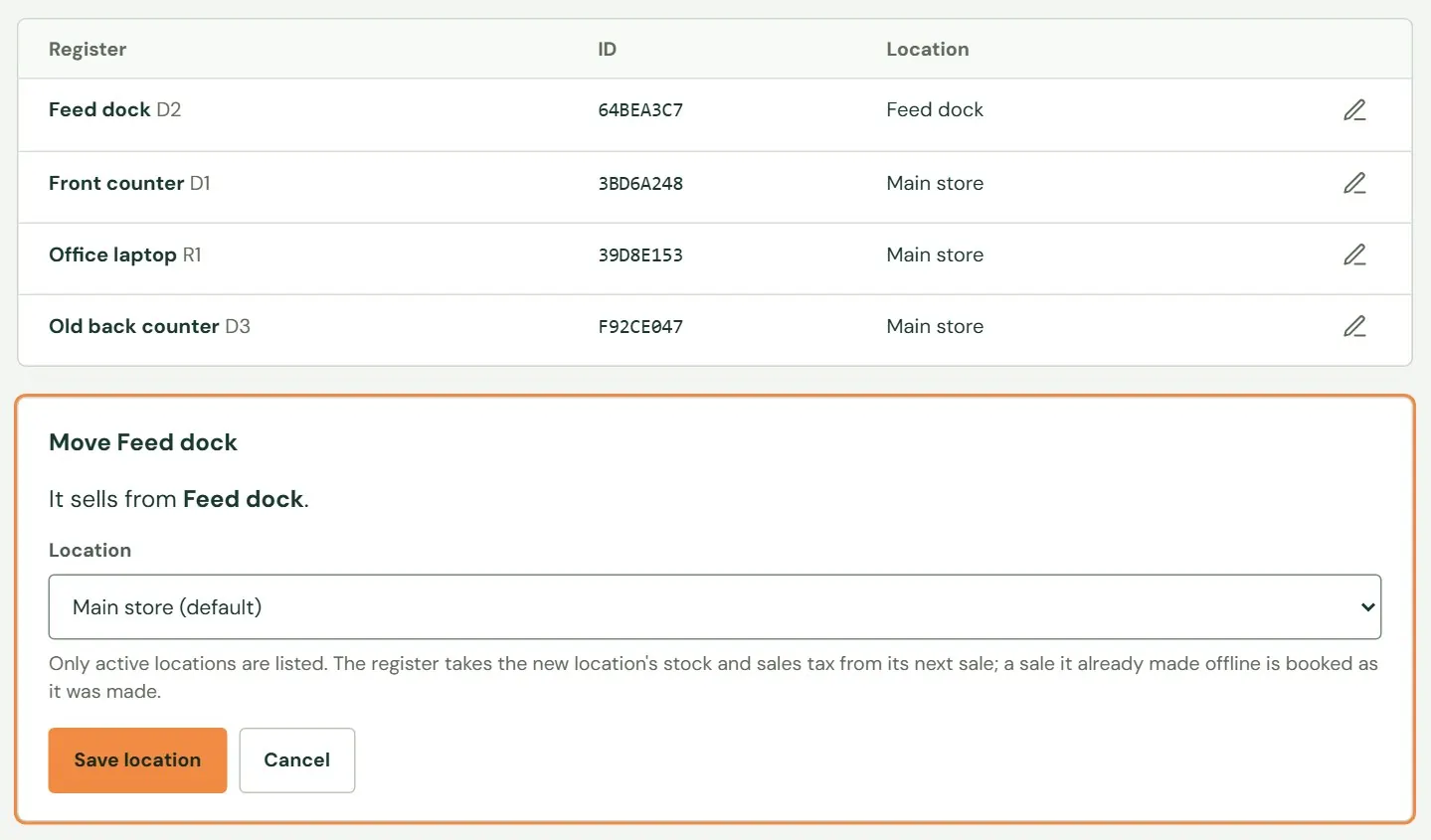
- 1Register: each register's name and letters.
- 2ID: the Register ID its receipts print.
- 3Location: where the register sells from.
- 4Save location moves the register.
The move takes effect with the register's next sale, or once it is back online if it was offline. In the screen's words, a sale it already made offline is booked as it was made. If you pick the location it already has, Roadside says the register is there already and changes nothing. Cancel closes the card without a change.
A register at an inactive location cannot sell stock. The page warns you, for example Feed dock's location is inactive, so it can't sell stock. Move it to an active location, or make the location active again on the Locations screen.
Included on Counter + Stock and Whole Store plans. Add or rename the locations themselves under Locations in Storehouse ERP, where you can also make a location active again.
What a connected computer may do
Included on every plan except Static Website and Online Store.
Each connected computer carries its own permissions, and Dirt Road sets them. No screen in Roadside lets a Store owner or a Manager change them. Ask through Support, and name the register by its letters and name. Dirt Road answers the ticket when the change is in place. Three things can be set for one computer.
Customers at the counter. Allowed lets cashiers on that computer add customers, and record email sign-ups when your store collects them. Not allowed stops both, and a cashier can still find a customer and put them on a sale.
Time clock. Allowed lets people clock in and out on that computer (See who is on the clock and check a punch, in Chapter 12). Not allowed turns the time clock off there, and in Roadside's words People clock in on another computer or the website counter. To clock in, see Use the time clock in the Crossroads POS manual.
Register work only. This takes away changing and archiving customer accounts from that computer. It waits until Crossroads POS on the computer accepts it, and nothing the computer has waiting to send is lost.
A computer's permission never gives a person more than their role allows. What each person may do at a register follows their role, which you choose (Choose a role for someone on your team, in Chapter 41 of Core Roadside).
Retire a register or report it lost
Included on every plan except Static Website and Online Store.
Retire a register lists every counter computer that was connected to the store, each on a card with its name and letters. A connected one has Retire and Lost or stolen.
- Retire
- Stop a register's access to the store and have it clear the data it saved.
Either button stops the register at once, and Roadside cannot undo it. To use that computer again, Dirt Road has to connect it as another register. Retiring frees that register's place on your plan, so a store at its limit can add another. A retired register first tries to send the sales it is holding, and may go on sending them for 30 days. One reported Lost or stolen clears its saved data without sending anything. If the computer is in the store and holds sales it has not sent, read Bring in sales from a register that cannot connect, in Chapter 6 first.
- Open Retire a register and find the computer's card.
- Press Retire for a computer you are replacing. Press Lost or stolen when you do not know where it is.
- Confirm. Roadside asks Revoke access and request local data removal for this register?
- Check the card. The message reads Access revoked. Local removal is requested for the next connection. and the card says Access revoked.
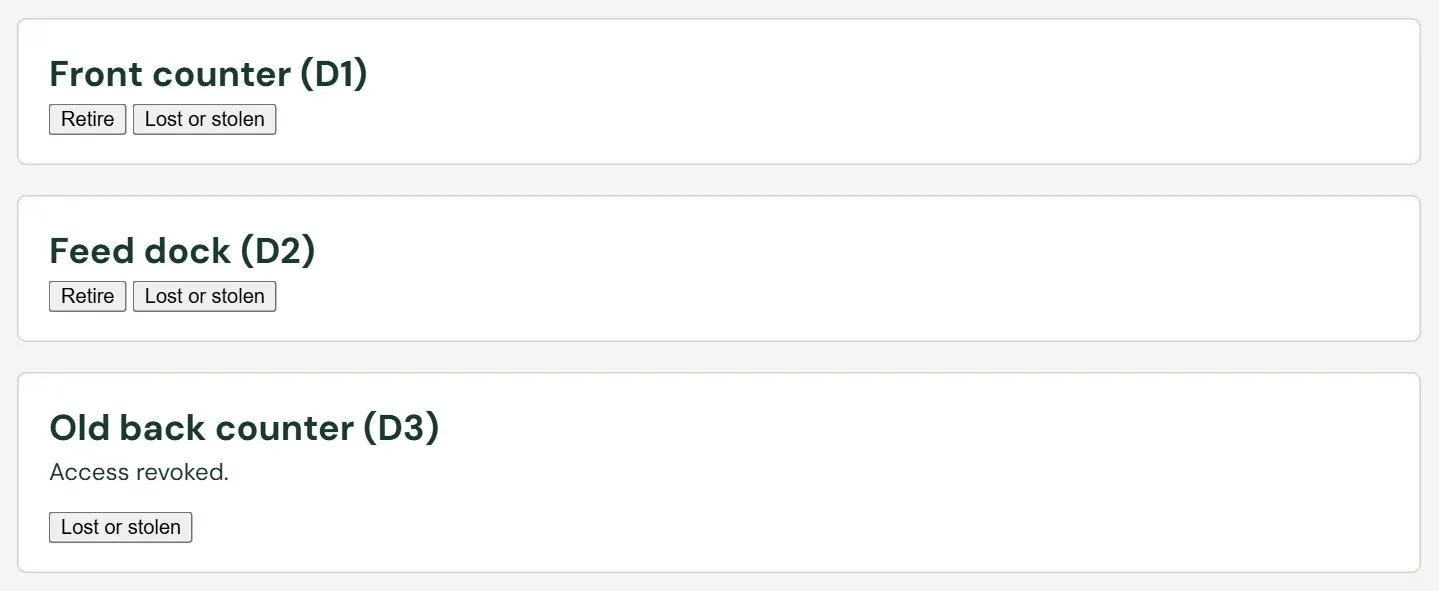
- 1Retire stops a register you are replacing.
- 2Lost or stolen stops a register you cannot find.
- 3Access revoked. marks a computer that is already cut off.
The register clears its saved data the next time it connects. A retired register's card keeps Lost or stolen, so you can still report it missing later. A register in a web browser is not a counter computer and is not on this page. Staff and Read only people do not have Retire a register in their menu.
Add a register in a web browser
Included on every plan except Static Website and Online Store.
Crossroads POS also opens in a web browser, on a phone, a tablet or an office computer. That is the browser counter. It opens at your Roadside address with /pos on the end, and Roadside's menu has no line for it. Give each browser its own register, so its sales carry their own letters.
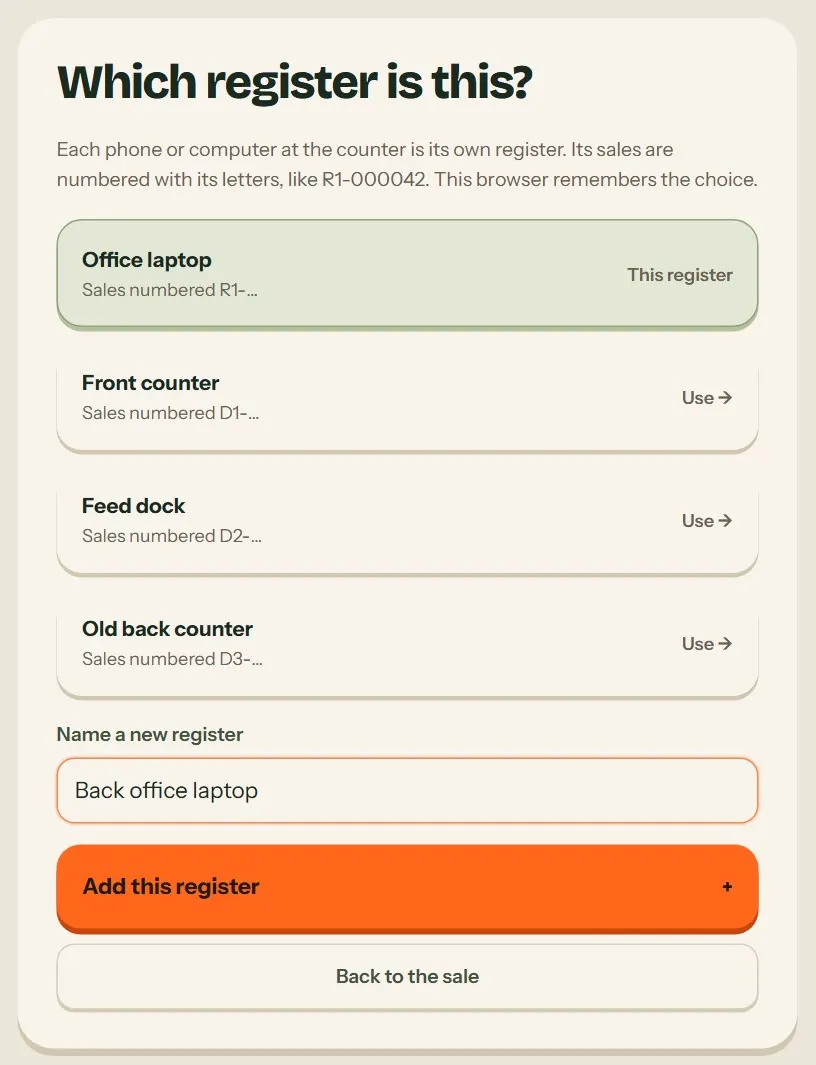
- 1Which register is this? lists the store's registers.
- 2This register marks the one this browser uses.
- 3Type a name for this phone or computer.
- 4Add this register makes the register and chooses it.
- On the browser counter, press Switch register. The page is headed Which register is this? It explains: Each phone or computer at the counter is its own register. Its sales are numbered with its letters, like R1-000042. This browser remembers the choice.
- If this phone or computer is in the list, press Use on its row. Each row gives the register's name and the letters its sales are numbered with. The one this browser uses reads This register.
- If it is not, type a name in Name a new register and press Add this register. The name takes up to 60 characters, such as Back office laptop.
- Check the counter. It shows the register's name and its letters. Back to the sale returns you to the sale.
A browser register is numbered R1, R2 and so on, and starts at your store's default location. Offline selling does not apply to it (Let registers keep selling while offline, in Chapter 6). If the name is taken, the page says Another register is already called and the name. A Read only person is told Your role doesn't sell at the counter. Ask a manager.
A browser register counts toward your plan's registers. When they are all in use, adding one is refused with a message such as This store's Crossroads POS plan includes 2 registers, and it has 2. Disconnect a register it no longer uses. Need another register? Ask Dirt Road to add one.
Let a known customer's license or VFD follow the sale
Included on the Whole Store plan.
This card shows when your store uses the Feed & Seed pack. The register checks the customer's paper before it sells a restricted-use pesticide or a VFD feed. The card says: If it isn't on file, the cashier records the one the customer shows. No one can skip this check.
Two dates on the card loosen that for a customer the store knows. Until the date, staff can finish the sale for a known customer whose license or VFD is not on file yet, and each such sale leaves a follow-up to collect the paper (Work through today's follow-ups, in Chapter 23). An empty date is off, and each date works on its own.
- Veterinary Feed Directive
- A veterinarian’s written order for medicated feed, abbreviated VFD on the account form.
Your store decides whether it may sell before the paper arrives. Keep VFD to follow until empty until you have confirmed that with your veterinarian and your state's rules. This manual does not give legal advice.
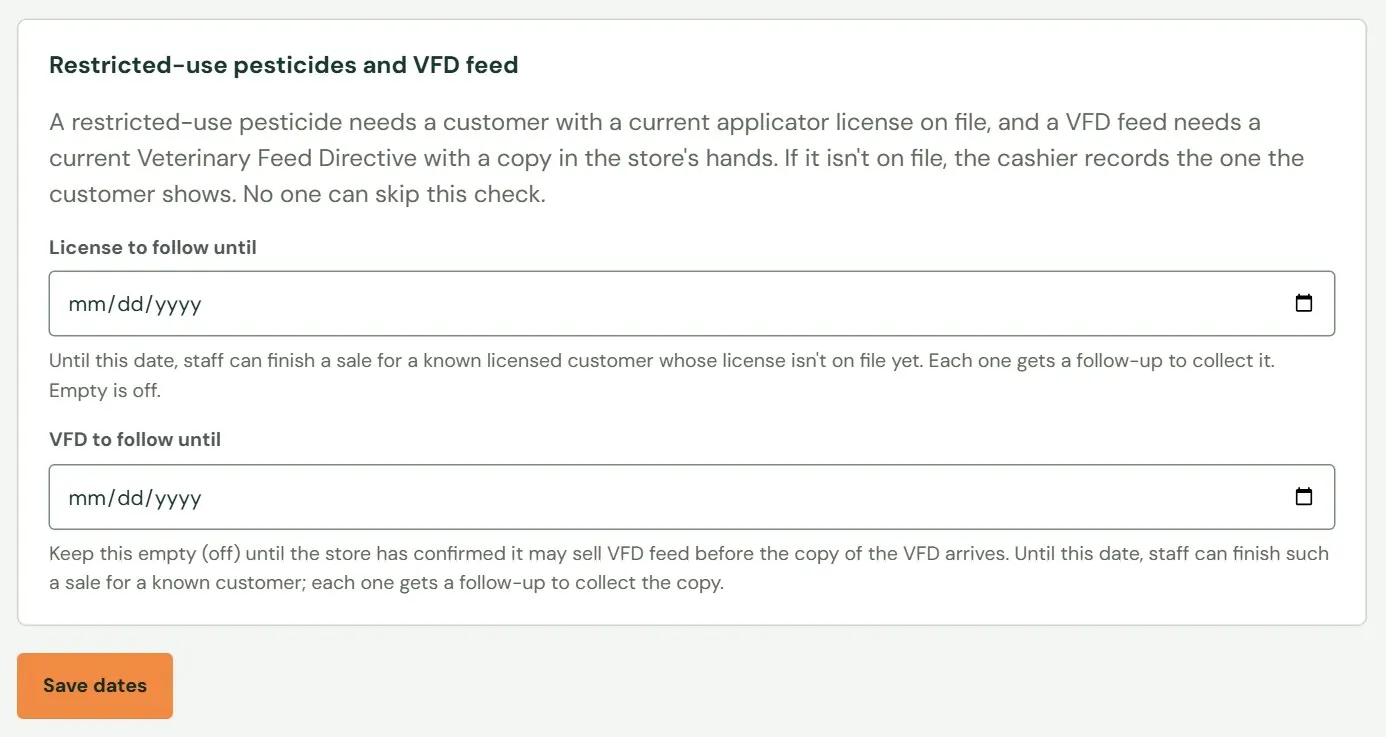
- 1License to follow until: the last day a sale may go through with the applicator license still to come.
- 2VFD to follow until: the last day for a VFD feed sale with the copy still to come.
- 3Save dates keeps both.
- Go to Store settings, then Registers, and find Restricted-use pesticides and VFD feed.
- Set License to follow until, VFD to follow until, or both. The date you choose is the last day it applies. Clear a date to turn it off.
- Press Save dates. The message names both, for example Saved. License to follow: through 2027-03-31. VFD to follow: off.
A date Roadside cannot read is refused with Enter each date as YYYY-MM-DD, or leave it empty for off. If the card has no date boxes and says that finishing such a sale isn't open, Follow-up is not set up for your store. The Store owner sets it up on All of Roadside.
A Manager who opens Registers for this card does not see the Manual items card, which is the Store owner's. Record or correct a farm document, in Chapter 20 of Core Roadside shows how to put a license or a VFD on a customer's account, so the register finds it on file.
Something here does not match your screen? Write to support@dirtroadsoftware.com with the name of the screen, what you pressed and what you expected. A picture of the screen helps.