
Set up the time clock
The Store owner sets the time clock's rules and chooses who clocks in here, and each person reads their own hours under My time.
Set the pay period, overtime and breaks
Included on every plan except Static Website and Online Store.
These settings decide how the timesheet adds up hours: the days a pay period covers, when overtime starts, and whether breaks count. Only the Store owner has the Settings button. A Manager sees the Time clock page without it. Times use the store's time zone, which the page names at the top.
- Pay period
- The days one paycheck covers, such as one week or the 1st to the 15th.
- Overtime
- On the time clock, hours past the weekly limit, or past a day's limit, that the Store owner sets.
Your store decides which overtime and break rules apply to it. The screen's hints say 40 under federal law. and, for daily overtime, Some states require it, California among them. Florida doesn't. This manual gives no legal advice: check your own state's rules before you save.
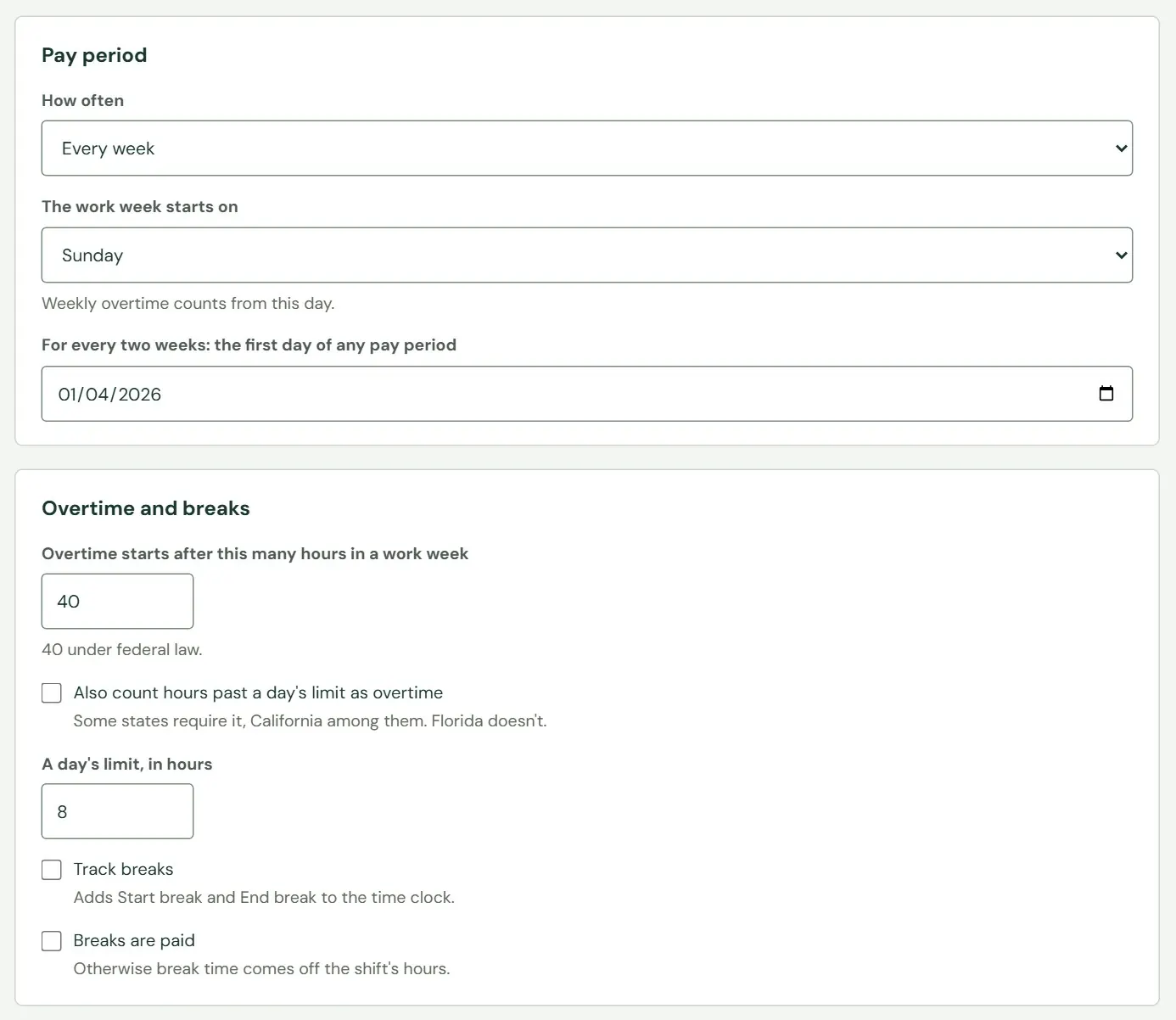
- 1How often: choose every week, every two weeks or twice a month.
- 2The work week starts on: the day weekly overtime counts from.
- 3Type the hours in a work week after which overtime starts.
- 4Tick Track breaks to add Start break and End break at the register.
Roadside works out the hours from these settings each time the timesheet or an export is opened. Changing overtime, breaks or rounding changes the hours shown for past pay periods too, approved ones included, and they keep their Approved badge. Export a period before you change the rules, or check it and export it again after.
- Open Time clock and press Settings. The page is headed Time clock settings.
- Under Pay period, choose How often: Every week, Every two weeks or Twice a month (1st to 15th, 16th to the end). Choose The work week starts on. For every two weeks, give For every two weeks: the first day of any pay period, so Roadside knows which weeks pair up.
- Under Overtime and breaks, type Overtime starts after this many hours in a work week. To count hours past a day's limit as overtime too, tick Also count hours past a day's limit as overtime and type A day's limit, in hours.
- Tick Track breaks if people clock out for breaks. The hint says it Adds Start break and End break to the time clock. Tick Breaks are paid to keep break time in the hours. Otherwise break time comes off the shift's hours.
- Under Checks and The register, set the four rules in the table below.
- Press Save time clock settings. The message reads Time clock settings saved.
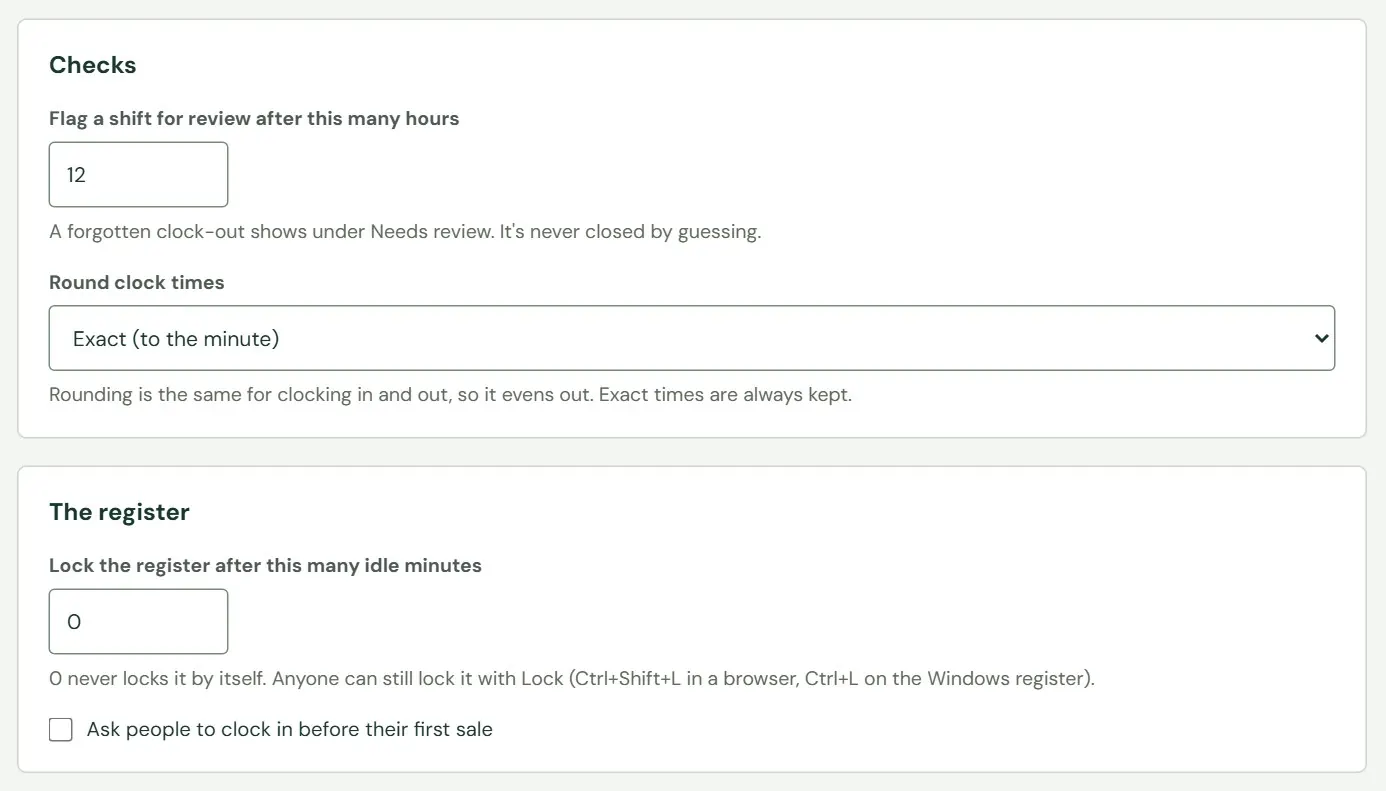
- 1Type the hours after which a shift waits under Needs review.
- 2Round clock times: exact, or to the nearest 5 or 15 minutes.
- 3Type how many idle minutes lock the register, or 0.
- 4Tick to remind each person to clock in before their first sale.
| Setting | What it does | To start with |
|---|---|---|
| Flag a shift for review after this many hours | A shift open longer goes under Needs review. It's never closed by guessing. From 4 to 24. | 12 |
| Round clock times | Rounding is the same for clocking in and out, so it evens out. Exact times are always kept. | Exact (to the minute) |
| Lock the register after this many idle minutes | From 2 to 60. The screen says 0 never locks it by itself. At 0 the store sets no time, and each counter computer locks after its own idle setting, which starts at 5 minutes. Anyone can still lock the register with Lock. | 0 |
| Ask people to clock in before their first sale | The register asks a person who is not clocked in to clock in before their first sale, when it can reach Roadside. They can press Not now. | Not ticked |
The pay period starts as every week from Sunday, with overtime after 40 hours, the day's limit unticked, and breaks not tracked. A shift counts whole on the day and in the work week it started, even when it runs past midnight or past the end of a pay period. An hour past both the day's limit and the weekly limit counts as overtime once. At the register, see Lock the register when you step away in the Crossroads POS manual for the lock screen and its Time clock button.
A number outside its range is refused with the range, such as Overtime starts after 1 to 80 hours in a work week (40 under federal law). Every two weeks needs its first day, or Roadside asks: Give the first day of any pay period, like 2026-10-04, so Roadside knows which weeks pair up.
Choose who clocks in
Included on every plan except Static Website and Online Store.
Everyone whose role clocks in is on the time clock until the Store owner takes them off. Staff, Managers and Store owners clock in, and Read only people do not. Take off anyone who is not paid by the hour. The page says: Untick anyone who doesn't clock in, such as salaried staff. They won't be on the time clock's list, won't be asked to clock in before a sale, and won't be on the timesheet unless they have shifts.
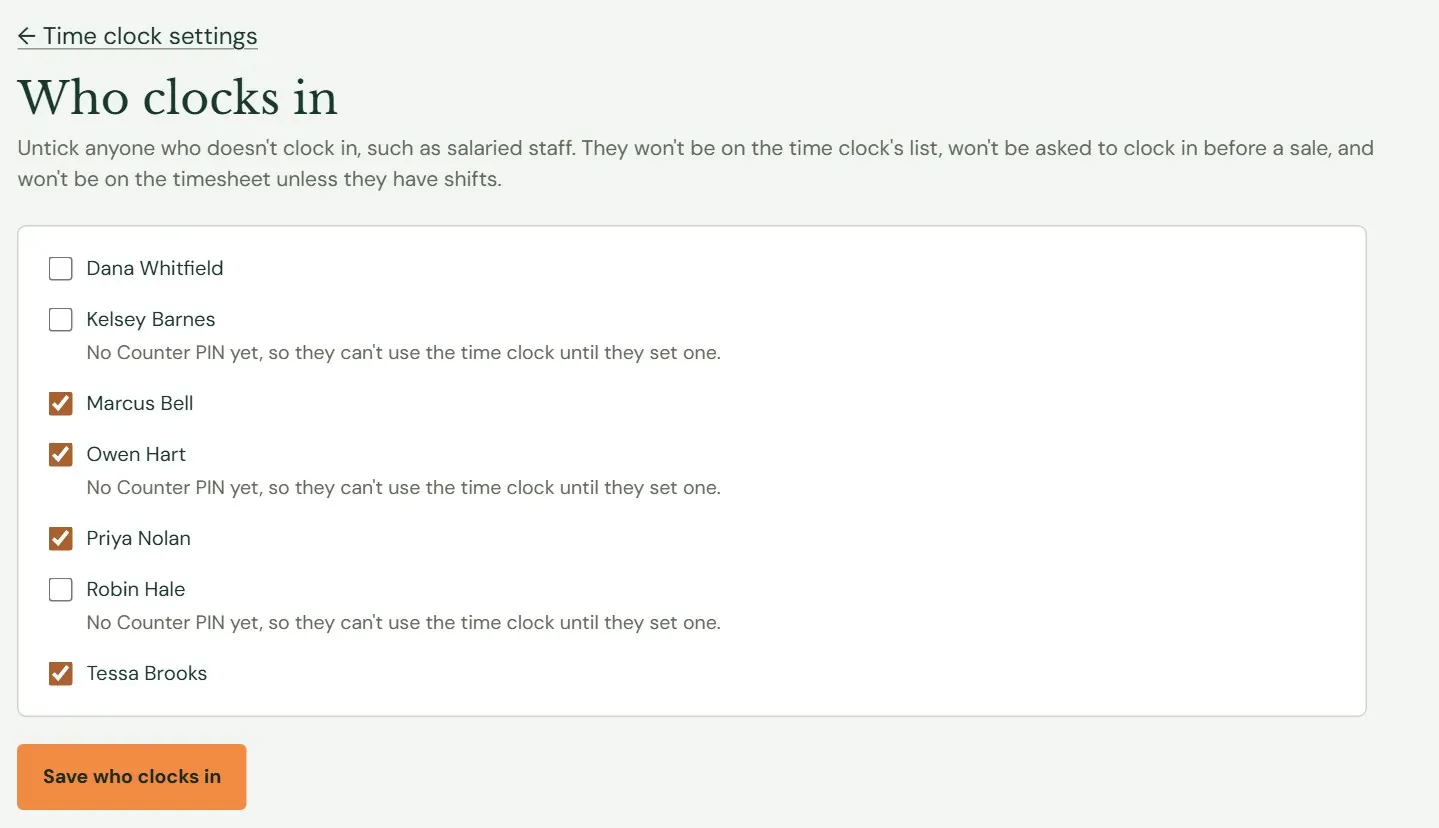
- 1Untick each person who does not clock in.
- 2No Counter PIN yet: this person cannot clock in until they set one.
- 3Save who clocks in keeps the list.
- Open Time clock, press Settings, then Who clocks in.
- Untick each person who does not clock in. Tick someone to put them back.
- Press Save who clocks in. The message names each change, such as Saved. Dana Whitfield doesn't clock in., or reads Nothing changed.
Someone who is clocked in cannot be taken off. Roadside says is on the clock. Clock them out first (Time clock › their name › Edit), then take them off the time clock. Fix their shift (Fix a shift or add one that was missed, in Chapter 12), then save the list again.
A name marked No Counter PIN yet, so they can't use the time clock until they set one. belongs to someone who has not set a PIN. Each person sets their own (Set your own Counter PIN, in Chapter 2). This list is not the register's Who's working? sign-in list. To turn the time clock off on one counter computer, ask Dirt Road (What a connected computer may do, in Chapter 1).
Check your own hours
Included on every plan except Static Website and Online Store.
Everyone who clocks in can read their own shifts under My time in their account menu. It is the one time clock page Staff can open, and nothing on it can be changed.
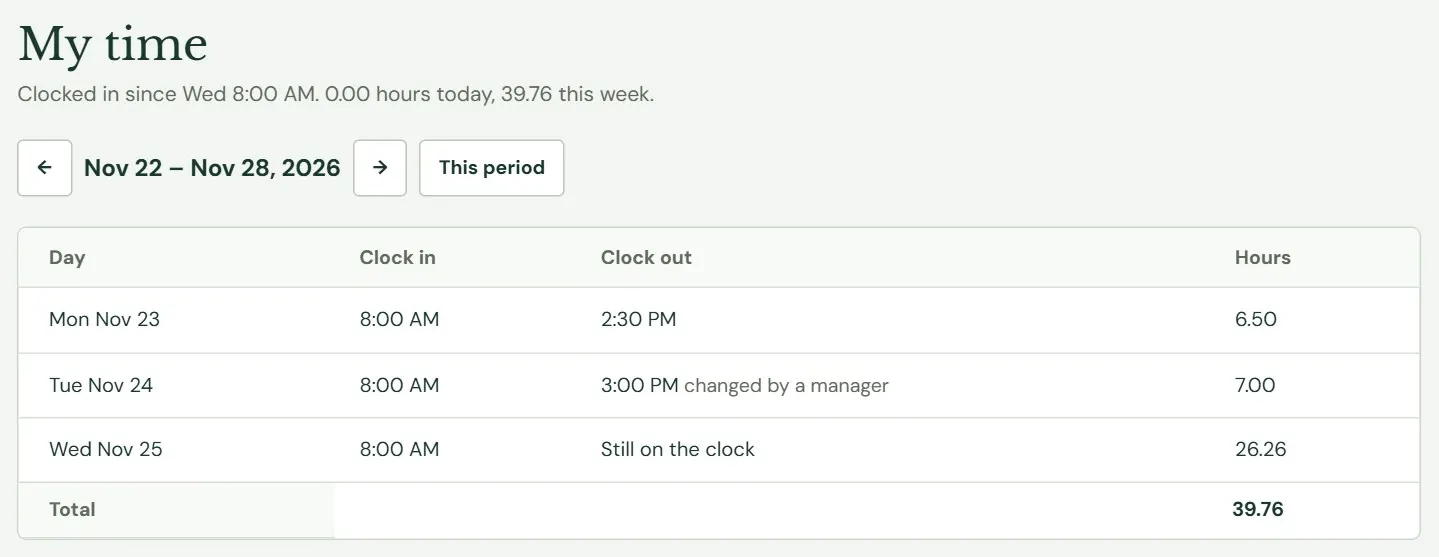
- 1Whether you are clocked in, since when, and your hours today and this week.
- 2Hours: each shift's hours.
- 3changed by a manager marks a shift a manager corrected.
- 4Total: your hours for the pay period shown.
- Open your account menu and press My time.
- Read the line under the heading. It says Clocked in, On a break or Not clocked in, since when, and your hours today and this week.
- Check the shifts. Each row gives the Day, Clock in, Clock out and Hours, and Total adds the period. A shift you are still working reads Still on the clock. The arrows step to another pay period.
It worked when your latest shift is in the list, or reads Still on the clock while you work. When a shift is wrong, the page says what to do: Something wrong? Tell a manager; they can fix it, and the change shows here. A period with no shifts reads No shifts in this period. Someone the Store owner took off the time clock reads You don't clock in at this store. Any time recorded for you before is below.
Something here does not match your screen? Write to support@dirtroadsoftware.com with the name of the screen, what you pressed and what you expected. A picture of the screen helps.