
Keep a customer list you can open again
Save the filters you use more than once, such as active horse customers tagged for spring. Each time you open the list, Roadside finds the accounts that match that day.
In this chapter
Save a customer list
Included on the Whole Store plan.
To find the same kind of customer next spring, save the filters you use this year. For a one-time export of customer records, see Download the store's customer accounts, in Chapter 30 of Core Roadside. If the menu line is missing, ask the Store owner to set up Follow-up and customer lists under All of Roadside.
- Customer list
- A set of saved filters that Roadside uses to find matching accounts each time you open it.
- Press New customer list and type a List name. Choose a name you will recognize, such as Spring horse customers. It can be up to 120 characters.
- Choose which tags must be on an account. In Account tags, separate up to 10 tags with commas. Each tag can have up to 40 characters. With spring, horse, the customer needs both tags. Horse matches horse. The plural horses is a different tag. See Add or correct a customer's account, in Chapter 30 of Core Roadside to tag an account.
- Narrow the list if needed. Account type offers Customer, Prospect, Vendor and Other. Account status offers Active, On hold and Inactive. Leave either at Any to include all its choices. With the Feed & Seed pack in use, you can also choose an Operation type, such as Equine / boarding or Poultry.
- Press Save list and preview. Look for Customer list saved. Check the names under Current matches. Each account must match every filter. With no filters, the list includes every unarchived account.
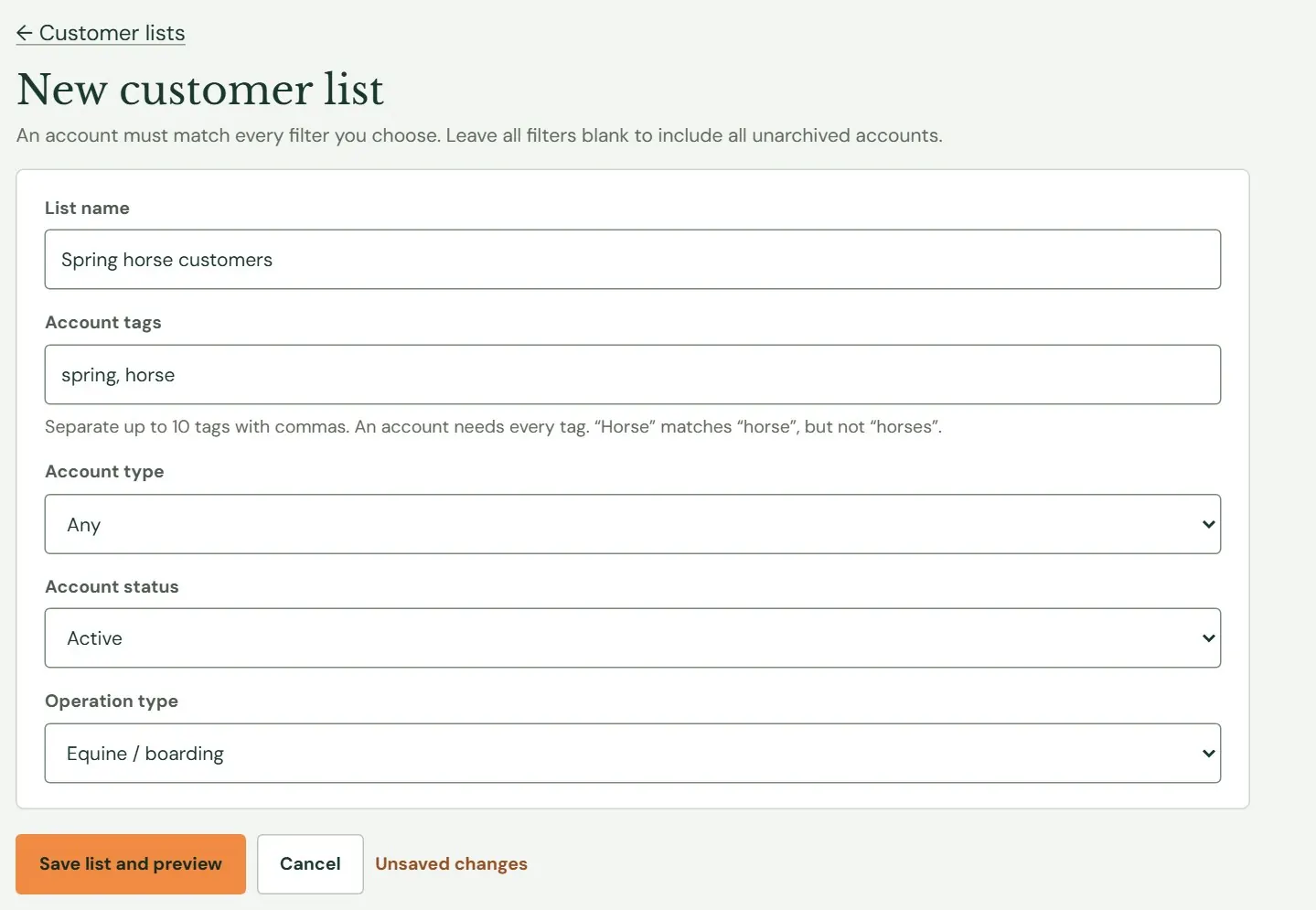
- 1Give the list a name you can find again.
- 2Type the tags each account needs.
- 3Choose which account statuses to include.
- 4Choose the kind of operation to include.
- 5Save the filters and check the results.
If the form refuses a tag, check for an empty entry between commas or a tag longer than 40 characters. If it says Operation filters need the Feed & Seed pack., leave Operation type at Any and use the other filters.
Open a list and see who matches today
Included on the Whole Store plan.
The names on a saved list can change between visits. For example, an account that gains the last tag it needs will be there the next time you open the list.
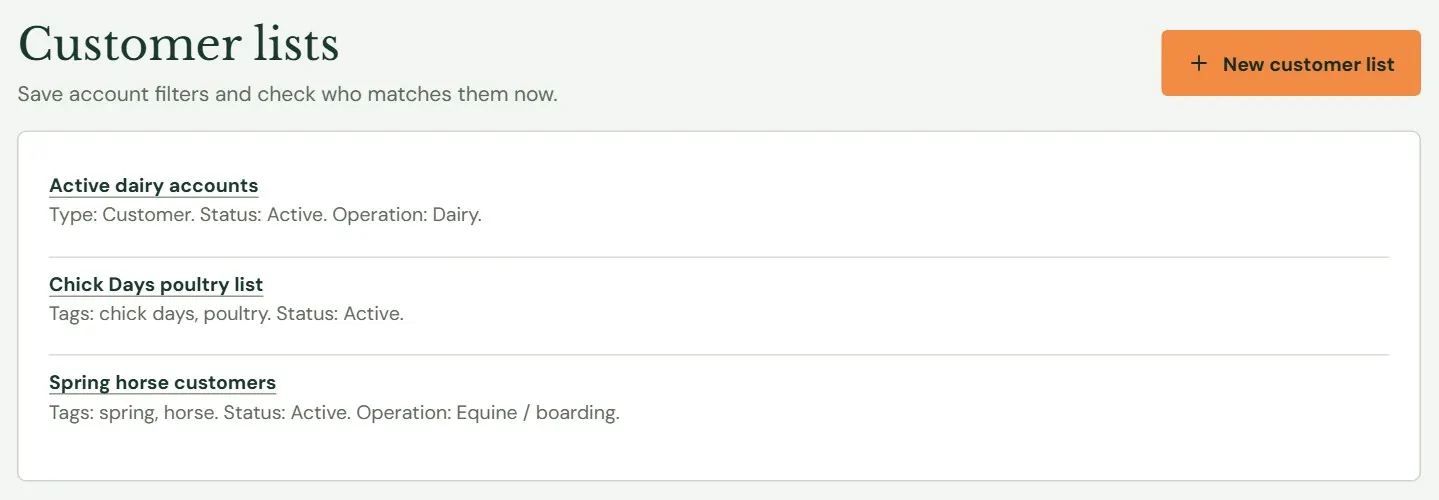
- 1Start a list here if your role can edit.
- 2Check which tags a customer needs.
- 3Read the kind of farm the list includes.
- Find the list by its name and filters. Tags:, Type:, Status: and Operation: tell you what the list looks for. All unarchived accounts. means no filters were set. If the screen says No saved customer lists., someone with edit access can create one.
- Press the list name and read Current matches. Each row has the account name, tags if any, and an address or No email address. The badge says Email included in export or Email excluded from export. A customer can match the list without being subscribed.
- Check the remaining pages. The counts are for this page, with up to 100 accounts per page. Press Next accounts when offered. If someone is missing, compare their account with every filter, including the spelling of each tag. Archived accounts stay off the list.
Download the list's subscribed email addresses
Included on the Whole Store plan.
You can download one row for each subscribed email address on the list. Matching customers with no current subscription or no email address are left out. Roadside checks both the accounts and the subscriptions again when you press the button.
The file holds customer names and email addresses. Keep it private and use the addresses only for what those people agreed to receive. Someone can unsubscribe after you download a copy.
- Open the saved list and check its filters. Read the subscription badges under Current matches. If the screen says Export needs permission to export both customer lists and account data., ask a Manager or the Store owner to download it.
- Press Export subscribed emails. Open the downloaded
customer-list-[id].csv, where[id]is the list number. It is a spreadsheet file with columns Name and Email. - Check the addresses across the whole list. The file takes subscribed addresses from every page, once per address. Two matching accounts that share an address give you one row.
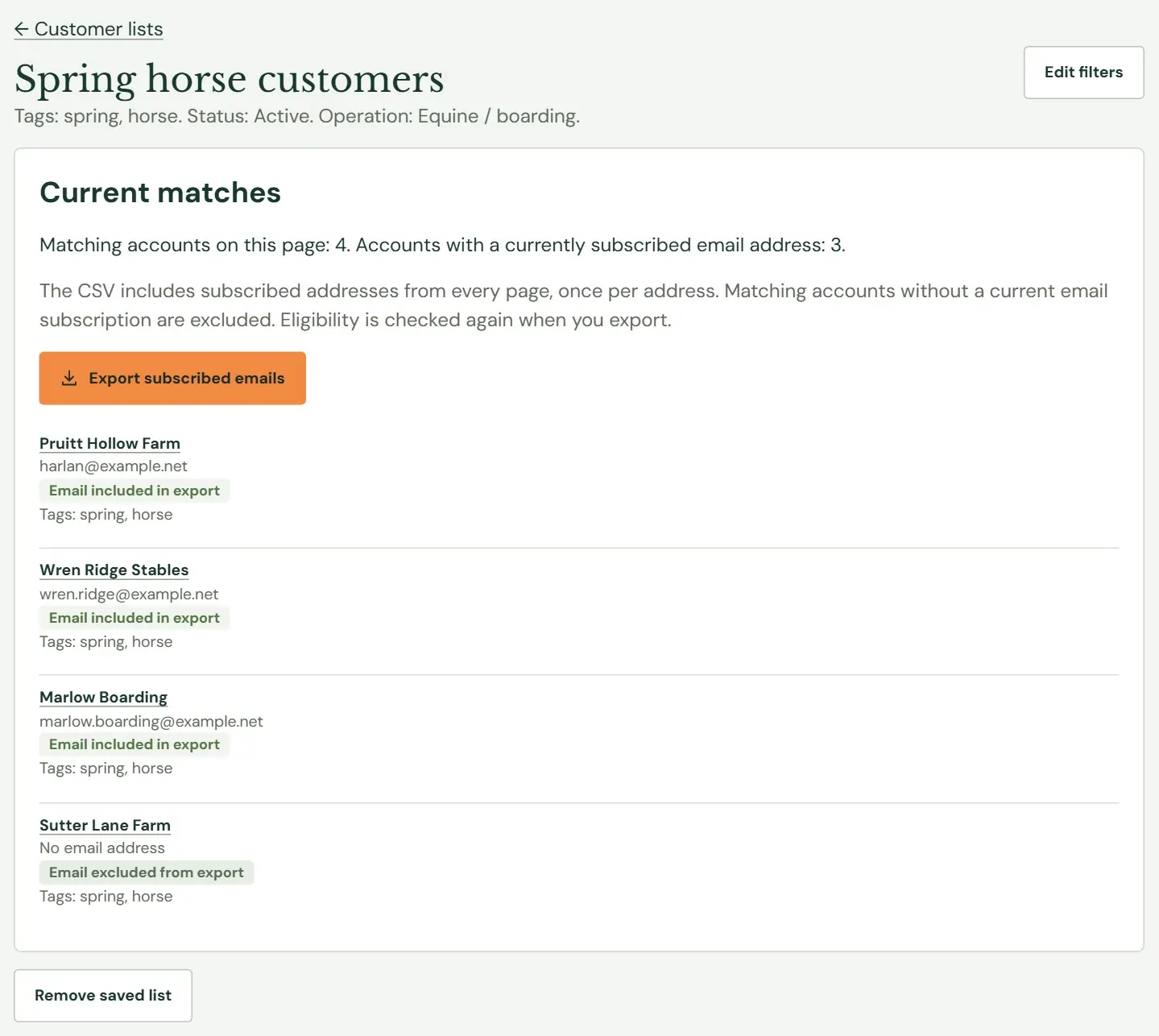
- 1Open the saved filters to adjust the selection.
- 2Check the matching accounts on this page.
- 3Look for this badge beside a subscribed address.
- 4Download subscribed addresses from all pages.
- 5Use this only when you mean to retire the list.
The email-list tools collect and export addresses. They do not send newsletters. Use Check whether someone agreed to email, in Chapter 31 of Core Roadside to check consent and Export the list and keep only the people you can email, in Chapter 31 of Core Roadside to export the whole subscriber list. Download a fresh file before using the list again.
Change a list's filters or remove it
Included on the Whole Store plan.
Open the saved list by name. Changing or removing it affects everyone who uses that list.
- To rename it or change who matches, press Edit filters. Change the List name or the filters, then press Save list and preview. Check the name, filter summary and Current matches after Customer list saved.
- If someone else edited it, keep both changes in view. If Roadside says This segment changed. Reload it before saving., copy the entries you need and press reload the current list. Read what changed before you save again.
Removing the list puts away its saved filters. You cannot restore the list here. Write down the filters first if you might want to recreate it. The customers keep their accounts and their email subscriptions.
- To retire it, press Remove saved list and confirm. The message reads Customer list removed. Account records are unchanged. Check that the name has gone from Customer lists.
Something here does not match your screen? Write to support@dirtroadsoftware.com with the name of the screen, what you pressed and what you expected. A picture of the screen helps.