
Record a customer's properties and animals
A farm may take feed at the home place and hay at a leased pasture. Keep the directions for each place under its own name and record which animals are there.
In this chapter
Record a property and its delivery directions
Included on the Whole Store plan.
Open the customer's account and find Properties and animals. The card counts active properties and animal groups. It appears on an unarchived account with Follow-up set up and the Feed & Seed pack in use. Read only can look up the details.
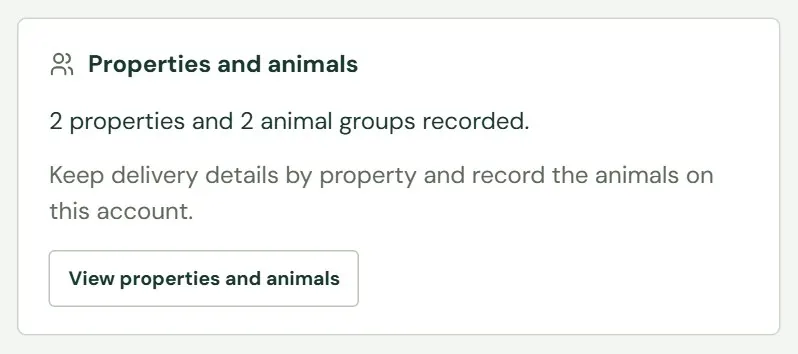
- 1Check how many properties and groups are recorded.
- 2Open the delivery details and animals for this customer.
- Property
- A named place a customer uses, such as a pasture or barn, with its own delivery details.
- Press View properties and animals, then Add property. If the page says No properties recorded., start with one place the customer uses. Older farm-profile notes stay on the account. Copy only the directions you know belong to this place.
- Name the place and give the driver directions. Property name is required and takes up to 160 characters. Put the street address in Delivery address (up to 1,000 characters). Use Delivery directions for details such as which entrance to take (up to 2,000).
- Check what you put in Gate notes. Everyone on your team who can view this farm account can read these notes. Enter only what the customer agrees to share, up to 2,000 characters. Fill in Acreage (optional) if you have it.
- Press Add property. After Property saved., check the name under Properties. The active property count on the account goes up. To correct directions, press Edit property, make the change and press Save property.
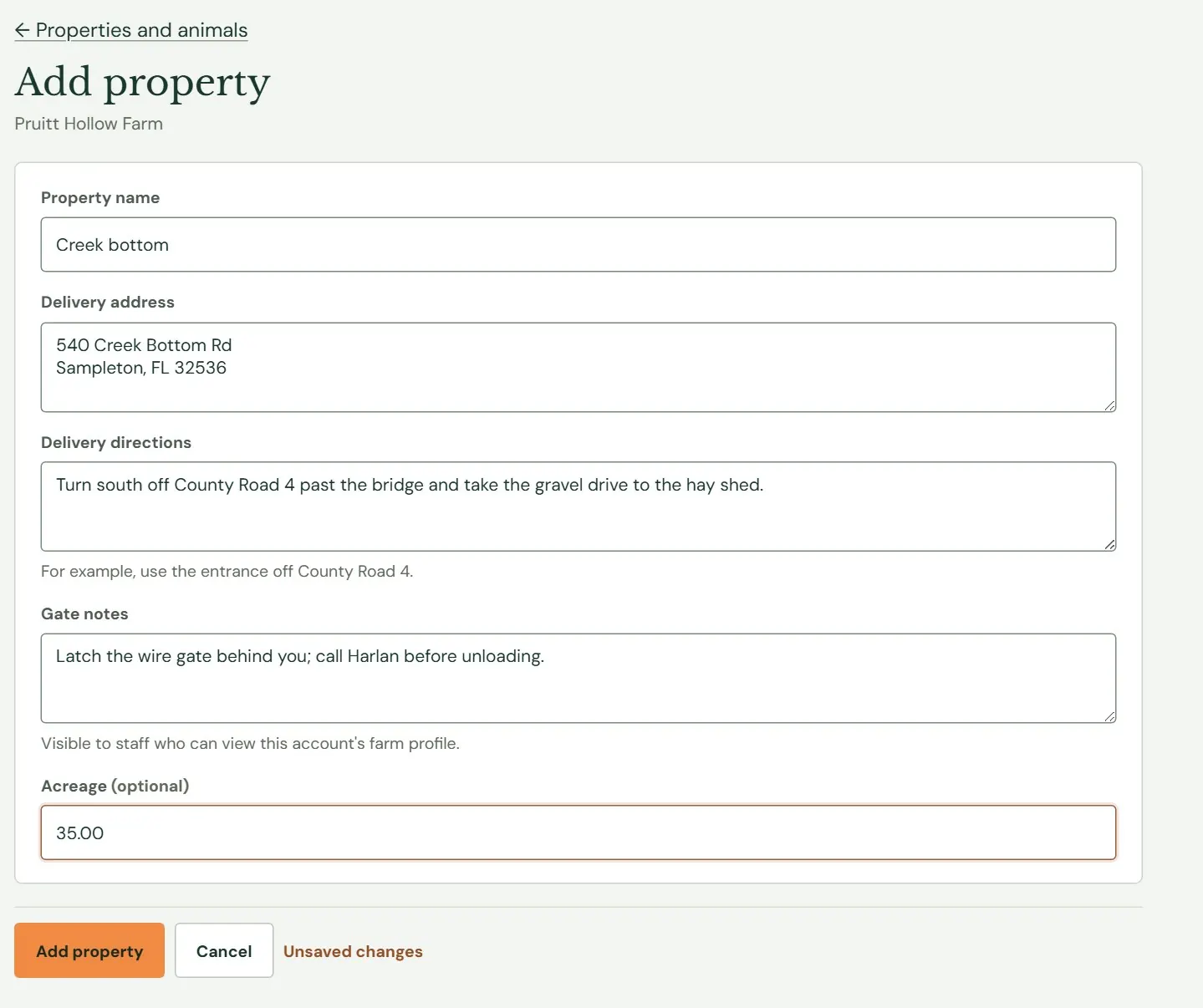
- 1Use a name the customer and driver recognize.
- 2Explain which entrance or road to use.
- 3Record the gate instructions the customer agrees to share.
- 4Enter the acreage if you have it.
- 5Save this place on the customer's account.
These details do not change an order or its delivery address. For the customer's billing and delivery addresses, see Add or correct a customer's account, in Chapter 33 of Core Roadside. Farm documents and their expiry dates are kept separately in Record or correct a farm document, in Chapter 20 of Core Roadside.
Record the animals a customer keeps
Included on the Whole Store plan.
Use one group for each flock or herd you want to count separately. On the customer's account, press View properties and animals. If the card is missing, check that Follow-up is set up, the account is unarchived and the store uses the Feed & Seed pack.
- Animal group
- A named group of one species with a head count, such as a herd or a flock.
- Under Animal groups, press Add animal group. Type the Species (up to 80 characters) and a Group name (up to 160). Both are required. For example, use Goats and Boer does.
- Enter the Head count as a whole number. Under Property (optional), choose an active property on this account. If the location is undecided or there are no properties yet, leave No property assigned.
- Press Add animal group. Look for Animal group saved. Find the group under Animal groups and check its species, head count and property. If Roadside says Choose an active property for this account., choose another property or clear the assignment.
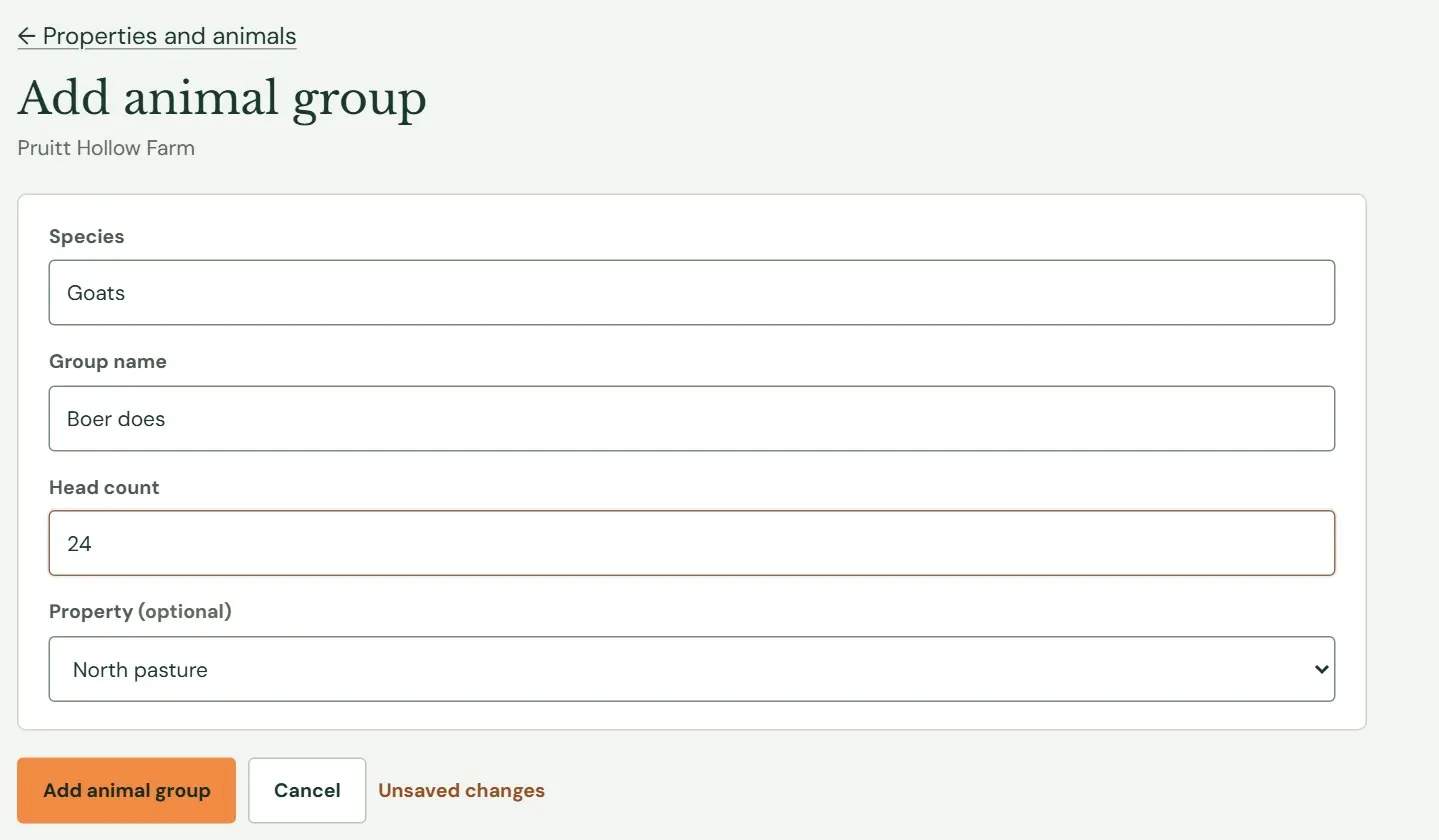
- 1Enter the species.
- 2Give this group a name.
- 3Type the number of animals in the group.
- 4Choose the property where the group lives.
- 5Save the group on this account.
When the count or the location changes, press Edit animal group, change the entry and press Save animal group. The count stays as your team entered it. The daily amounts for the website feed calculator are set separately in Set how much each animal eats, in Chapter 28.
Archive a property or an animal group
Included on the Whole Store plan.
If a customer gives up a pasture, move the animals that are still on the account before you put the pasture away. Open View properties and animals on the customer's unarchived account. This screen needs Follow-up set up and the Feed & Seed pack in use.
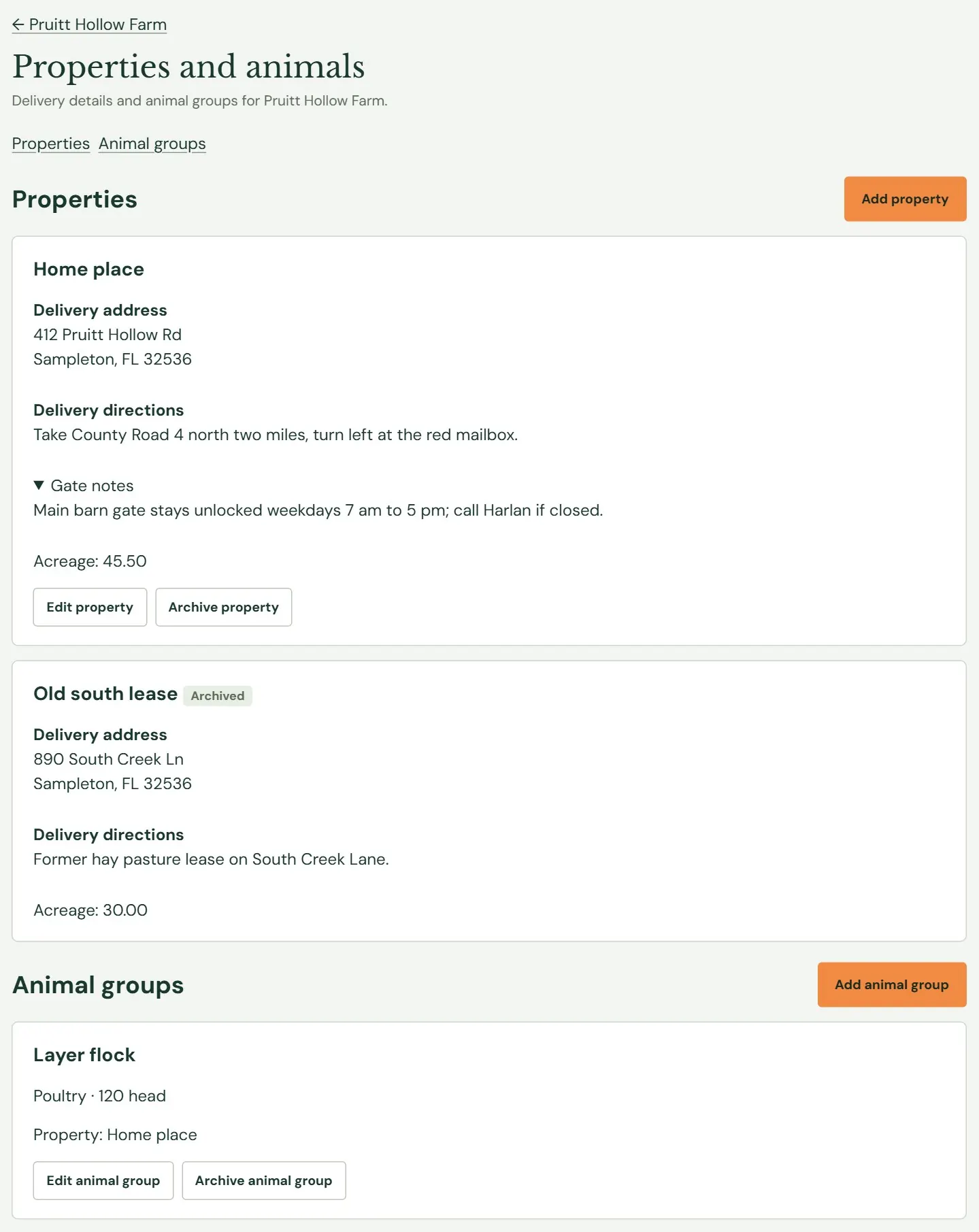
- 1Add a place for another delivery.
- 2Open the gate notes for this property.
- 3Record another flock or herd.
- 4Check how many head are in the group.
- 5Use the badge to recognize a record kept for reference.
Archiving leaves the details on the page for reference. You cannot edit or restore an archived record here. If the customer uses the place or group again, add it again.
- Check the groups at the property. For a group the customer still keeps, press Edit animal group. Choose its other property or No property assigned, then press Save animal group.
- For a group the customer has stopped keeping, press Archive animal group and confirm. Look for Animal group archived. The group carries an Archived badge.
- Once the property has no active groups, press Archive property and confirm. Look for Property archived. The property shows Archived and drops out of the active count on the account card. If you see Reassign or archive the animal groups at this property first., check the property shown on each active group.
Something here does not match your screen? Write to support@dirtroadsoftware.com with the name of the screen, what you pressed and what you expected. A picture of the screen helps.