
Let cashiers ring up an item that is not in the catalog
If a bag sells before its product is in the catalog, the cashier can record it by hand. Set the approval amount, then match the line to its product so you can account for the stock.
In this chapter
Decide whether cashiers may type in an item
Included on every plan except Static Website and Online Store.
- Manual item
- A line a cashier types by hand because the product is not in Roadside yet.
The cashier supplies the description and price. The line is marked as entered by hand on the sale, the receipt and reports. Ringing it up leaves stock alone because the line has no catalog product. The Store owner sets this rule for every register.
- On Registers, find the Manual items card. Cashiers can ring up manual items starts ticked. To take the Manual item button off the registers, untick the box. Earlier sales keep their manual items.
- Set A manager approves a manual item over. Roadside checks the item's price times its quantity. The amount starts at $50.00. Enter $0.00 to ask for approval on every manual item a cashier enters, or an amount up to $100,000.00. Use digits and a decimal point in the box, such as
50.00. - Check the amount before you press Save register settings. Above that line amount the register asks for a Manager's or Store owner's Counter PIN. Their own manual items go through without asking someone else. Each sets their own PIN as in Set your own Counter PIN, in Chapter 2.
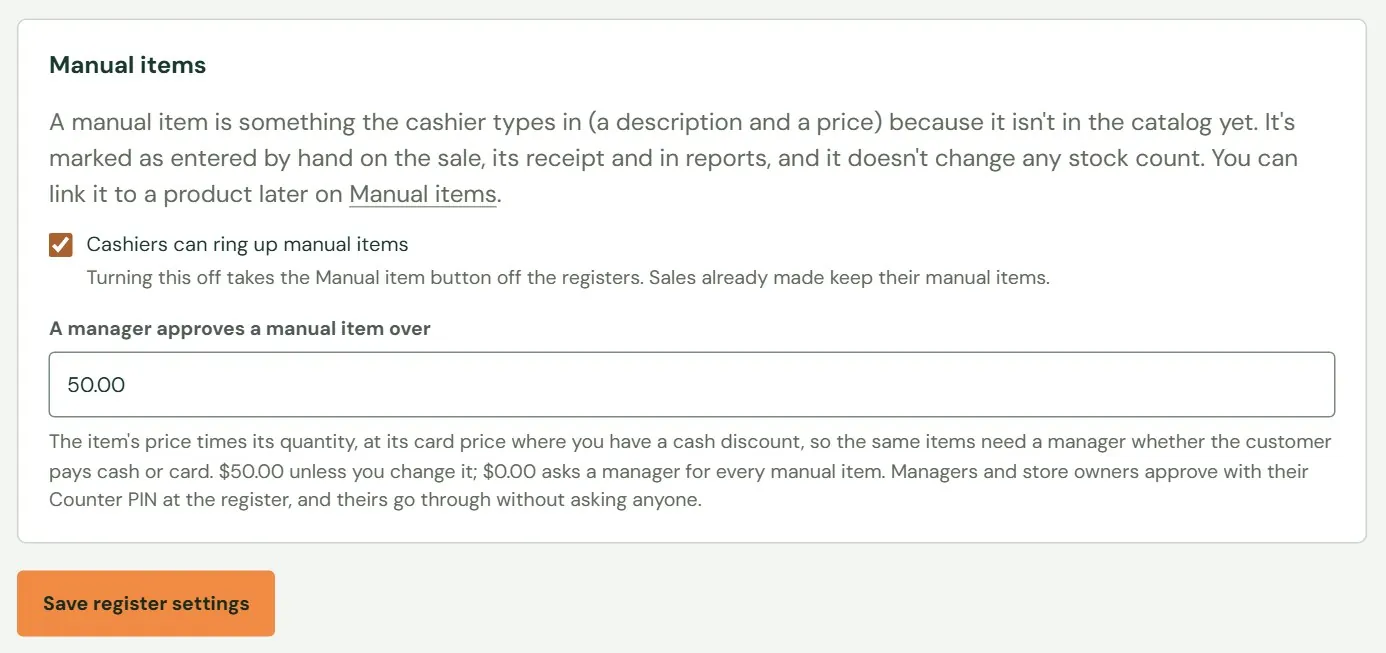
- 1Tick the box to allow entries by hand.
- 2Set the amount above which a cashier needs approval.
- 3Save the rule for every register.
Look for Register settings saved. Registers use them from their next sale. If the amount is refused, enter a number within the range even when you turn manual items off. If a Manager sees Registers for license or feed document dates, the manual-item settings still require the Store owner.
Find the items cashiers typed in
Included on every plan except Static Website and Online Store.
When a product has been set up after a sale, the Store owner can look up the line the cashier entered. Managers and Staff cannot open this list with their usual roles, even if they rang up or approved the item.
- Open Manual items under Sales. Not linked shows how many lines still need a product. Choose Linked for finished links or All to look across both.
- Search for the line you want. Type the wording the cashier used or the sale number in Description or sale number, then press Search. The list shows up to 200 lines. Narrow the search or change tabs if you cannot find yours.
- Match Item, Sale and Total before opening the line. Rung up by names the cashier. If someone else approved the line, Approved by gives their name underneath. Product shows whether the line is linked.
- Press Link to review an unlinked item. Press Change to review one already linked. Check the description and sale number on the page that opens.
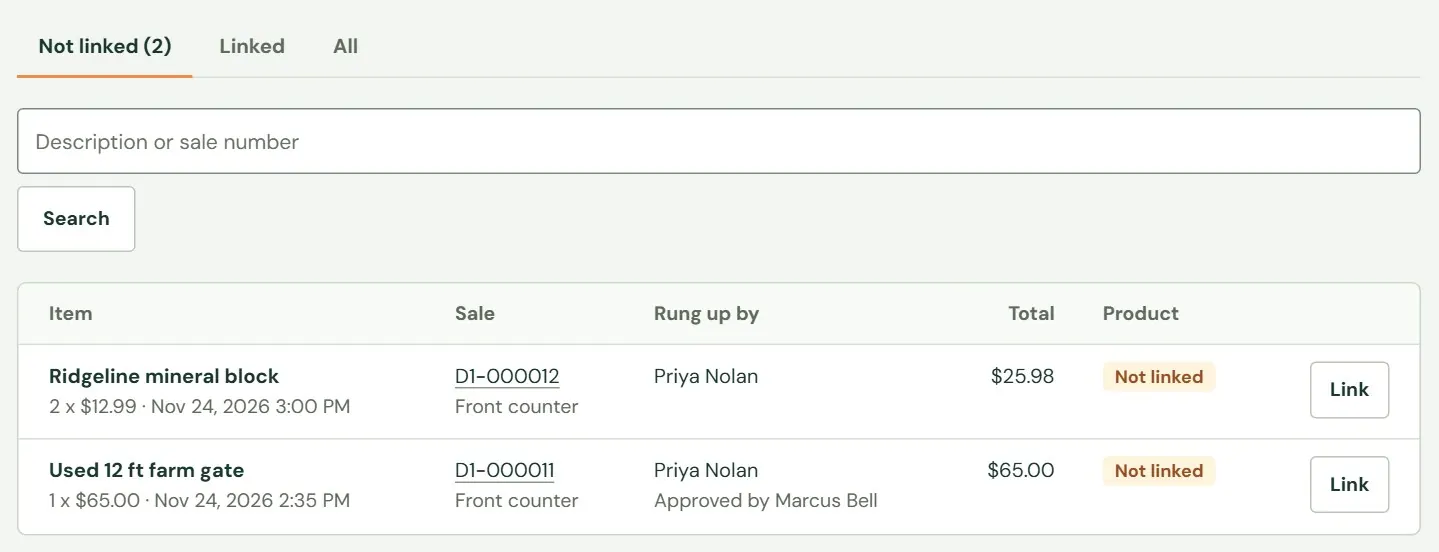
- 1Check how many manual items still need a product.
- 2Look here for the cashier who entered the line.
- 3Read the second name when someone else approved it.
- 4Open the item to check it against a product.
The Not linked count drops as you link items. If the tab reads Nothing to link while a search is filled in, clear the search and press Search before treating the list as finished. For the stock decision, see Link a manual item to its product, in Chapter 10.
Link a manual item to its product
Included on every plan except Static Website and Online Store.
Link the cashier's description to the product and size that went out the door. The price charged, sales tax and receipt keep the original sale details. You decide separately whether the sold quantity should come off the stock count.
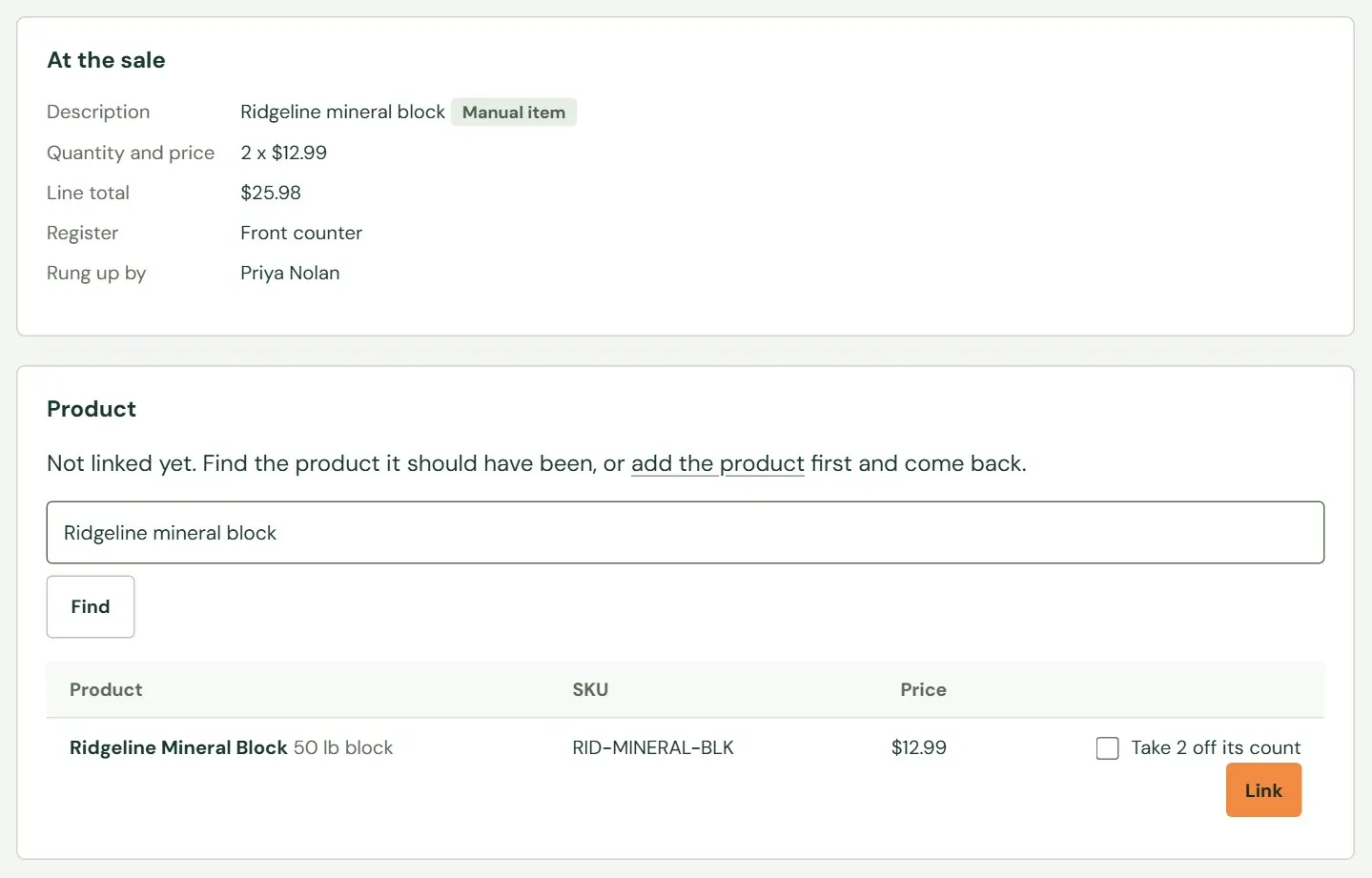
- 1Check what the cashier sold and how many.
- 2Search the catalog for the product and size.
- 3Tick this only if the two sold blocks still need to come off stock.
- 4Attach the line to the size on this row.
- Open Manual items and press Link on the line. Under At the sale, match the description, quantity, price and register to the sale. Under Product, type a name, SKU (the store's code for that size) or barcode in Product name, SKU or barcode and press Find.
- Match the product and size in the results. Compare the SKU and price. If nothing matches, try fewer words or search by barcode. If the product is missing, use add the product, then return to the manual item (Start a product without putting it on sale, in Chapter 14 of Core Roadside).
- Decide whether the count needs changing. For a size with tracked stock, the tick box gives the quantity sold. For two mineral blocks it reads Take 2 off its count. Ticking it subtracts two from that size at the sale's location when you link. Leave it unticked if the count already allows for the sale.
- Press Link beside the right size. Check the product on the Product card and the line that says how many came off its count or Its count wasn't changed. The item is on Linked. If you took stock off, check the movement in Record a delivery, shelf count or damaged bag, in Chapter 18 of Core Roadside.
To correct a link, open the item from Linked with Change. If linking lowered stock, removing the link puts that quantity back. Press Unlink and put the stock back. If linking left stock alone, the button reads Unlink. The card reads Not linked yet. and the item returns to Not linked. You can then find the right size and decide whether its count needs changing.
Something here does not match your screen? Write to support@dirtroadsoftware.com with the name of the screen, what you pressed and what you expected. A picture of the screen helps.