
Find a register sale and its receipt
Every sale rung up at a register is an order in Roadside. Open it to see how the customer paid, what went back, and the receipt they took home.
In this chapter
Find a register sale and see how it was paid
Included on every plan except Static Website and Online Store.
Each sale rung up at a register is an order you can open, with its payments, its refunds and its history. The list's tabs and search work as Find an order even if it is not in To do, in Chapter 26 of Core Roadside describes.
On the Counter and Counter + Stock plans: The line under the Orders heading reads Sales rung up at the register, and their refunds.
- Counter sale
- A sale rung up at a register, kept in Roadside as an order.
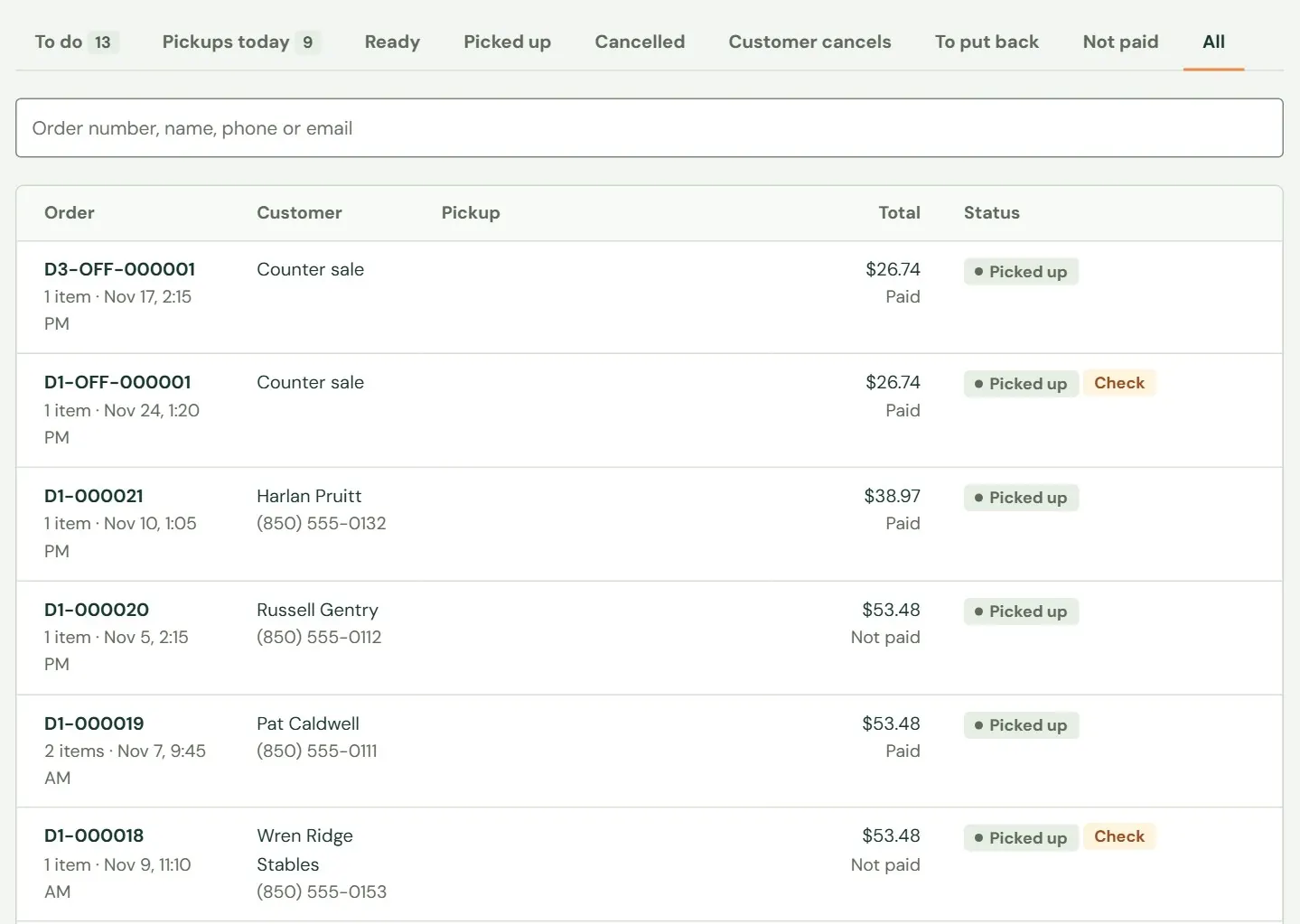
- 1All: every order, finished counter sales included.
- 2Search: an order number, a name, a phone number or an email.
- 3A counter sale's number starts with its register's letters.
- 4Status: where the sale stands.
- Open Orders and press All. A finished counter sale is not in To do.
- Type in the search box. It takes an Order number, name, phone or email. A counter sale's number starts with its register's letters, such as
D1-000042. - Press the order number to open the sale. The payment shows how the customer paid, and any refund is listed under it with its amount and who recorded it.
A Check badge in the list means Roadside wants someone to look at the sale. On a counter sale it comes from a sale a register made offline (Check offline sales that need a look, in Chapter 5) or from a check the bank sent back (Mark a check the bank sent back, in Chapter 6). To find a sale at the register itself, see the Crossroads POS manual, Find a sale.
Record a refund given back at the counter
Refunds of counter sales are usually made at the register, which gives the money back and returns the goods to stock: see the Crossroads POS manual, Refund a sale. On the order screen, a Store owner or Manager can record one too. The card is headed Refund at the counter, and it records money a person hands back. It sends nothing to a card. Staff and Read only people do not see it.
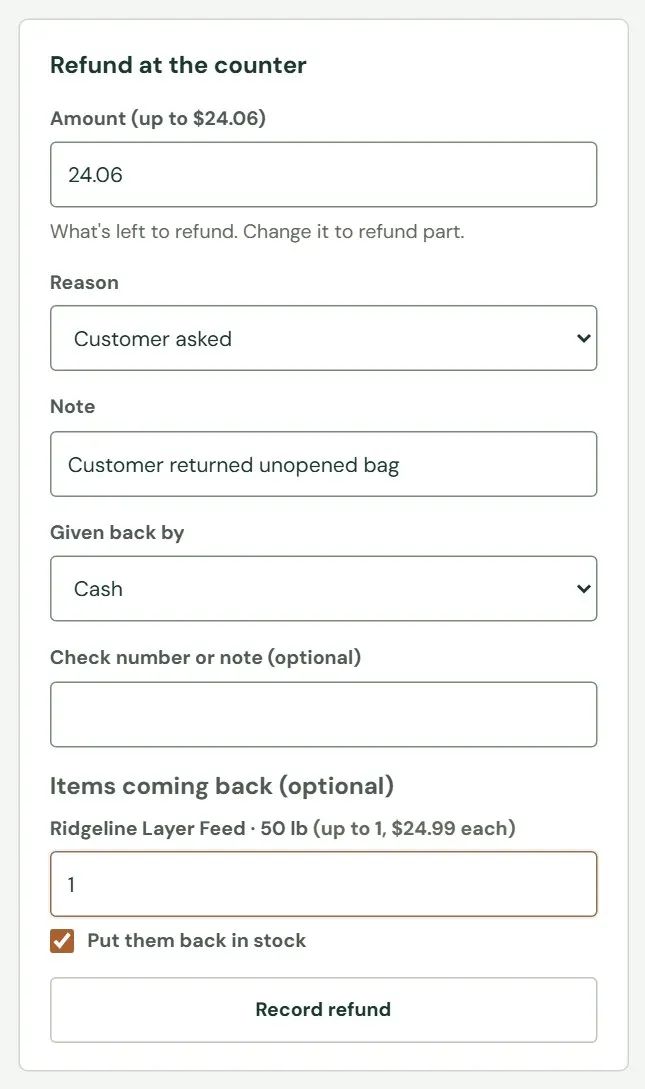
- 1Refund at the counter records money handed back at the store.
- 2Amount starts at what is left to refund.
- 3Reason, chosen from a list.
- 4Record refund saves it once you confirm.
- Give the money back first, then open the sale.
- Set the Amount. It starts at what is left to refund. Type less to record part of it.
- Choose a Reason, and add a Note if it helps the next person.
- Choose how the money went back under Given back by. The box under it takes a check number or a short note.
- If goods came back, type how many under Items coming back (optional). Leave Put them back in stock ticked to add them back to the shelf count.
- Record it once. Record refund records that the money already went back. It hands nobody money. A refund made at the register is on the order already, so check the payment's refunds before you record another. Press Record refund, and confirm Record this refund as given back at the counter?
It worked when the message reads Refund of <amount> recorded with how it went back, and the refund is listed on the payment with its amount and your name. A counter sale's refund on this screen follows the store's return rules for counter sales. If the screen refuses one, its message says why, such as a sale past the store's return window. More on refunds is in Give money back for an order, in Chapter 27 of Core Roadside.
A counter sale is not cancelled on the order screen. On an open counter sale, the Cancel order card has no button and reads This is a counter sale, so it isn’t cancelled here. Open it on the counter: a paid sale finishes there, and a finished sale is refunded under the store’s return rules. A finished counter sale has no Cancel order card. Give the money back with a refund instead.
Print a receipt or the store's copy
Included on every plan except Static Website and Online Store.
A paid sale has a Receipt (PDF) button at the top of its order, beside Print pick ticket. It opens the receipt as a letter-size PDF in a new tab, to print on the office printer or save. A sale that is not paid has no receipt.
- Open the sale in Orders (Find a register sale and see how it was paid, in Chapter 4).
- Press Receipt (PDF).
- Print or save it from the new tab.
Paper receipts and the store's copy
Receipt-roll copies print from a print page. The register opens it when the cashier prints a receipt (see the Crossroads POS manual, Reprint or email a receipt). The store's copy opens from Print store copy on the Receipt acknowledgement page (Keep a customer's signature with a receipt, in Chapter 4). Either way the page opens the browser's print window with the hint Choose the receipt printer (80 mm roll), or Save as PDF, in the print window., or the 58 mm roll for a store that uses it. Print again opens the print window again and Close closes the page.
The page cannot tell whether paper came out. After the print window closes it says Print dialog closed. If nothing printed, check the printer and press Print again. It worked when the receipt is in your hand.
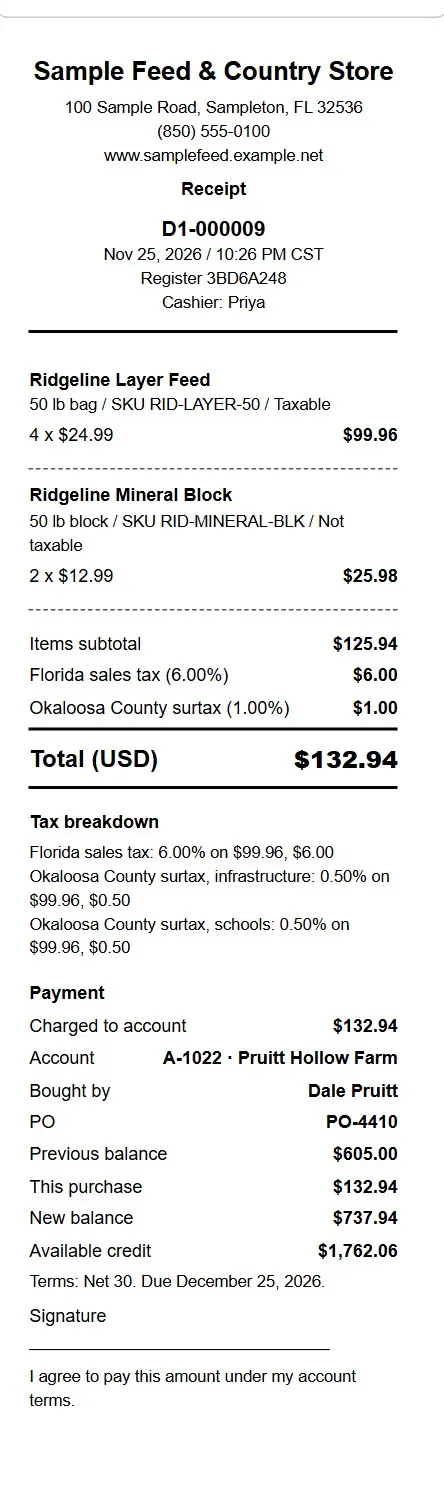
- 1Register: the register's ID, not its name.
- 2Bought by: the person who charged it, with the PO.
- 3New balance: what the account owes after this sale.
- 4The signature line for the store's signed copy.
A receipt gives the store's name, address, phone and website, the receipt number, the date and time, Register with the register's ID and Cashier with a name. A refund receipt adds For receipt and the number of the sale it refunds. The ID is eight characters, made of the digits 0 to 9 and the capital letters A to F. It is not the name your staff use for the register. The Cash drawers card on Day summary shows each register's ID beside its name.
A sale put on a charge account adds Account, Previous balance, This purchase and New balance. Bought by prints when the sale names a buyer, PO when it has a PO, and Available credit when the account has a limit. On paper it can carry the line Signature ______________________________ with I agree to pay this amount under my account terms. for the store's signed copy. The PDF and an emailed receipt never have that line. The store's copy also ends with a Store copy part that shows a saved receipt acknowledgement, or says No receipt acknowledgement signature saved.
The words on every receipt are set in Change the name, color and words on a receipt, in Chapter 28 of Core Roadside. The paper width, and a sample receipt to check, are in Check an email or paper receipt before using it, in Chapter 28 of Core Roadside. The Crossroads POS manual's What a receipt shows covers the receipt as the cashier sees it.
Keep a customer's signature with a receipt
Included on every plan except Static Website and Online Store.
A customer can sign for a receipt, so the store keeps a signed acknowledgement with it. On a paid counter sale's receipt at the register, the link Receipt acknowledgement (optional) opens the Receipt acknowledgement page in a new tab. The page names the receipt, as Receipt <number> · <currency> <total>, and says:
Signing is optional. It acknowledges this receipt. It does not authorize a payment, verify identity or accept charge-account terms.

- 1The receipt being signed for, with its total.
- 2Save acknowledgement keeps the drawing for good.
- 3Cancel / skip discards the drawing.
- 4Print store copy prints the receipt with the signature.
- Have the customer sign in the box with a finger, a pen or the mouse.
- If the drawing is wrong, press Clear drawing and have them sign again.
- Save only a drawing you want to keep. A saved acknowledgement is final for that receipt and cannot be replaced. Press Save acknowledgement. The page reads Acknowledgement saved at <time>. and offers Check saved acknowledgement.
- Press Print store copy for a paper copy with the signature, or Return to register.
It worked when the page shows Signature saved with the drawing, and the store's copy prints it under Receipt acknowledgement. Both give the time in UTC, not the store's clock, and name the person who saved it as staff user with a number.
To skip signing, press Cancel / skip. The page reads Drawing discarded. The sale is complete. Any acknowledgement already saved remains on the receipt. A sale is complete with or without a signature. A receipt that has one already answers This receipt already has a saved acknowledgement. It cannot be replaced. A drawing too large to keep answers This drawing is too large to save. Clear it and use a simpler signature, or cancel.
Staff, Managers and Store owners can save an acknowledgement. Read only people can open the page and look. This signature is not the customer's agreement to charge-account terms: that is the signature line on the store's paper copy of a charge sale (Print a receipt or the store's copy, in Chapter 4).
Something here does not match your screen? Write to support@dirtroadsoftware.com with the name of the screen, what you pressed and what you expected. A picture of the screen helps.