
Put the store's name and words on receipts
Choose the store details a customer takes home with a receipt. Open a sample PDF to check the wording before the next order.
In this chapter
Change the name, color and words on a receipt
Included on every plan except Static Website.
Every receipt, whether emailed, saved as a PDF or printed on paper, carries your store's name, address, phone, email and regular hours from Correct the phone number, address or map pin, in Chapter 6 and Tell customers when the store opens, in Chapter 6. Emailed and PDF receipts can also show your store's logo; paper receipts always print your store name as text. To change your store's logo, write to support@dirtroadsoftware.com. Use Receipts to pick your receipt color and write the store's own lines above and below the sale. Saved receipt settings apply to new receipts right away without waiting for website publishing.
- A file that looks and prints the same on any computer or phone.
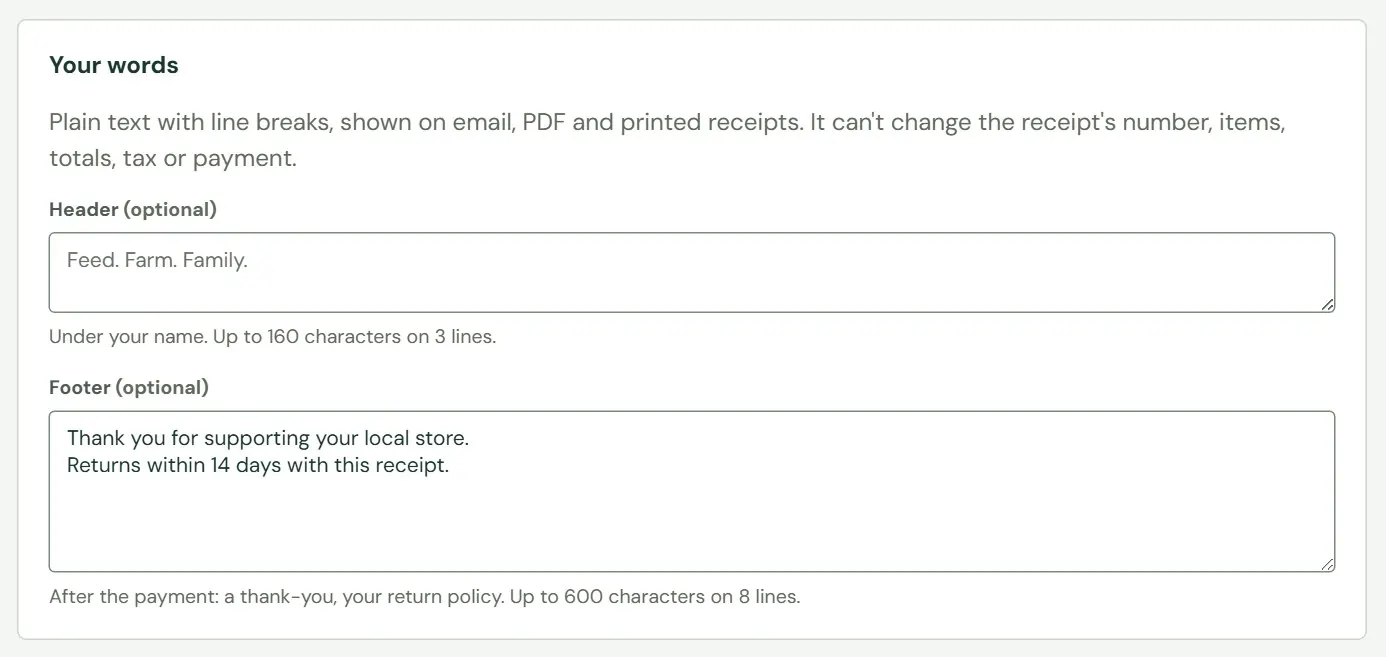
- 1Plain text shown on email, PDF and printed receipts.
- 2Short line under your store name, up to 160 characters on 3 lines.
- 3Message after the payment, up to 600 characters on 8 lines.
- Check Your store on receipts. Review the name, address, phone, email and logo shown at the top of the card. If any contact detail is wrong, update it in Correct the phone number, address or map pin, in Chapter 6.
- Choose whether to show your store's logo on digital receipts. Keep Show the logo on email and PDF receipts ticked (on by default) to print the logo on email and PDF receipts. Paper receipts print your store name as text so they read clearly on a receipt printer.
- Pick a Receipt color. Use the color picker or type a six-digit hex code such as
#213e32for the bar, rule and total on email and PDF receipts, or press Use the default to restore the default green. A pale color switches to dark text on its own so totals stay readable. Refunds keep their own red color, and paper receipts print in black. - Type Header (optional) and Footer (optional) under Your words. Use plain text with line breaks: up to 160 characters on 3 lines for the header, and up to 600 characters on 8 lines for the footer. Your words cannot change the receipt number, items, totals, tax or payment.
- Press Save receipt settings. Roadside confirms: "Receipt settings saved. Receipts from now on use them; past receipts keep theirs."
Each receipt freezes the settings and hours in effect when it is created, so editing this screen never alters past receipts. Keep any return window in your receipt footer aligned with your policy in Choose who receives order emails and what refunds you offer, in Chapter 24.
Check an email or paper receipt before using it
Included on every plan except Static Website.
After saving your receipt settings, open a sample PDF to see how the finished receipt looks before the next customer receives one. Paid online orders always send an emailed receipt with a PDF copy attached; bank payments send it once the money arrives, about four business days after checkout. Staff who can view an order can also open its frozen copy from Receipt (PDF) on the order screen (Pick an order and check who may collect it, in Chapter 26).
- Save your settings first. See a sample receipt (PDF) uses the settings currently saved and creates no order or record.
- Press See a sample receipt (PDF) at the bottom of the screen to open the sample in a new tab.
- Check every line. Confirm that your store address, logo, receipt color, header and footer wrap cleanly and match your store's return rules. If anything wraps awkwardly, adjust the wording, press Save receipt settings and open the sample again.
Included on every plan except Static Website and Online Store. The At the register card sets receipt defaults for counter sales.
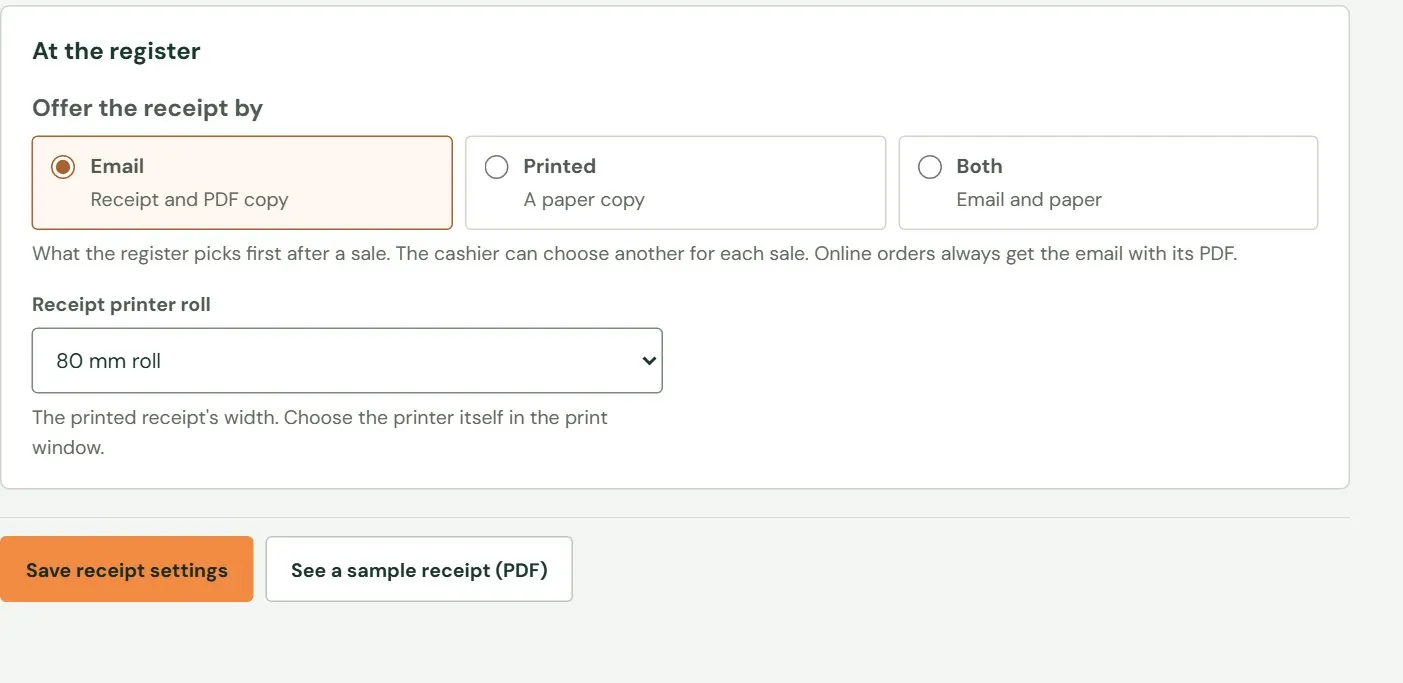
- 1Counter receipt defaults on the Receipts screen.
- 2Choice the register highlights first after a counter sale: Email, Printed or Both.
- 3Printed receipt paper width: 80 mm roll or 58 mm roll.
- 4Saves your receipt settings before opening a sample PDF.
On a store with the register, under At the register, choose Offer the receipt by: Email (default; receipt and PDF copy), Printed (a paper copy) or Both (email and paper). That choice sets what the register selects first after a sale, while the cashier can pick another option for any customer. Choose 80 mm roll (default) or 58 mm roll under Receipt printer roll to match your paper width (you pick the printer itself in the print window), then press Save receipt settings.
Included on every plan except Static Website and Online Store. Set up the customer-facing display for a register in Customer Displays.
Something here does not match your screen? Write to support@dirtroadsoftware.com with the name of the screen, what you pressed and what you expected. A picture of the screen helps.