
Messages and your website assistant
Messages is your inbox for notes customers send from your website's contact page. If your plan includes a website assistant, its conversations, the questions customers ask and the contact details people leave are on the Assistant screen.
In this chapter
What customers send
The contact page has a short form. A customer types a name and either an email address or a phone number, may choose what the note is about, writes the message and presses Send message. The page then thanks them and says the note is on its way to the store.
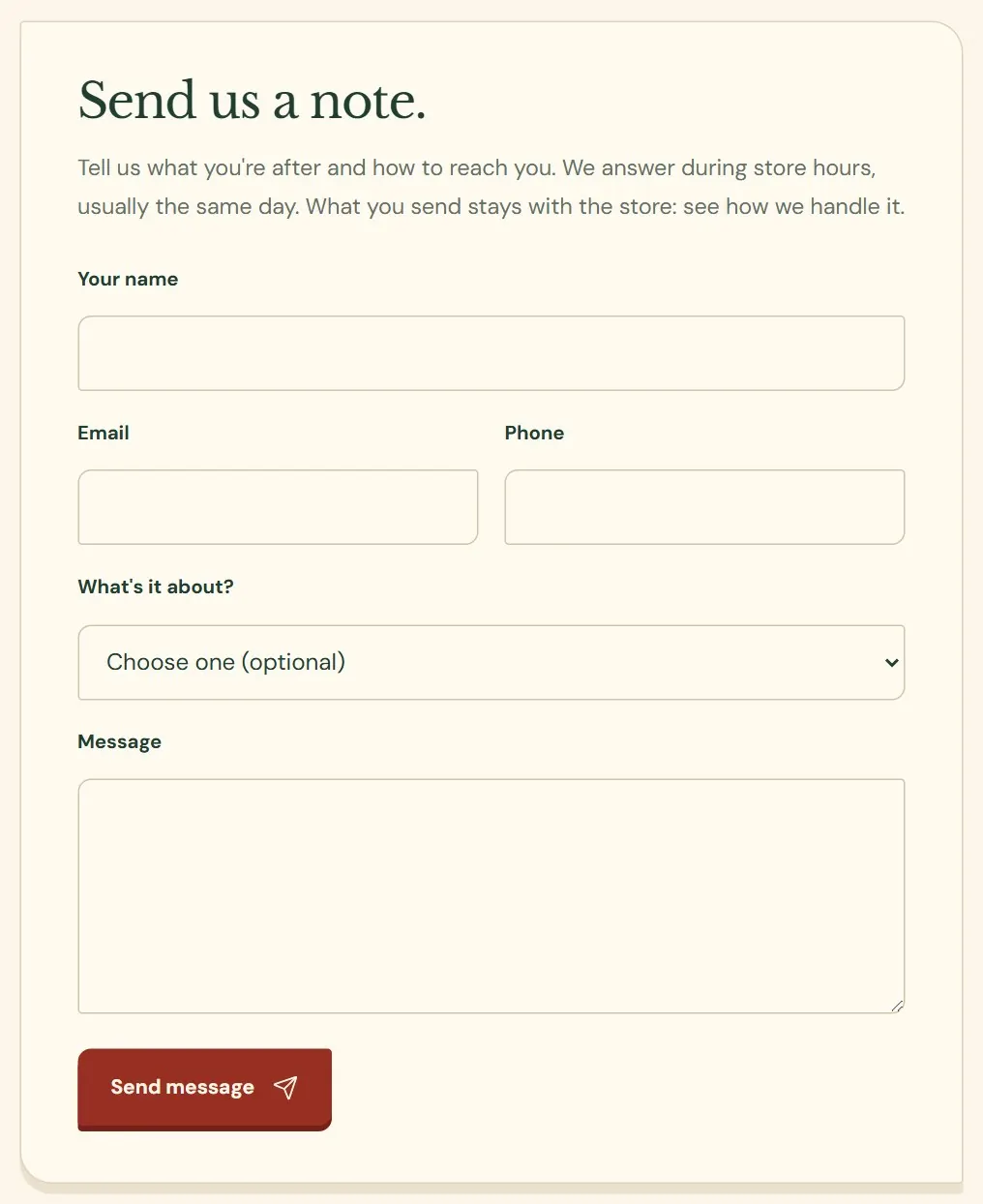 123456
- 1Your name. Required.
- 2Email. The customer gives this or a phone number.
- 3Phone.
- 4What is it about. Optional, from a short list.
- 5The message, up to 4,000 characters.
- 6Send message.
If something is missing, the form tells the customer in plain words, such as Tell us your name. or Leave an email address or a phone number so we can get back to you. One connection can send five notes in an hour. After that the form says to call the store. Form-filling robots are caught by a box real visitors never see, and their notes are dropped quietly, so you never have to sort spam out of your inbox.
The Messages inbox
Messages is in the Customers group of the menu, with a red number beside it for the notes nobody has opened yet. Each note is a row, newest first, with 50 rows to a page and Newer and Older buttons when there are more. Unread rows are in bold. Store owners and Managers can both read, mark and delete messages.
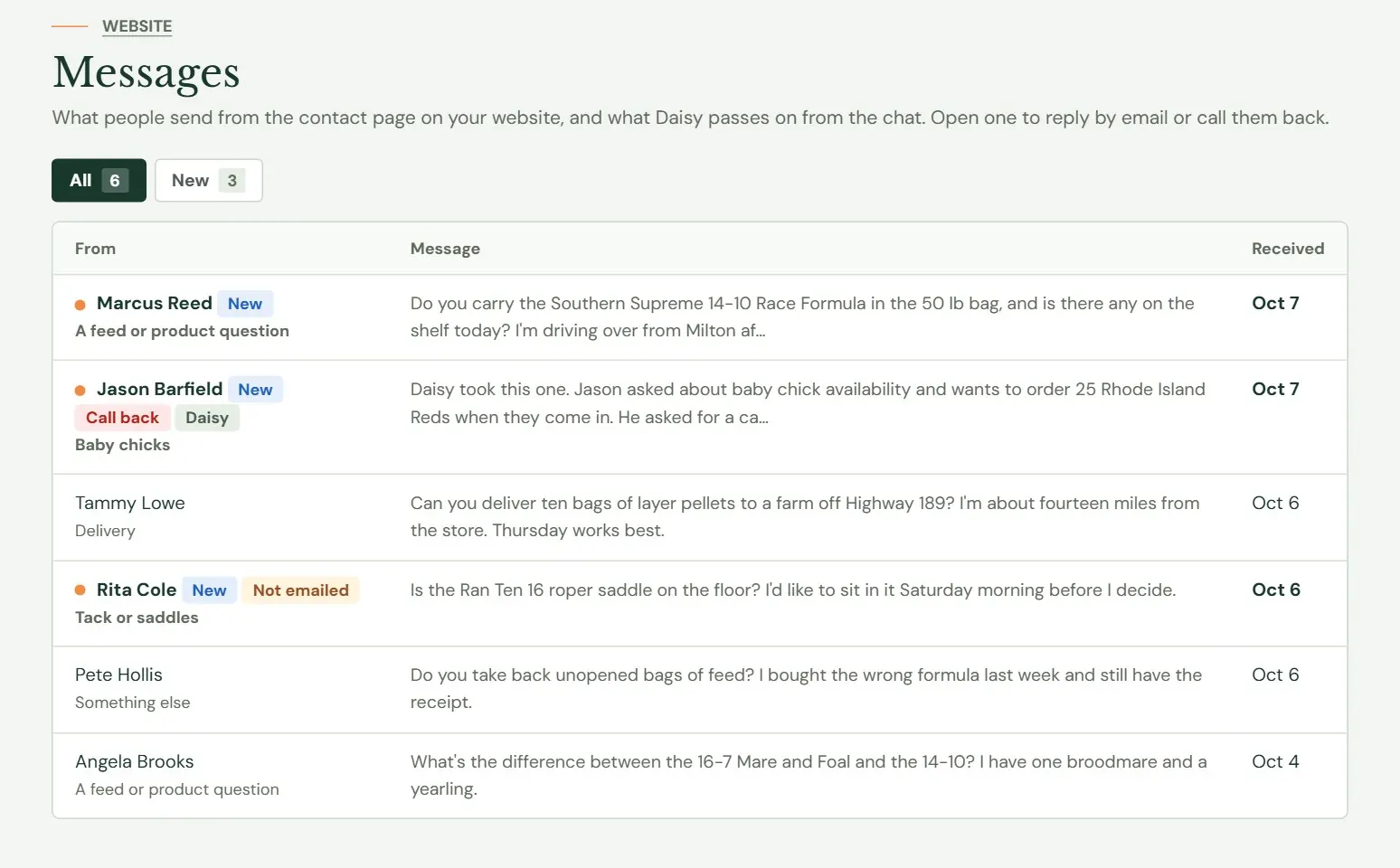 12
12- 1All shows every message. New shows only the ones nobody has opened.
- 2A tag on the row. The tags are explained below.
| Tag | What it means |
|---|---|
| New | Nobody has opened the message. The row is in bold, and the red count on the menu includes it. |
| Call back | The customer asked for a phone call. |
| Daisy | The note came from the website assistant. The tag carries the assistant's name. |
| Not emailed | The note is in Messages, but the email to you did not go out. Point at the tag on screen to see why. |
The columns are From (the name, the tags and what the note is about), Message (the first 140 characters) and Received (the time if it came today, otherwise the date). When there is nothing here yet, the screen says so and tells you notes from the contact page will show up. When you have opened everything, it says you are all caught up.
Read and answer a message
Press the sender's name to open the message. Opening it marks it read, and the count on the menu goes down.
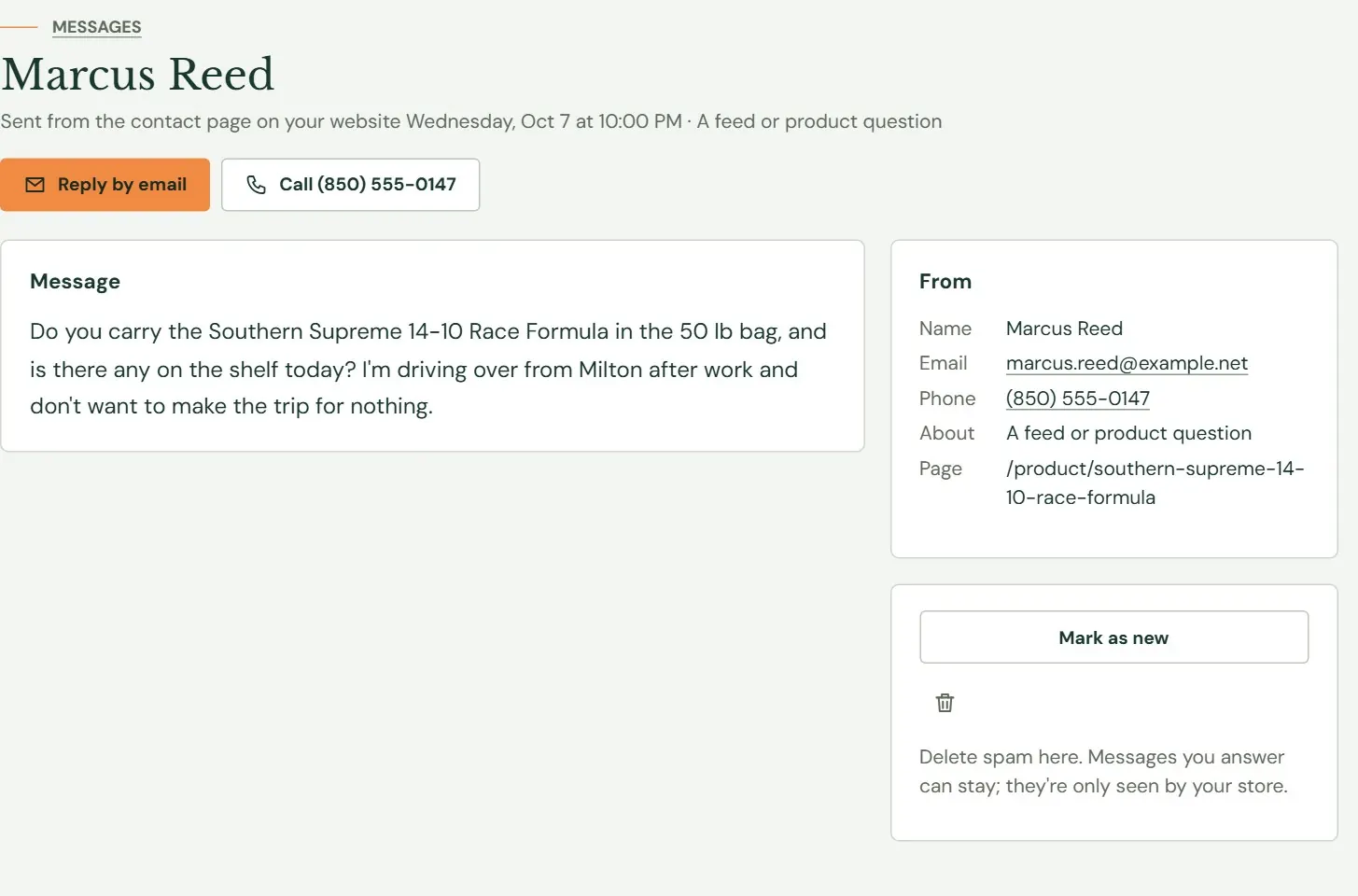 123456
- 1Reply by email opens a new email in your own email program, with the customer's note quoted.
- 2Call, with the number. It works on a phone, or on a computer that can place calls.
- 3What the customer wrote.
- 4Who sent it, how to reach them, what it was about and which page of the website they were on.
- 5Mark as new puts the message back on your to-do pile.
- 6The trash button deletes it.
Roadside does not send your reply. Reply by email opens your own email program, and the answer goes out from there, so Roadside does not keep a record that you answered. If you want to come back to a message, press Mark as new and it returns to the unread list. A note with no email address, only a phone number, has no Reply button, just the Call button.
Deleting is the only way to clear a message. Roadside asks first (Delete this message? This can't be undone.), and the message is then gone from Roadside. The copy in your email inbox stays. There is no spam folder and no Replied tag; messages you have answered can stay in the list, and only your store sees them.
Call-back requests
A visitor can ask the website assistant to have the store call them. The note then carries a red Call back wanted tag and, when the visitor said so, the best time to call. The phone number is required for these, because the assistant asks for it.
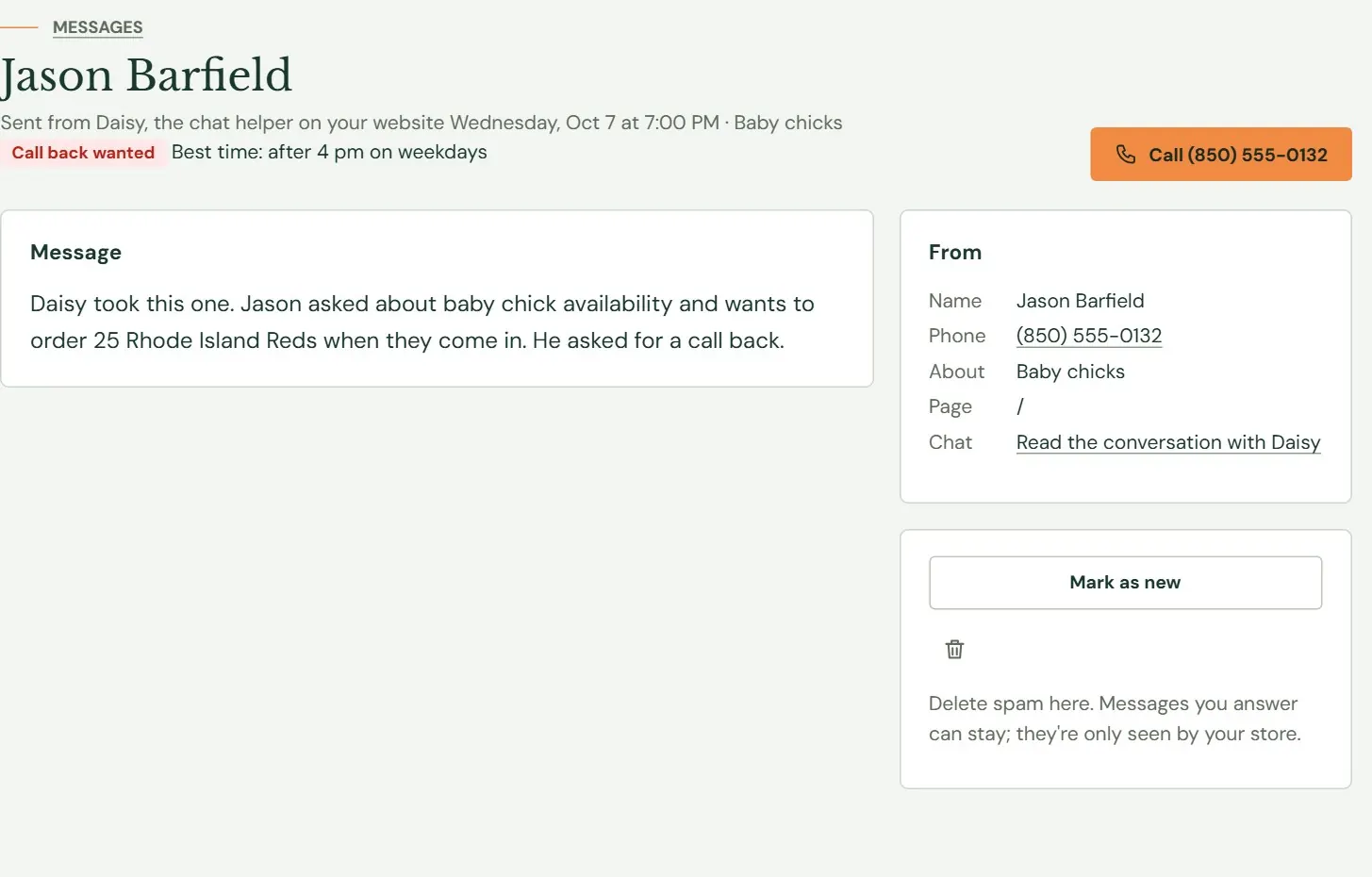 123
123- 1The tag and the best time.
- 2Call, with the number. There is no email on this one, so there is no Reply button.
- 3Opens the conversation the visitor had with the assistant.
Where each message goes
Every note is saved in Messages the moment it arrives. Roadside also emails it to the address you keep on Store info. That email carries the same words and ends with a link back to the message in Roadside. The subject line reads like Website message from Marcus Reed, Message from Daisy: Jason Barfield or Call back wanted: Jason Barfield (850) 555-0132.
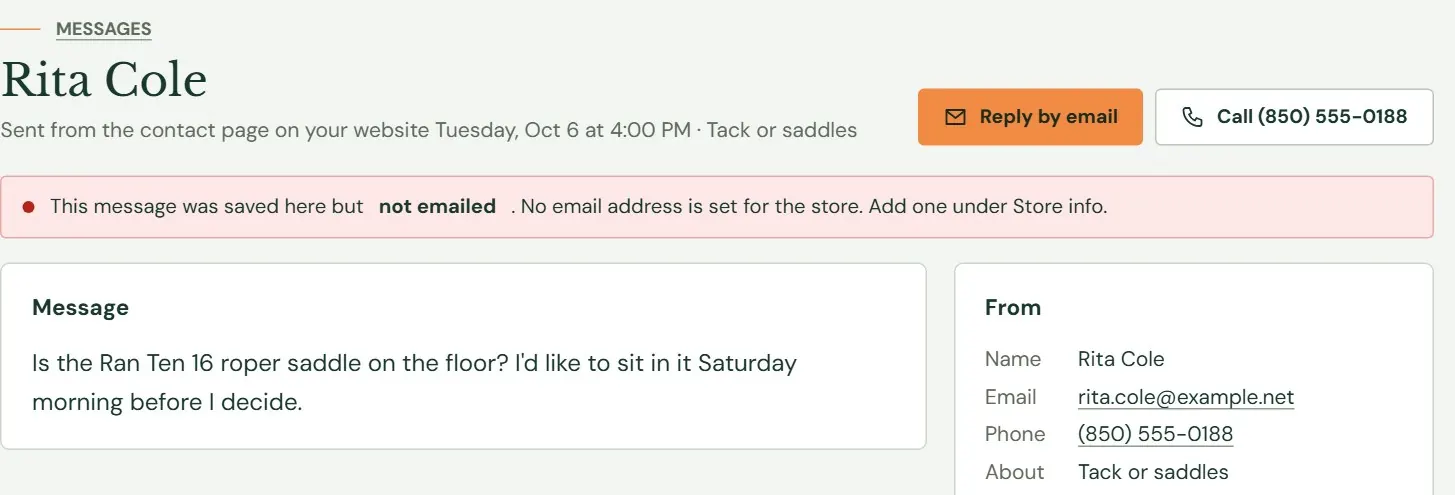
When the email to you did not go out, the row gets a Not emailed tag and the message page explains why in a red note. The note is still in Messages, so nothing is lost.
 12
12- 1The reason the email did not go. This one says there is no store email address.
- 2The customer's own email still works for a reply.
The usual reason is that Store info has no email address. Type one there (Chapter 3, Hours, closed days and contact details) and later notes will be emailed. If the note says email is not switched on for your Roadside, or that the email did not go out, write to support@dirtroadsoftware.com and tell us which message it was.
The website assistant
This appears when your plan includes it. The assistant is a chat helper on your website, run by Dirt Road. Visitors open it from a chat button, and on a phone also from the call bar. It is an AI assistant, which means a computer program that answers questions in ordinary sentences. It is not a person. The sample store's is named Daisy, so this chapter's pictures say Daisy. Yours has the name Dirt Road gave it.
The assistant answers from what your store has told it about products, prices, hours, delivery and baby chicks. Visitors are told not to type a card number or a password into the chat. A visitor can also ask it to pass a request to the store. The visitor ticks a box and presses send first, and may choose to send the conversation along. The request lands in Messages with a Daisy tag.
The Assistant screen shows you what the assistant has been doing and lets you change a few things. Store owners and Managers can both read the conversations and change the settings. Dirt Road looks after the rest: how it talks, what it knows about your products, the look of the chat and its daily allowance. The screen says so, and you ask Dirt Road for any of those.
 1234
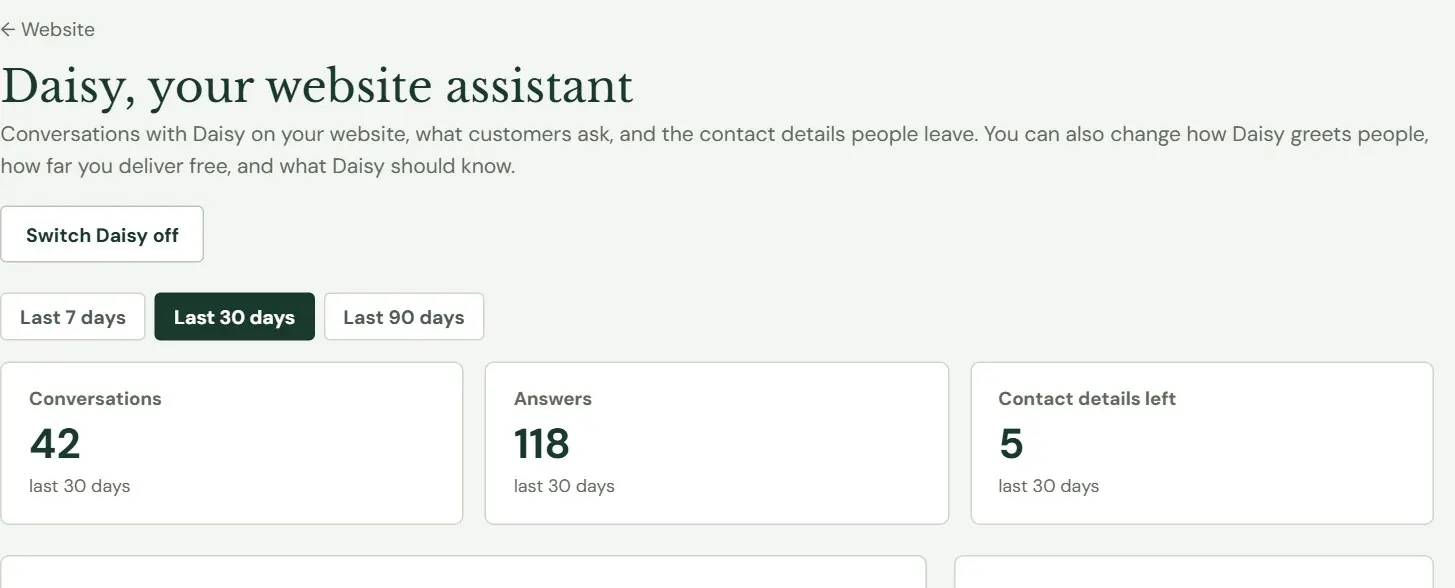
1234- 1The assistant's name.
- 2Switch Daisy off, or on.
- 3The period for the lists below: 7, 30 or 90 days.
- 4Conversations, answers and contact details left, for the last 30 days.
Switch it off or on
The button at the top turns the assistant off for everyone on your website. Roadside asks first: the chat leaves your website within a minute or two, until you switch it back on. While it is off, the screen says so. When you switch it on again, it shows on the website within a minute or two. Nothing needs an update of the website.
Conversations, questions and contact details
Three lists show what customers did. Choose a period at the top to change how far back they look. The three numbers always cover the last 30 days.
 123
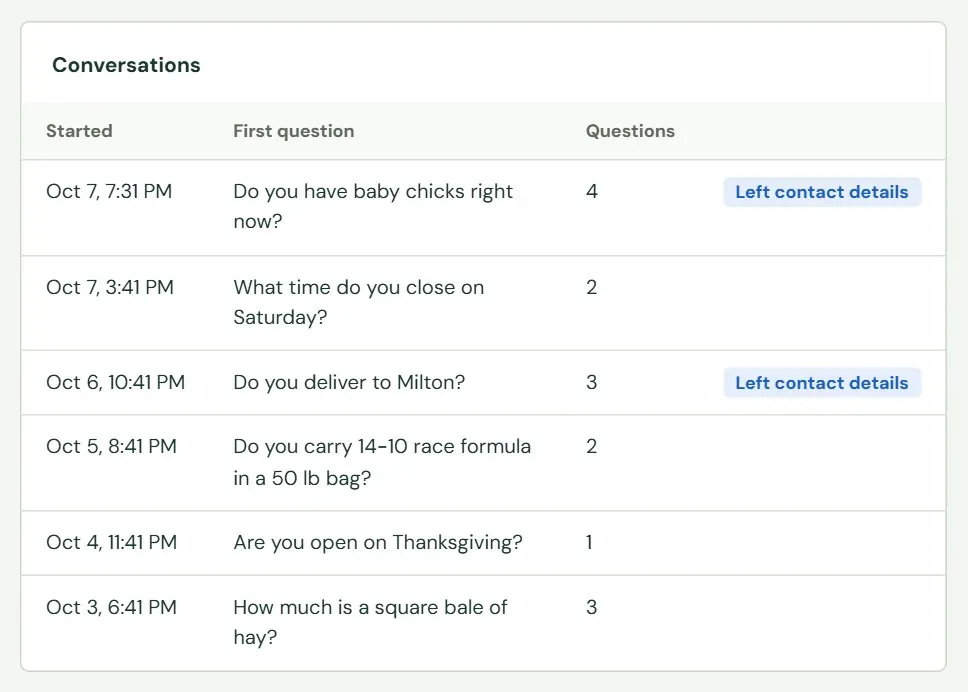
123- 1The first question. Press it to read the whole conversation.
- 2Left contact details: the visitor gave a name and a way to reach them.
- 3How many questions the visitor asked.
A conversation page shows the chat turn by turn, each turn marked Visitor or Assistant, with the contact details the visitor left beside it. Phone numbers and similar details are hidden before conversations are kept. The Contact details people left list on the Assistant screen shows what visitors chose to leave you.
 123
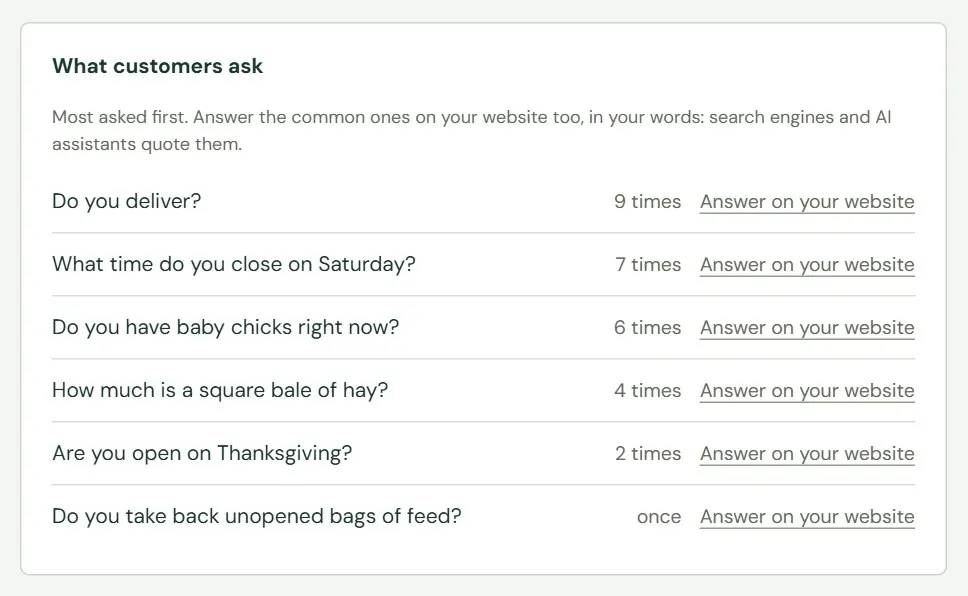
123- 1A question visitors asked, most asked first.
- 2How many times they asked it.
- 3Answer on your website opens Questions & answers with this question already typed in.
What customers ask is a list of the questions to answer on your website, in your own words (Questions and answers, in Chapter 6). The same screen lists the contact details people left.
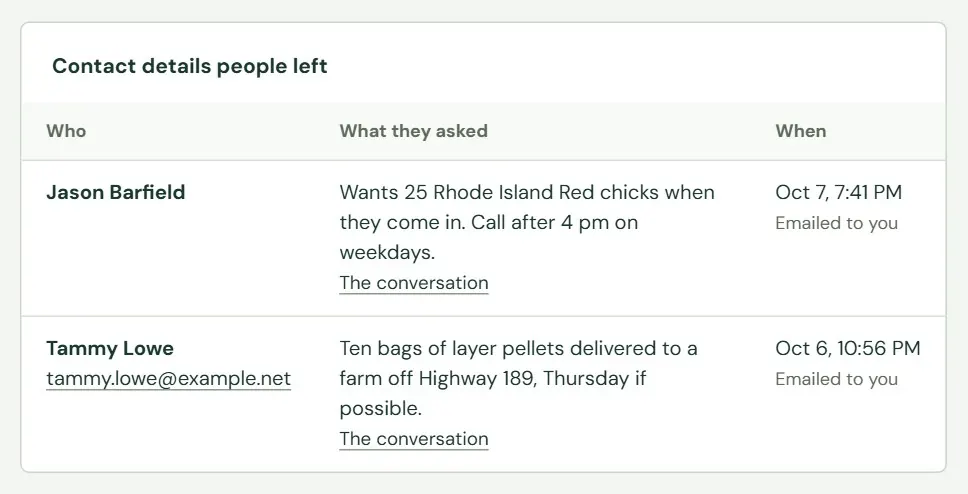 123
123- 1The name, and the email address when one was given.
- 2What they asked for, and a link to the conversation.
- 3When they left it. Emailed to you means a message went to your store email too.
What you can change
The box beside the lists has three settings and a Save button. A save takes effect within a minute or two, and Roadside says so.
Free delivery radius. Inside it, the assistant tells people yes, you deliver there for free. Outside it, it tells them to call. Distance is measured in a straight line from your store's map location, so set that on Store info first (Chapter 3, Hours, closed days and contact details). Type 0 if the assistant should never say yes on its own. Your online store has its own delivery rules, which decide what checkout charges (Chapter 17, Store settings). This radius changes only what the assistant says, so keep the two the same.
What the assistant should know. Short notes in plain words: a closing, what just came in, what you do not carry. Closed Thanksgiving Day and hay is in at $9 a square bale are the kind of thing that fits. These notes win over anything else the assistant knows, so take an old one out when it stops being true.
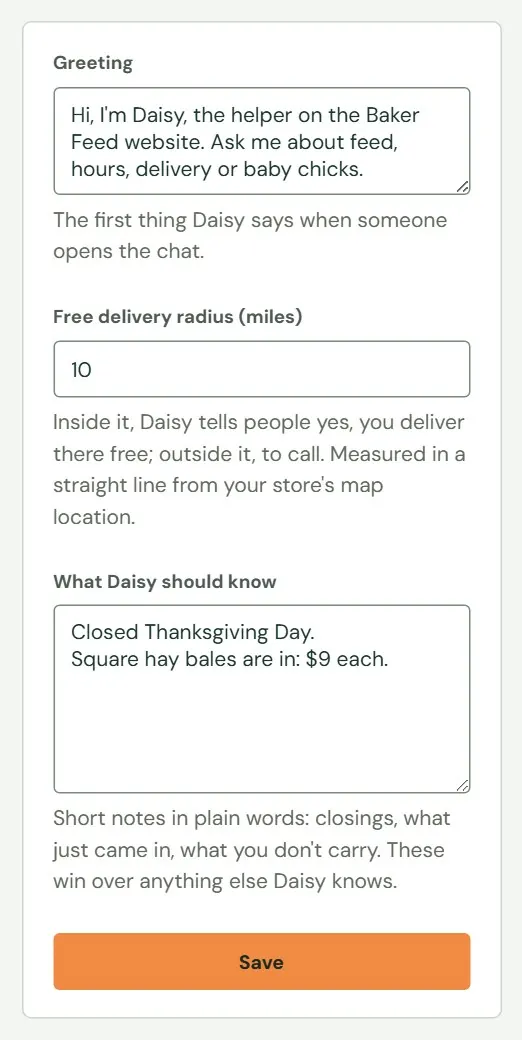 1234
1234- 1Greeting: the first thing the assistant says when someone opens the chat. Up to 500 characters.
- 2Free delivery radius, in miles.
- 3What the assistant should know. Up to 2,000 characters.
- 4Save.
If the assistant's information cannot be loaded, the screen shows one sentence in place of the lists. Some say Dirt Road has to check something on its side, and you write to support@dirtroadsoftware.com. A sentence that says the conversations could not be reached just now means you can try again in a minute.
Something here does not match your screen? Write to support@dirtroadsoftware.com with the name of the screen, what you pressed and what you expected. A picture of the screen helps.