
Customer accounts and contacts
Roadside keeps one record for each customer: the people on it, your notes, and their online orders. This chapter covers finding a customer, adding one, logging a call, and putting an old account away.
In this chapter
Find a customer
A household, a ranch or a business is one account. The people on it are its contacts. A cattle operation might be one account with the owner, the bookkeeper and the ranch hand as contacts, so the person who calls in the order and the person who pays the bill end up in the same place.
- Account
- One customer, business, household or vendor. It holds a name, phone, email, addresses, notes and a number such as A-1009.
- Contact
- A person on an account, with their own phone and email.
- Tag
- A short word you add to an account, such as chick days or delivery, so you can find that whole group later with the search box.
- Account type
- Customer, Prospect, Vendor or Other. A prospect is someone you hope to sell to. A vendor is a company you buy from.

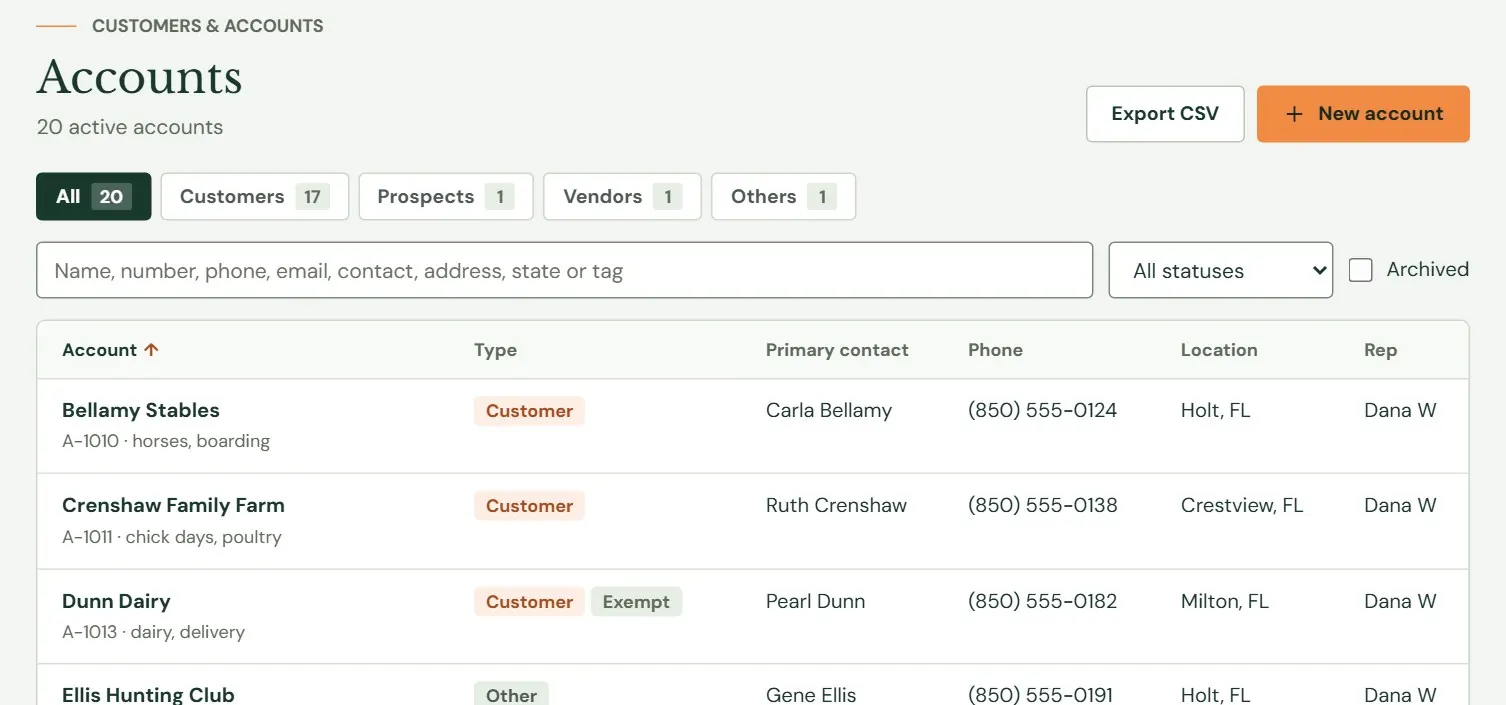
The list is in alphabetical order, 25 accounts to a page. Type in the search box and it narrows as you type. It looks at the account name and number, phone numbers written any way (8505550172, 850-555 and (850) 555-0172 all match), email, website, street address, state, tags, notes, and the names, emails and phones of the contacts on the account. A customer who calls and gives only a mobile number can still be found: Wade Holloway's number is on his contact record, and typing it brings up the Holloway Cattle Co. account.
 12345
12345- 1Narrow the list to one type. A type with no accounts has no button.
- 2Type any part of a name, number, phone, email, address, state or tag.
- 3Show only Active, On hold or Inactive accounts. Tick Archived to see accounts you have put away.
- 4Press a name to open the account.
- 5Export your accounts, or start a new one.
Under each name is the account number and its tags. The Type column also shows an amber On hold or grey Inactive badge when the status is not Active, and a green Exempt badge for a tax-exempt account. Rep is the person on your team who looks after the account. Press Account, Type or Location at the top of a column to sort by it.
The Find anything box at the top of every screen also finds accounts, contacts and notes. Press / from any screen to jump to it. Tick Include archived on the full search page to look through accounts you put away.
Customers > Contacts lists the people across every account in one place, in order by last name, with a search box at the top. It is the quicker way to answer a call from someone whose business name you do not remember. It shows the first 200 people, so narrow it with the search.
One account's page
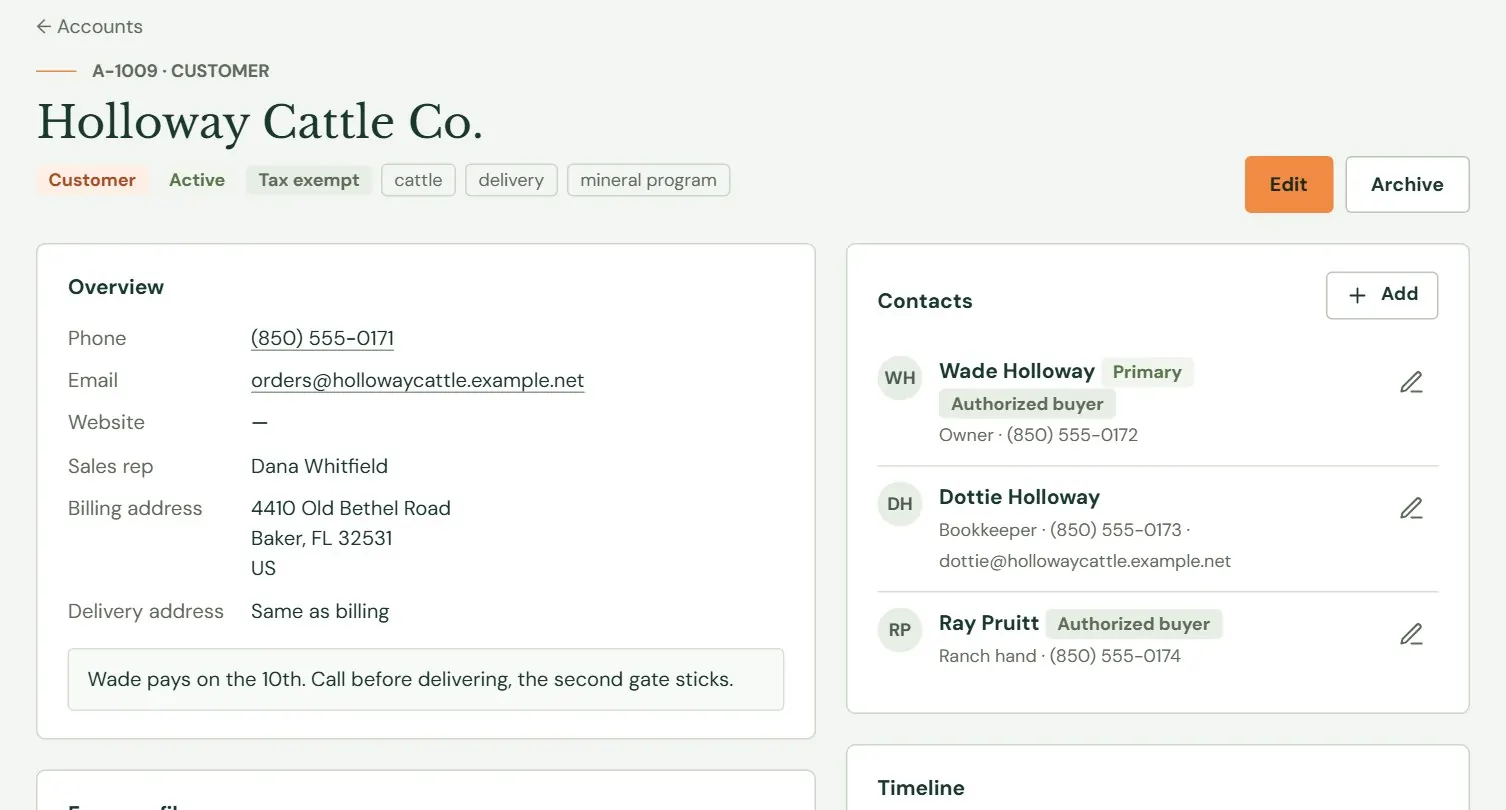
Press an account's name to open its page. The top shows the number, type, status and tags. Everything else is in cards: your contact details and notes on the left, the people and the timeline on the right.
More cards appear below Overview when they apply. Email list shows whether the account's email address is on your email list. Online orders shows the last five orders with their pickup day, total and status. Farm profile, Delivery, Compliance documents and Compliance appear when your plan includes the Feed & Seed pack, covered further on.
 12345
12345- 1Edit changes the account. Archive puts it away (see below).
- 2Phone, email, sales rep and addresses. On a phone, pressing the number calls it.
- 3Internal notes, in the grey box. Customers never see them.
- 4The people on this account.
- 5Your calls, visits and notes, newest first.
Add an account
Add an account when a customer asks you to keep them on file: someone who wants a house account, a ranch you deliver to, a vendor whose rep calls on Thursdays. Customers who order online get an account on their own, and a later section explains how.
 12345
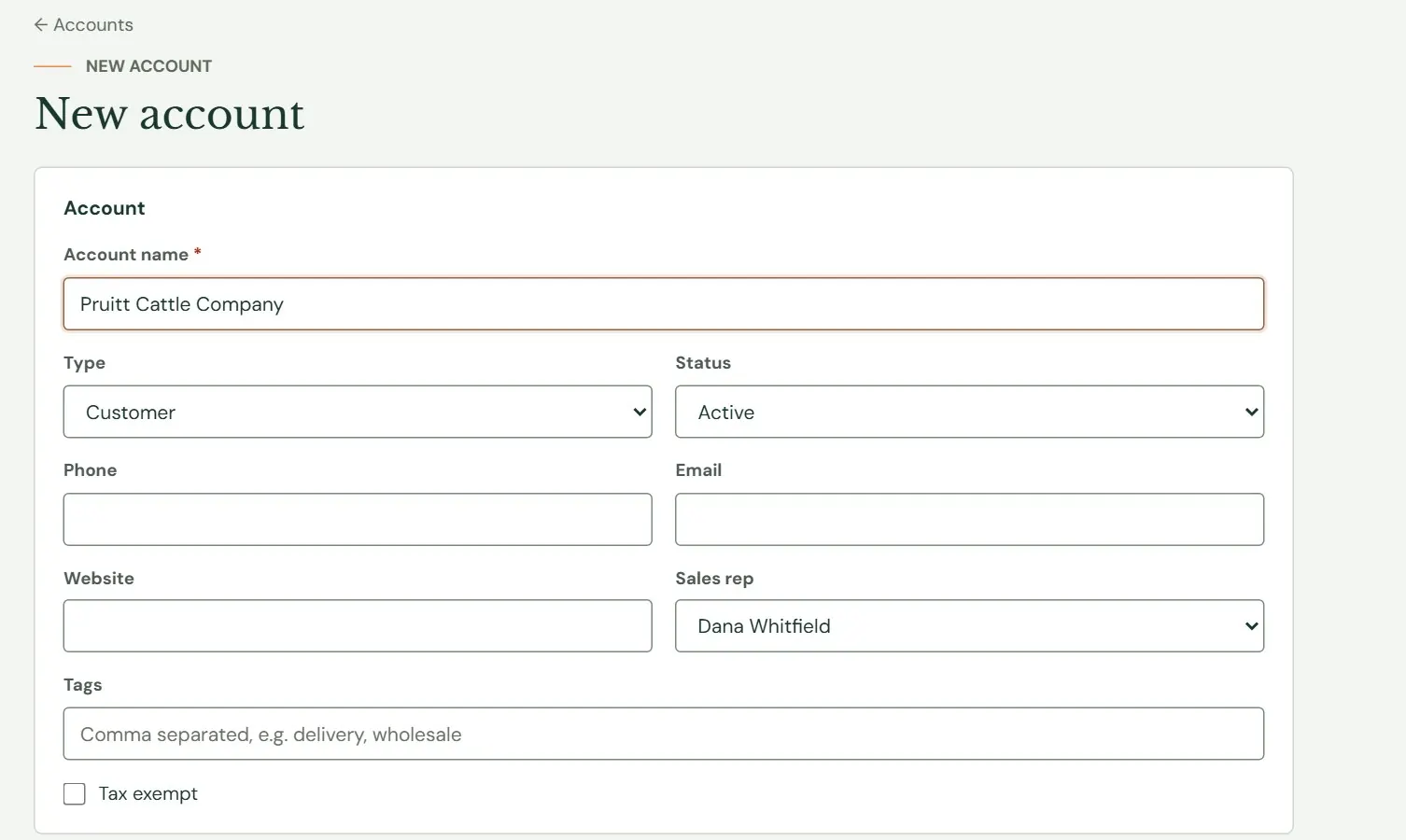
12345- 1The name is required.
- 2Customer, Prospect, Vendor or Other.
- 3Active, On hold or Inactive.
- 4Separate tags with commas.
- 5Marks the account as tax exempt.
- Press New account on the Accounts list. The New button at the top of every screen does the same: choose Account.
- Type the account name. It is the only required field.
- Choose a type and status. Customer and Active are right for most accounts. Add a phone, an email and a website. If you leave
https://off the website, Roadside adds it. - Check the sales rep. It starts as you. Change it to whoever on your team looks after this customer.
- Add tags, separated by commas. An account can have up to 12.
- Tick Tax exempt for an account that does not pay sales tax. The list shows an Exempt badge.
- Fill in the billing address. Leave Delivery address is the same as billing ticked, or untick it and enter where you deliver. The second line suits directions such as a gate code or barn.
- Write internal notes if you want them, up to 4,000 characters, then press Create account.
Roadside gives the new account the next number (A-1022, A-1023 and so on) and writes Account created. at the bottom of its timeline. To change an account later, press Edit on its page. If two people have the same account open and one saves first, the other sees Someone else saved this account while you were editing. Reload to see their changes. Reload the page and make the change again.
On hold and Inactive are flags for you and your staff to see. Roadside does not stop an order or a sale because of them. A common use is On hold while a balance is overdue, so whoever is at the counter checks with you first.
The people on an account
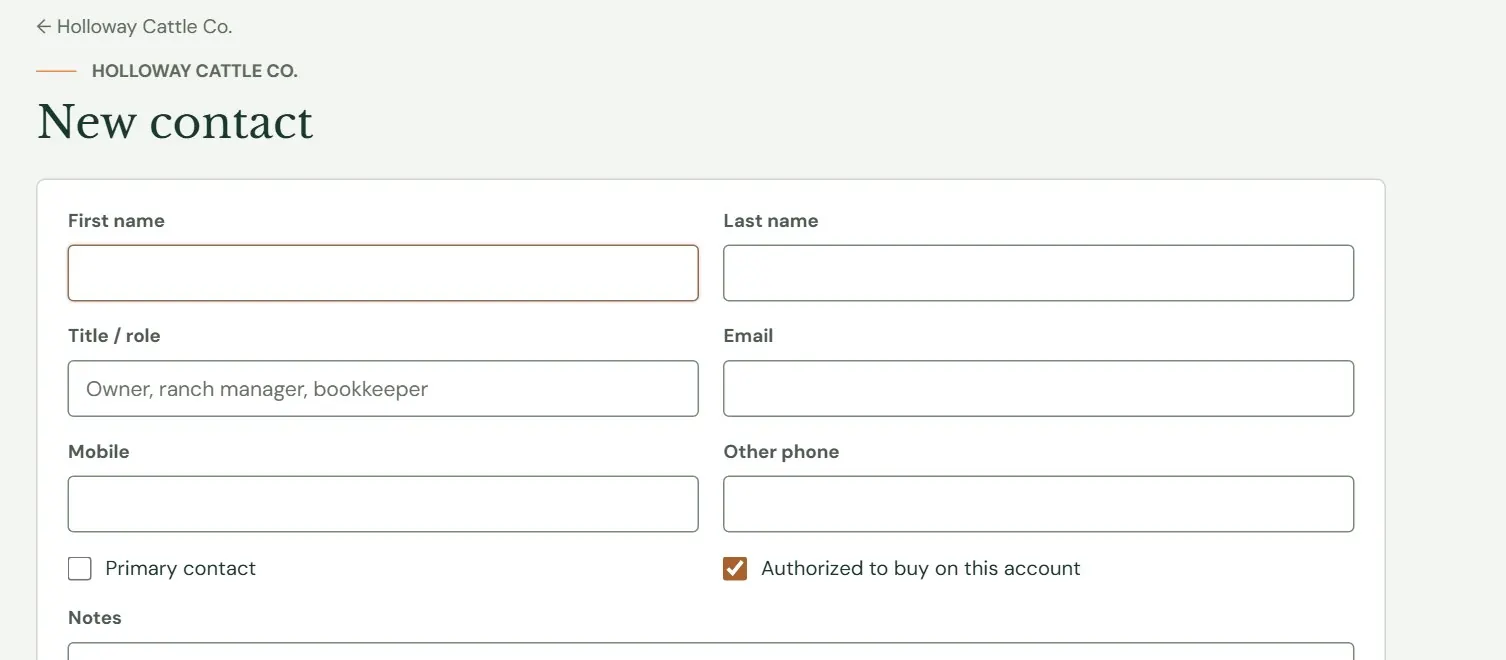
Open the account and press Add in the Contacts card. Type a first name, a last name or both. One of them is required, and everything else is optional.
 1234
1234- 1First and last name. One of the two is required.
- 2What they do for the account, such as owner, ranch manager or bookkeeper.
- 3The person you call first. Only one contact per account is primary.
- 4Ticked means this person may buy on the account.
The first contact you add becomes the primary contact. If you tick Primary contact on someone else, the mark moves to them. Authorized to buy on this account starts ticked. Untick it for a person who calls with questions but should not be buying on the house account, such as the bookkeeper. The Notes box holds up to 2,000 characters about the person.
To change a contact, press the pencil beside the name. To take a person off the account, open them and press Remove contact. A removed contact disappears from the lists and from search, and no screen brings it back, so remove people only when you are sure.
Notes and the timeline
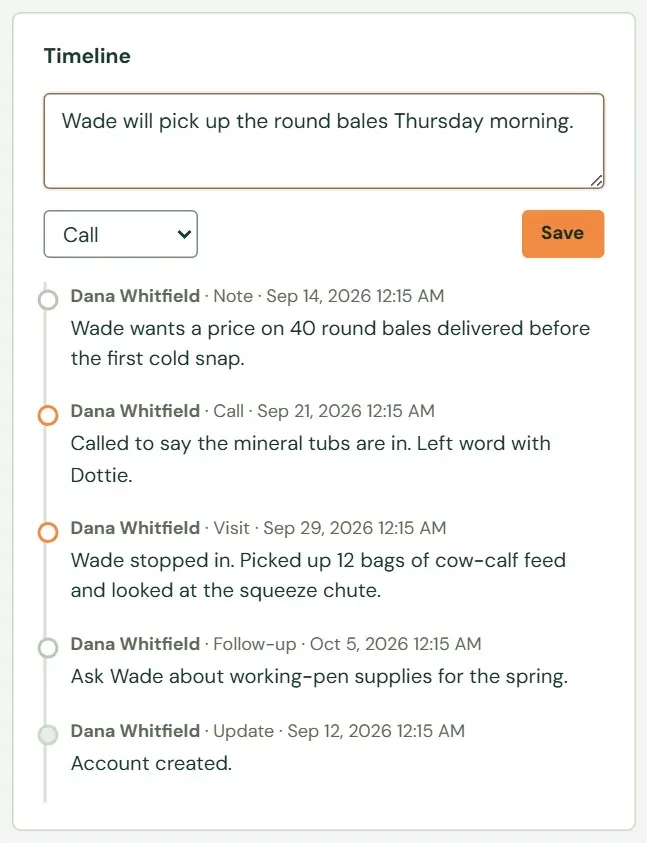
The timeline is the account's memory. Log a call when it happens, and the next person who opens the account knows what was said.
- Click in the box that says Log a call, visit or note… and write what happened. It holds up to 4,000 characters.
- Choose what kind of entry it is: Note, Call, Visit, Email or Follow-up.
- Press Save. The entry goes to the top of the list with your name, the kind and the time.
 1234
1234- 1What happened, in your own words.
- 2The kind of entry.
- 3Press Save to add it to the timeline.
- 4Earlier entries, newest first. The last 50 show.
A saved entry cannot be edited or deleted. Write it the way you would want to read it later. Follow-up is only a label on the entry. Roadside does not remind anyone, so put a real follow-up on your own calendar too.
Roadside also writes entries itself. They show System as the person: Account created., and a line for each online order, such as Online order W-1002: $74.50, pickup Thursday, October 8.
Farm profile and compliance documents
This appears when your plan includes the Feed & Seed pack. The pack adds the details a feed store tracks about a farm customer, in cards on the account's page and in the same Edit form.
| Card | Fields |
|---|---|
| Farm profile | Operation type (cow-calf, dairy, equine, poultry, swine, sheep and goats, row crops, hay and forage, hobby farm and others), Head count, Acreage, Payment terms (Cash / card, Net 30, Due on statement, Seasonal), Credit limit ($) |
| Delivery | Preferred delivery day, and Gate code / directions |
| Compliance documents | Ag exemption number, state and expiry date; VFD veterinarian and expiry date; Restricted-use license number and expiry date |
- Ag exemption
- A farm sales-tax exemption certificate. The customer gives you its number and the date it runs out.
- VFD
- Veterinary Feed Directive. A written order from a veterinarian that a customer needs before you can sell certain medicated feed.
- Restricted-use license
- A state license a customer needs to buy restricted-use pesticides.
Payment terms and credit limit are notes. Roadside keeps them on the account where your staff can see them. It does not collect on terms or stop an order that goes over the limit.
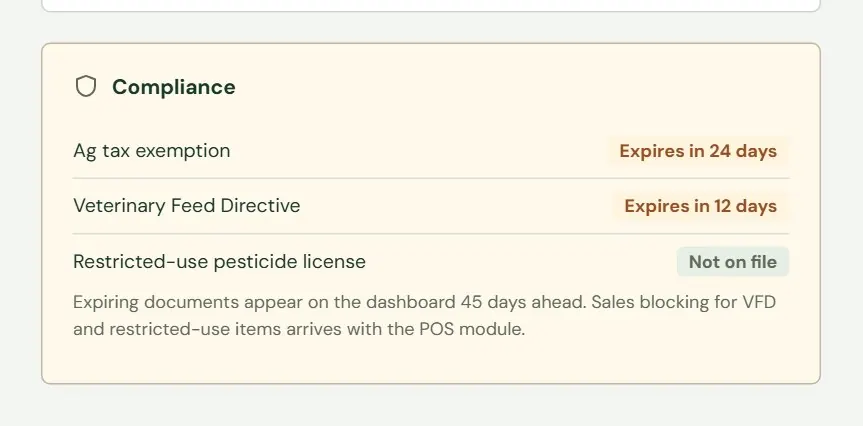
The Compliance card on the account's page shows each document as Not on file, Valid to a date, Expires in a number of days, or Expired with the date. Roadside warns you 45 days ahead and lists the soonest on Website home. It tracks the dates. It does not block a sale at the register or on the website. Chapter 15, Compliance watch and Pricing check covers the Compliance watch list that gathers every customer's expiring documents.
 1
1- 1One line for each document. Amber means a document is close to expiring or has expired.
Archive an account, and bring it back
Roadside never deletes an account. When a customer closes or moves away, archive the account instead. It leaves your lists and search results, and its notes, contacts and orders stay exactly as they were.
- Open the account and press Archive.
- Confirm. Roadside asks Archive this account? It will be hidden from lists. and then says Account archived. It is hidden from lists but nothing was deleted.
To find it again, tick Archived, beside the status list at the top of the Accounts list. An archived account shows a grey Archived badge and a Restore button. Press it and the account is back in the lists with Account restored. Staff can open an archived account but cannot archive or restore one.
Archiving removes an account, not a person. To drop one person from an account, use Remove contact. To stop emailing someone, use Unsubscribe on the email list, covered in Chapter 21, The email list.
Export your accounts
Press Export CSV at the top of the Accounts list to download your accounts as a spreadsheet file named accounts- and the date. It opens in Excel, Numbers or Google Sheets. The file always holds every active account, whatever you have typed in the search box. Archived accounts are not in it.
The columns are Number, Name, Type, Status, Email, Phone, Address, City, State, Postal, Tax exempt and Tags, followed by a column for each farm profile field when the Feed & Seed pack is on. The address is the billing address. Contacts are not in this file. Each export is recorded, so treat the file like your customer list: it has your customers' phone numbers and email addresses.
Accounts that come from online orders
Two different things are called a customer account. A shopper can make a sign-in on your website, which shows their past orders and fills in the checkout form for them. That sign-in belongs to the shopper. Roadside has no screen that lists website sign-ins.
The account in Roadside is your record of the customer. When someone places an online order, Roadside looks for an account here with the same email address, on the account or on one of its contacts. If it finds one, the order is added to it. If not, Roadside makes a Customer account, named for the company if the shopper gave one and for the person if not, with the person as primary contact and the tag online customer. It adds a timeline line for the order, and the order links to the account.
If the shopper ticked the box to get news by email at checkout, the account also gets the tag email sign-up. That tag does not put anyone on the email list. Chapter 21, The email list explains how people get on the list.
A customer who orders by phone has no account until you make one, so add them the way the earlier section shows. Orders themselves are in Chapter 18, Working the orders.
| What you can do | Store owner | Manager | Staff | Read only |
|---|---|---|---|---|
| Look at accounts, contacts and timelines | Yes | Yes | Yes | Yes |
| Add or change accounts, contacts and notes | Yes | Yes | Yes | No |
| Export accounts | Yes | Yes | No | No |
| Archive and restore accounts | Yes | Yes | No | No |
Something here does not match your screen? Write to support@dirtroadsoftware.com with the name of the screen, what you pressed and what you expected. A picture of the screen helps.