
Meet your panel
Roadside is where you run your store's website. This chapter covers signing in, how the screens are laid out, and where to find the things you will use every week.
In this chapter
What Roadside does
Your website shows customers what you carry, when you are open and how to reach you. Roadside is the panel behind it. You change a price, an opening time or a photo in Roadside, and the website shows the change a few minutes later. Customers never see Roadside. They see the website.
The flow also runs the other way. When a customer places an order or sends a note from the contact page, it lands in Roadside for you.
- Panel
- The set of screens you sign in to. Some people call it the admin panel or the back end. This manual says Roadside, or the panel.
- Workspace
- Your store's own private space inside Roadside, with its own people, products and messages. Nobody from another store can see yours. The name of yours sits at the top of the menu.
Sign in
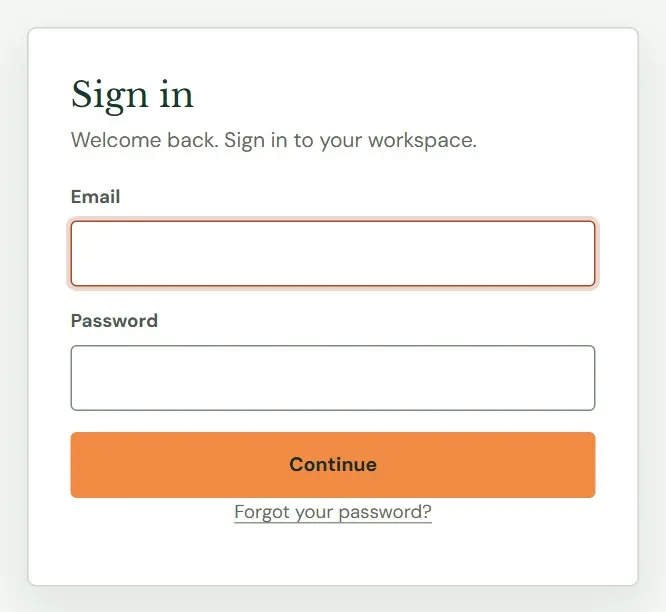
Roadside has one address for every store: roadside.dirtroadsoftware.com. Save it as a bookmark on the computer at the counter and on your phone. Dirt Road sets up your first sign-in and emails you an invitation. The invitation link works once and expires after 7 days. If yours has expired, write to support@dirtroadsoftware.com and we will send another.
 1234
1234- 1Your email address. It does not matter whether you use capital letters.
- 2Your password.
- 3Press Continue to sign in.
- 4Use this link if you have forgotten your password.
- Type your email and password, then press Continue.
- Type the six-digit code from your phone. Roadside asks for it each time you sign in, unless you ticked Remember this browser for 30 days on that computer. The words box below says where the code comes from.
- You land on Website home. That is your starting screen.
- Two-step sign-in
- After your password, you type a six-digit number from an app on your phone. Someone who finds your password still cannot get in without your phone. The sign-in screen calls this two-factor.
- Authenticator app
- A free phone app, such as Google Authenticator, Microsoft Authenticator, 1Password or Authy, that shows a new six-digit code every 30 seconds.
Your password needs at least 14 characters. A short sentence of four or five unrelated words works well and is easier to remember than a jumble of symbols.
Roadside signs you out after an hour with no activity, and after eight hours no matter what. It also signs you out when you press Sign out at the bottom of the menu. On a shared counter computer, always sign out when you walk away. Chapter 27, Signing in safely covers resetting a forgotten password and what to do if you are locked out.
How every screen is laid out
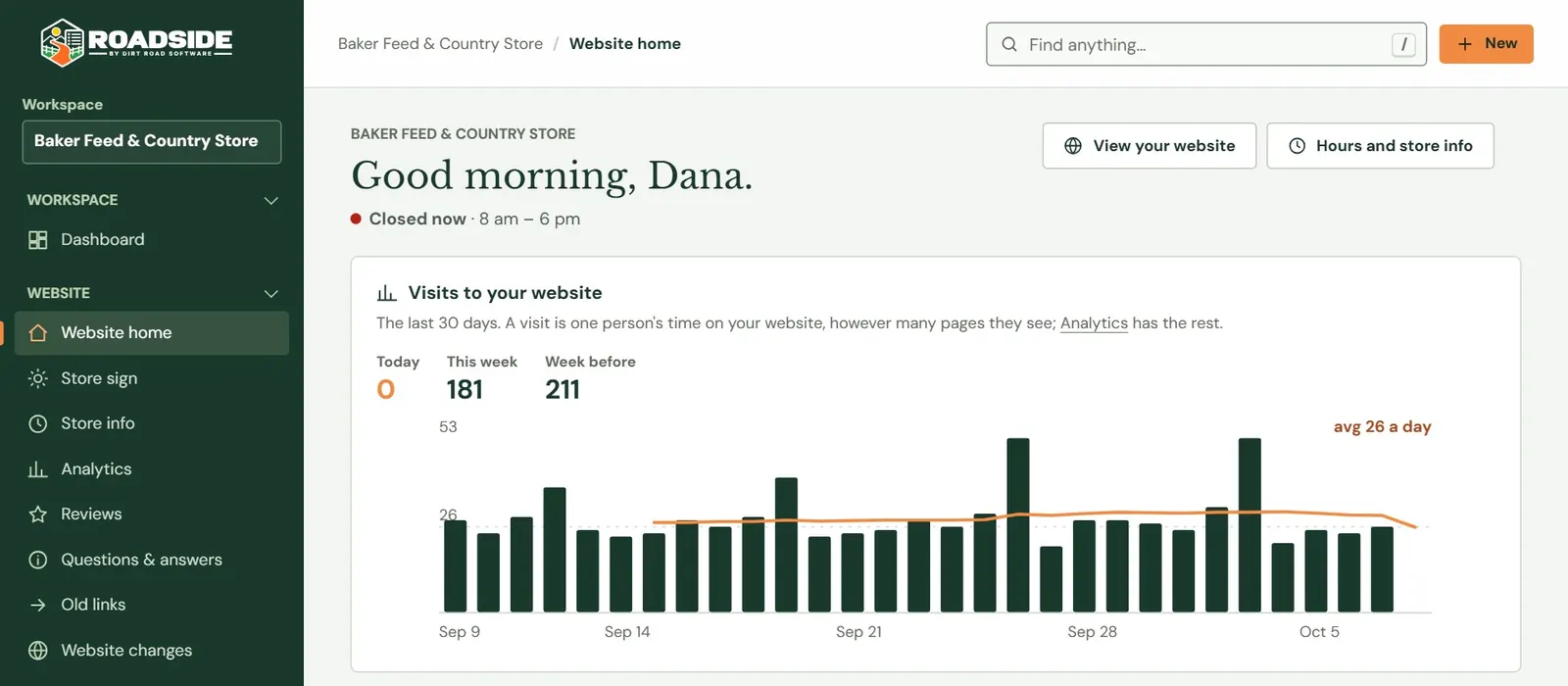
Every screen has the same three parts: a menu down the left side, a bar across the top, and the working area in the middle. On a phone the menu hides behind a button at the top left. Press it to open the menu and press the × to close it.
 1234
1234- 1Where you are. The store's name, then the name of the screen.
- 2The search box. Press / on your keyboard to jump to it from any screen.
- 3The New button, for starting a new record.
- 4The working area. Its heading and what it shows change from screen to screen.
The menu, group by group
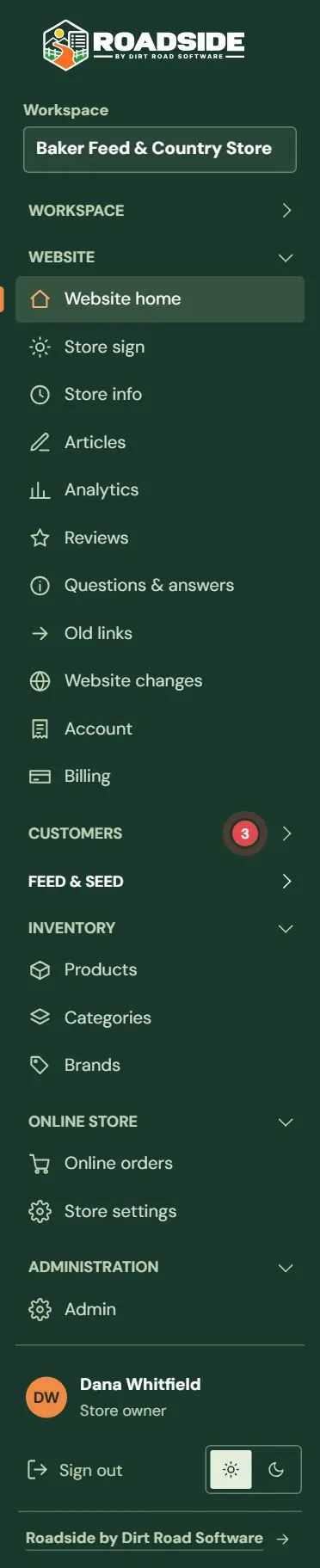
The menu is the only navigation you need. The groups fold shut when you press their headings, and Roadside remembers which ones you left open. Which items you see depends on your role and on what your plan includes, so your menu may have a little more or less than the one pictured.
 1234567
- 1Your workspace: the store's name.
- 2Website: everything that shows up on the website.
- 3Customers: messages, the email list and customer accounts. Pictured shut, as Roadside lets you fold any group.
- 4Inventory: products, departments and brands.
- 5Admin: Users, for adding and removing people. Only the Store owner sees it.
- 6You: press your name to open your own settings.
- 7Light and dark switch.
| Group | What is inside | Chapter |
|---|---|---|
| Workspace | Dashboard, a plainer starting page. Website home is the one most people use. | Website home, in Chapter 1 |
| Website | Website home, Store sign, Store info, Analytics, Reviews, Questions & answers, Old links, Website changes, Account and Billing. | Chapter 3, Hours, closed days and contact details |
| Customers | Messages, Assistant, Email list, Accounts and Contacts. | Chapter 5, Messages and your website assistant |
| Feed & Seed | Compliance watch, a list of customer documents that are about to expire. | Chapter 15, Compliance watch and Pricing check |
| Inventory | Products, Categories and Brands. | Chapter 9, Finding your way around products |
| Online store | Online orders and Store settings. These appear when your store takes orders online. | Chapter 16, How online ordering works |
| Administration | Admin, with Users for adding and removing people (Store owner) and the audit log, a list of who changed what (Manager). | Chapter 26, Your team and what each role can do |
Find anything
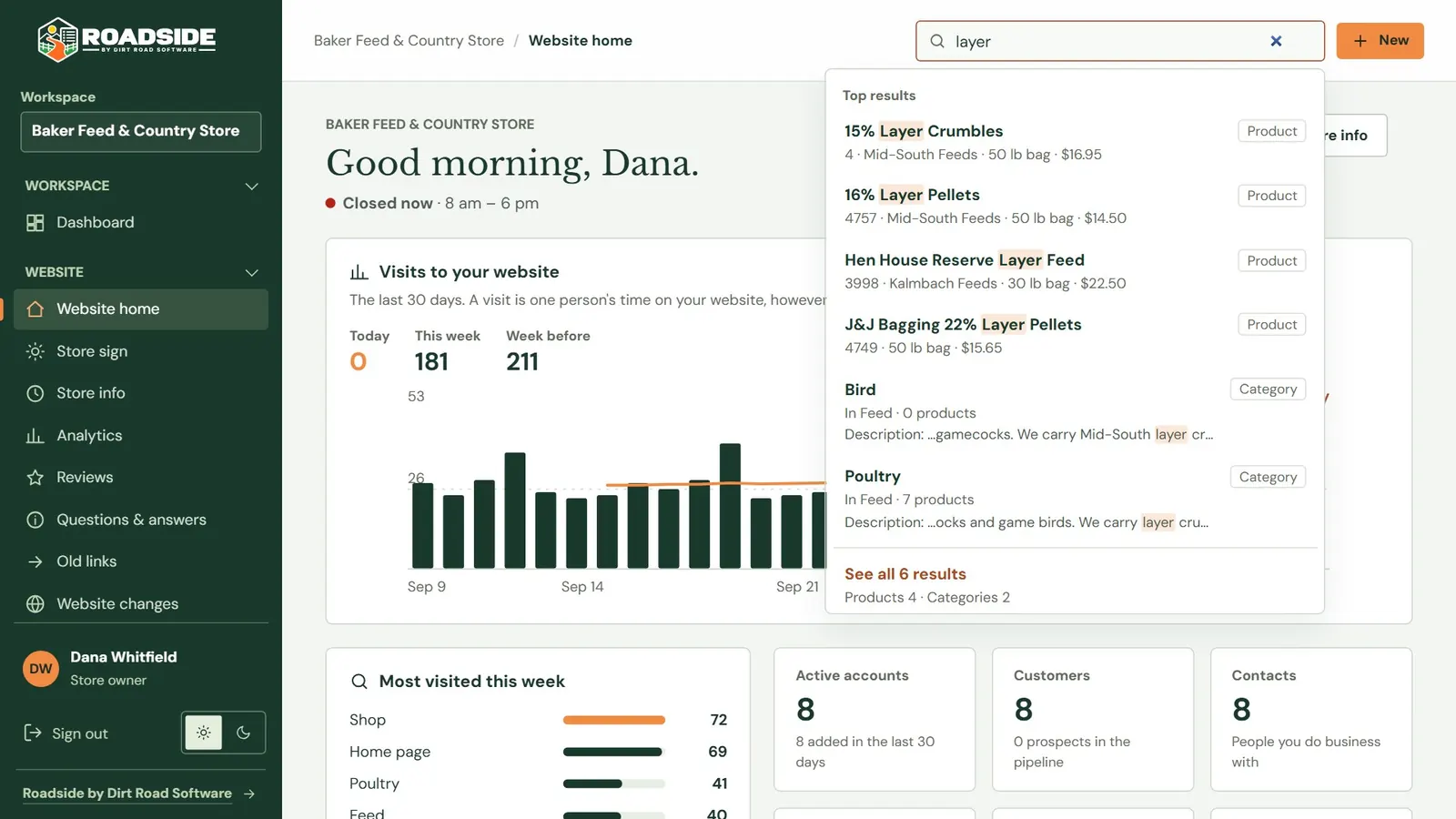
The search box at the top of every screen looks through products, brands, departments, customers, orders, articles and the settings pages. Type at least two letters and a list of the best matches drops down. Use the arrow keys and press Enter to open one, or press Esc to close the list.
 12
12- 1What you type. Words that match are highlighted in the results.
- 2The best matches first, each with a tag saying what kind of thing it is.
Search also finds settings. Type two-factor, time zone or logo and it takes you to the page that controls that.
The New button
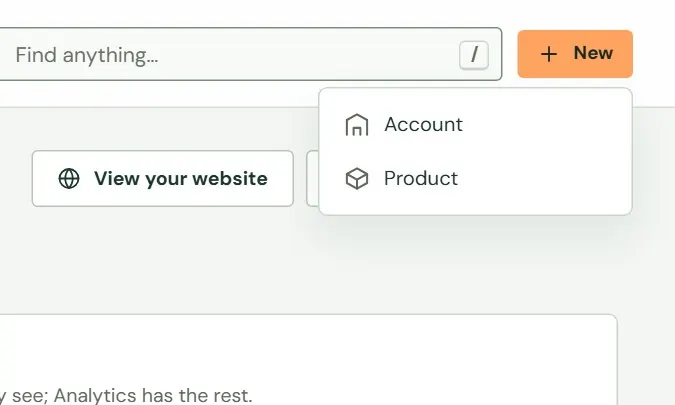
The orange New button at the top right starts a new record from any screen: a customer account, a product or an article. It shows only what your role is allowed to create.
 1
1- 1Press the one you want. You land on its blank form.
Website home
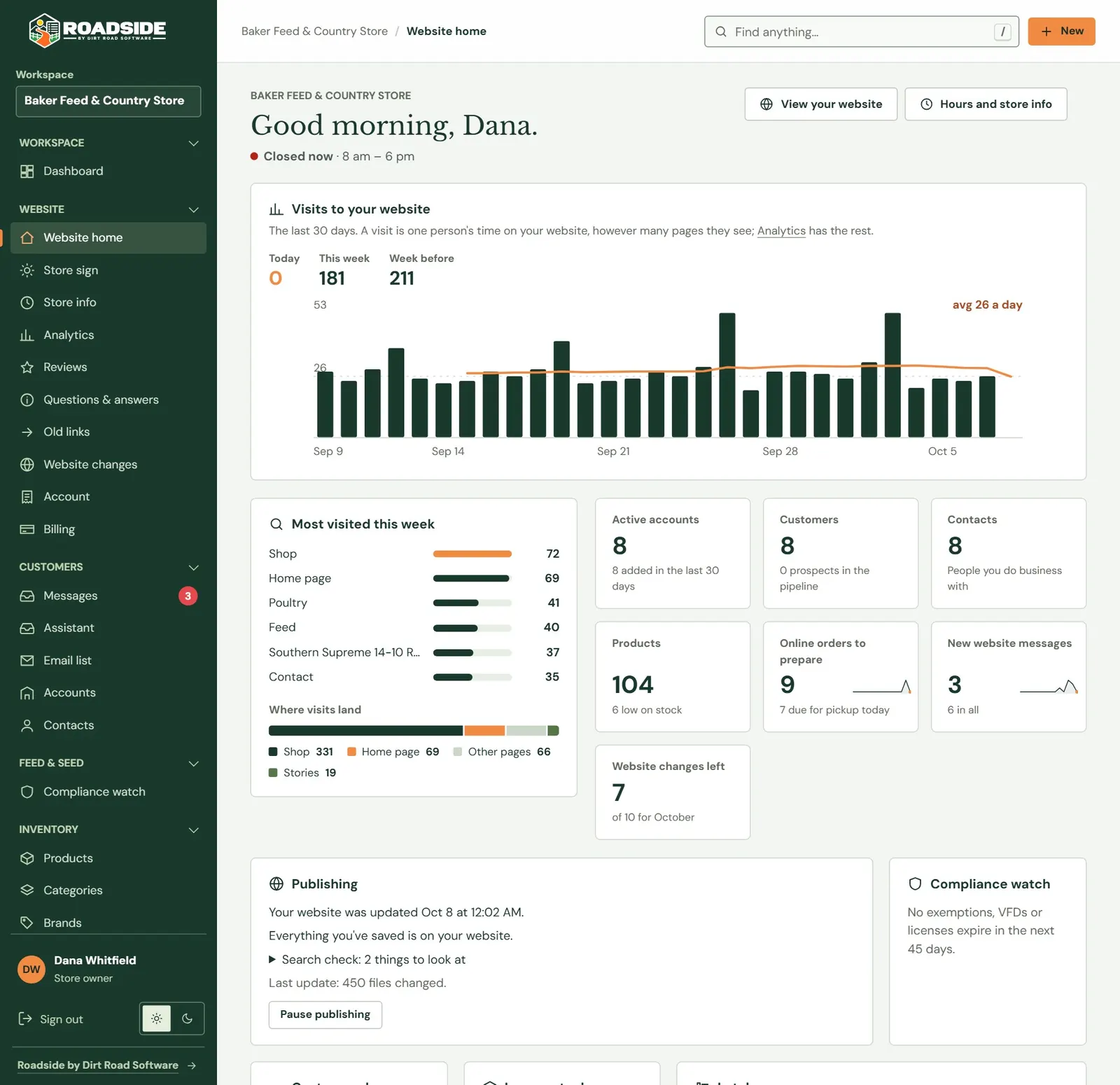
If you are a Store owner, Website home is the first screen after you sign in. It answers three questions at a glance: is the store open right now, how many people visited the website, and what is waiting for you.
 1234
1234- 1Whether the store is open now, worked out from your hours and closed days.
- 2Visits to the website over the last 30 days, one column per day.
- 3The pages visitors looked at most this week.
- 4Number cards: new messages, website changes left this month, products, orders to prepare. Press a card to open that screen.
- Visit
- One person's time on your website, however many pages they look at. If one person opens six pages in a row, that is one visit.
Further down, Website home has a Publishing tile that tells you whether the website has your latest changes. Chapter 8, How your changes reach the website explains it. The Lately list at the bottom shows the last eight changes anyone made in your workspace.
Light and dark
The sun and moon switch at the bottom of the menu changes the colors of the panel. Light is the default. The choice is saved in that one browser, not on your account, so the counter computer can stay light while your phone stays dark.
Your own settings
Press your name at the bottom of the menu to open My account. It holds your name and phone number, your password, your two-step sign-in and the browsers you have asked Roadside to remember. Details are in Chapter 27, Signing in safely.
Something here does not match your screen? Write to support@dirtroadsoftware.com with the name of the screen, what you pressed and what you expected. A picture of the screen helps.