
Your team and what each role can do
Everyone who signs in to Roadside has one role, and the role decides what that person can open and change. This chapter covers the four roles Dirt Road sets up, what each can do, and how to add, change and remove the people on your team.
In this chapter
What a role is
A role works like a job title on the schedule. The counter person gets the screens a counter person needs. The person who helps run the store gets more. Roadside leaves out what a role cannot use, so a team member sees a shorter menu and fewer buttons.

- Role
- A job title inside Roadside that decides which screens and buttons a person gets. Each person has one role in your store.
- Invitation link
- A private link that lets a new person choose a password and finish setting up their sign-in. It works once and stops working after 7 days.
The four roles
The Store owner and the Manager run the store day to day. They can do the same things on the website, the products, the orders, the customers and the email list, and both can refund. They differ in three places. Only the Store owner opens Account and Billing, because those hold the plan and the invoices. Only the Store owner adds and removes team members and changes their roles. Only the Manager opens the audit log, a list of who signed in and who changed what.
The Staff and Read only roles are the lighter ones. Staff is for the counter and the shelves: look up customers, adjust stock, work the online orders, write articles. Read only is for someone who should see things without changing any of them.
The Store owner lands on Website home after signing in. The other roles land on the Dashboard. Staff and Read only people see a short menu: Dashboard, Accounts, Contacts, Compliance watch and Products, plus Articles when your store uses them and Online orders when it takes orders online.
| The job | Store owner | Manager | Staff | Read only |
|---|---|---|---|---|
| Change hours, closed days, phone and address; the Store sign; Reviews, Questions and answers, Old links | Yes | Yes | No | No |
| Read messages from the website and the assistant's conversations | Yes | Yes | No | No |
| Send and follow website changes | Yes | Yes | No | No |
| Open Account and Billing and pay Dirt Road | Yes | No | No | No |
| Look at products and stock levels | Yes | Yes | Yes | Yes |
| Add and change products, categories and brands, and import products | Yes | Yes | No | No |
| Receive, count and adjust stock | Yes | Yes | Yes | No |
| Look at online orders | Yes | Yes | Yes | Yes |
| Mark orders ready, picked up or cancelled | Yes | Yes | Yes | No |
| Refund an online order | Yes | Yes | No | No |
| Change online store settings: open or closed, pickup, delivery, order emails, policies | Yes | Yes | No | No |
| Read articles, including drafts | Yes | Yes | Yes | Yes |
| Write articles and send them for review | Yes | Yes | Yes | No |
| Publish and schedule articles, and change article settings | Yes | Yes | No | No |
| See Analytics, and choose what it tracks | Yes | Yes | No | No |
| Look at customer accounts and contacts | Yes | Yes | Yes | Yes |
| Add and edit customer accounts and contacts | Yes | Yes | Yes | No |
| Archive, restore and export customer accounts | Yes | Yes | No | No |
| Use the email list: add, import, export, unsubscribe | Yes | Yes | No | No |
| Add, change and remove people on the team | Yes | No | No | No |
| Open the audit log | No | Yes | No | No |
Compliance watch shows to anyone who can look at customer accounts, so all four roles see it. If someone opens a screen their role does not include, Roadside says You don't have access to this page and adds Ask an administrator if you need it. In your store that means the Store owner or a Manager. It is the role at work, not a fault. To see who changed something without the audit log, look at the Lately list on Website home or Recent activity on the Dashboard. Each shows the last 8 changes and who made them.
Add someone to your team
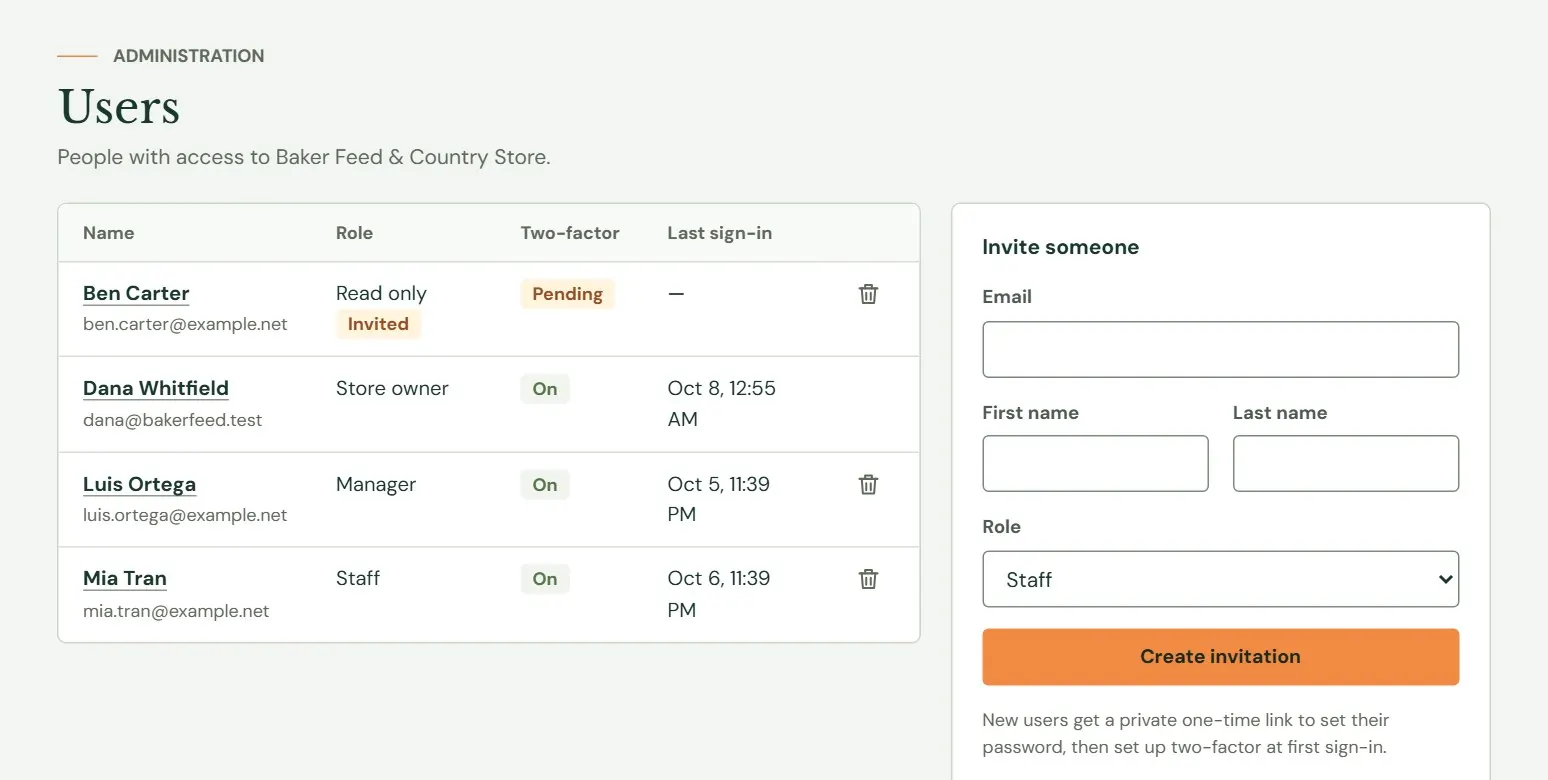
A Manager who needs someone added or removed asks the Store owner. Users lists everyone who can sign in to your store, with their role, whether their two-step sign-in is set up, and when they last signed in. The form on the right invites a new person.
 12345
12345- 1Everyone with access to your store.
- 2Each person's role. Staff is the one the form starts with.
- 3Invited means the person has not chosen a password yet. Pending under Two-factor means they have not set up their authenticator app.
- 4The trash icon removes a person, or cancels an invitation that has not been used. You do not get one on your own row.
- 5The Invite someone card.
- Fill in the form. Type the person's Email, First name and Last name, and choose a Role.
- Press Create invitation. Roadside asks you to confirm it's you: your password and the current code from your own authenticator app. After that, sensitive changes stay unlocked for 10 minutes.
- Check the notice at the top. It says Invitation emailed to and the address. The email is titled You're invited to and your store's name. A box called Private invitation link also shows the link once, with a Copy button. Copy it before you leave the page if you want a spare to send yourself.
- The person opens the link, types a first and last name and a password of at least 14 characters, signs in, and sets up their two-step sign-in. Chapter 27, Signing in safely walks them through it.
Until they do, the list shows Invited beside their role. If an invitation goes missing or runs out, open the person from the list and press New invitation link. Earlier links stop working. If the email address already belongs to someone with a Roadside sign-in, perhaps at another store, Roadside adds them with the role you chose and says Existing user added to this workspace. It sends no email in that case.
Choose the role by the job. Staff suits the counter. Read only suits a part-time helper who only needs to look things up. Manager suits a person who helps run the store. Give Store owner only to a co-owner, because it also opens Account and Billing. The list also shows Owner and Administrator. Only a person who already holds one of those can give them out, so Roadside refuses if you pick one, and you cannot change or remove someone who holds one.
Change a role, turn someone off, or remove them
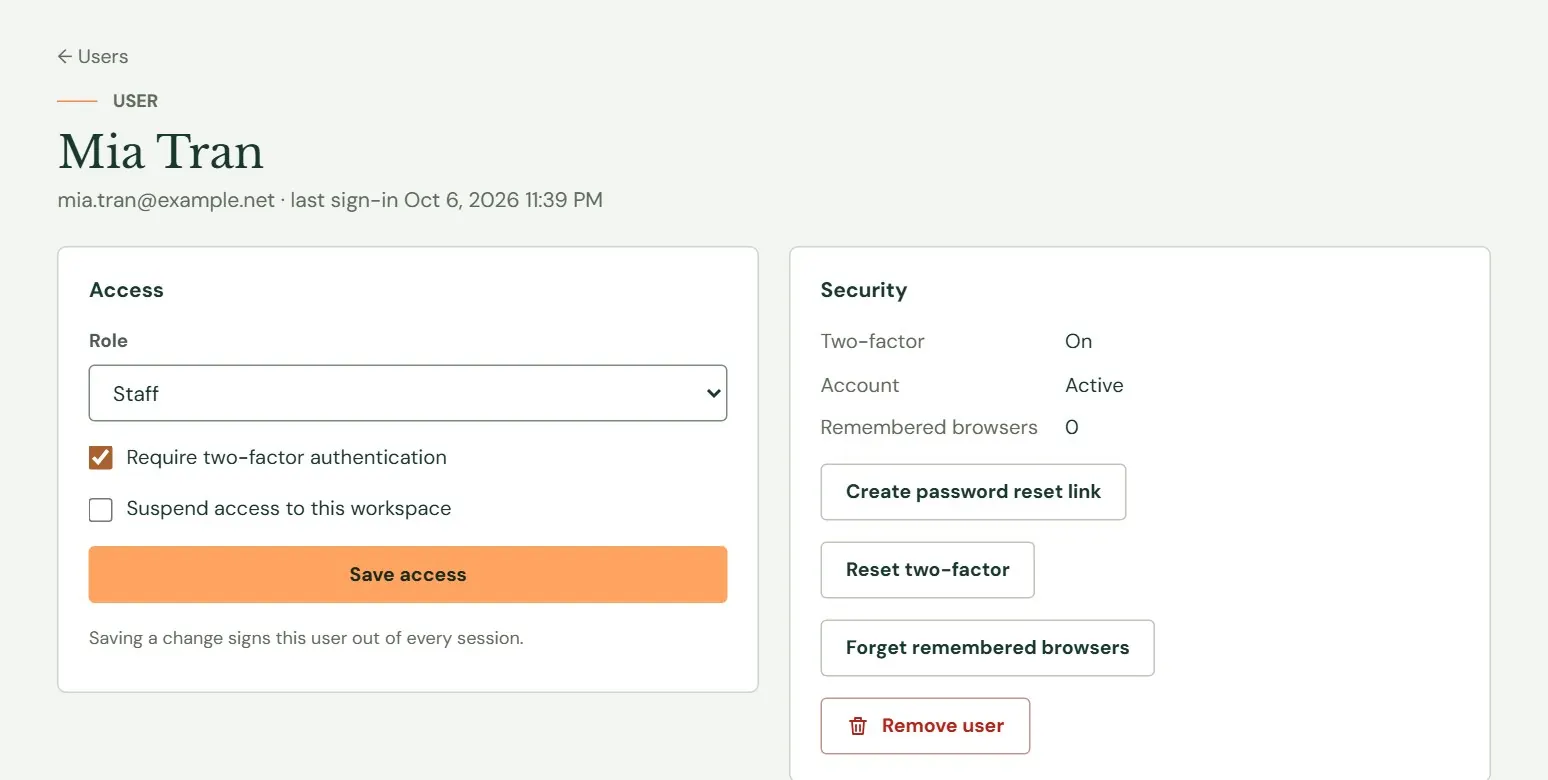
Press a person's name in the list to open their page. The Access card on the left has the role and the on and off switch. The Security card on the right has the buttons for sign-in trouble, covered in the next section.
 123456
- 1Choose a different role, then press Save access.
- 2Leave this ticked. It is what makes Roadside ask the person for a code.
- 3Tick this to turn the person off. Press Save access.
- 4Saving a change signs the person out of every browser. They sign in again and get the menu for their new role.
- 5Reset two-factor, for someone who lost their phone.
- 6Remove user takes the person off your team for good.
- Change a role. Pick the new Role and press Save access. Confirm it's you when asked.
- Turn someone off. Tick Suspend access to this workspace and press Save access. The person is signed out at once and stays on the list with a grey Suspended tag. If they try to sign in, Roadside says No workspace yet. Untick the box and save to turn them back on. Use this for a seasonal worker between seasons, or while you decide.
- Remove someone. Press Remove user on their page, or the trash icon on the list. Roadside asks Remove and the name, and says they lose access to your store. If they have no other Roadside sign-in, their account is deleted. What they entered stays, without their name on it. Removing cannot be undone. A person you remove needs a new invitation to come back. You cannot remove yourself.
- Cancel an invitation. The trash icon on a person who is still Invited says Cancel the invitation and the address. The link stops working.
Removing a person from Roadside does not change logins outside it, such as the store's Facebook page, the card machine or the domain account. Change those yourself when someone leaves.
Help a team member who is locked out
The Security card on a person's page fixes the usual sign-in problems. Each button asks you to confirm it's you first.
| The problem | What to press | What happens |
|---|---|---|
| They forgot their password and the reset email does not reach them | Create password reset link | Roadside emails the link and shows it once in a Private link box that you can copy. It works once and lasts one hour. |
| They lost their phone and have no recovery codes | Reset two-factor | Their authenticator is cleared and they set it up again at their next sign-in. They get an email saying so, and their other sign-ins end. |
| A computer was lost, or someone left on bad terms | Forget remembered browsers | Every browser the person asked Roadside to remember asks for a code again. |
| They never used the invitation | New invitation link | The earlier link stops working. The new one lasts 7 days. |
| They see No workspace yet | Untick Suspend access, then Save access | They can sign in again. |
If you are the one locked out and nobody else on the team can open Users, write to support@dirtroadsoftware.com.
Changes only Dirt Road makes
A few things about your store are set by Dirt Road. Write to support@dirtroadsoftware.com and say what you want.
| To change | What to put in the email |
|---|---|
| The store's name | The name exactly as it should appear. It changes in the panel's menu, top bar and browser tab. |
| The store logo | Attach the file. A PNG with a transparent background works best, and a JPEG or WebP is fine. Keep it under 4 MB. A wide logo suits best. The store logo shows at the top of your Articles. Your website's own logo is part of its design: send that as a website change. Chapter 24, Website changes explains how. |
| The time zone | Name it, for example Central Time. It sets every date and time in the panel, whether the store shows as open, how the month's website changes are counted, and the dates on online orders. |
Something here does not match your screen? Write to support@dirtroadsoftware.com with the name of the screen, what you pressed and what you expected. A picture of the screen helps.