
Finding your way around products
Products is where you see everything you sell, what each item costs, how many are on the shelf and whether customers can see it on the website. This chapter covers the list, the product page, and the departments and brands that sort it all.
In this chapter
The Products list
Every product is one row, in order from A to Z, 50 to a page. A row shows the cover photo, the name, and a grey line with the brand, the size and the SKU. To the right come the department, the price, how many are on hand and whether the product is on the website. Press a name to open the product.
- Product
- One thing you sell, with a page of its own on the website. ShowTime 27/20 is one product even though it comes in two bags.
- Size
- One way a product is sold: a 50 lb bag, a 20 lb bag, a gallon jug. Each size has its own price and its own count on the shelf. A product sold only one way has one size, and customers never see a choice.
- SKU
- Your own item number for a size. Leave it empty on a new product and Roadside makes one for you.
The search box looks at product names, brand names, SKUs, barcodes and sizes. It does not look inside descriptions. The list shortens as you type, and the count under the heading changes with it. Beside the box are a department list, a brand list (once you have a brand) and a stock list: Any stock level, Low on stock or Out of stock. They work together, so Poultry and Low on stock shows only the poultry products running short. Tick Archived to see archived products instead of active ones.
The On hand column shows a number, or Not tracked when Roadside does not count that product. A number at or under its reorder point gets a badge, which turns orange at zero. Low on stock includes products at zero. Online says Yes when the product is for sale and not hidden. A Discontinued product says No even while it is still on the website. Treat the column as the place to start looking: the last section of this chapter lists everything that has to be true.
Price and On hand show a product's first size only. A product with a 50 lb bag and a 20 lb bag lists the 50 lb bag's price and count, and the two stock filters look at the first size too. Open the product to see every size.
A Manager has the same Products screens as the Store owner and can do everything in this chapter. Staff can look at every product and record stock, but cannot add, edit, archive or import products, and Categories and Brands are not in their menu. A Read only person can look and cannot change anything.
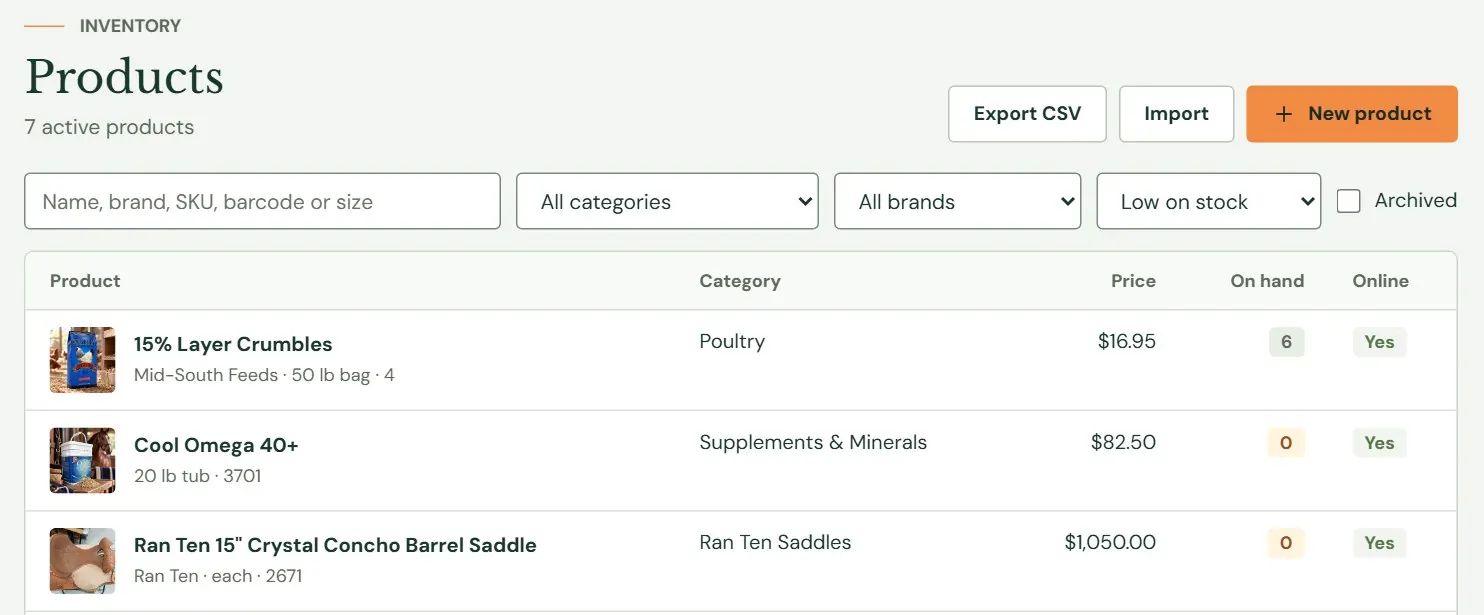 123456
- 1Export CSV, Import and New product. Staff see only Export CSV.
- 2Search by name, brand, SKU, barcode or size.
- 3The filters. Department, brand and stock level work together.
- 4The cover photo, the name, and the brand, size and SKU.
- 5A count at or under its reorder point gets a badge.
- 6Whether the product is on the website.
The stock chart and Top sellers
When you count some of your stock, or customers have bought something on the website, two cards sit above the list. They show on the plain first page of the list and step aside once you search, filter or turn the page.
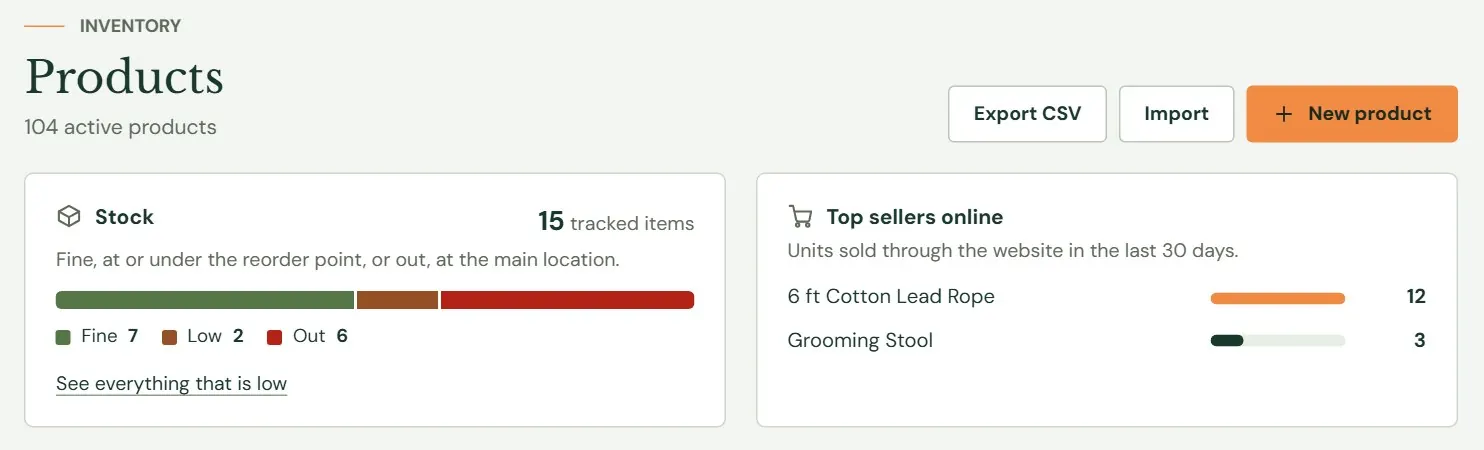 123
123- 1Every counted size, sorted into Fine, Low and Out.
- 2Opens the list filtered to what is low or out.
- 3The six products customers bought most through the website.
The Stock card counts every size Roadside keeps a count for, in products that are for sale. A size is Low when its count is at or under its reorder point, Out at zero and Fine otherwise. Chapter 13, Stock explains how the counts change. Top sellers online lists the units sold through the website in the last 30 days. It appears when your store takes orders online, your role can see orders and something has sold.
The product page
Pressing a product's name opens its page. The page is for reading: price, cost, suppliers, stock and what has changed. You change things in the editor, which the Edit button opens. Chapter 10, Add or edit a product covers it.
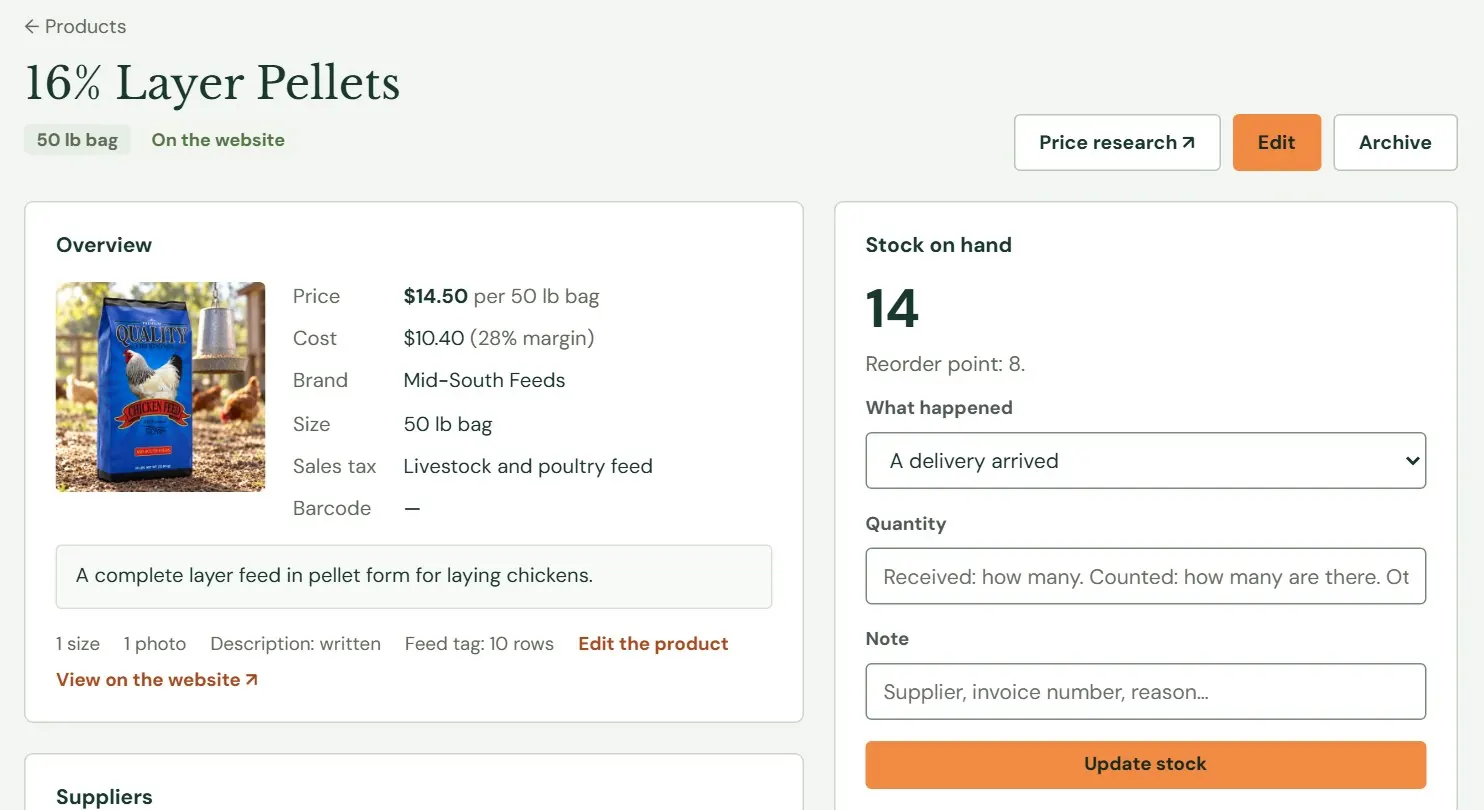 12345
12345- 1Price research, Edit and Archive.
- 2The first size, and whether customers can see the product.
- 3Price, cost and margin, brand, size, sales tax and barcode.
- 4What the product has, with links to edit it and to see it on the website.
- 5How many are on hand, and the form to change the count.
Overview is the card on the left. For a one-size product the price line reads $14.50 per 50 lb bag. For several sizes it reads as a range, $17.75 to $38.00 by size, and Cost and Barcode say By size. Margin is what is left of the price after the cost, as a percent of the price, and it shows once you have entered a cost. Under the facts are the summary and a line counting the product's sizes and photos.
Below Overview are Suppliers and Stock history, covered in Chapter 13, Stock. On the right, under Stock on hand, Price history lists the last 25 changes to price or cost, newest first, with the date, where the change came from (Edited, Import, Supplier cost) and who made it. For a product with several sizes it does not say which size changed. Visits to its page and Recent online orders appear too when there is something to show.
Price research opens a web shopping search for the product's brand, name and size in a new tab, so you can see what others charge. Archive takes the product off the lists and the website and keeps its history. Roadside asks first. For what restoring an archived product does, see Archive and restore, in Chapter 10.
Cost and margin show to everyone who can open Products, and the exported spreadsheet has a Cost column. If a role should not see what you pay, check who has Products access in Chapter 26, Your team and what each role can do.
Departments and categories
Categories sort your products, for you and for the website. Every product sits in one category.
- Department
- A category at the top level, such as Feed or Tack. Customers meet departments as the main groups of your shop.
- Subcategory
- A category inside a department, such as Poultry or Horse inside Feed.
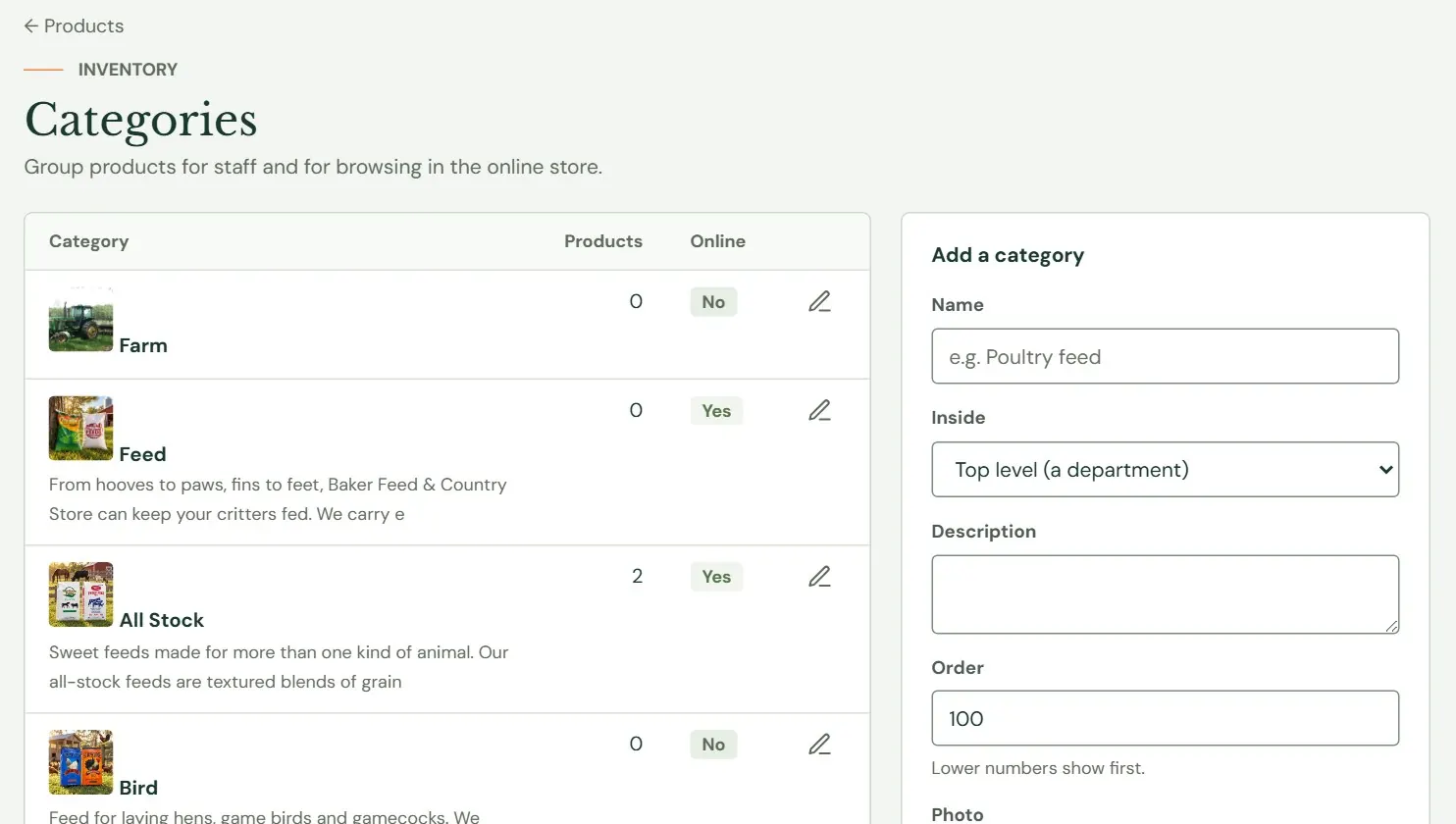 12345
12345- 1A category's name. Press it to see its products.
- 2Products filed directly in the category.
- 3Whether the category shows on the website.
- 4Edit the category.
- 5Add a department or a subcategory.
Departments come first, with their subcategories listed under them. The Products column counts the products filed directly in a category, so a department often shows 0 when its products sit in its subcategories. The pencil opens the category's form in place of its row. The Add a category card has the same fields.
| Field | What it does |
|---|---|
| Name | Required, up to 120 characters. |
| Inside | Choose Top level (a department), or the department it belongs in. |
| Description | On the sample store's website the first paragraph leads the department's page. Paragraphs after a blank line appear lower down. |
| Order | A number from 0 to 9999, set to 100 for a new category. Lower numbers show first. |
| Photo | A JPEG, PNG or WebP up to 6 MB for the category's card on the website. Without one, a product's photo is used. |
| Show in the online store | Ticked for a new category. See the warning below. |
Press Save and Roadside says Category saved. Remove category, at the bottom of the form, asks first. Its products stay with no category, and its subcategories move up one level.
When Show in the online store is off, the category's page, its card and every product filed directly in it leave the website at the next update. The products stay in Roadside, and they return when you turn the box back on. A product with no category still shows, but under no department.
A category's web address comes from the first name you give it and stays the same when you rename it, so renaming is safe. Remove a category and add it again and the new one gets a new address.
Brands
A brand is the maker: Mid-South Feeds, Tribute, Ran Ten. It shows above the product's name on the website and gives you a filter on the Products list. The screen has the same shape as Categories, a list on the left and an Add a brand card on the right. A brand has a Name and a Website. Type the website the short way, such as purinamills.com, and Roadside adds the https://. Remove brand asks first and leaves its products with no brand.
Roadside refuses a second brand spelled almost like one you have (capitals, spaces and punctuation do not count) and names the one it matched. When you rename a brand, it remembers the old spelling, so a later import or Fetch with AI still finds it.
What decides whether a product is on the website
A product is on your website when all of these are true:
- It is not archived.
- Its Website setting is On the website or In the store only, not Hidden.
- Its Status is For sale, or Discontinued with some left in stock.
- Its category is shown in the online store, or it has no category.
Status and Website are two settings in the product's editor. For how they combine, see Website: what customers see, in Chapter 10. A product that meets all four conditions and is still missing from the website after a few minutes is worth a note to support@dirtroadsoftware.com. Send the product's name and we will look.
Customers see a product's price, its photos and whether it is in stock. They never see your cost, your supplier, your reorder point or an exact count. A change you save reaches the website in a few minutes, and Chapter 8, How your changes reach the website explains how.
Something here does not match your screen? Write to support@dirtroadsoftware.com with the name of the screen, what you pressed and what you expected. A picture of the screen helps.