
How online ordering works
A customer builds an order on your website, picks a day, and pays by card or at the counter. Roadside sets the stock aside, sends the emails and puts the order in front of you. This chapter follows one order, first as the customer sees it and then as you handle it.
In this chapter
The cart
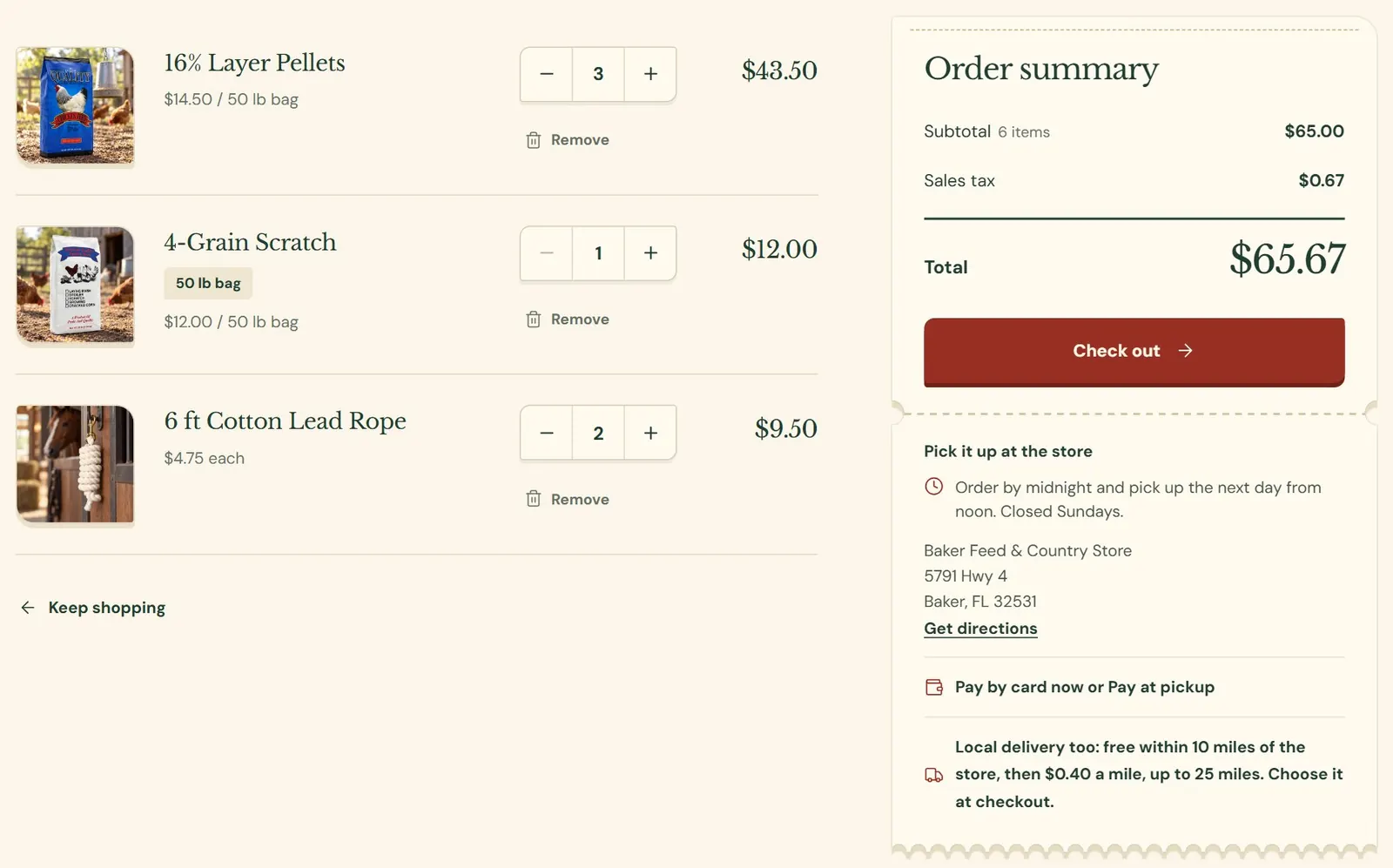
A customer adds products to a cart on your website and presses Check out. The cart is kept in the customer's own browser, so you never see a cart that someone left behind, and a customer who starts on a phone and moves to a computer starts over. Every time the cart opens, Roadside checks each price, the sales tax and what is on the shelf. The numbers on the page come from your product records.
 123456
- 1One line for each product, with its size, its price and a Remove link.
- 2The customer changes the quantity here.
- 3Sales tax, worked out from your location and each product's sales tax setting.
- 4Takes the customer to the checkout.
- 5Your pickup rule and address, from Store settings and Store info.
- 6Appears when you offer delivery, with your delivery terms.
A line shows a problem in words the customer can act on, and Check out stays grayed out until the problem is gone. Most of these come from settings you control.
| The customer sees | Why |
|---|---|
| Only 3 of 16% Layer Pellets left. | The product tracks stock and the quantity is higher than what is on the shelf. A product with stock at zero reads is sold out. |
| X can't be ordered online right now. | The product is set to special order, call to order, out of stock or out of season. For the first two the line adds Call the store to order it. |
| You can order up to 100 of X online. Call the store for more. | The quantity is above the most of one product per order. Your store-wide limit is 100 unless you change it, and a product can set a lower one. |
| Orders start at $25.00. Add $10.00 more to check out. | You set a minimum order. There is none until you do. |
The checkout
The checkout is one page with three steps. A customer who pays by card never leaves your website: the card number goes straight into the card processor's own secure fields on the page, and Roadside never sees or keeps it. Step 1 asks for the customer's details. Name and email are always asked for, and the receipt and the ready note go to that email. Phone is required unless you set it to optional, and a delivery order always needs one. A farm or business name is asked only if you turn it on. A customer with a website account can sign in at the top of the step and the form fills itself. Guests can always check out.
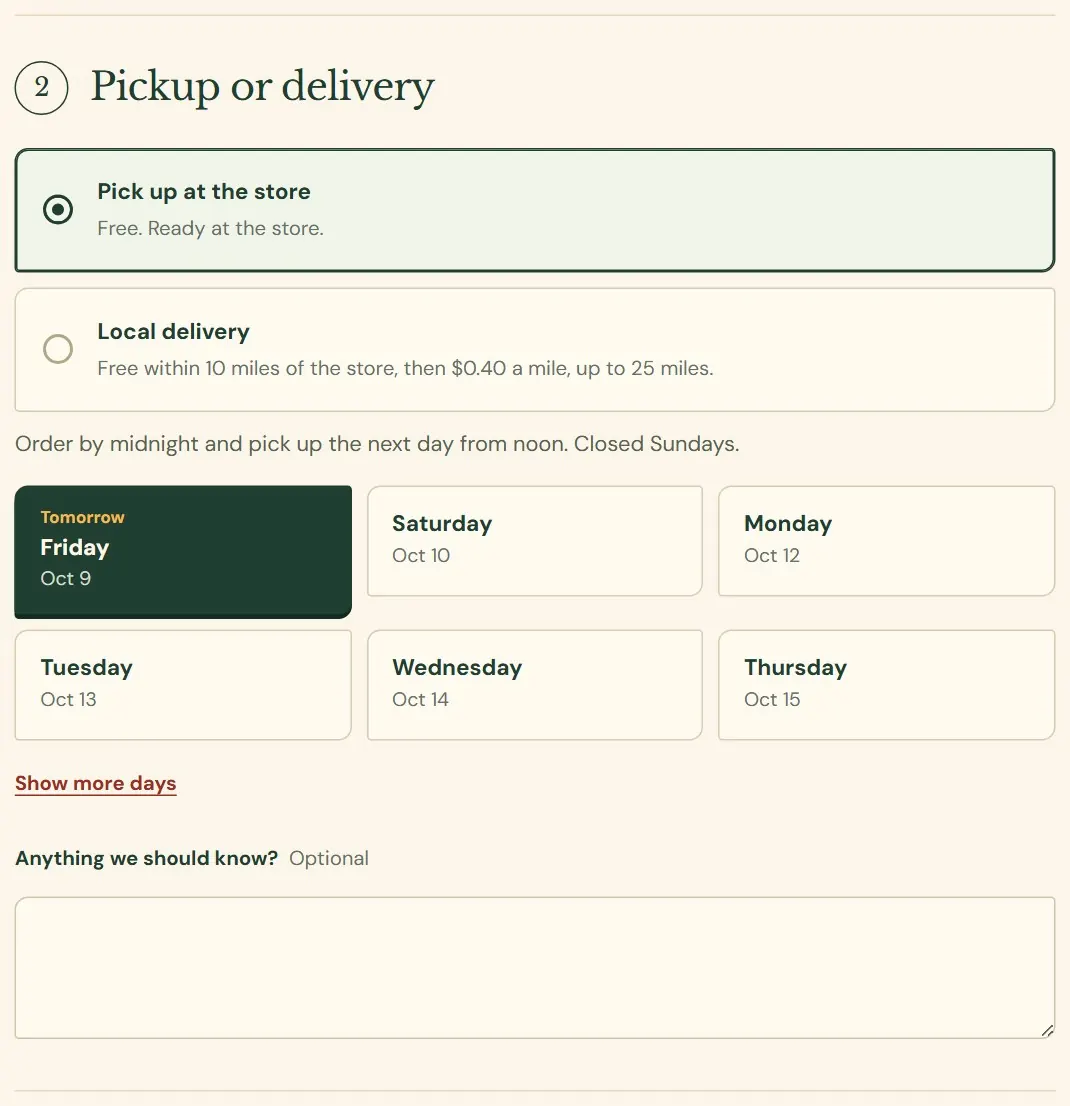
Step 2 is the day. A customer chooses pickup at the store or, when you offer it, local delivery. The page shows your pickup rule and up to six days to choose from, with a Show more days link for the rest. Days you are closed, days that are full and days past your limit never appear. The customer can also leave a note with the order.
 1234
1234- 1Pickup is always offered. Local delivery appears when you turn it on.
- 2Your pickup rule, in your words: cutoff time, ready time and closed days.
- 3The first available day is chosen already.
- 4The customer's note. It shows on the order and on the pick ticket.
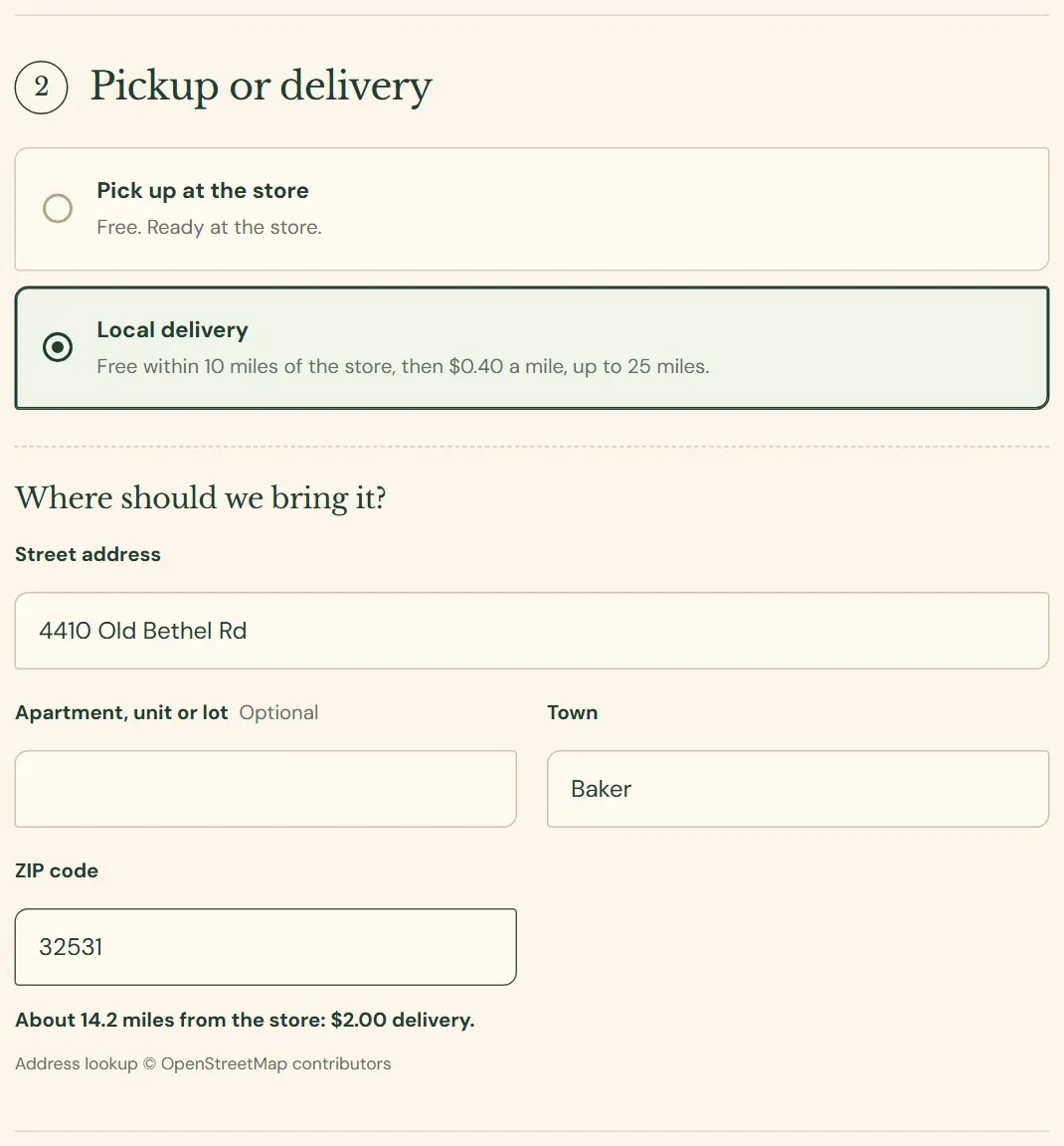
When the customer chooses delivery, the page asks for a street address, town and ZIP code and works out the distance from your store. The fee shows as soon as the address is complete. The delivery fee is not taxed. Delivery, in Chapter 17 explains how you set the distances and the charge.
 123
123- 1The terms you set, in plain words.
- 2Street address, town and ZIP code. A phone number is required for delivery.
- 3The distance from the store and the delivery fee, with a credit line for the address lookup.
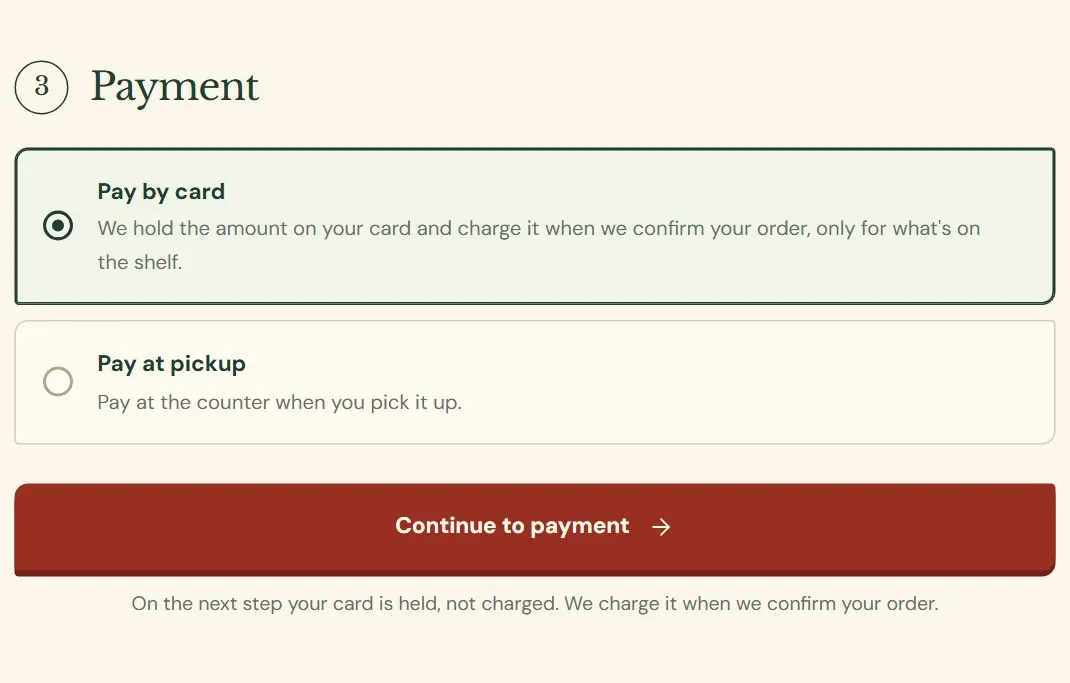
Step 3 is payment. The customer sees only the ways you have turned on. Paying by card opens a short Pay panel for the card. Pay at pickup places the order on the spot, and the customer pays you at the counter, or the driver on delivery, and you record how. Chapter 19, Payments, holds and refunds covers card payments, holds and bank payments in detail.
 123
123- 1The ways to pay that you have turned on.
- 2The button changes with the choice: Continue to payment for a card, Place order for pay at pickup.
- 3A line under the button says what happens next, so the customer knows whether the card is held or charged.
- Card processor
- The company that handles card payments for your store. Stripe and Clover are two. You have your own account with it, with its own fees and its own dashboard. Dirt Road connects it to Roadside. To add or change one, write to support@dirtroadsoftware.com.
- Hold
- Money set aside on a customer's card without taking it. The customer sees it as pending. You can charge the card later for what you have on the shelf, or let the hold go.
The order page and the emails
After the order is placed, the customer lands on an order page that shows the items, the total, the pickup or delivery day and what happens next. The stamp in the corner changes as you work the order: On hold, Paid, Pay at pickup, Ready, Picked up or Cancelled.
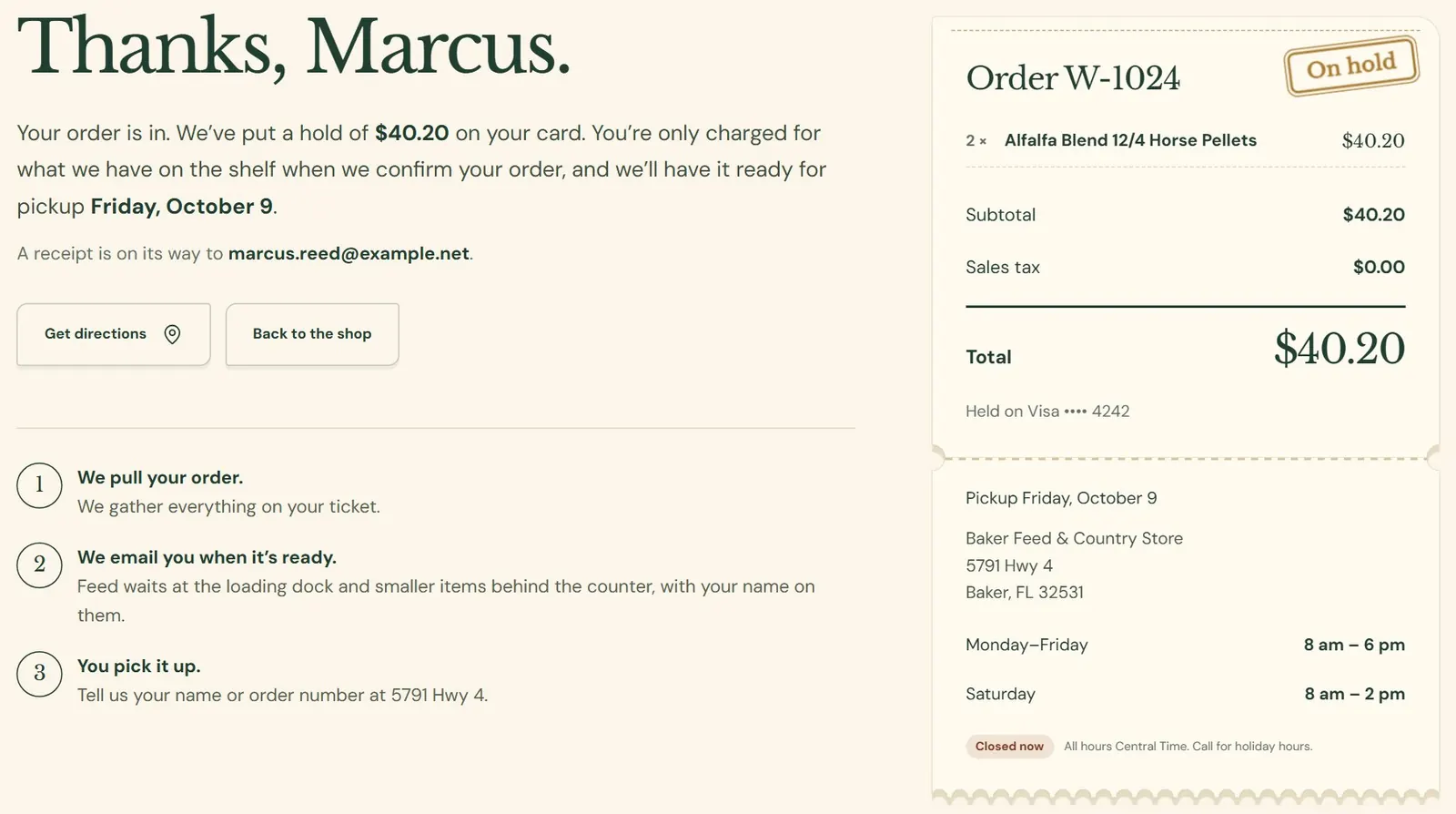 1234
1234- 1The stamp shows where the order stands.
- 2A sentence about this order: the hold, the pickup day and where the receipt went.
- 3The ticket: items, tax, total and how the customer is paying.
- 4What happens next, in three steps.
The emails Roadside sends do not contain a link to the order page. A customer sees the page once, right after ordering, and later only by signing in to a website account. A customer who has no account and wants to check on an order calls you with the order number from the email.
Roadside emails the customer in plain text, within about a minute. Each email ends with the sign-off you write in Store settings, then the name of your store.
| When | Subject | What it says |
|---|---|---|
| The order is placed | We got your order W-1023 | The items, the totals, the pickup or delivery day, your pickup instructions and one line about payment. A card order sends it once the card is held or paid. |
| You mark it ready, if Email customers when their order is ready is on | Your order W-1023 is ready for pickup | The ready time, what is still due, and a request to mention the order number. |
| You cancel it with Email the customer ticked | Your order W-1023 was cancelled | Your reason, in your words. It says the payment is being refunded when money had been charged. |
| A bank payment comes back | About your order W-1023 | The bank did not send the money, the order is cancelled and nothing was taken. |
| A card hold ran out first | About your order W-1023 | The hold was released and nothing was charged. The order is still on and the customer can pay at pickup. |
Hi Gene Whitaker,

Thanks for your order! We'll email you when it's ready.

- 4 x 16% Layer Pellets  $58.00
- 2 x 4-Grain Scratch (50 lb bag)  $24.00

Subtotal: $82.00
Total: $82.00

Pickup: Friday, October 9, from noon.
Payment is taken when you pick up.

Baker Feed & Country Store
The confirmation for a pay-at-pickup order.
No email goes out when an order is marked picked up, when you refund, or when a customer sends in a farm tax exemption card. Your own staff get an email only if you fill in Email new orders to on the Emails & policies tab. It is blank until you do, and until then a new order shows up only on the screen.
Website accounts and farm tax exemption cards
A customer can make an account on your website. It is optional and guests can always check out. An account keeps a list of the customer's orders, fills in the checkout details, and has a place to send in a farm tax exemption card. Customers sign in on your website, not in Roadside, and Roadside has no screen for listing, resetting or turning off a customer's website sign-in. A customer who forgets the password uses the Forgot your password? link on the sign-in page.
Each web order also adds the customer to your Accounts list under Customers, tagged online customer, with a note for the order. Chapter 20, Customer accounts and contacts covers what to do with them.
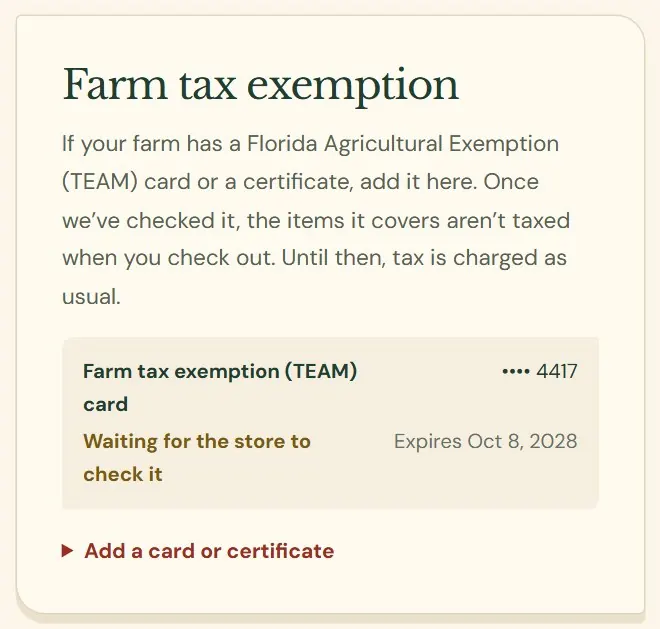 12
12- 1What the customer is told. Roadside shows only the last four digits back.
- 2The card as sent, marked Waiting for the store to check it.
A card that a customer sends in stays marked Waiting for the store to check it, and the panel has no screen where you can check it. Until a card is checked, Roadside charges tax on the order as usual, and it does not email the customer either way. Items that your product settings mark as tax-exempt are never taxed. If a customer who holds a card needs tax taken off an order, deal with it at the counter, or refund the tax afterward with the reason Tax exemption shown (see Refunds, in Chapter 19).
What happens to an order
You see a new order in three places: on Website home under Online orders to prepare, in Online orders under the To do tab, and in an email if you filled in Email new orders to. From there it moves through the same four steps whether the customer paid by card or will pay at the counter.
Stock leaves the shelf when the order opens: at once for a pay-at-pickup order, and when the card is held or paid for a card order. It comes back if you cancel the order. This applies to products that track stock; Chapter 13, Stock explains how to turn that on.
While a customer is paying
A card checkout takes a few minutes. While the customer pays, Roadside sets the items and the pickup day aside, so another customer cannot buy the last bag or take the last slot on a day you have limited. If the payment does not finish in about an hour, the order turns to Not paid and everything goes back. You can find these on the Not paid tab of Online orders. They keep their order numbers, so your numbers have gaps.
A bank payment works differently. It takes about four business days, the stock stays set aside, and the order does not appear in To do until the money arrives.
Who can do what
Store owners and Managers run the daily work of online ordering. Staff can work the orders but cannot refund or change settings. Chapter 26, Your team and what each role can do lists every role.
| Job | Store owner | Manager | Staff |
|---|---|---|---|
| See orders, print a pick ticket, add a staff note | |||
| Mark an order ready, picked up, or record a counter payment | |||
| Cancel an order | Only if no money is on it | ||
| Refund, release a hold, settle a payment issue | |||
| Change Store settings |
Sales tax comes from the tax rates Dirt Road sets up for your county, together with the sales tax setting on each product. There is no tax screen in Roadside. If tax looks wrong on an order, write to support@dirtroadsoftware.com with the order number.
Something here does not match your screen? Write to support@dirtroadsoftware.com with the name of the screen, what you pressed and what you expected. A picture of the screen helps.