
Account and Billing
Account shows your Roadside plan with Dirt Road Software and whether it is paid up. Billing lists what you owe, your invoices and how you pay. Both screens are for the Store owner: a Manager does not see them in the menu.
In this chapter
Your plan on the Account screen
Account answers three questions: what Dirt Road provides your store, whether it is paid, and what you have been billed. When you open it, Roadside asks Dirt Road for the latest if the last check was more than 15 minutes ago, so a payment you made a minute ago shows up. Roadside also checks on its own every 6 hours.
- Plan
- What Dirt Road provides for your store: Roadside, and how many website changes you get each month.
- Paid through
- The date your plan is paid up to. During a trial the same line reads Trial ends.
- License
- The record Dirt Road keeps of your plan: what it includes and whether it is paid. Two of the status badges below use the word.
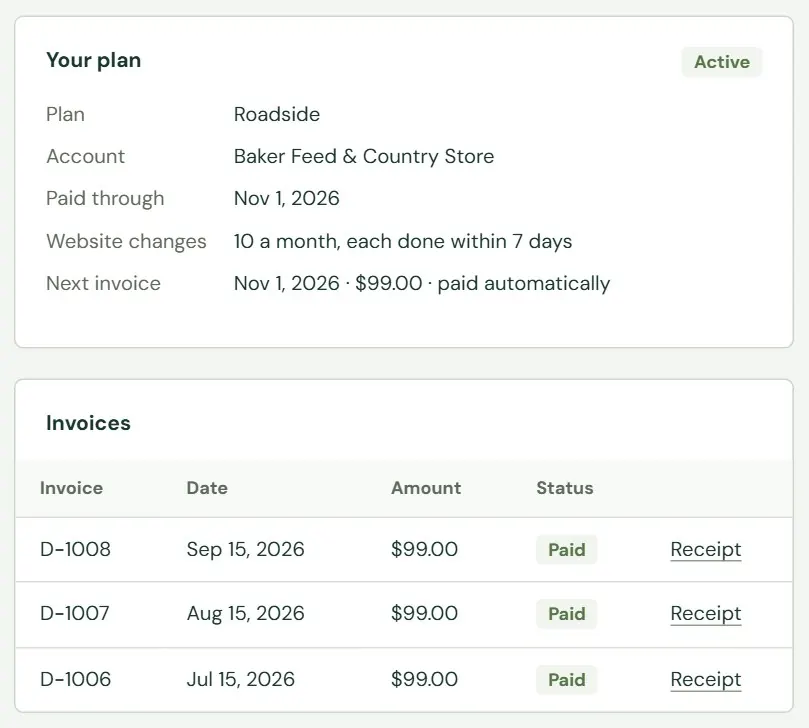 1234
1234- 1The plan's status. Green means everything is in order.
- 2The plan, the account name, the date it is paid through, the website changes you get, and the next invoice with its date and amount. Paid automatically appears when Dirt Road charges your saved card or bank account itself.
- 3Your invoices from Dirt Road, newest first.
- 4Receipt opens a paid invoice. An unpaid one has View & pay instead. Both open in a new tab.
When something is owed, a Balance due line appears in bold under the facts, with a Pay now button. Dirt Road can also post a short notice under the plan card, in a blue box, or in a red one when it is urgent.
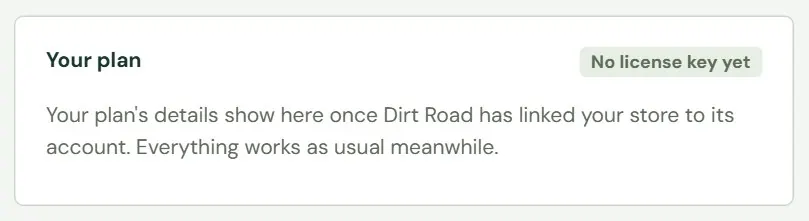
A store that Dirt Road has not linked yet shows this instead. Everything works as usual in the meantime.
 12
12- 1The badge reads No license key yet.
- 2The note says the plan's details will appear once the link is made.
What each status badge means
| Badge | What it means | What changes for you |
|---|---|---|
| No license key yet | Dirt Road has not linked your store to its record of your plan. | Nothing. Everything works. |
| Waiting for the first license check | The link is made and Roadside is waiting for Dirt Road's first answer. | Nothing. Everything works. |
| Trial | You are in your trial. Trial ends shows in place of Paid through. | Nothing. Everything works. |
| Active | The plan is paid. | Nothing. |
| Payment past due | An invoice is unpaid. | Everything works. A banner asks you to pay. |
| Suspended, Cancelled or Expired | The plan is unpaid, has ended, or Roadside has not been able to reach Dirt Road to check it for a long while. | The website stays online. Saving Store info and sending new website changes pause. Signing in, Account, Billing and paying still work. |
What happens when a payment is late
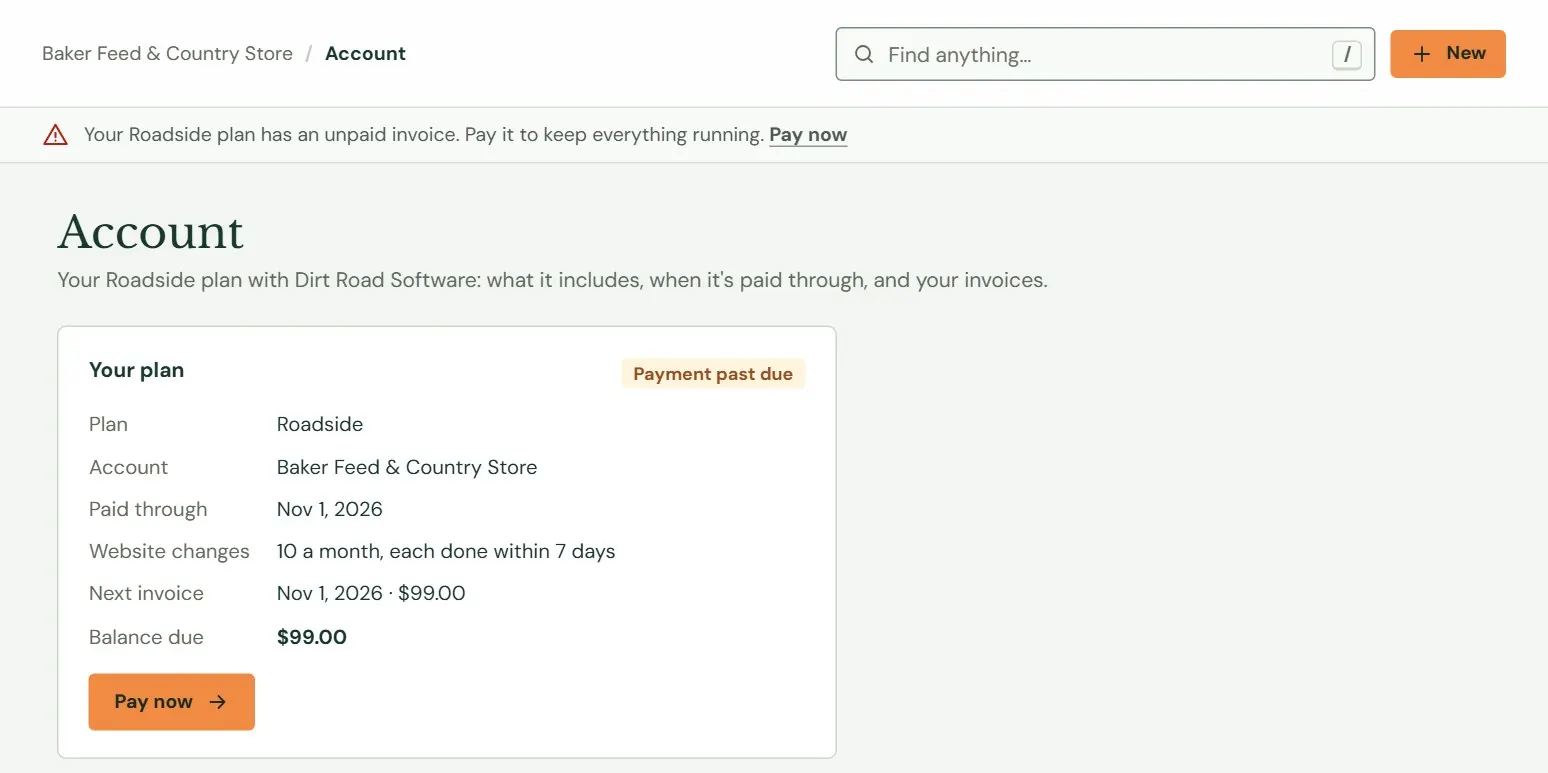
An unpaid invoice first turns the badge amber and puts a banner under the top bar of every screen the Store owner opens. The banner has a Pay now link. Nothing stops working.
 1234
1234- 1The banner on every screen. Pay now opens Dirt Road's payment page in a new tab.
- 2Payment past due.
- 3What is owed.
- 4The same Pay now link on the Account screen itself.
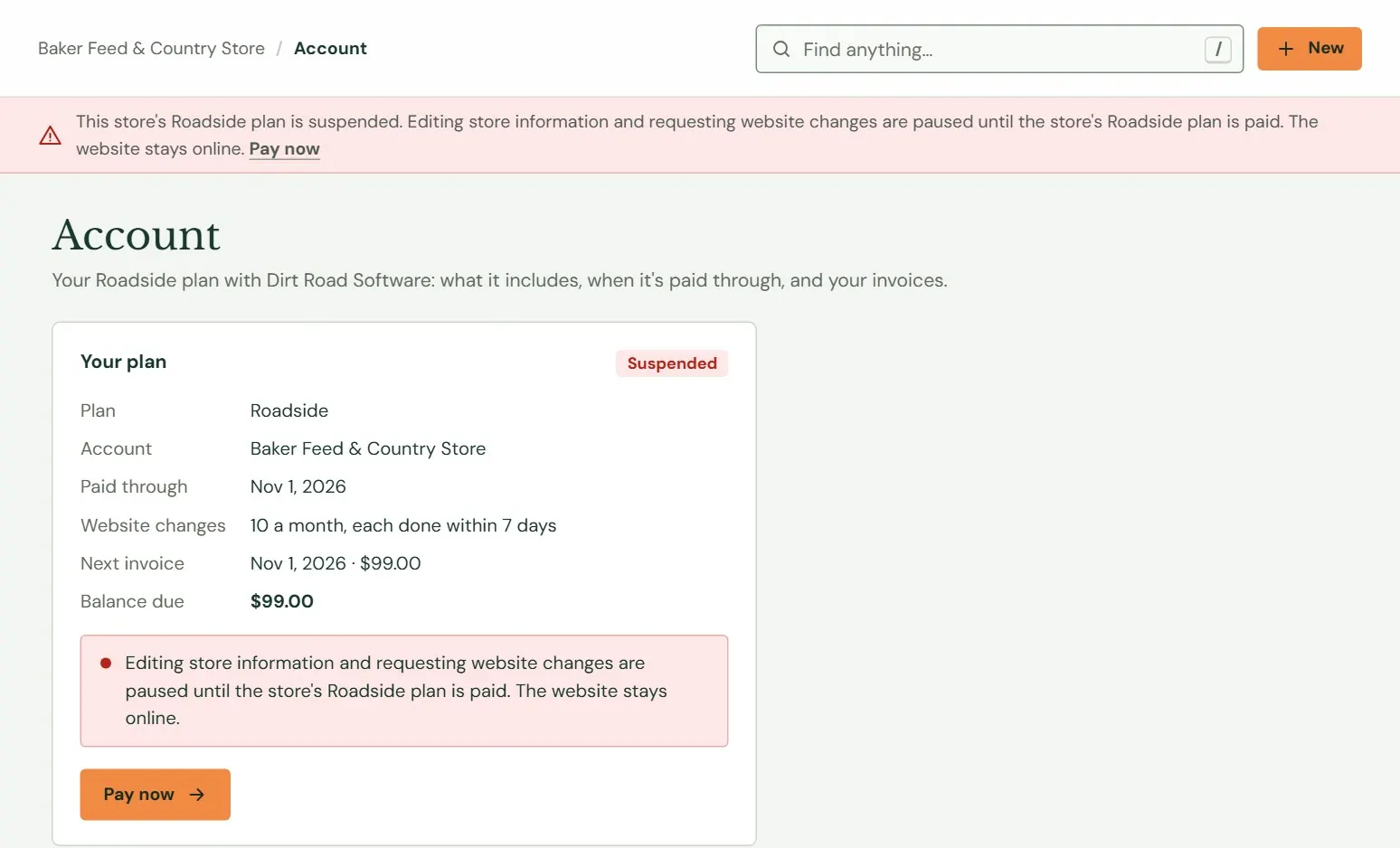
If the plan stays unpaid and Dirt Road suspends it, the banner turns red and everyone in your store sees it, with the Pay now link shown only to the people who can open Account. Two jobs pause for everyone in your store until the plan is paid: saving Store info, and sending new website change requests. The website itself stays online. Your team can still sign in, and you can still open Account and Billing to pay.
 1234
1234- 1The red banner says the plan is suspended and what is paused.
- 2Suspended, in red.
- 3The same message on the plan card.
- 4Pay now.
After you pay, open Account. The badge changes to Active once Roadside has Dirt Road's answer. Card payments usually show within seconds, and bank payments take a few days. If the badge is wrong a day later, write to support@dirtroadsoftware.com and give the invoice number.
Billing: what you owe and how you pay
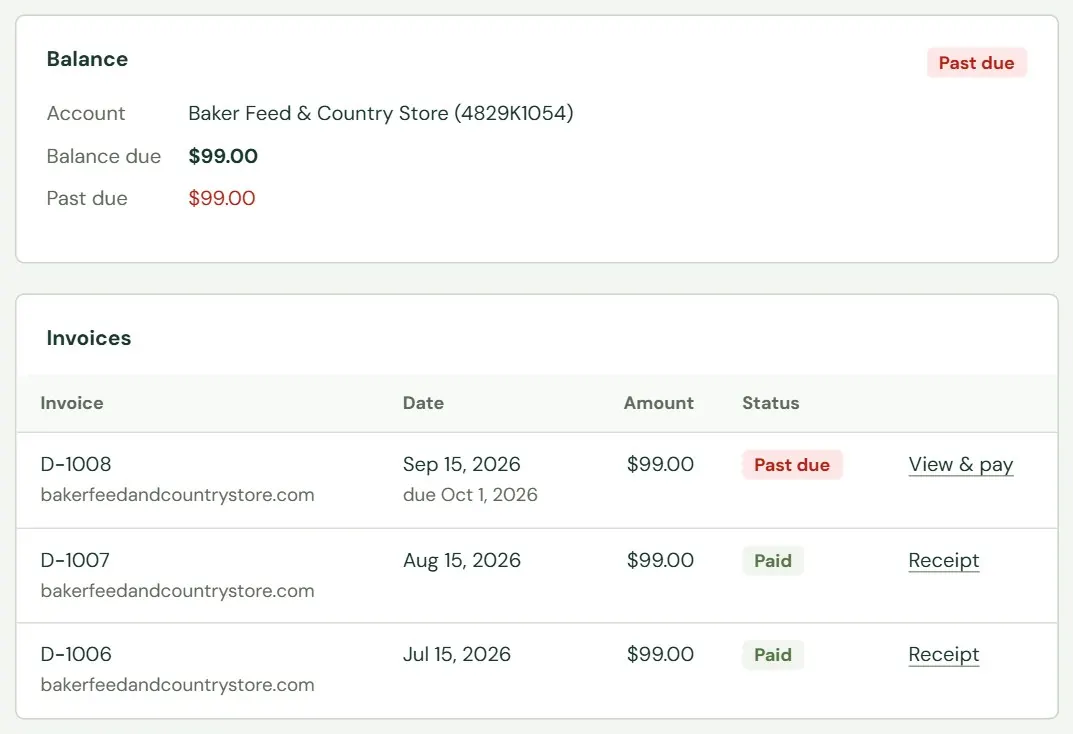
Billing asks Dirt Road's billing system for its figures each time you open it, so it shows what Dirt Road has right now. It has four cards.
 1234
1234- 1Your account name and the client number Dirt Road uses for you, with the balance due. Give that number when you write to Dirt Road about billing.
- 2A red Past due tag and amount appear when an invoice is late.
- 3Each invoice with its date, its due date while unpaid, and its amount. An amount part paid shows how much is left.
- 4View & pay opens the invoice page. Paid invoices have Receipt. Voided and Closed invoices have View and need nothing from you.
 12
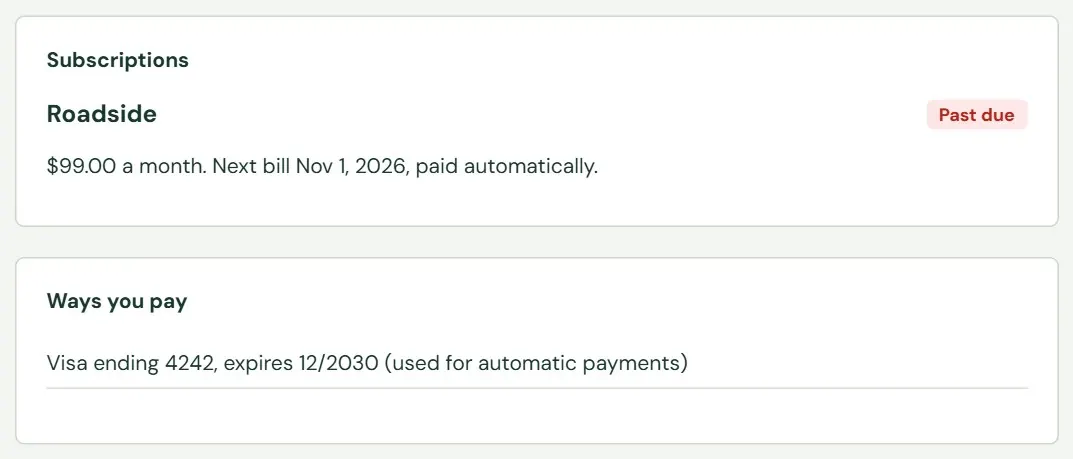
12- 1Each subscription: what it is, its status, what it costs each month or year, and the next bill date. A subscription that is ending says Ends and the date, with no more invoices after that.
- 2The cards or bank accounts Dirt Road has on file, with their expiry dates and which one pays automatically.
You cannot change the card on file from this screen. To change it, write to support@dirtroadsoftware.com. Billing never shows full card numbers.
Where Billing cannot show its figures it says why. Your billing shows here once Dirt Road Software has linked your company to its billing means the link is not made yet. Billing couldn't be reached just now. Try again in a minute means Roadside could not get an answer from Dirt Road's billing system.
Open an invoice from an email
Dirt Road's invoice and reminder emails have a link to view and pay the invoice. The link opens the invoice without signing in to Roadside, so you can use it from your phone. The long link is the key to the invoice: forward the email only to someone who should pay it.
 123
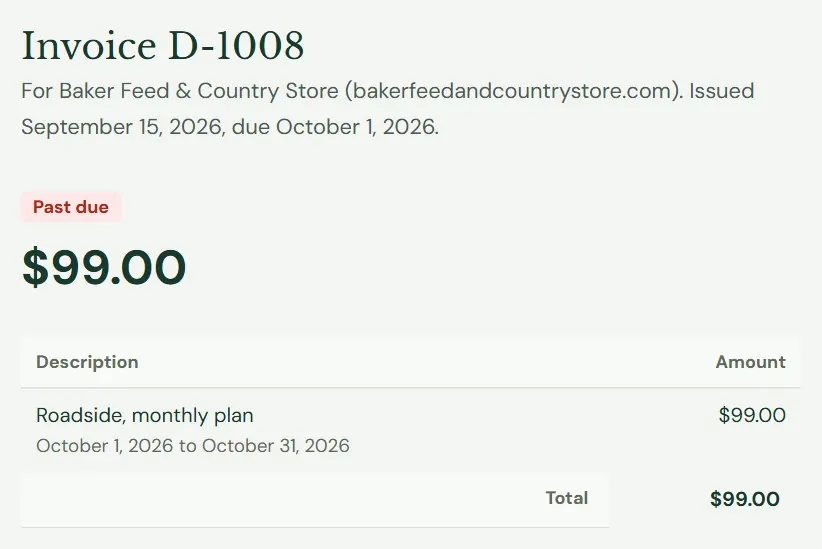
123- 1The invoice number, who it is for, the day it was issued and the day it is due.
- 2The amount due, with a tag: Amount due, Past due, or Paid with the date.
- 3What the invoice is for, with the period it covers. Tax, payments already made and the balance appear below when there are any.
Below the lines you may see Dirt Road's note and a list of payments received. If someone has signed the invoice, it says Signed by and the name. A signed-in person gets an All your billing link at the top. There is no print button: use your browser's own print command to make a paper or PDF copy.
Sign an invoice, and pay it
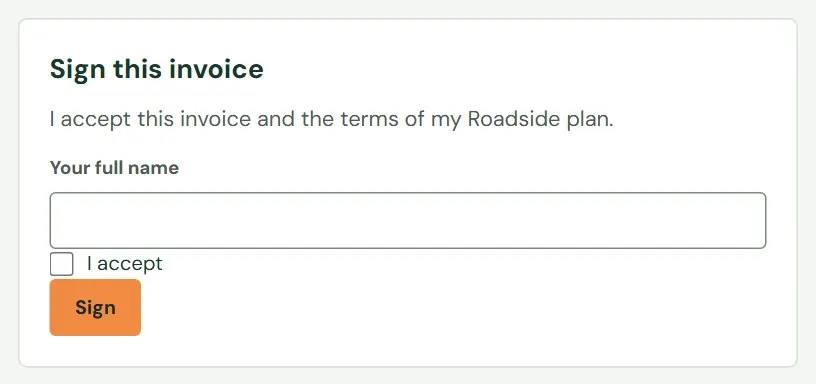
Sometimes Dirt Road's billing asks for a signature before an invoice can be paid. Then the invoice shows Sign this invoice and no Pay button yet.
 123
123- 1Type your full name.
- 2Tick I accept.
- 3Press Sign. The page says Signed. Thank you. and the payment choices appear.
If the name is empty or the box is not ticked, the page says Type your full name and tick "I accept" to sign the invoice.
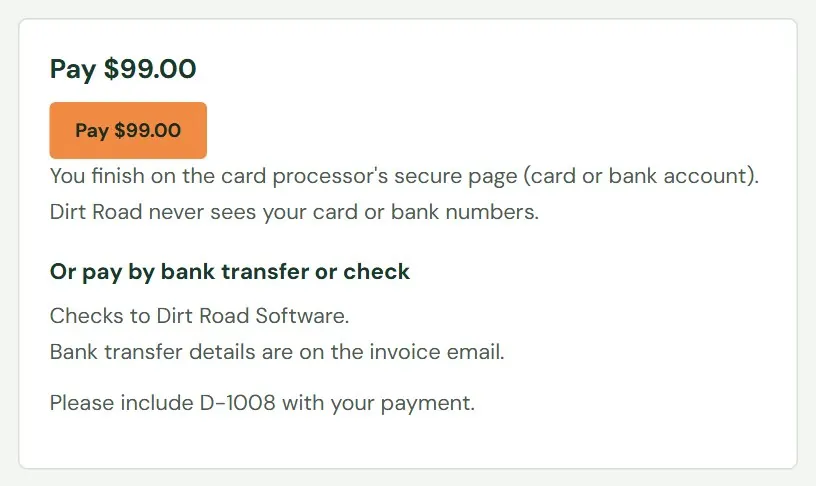 123
123- 1Press Pay. A card form opens on the page, or you go on to the card processor's own secure page.
- 2Dirt Road never sees your card or bank numbers. The processor does.
- 3Instructions for paying by bank transfer or check. Write the invoice number on the payment.
When the payment goes through, the page says Thank you. Your payment went through. Sometimes it says Your payment shows here once the card processor confirms it, usually within seconds. Bank payments take a few days. If a payment fails, the page says The payment didn't go through. Try again, or use another card or bank account. A link that no longer works says This invoice link isn't valid. Ask Dirt Road Software for a new one.
The card form can sit on the invoice page or on the card processor's own page. Either way your card and bank details go to the card processor, and Dirt Road does not see them.
Something here does not match your screen? Write to support@dirtroadsoftware.com with the name of the screen, what you pressed and what you expected. A picture of the screen helps.