
Store settings
Store settings decide how customers order from your website: whether ordering is open, which days they can pick up, whether you deliver, how they pay and which emails go out. Each tab saves on its own.
In this chapter
How the tabs work
Store settings has six tabs: General, Checkout, Pickup, Delivery, Payments and Emails & policies. You reach it from the menu or from the Store settings button on Online orders. Staff do not see it.
Every tab is its own form with its own save button, such as Save pickup settings. The tabs are plain links, so leaving a tab without pressing its save button throws away what you typed. After a save you see a green line such as Pickup settings saved. A number outside the allowed range is not refused. Roadside quietly moves it to the nearest allowed number, so 200 miles for delivery becomes 100.
Most changes reach your website within a few minutes. Chapter 8, How your changes reach the website explains how a change gets there.
General: open or close ordering
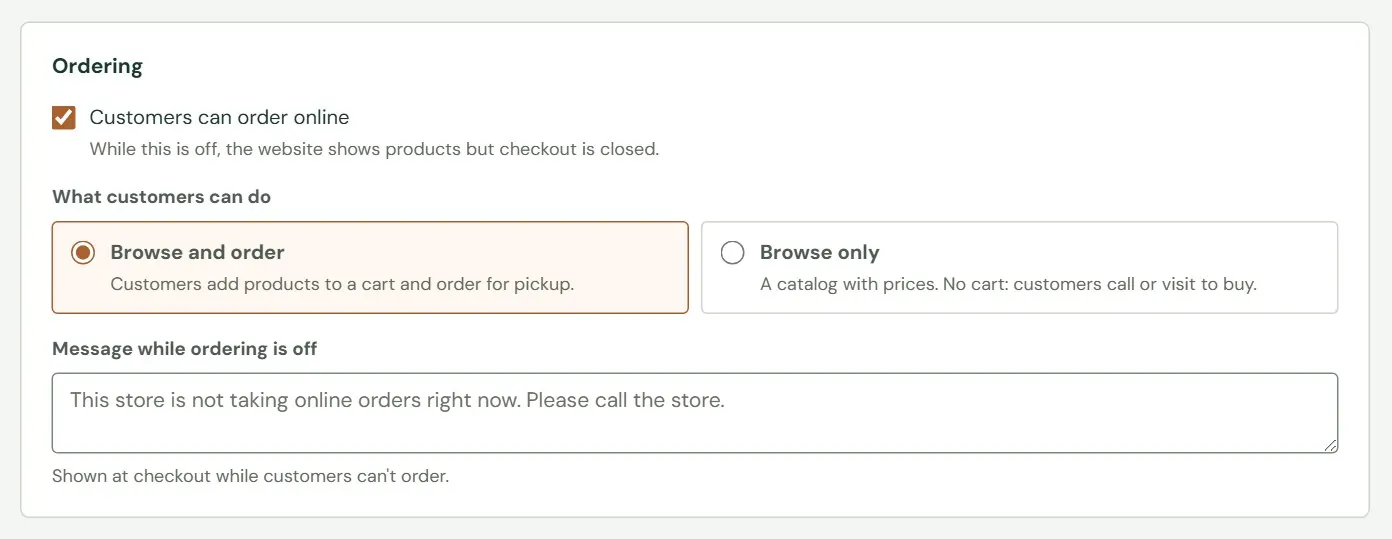
Ordering is off until you turn it on. While it is off, your website shows products and prices but has no working checkout, and every Store settings tab shows a notice that says so.
Turn ordering on after at least one way to pay is on (see the Payments tab below). Without one, the checkout tells the customer This store isn't taking payments online yet. Please call the store to order.
When you turn ordering off, orders already placed are not touched, and the customers who placed them still get what you promised. Customers who reach the checkout see your message. The website itself changes to its call-to-order wording and drops the cart, and that takes a few minutes to show. For a holiday, you usually want to close particular days instead of switching ordering off; the steps for both are in Close for a holiday, in Chapter 18.
 123
123- 1The master switch for online ordering. Off by default.
- 2Browse and order is the default. Browse only shows prices with no cart, for customers who call or visit to buy.
- 3What customers read at checkout while ordering is off. Up to 500 characters. Blank shows This store is not taking online orders right now. Please call the store.
Checkout: the cart and the form
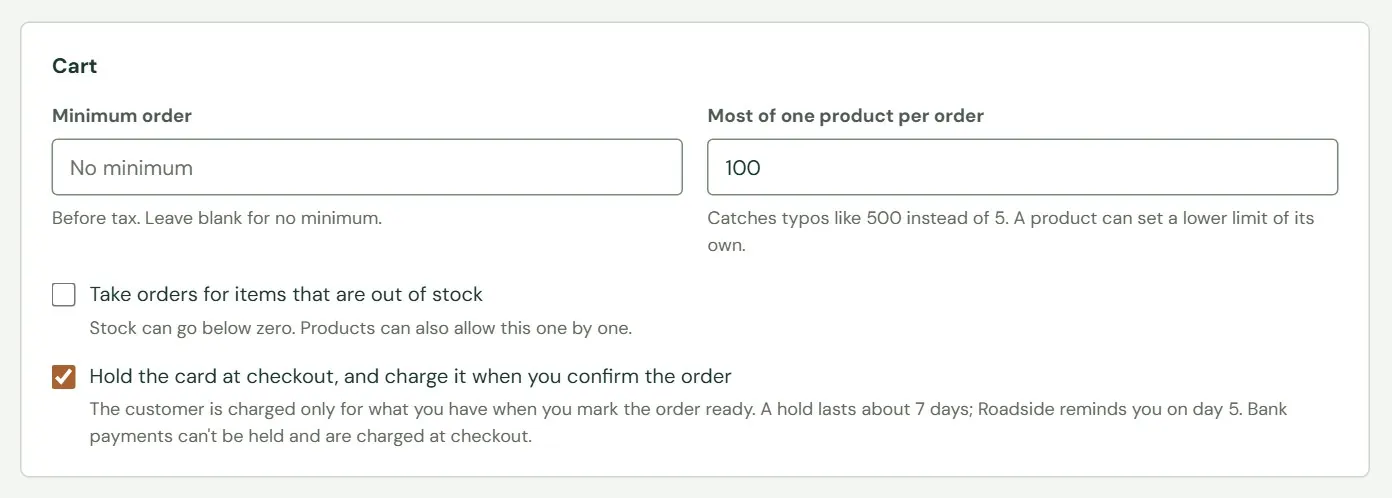
The Checkout tab has three cards. The first controls the cart.
The hold switch only works with a card processor that can hold a card, and Stripe can. Roadside never charges a held card on its own. Holds, in Chapter 19 explains what a hold does and how long it lasts.
 1234
1234- 1No minimum until you type one, as a dollar amount such as 25 or 25.00. It is counted before tax.
- 2Catches a typing mistake such as 500 bags for 5. From 1 to 9999, and 100 by default.
- 3When ticked, stock can go below zero. A product can also allow this on its own page.
- 4Holds the customer's card at checkout and charges it when you confirm the order. Off by default.
 12345
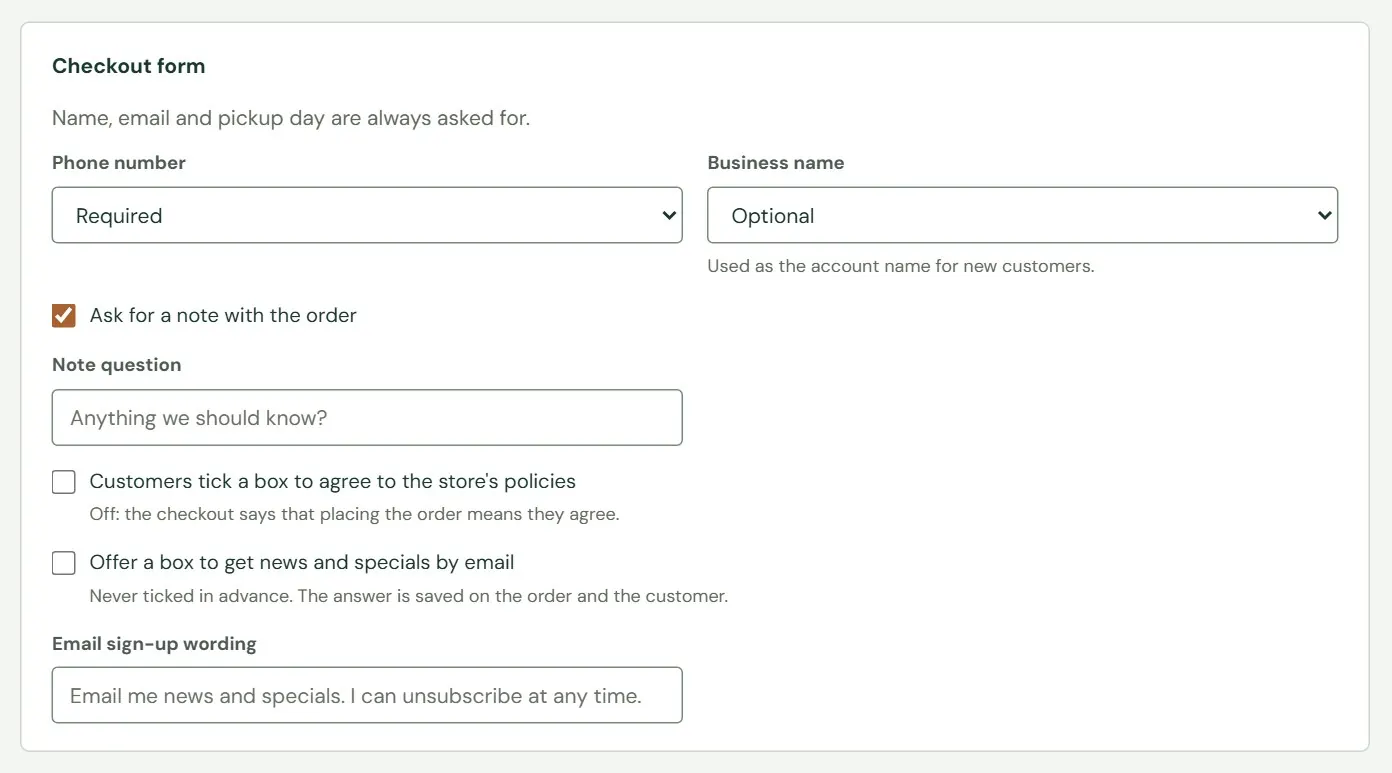
12345- 1Required by default: at least 7 digits. A delivery order always asks for one.
- 2Don't ask is the default. Optional or Required adds a Farm or business box.
- 3A note box on the order, up to 1000 characters. The note shows on the pick ticket.
- 4When ticked, an unchecked policies box blocks the order with Please agree to the store's policies.
- 5Adds a box that is never ticked in advance.
Name, email and pickup day are always asked for. The wording of the note question (up to 80 characters) and of the news box (up to 120) is yours to change. The news box does not add anyone to your email list. It puts the badge Asked for news by email on the order and tags a new customer email sign-up in your Accounts list. Chapter 21, The email list covers the list itself.
This box and your policy text work together. On the sample store's website the text you write under Returns, refunds and other policies (on the Emails & policies tab) shows behind a Read the policies link. That link appears only while Customers tick a box to agree to the store's policies is on. With the box off, the checkout shows no policies at all.
 12
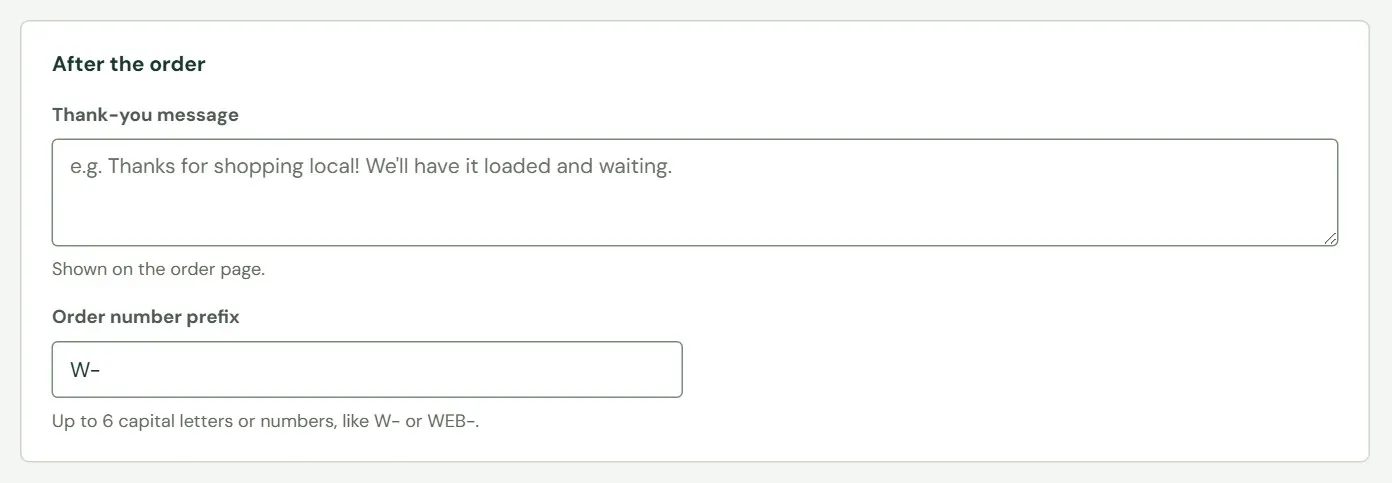
12- 1Leave this empty.
- 2Up to 6 capital letters or numbers, with an optional dash at the end. The default is W-.
Roadside saves what you type in Thank-you message, but customers never see it. The order page, the emails and the website do not show it. Leave it empty.
The order number prefix applies to new orders only. Numbers start at 1001, so the first order is W-1001. Every checkout gets its number when it starts, including a card checkout that is never paid, so you will see gaps in the numbers.
Pickup: days, times and closed days
The Pickup tab sets when an order can be picked up. Every day and time uses the time zone on your Store info screen, not the customer's.
The Ready after choices are The same day, The next day, 2 days, 3 days, 5 days and A week. Under the card, a line that begins Customers see: shows your rule the way the website words it. If a pickup day fills while a customer is checking out, the customer is asked to choose another.
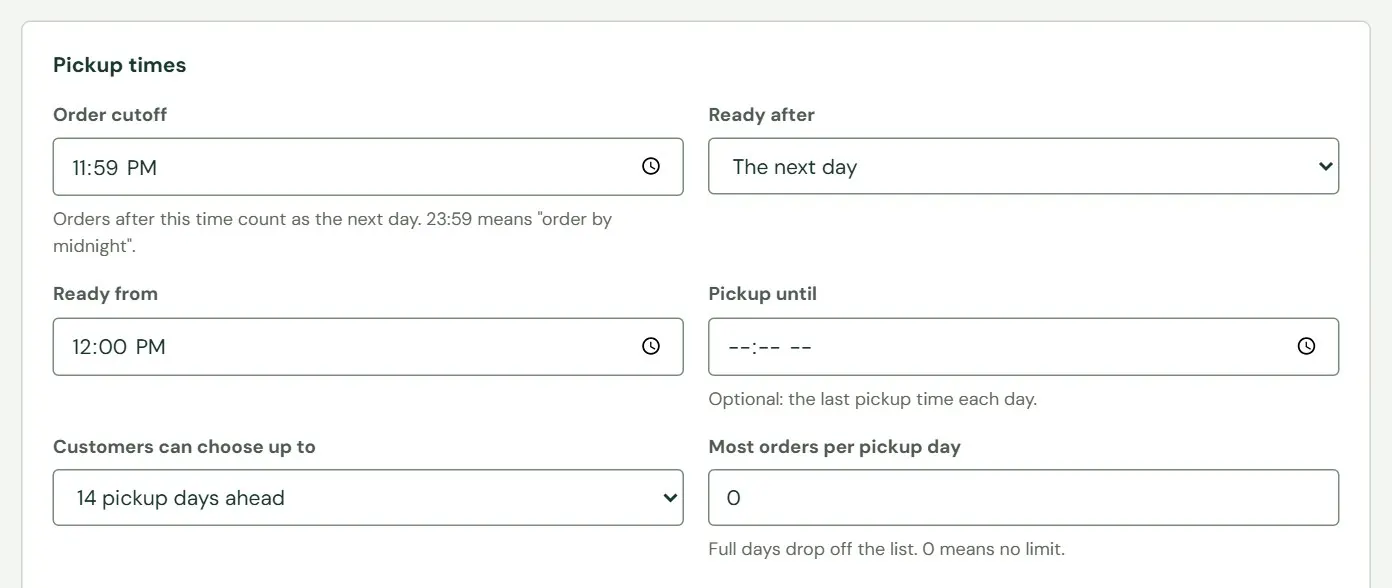 123456
- 1Orders after this time count as the next day. 11:59 PM means order by midnight.
- 2How many days after the cutoff rule an order is ready. The next day is the default.
- 3The time shown to customers and in emails, such as from noon. It tells the customer; it does not hold anything back.
- 4An optional last pickup time. It must be later than Ready from.
- 5How far ahead a customer can pick a day: 7, 14, 21, 30 or 60 pickup days. Only open days count.
- 6Most orders for one day. 0 means no limit, up to 999. A full day drops off the list.
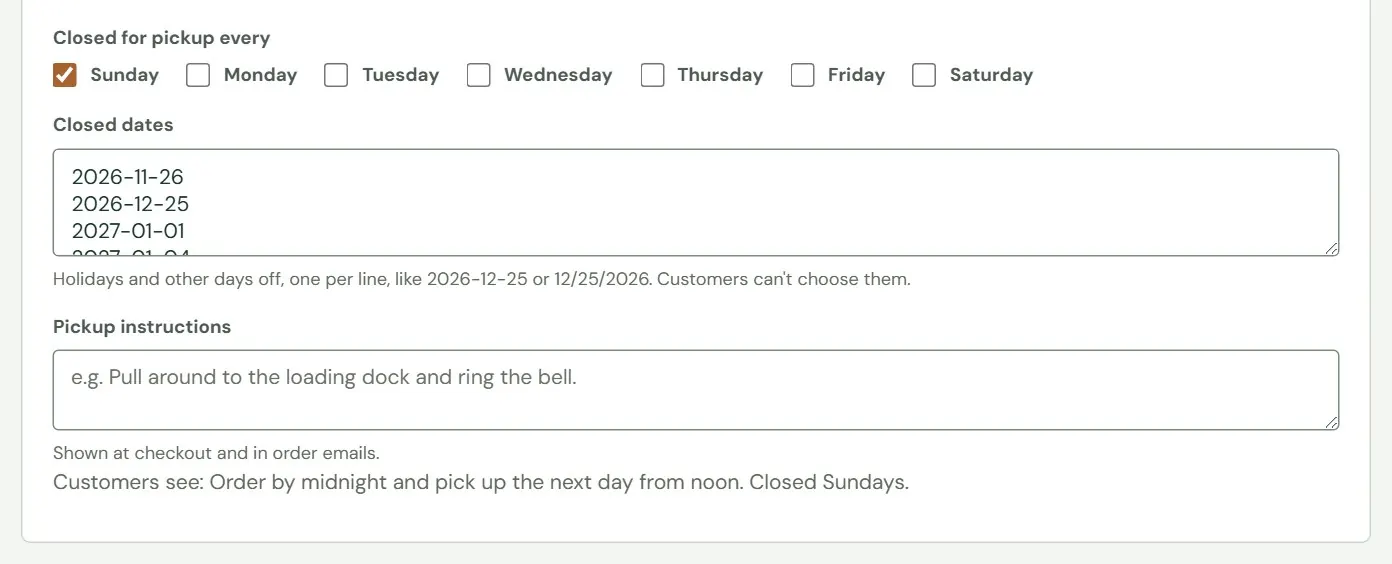 123
123- 1Days you never do pickups. Sunday is ticked by default. You cannot close all seven.
- 2Holidays and other days off, one per line, such as
2026-12-25or12/25/2026. Up to 60. - 3Where and how to pick up, up to 1000 characters. It shows at checkout and in the order and ready emails.
The Pickup tab's Closed for pickup every and Closed dates hold the same information as the Closed days and the weekly hours on your Store info screen. Each time you save Store info, Roadside rewrites these two Pickup fields from what Store info says, and anything you typed only here is lost. Keep your holidays and your weekly closed days on Store info (Chapter 3, Hours, closed days and contact details), and treat these two fields as a place to read them.
Delivery
Delivery is off until you turn it on. When it is on, a customer chooses pickup or delivery at checkout. You can deliver to a list of ZIP codes, or to any address within a distance of your store. The three distance fields below apply only to the distance choice, and the ZIP list applies only to the ZIP choice.
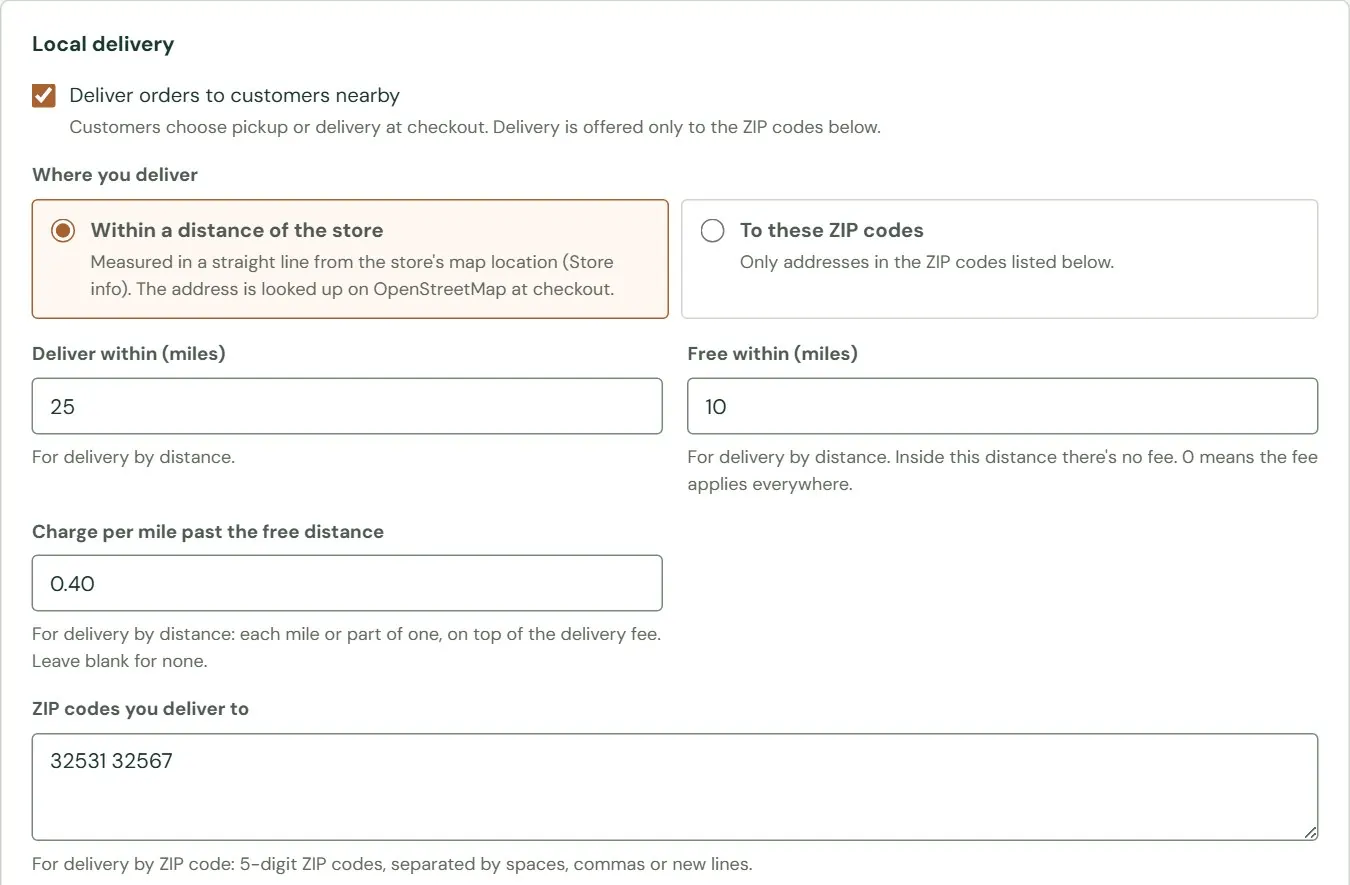 12345
12345- 1The master switch for delivery.
- 2Within a distance of the store, or To these ZIP codes.
- 3The farthest you go, from 1 to 100 miles. 10 by default.
- 4No fee inside this distance. 0 means the fee applies everywhere. Above the farthest distance it counts as the farthest.
- 5Each mile, or part of a mile, past the free distance. Blank means no per-mile charge.
A delivery is free inside the free distance. Past it, the customer pays the Delivery fee if you set one, plus the per-mile charge for each mile or part of a mile beyond the free distance. With 10 miles free and $0.40 a mile, an address 14.2 miles out is 5 miles past the free distance, so it costs 5 times $0.40, which is $2.00. Beyond the farthest distance the customer sees That address is about 31 miles from the store, and we deliver within 25 miles. Please choose pickup, or call the store. The delivery fee is never taxed.
Delivery by distance needs a Map location on your Store info screen. Without one, delivery is not offered at checkout, even with the switch on, and this tab does not warn you. After you turn delivery on, put something in a cart on your website and look for Local delivery at checkout. Roadside also leaves one hint on screen that does not fit distance: Delivery is offered only to the ZIP codes below. That line is true only for the ZIP choice.
Three more fields have no picture below, so here are their limits.
| Field | Default | Notes |
|---|---|---|
| Customers can choose up to | 14 days ahead | 7, 14, 21, 30 or 60. |
| Most deliveries per day | 0, no limit | 0 to 999. A full day drops off the list. |
| ZIP codes you deliver to | Blank | Only for the ZIP choice. 5-digit codes, separated by spaces, commas or lines, up to 300. |
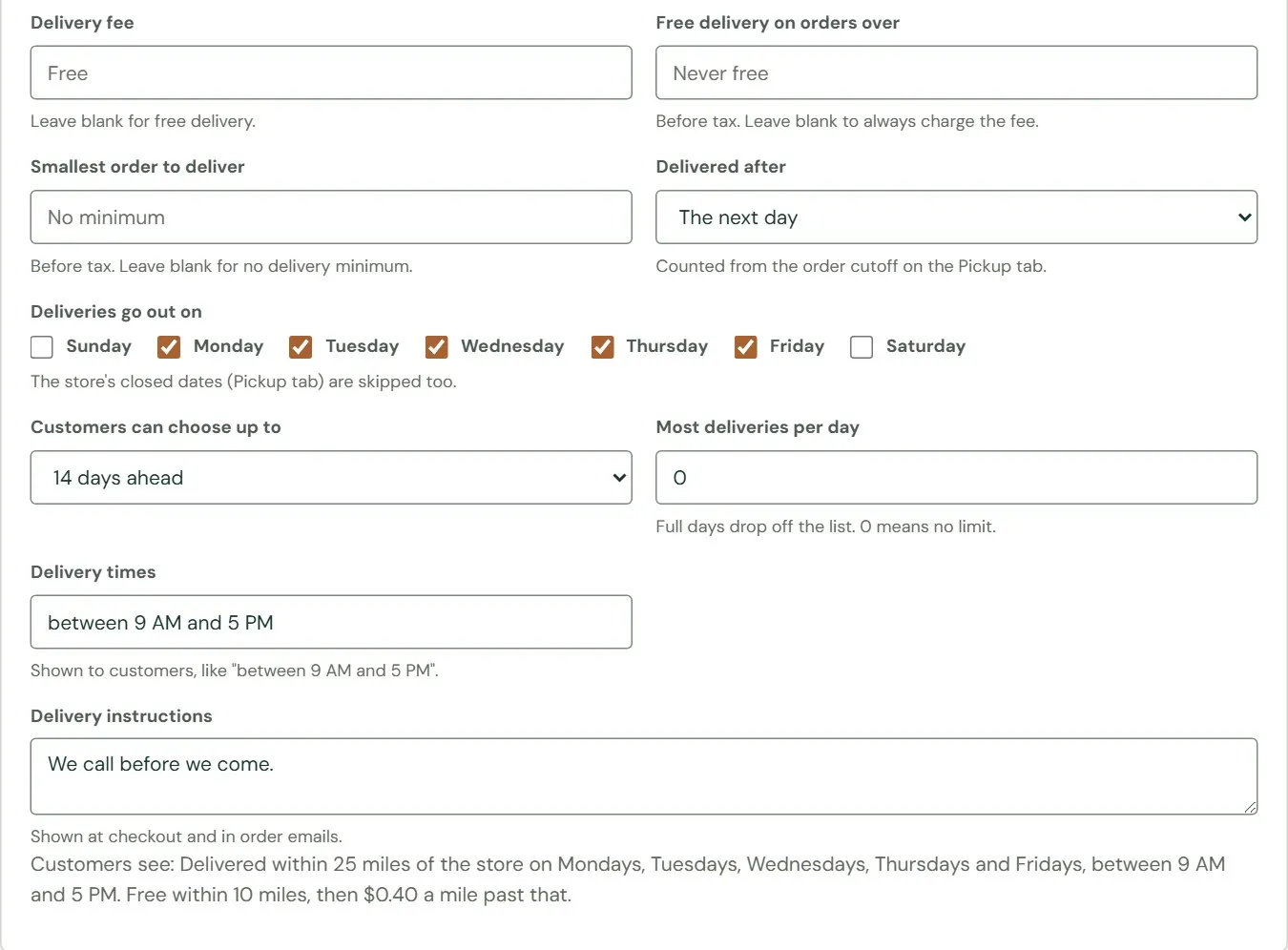 1234567
- 1A flat amount. Blank means free. By distance it is charged once the address is past the free distance, along with the per-mile charge.
- 2An order at or above this subtotal gets all delivery charges waived. Blank means never.
- 3The smallest order you will deliver. Blank means no minimum.
- 4Counted from the order cutoff on the Pickup tab.
- 5The days deliveries go out. Monday to Friday by default. Closed dates are skipped too.
- 6Shown to the customer, up to 80 characters. It is not enforced.
- 7Shown at checkout and in the emails, up to 1000 characters.
To turn delivery on, you must choose an area and at least one delivery day. Roadside refuses a save that has neither and says which is missing. A delivery order shows Pay on delivery where a pickup order shows Pay at pickup, and the customer must give a phone number the driver can use.
Payments
The Payments tab is where you choose how customers pay. Dirt Road connects your card processor and keeps its keys. You pick among the processors that are already connected and turn the other ways of paying on or off.
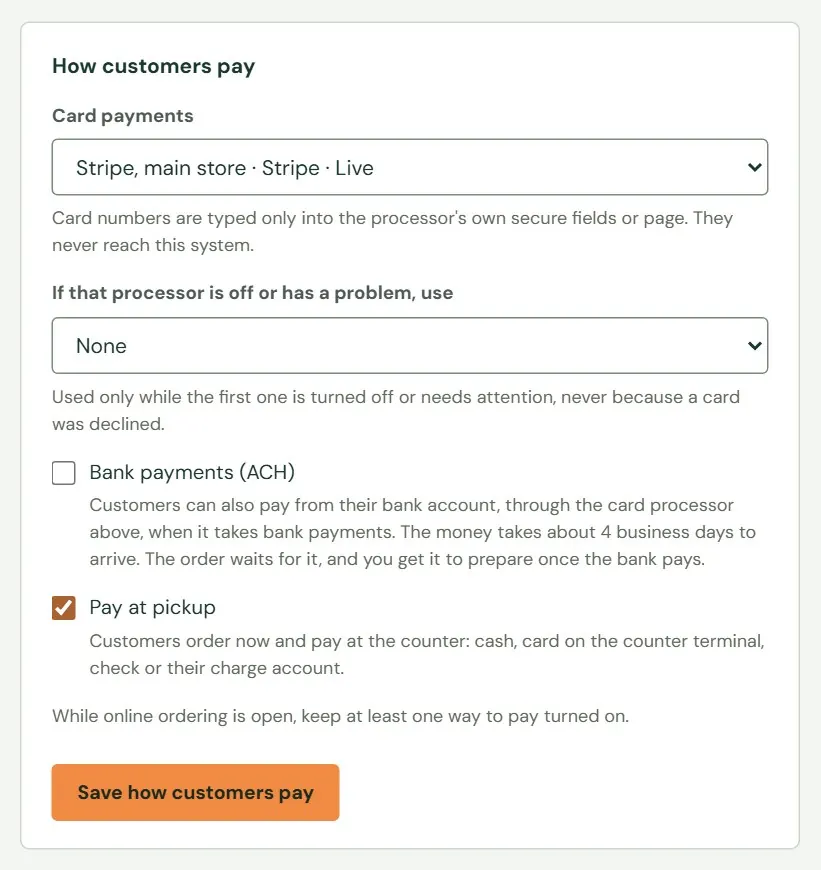 12345
12345- 1The connected processor that takes cards, or Off.
- 2A second processor to use while the first is off or has a problem. It is never used because a card was declined.
- 3Bank payments take about four business days to arrive. Off by default.
- 4Customers order now and pay at the counter. Off by default.
- 5Saves this card.
While ordering is open, at least one way to pay must stay on. If you turn off the last one, the save is refused and the message says to turn on card payments or pay at pickup, or close ordering first. If your processor goes off or needs attention, a red message above the choices says where cards go instead.
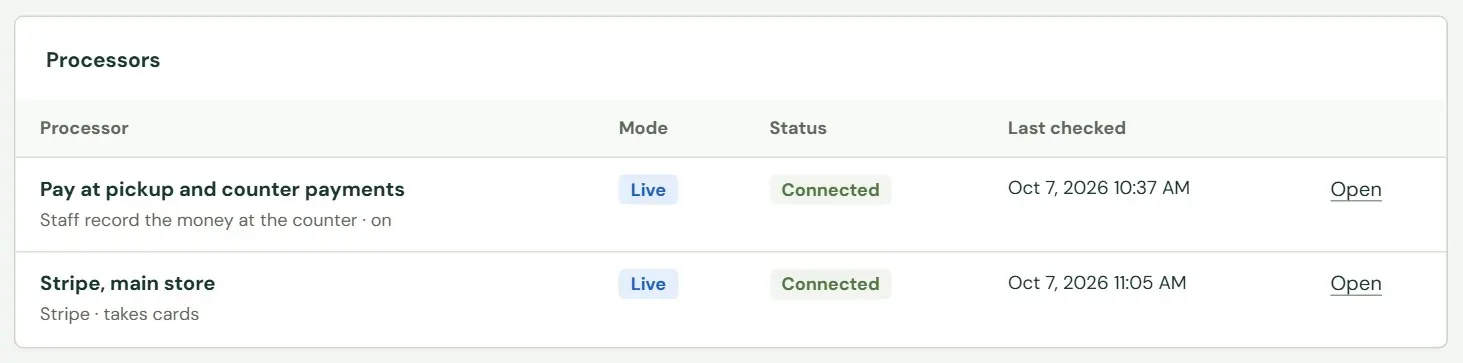 1234
1234- 1Each processor, and whether it takes cards or is the fallback.
- 2Live takes real payments. Test is for practice and moves no money.
- 3Connected, Needs attention, Off or Disconnected. A reason shows when something is wrong.
- 4Opens the processor's page, where you can press Test connection to check that it still answers.
The Needs attention card beside the choices lists anything that needs a look: a processor with a problem, a payment issue on an order, or a practice order still open. Payment issues, in Chapter 19 explains the issues. To add, replace or disconnect a card processor, write to support@dirtroadsoftware.com and say which one. Do not email keys or passwords.
Emails and policies
The second card of this tab, Store policies, has one box: Returns, refunds and other policies, up to 10,000 characters. Customers read it at checkout under the conditions described earlier in this chapter. The first card controls the emails.
Fill in Email new orders to before you open ordering. Until you do, a new order appears only on the screen. An alert says New order W-1023 ($82.00) and carries a link that opens the order in Roadside. If an address is not valid, the save says Enter valid email addresses for new-order alerts, separated by commas, or leave it blank.
Roadside sends order emails from the address Dirt Road sets up for your store. If customers say they never received one, search the order by their email or phone number to confirm it exists, tell them the number and the pickup day by phone, and write to support@dirtroadsoftware.com. There is no button to send an email again.
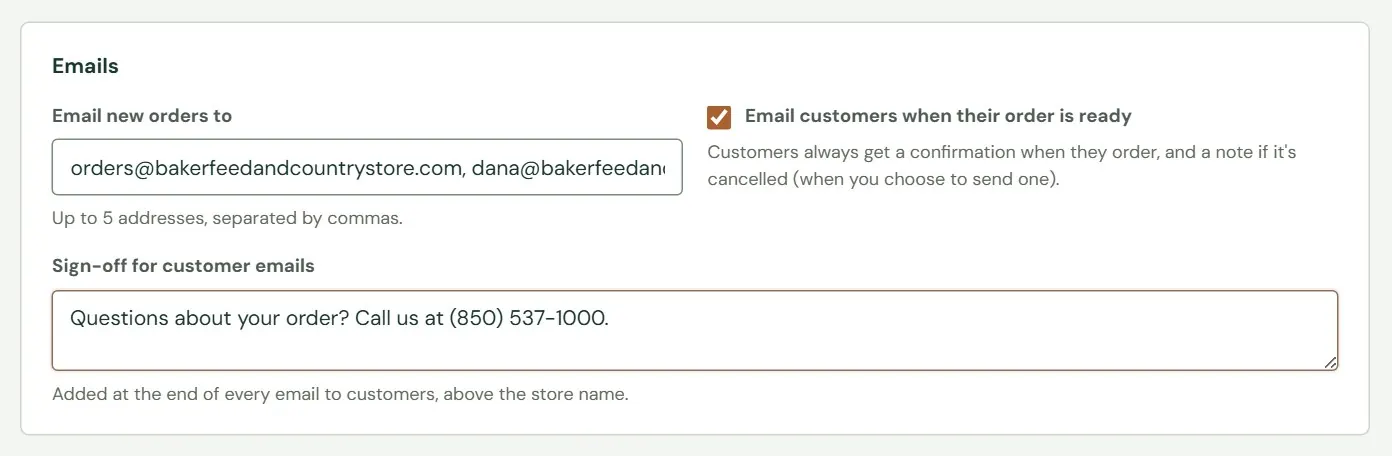 123
123- 1Up to 5 addresses, separated by commas. Blank by default, which means no new-order alerts.
- 2On by default. Customers always get a confirmation when they order, and a note if you cancel with the box ticked.
- 3Added to the end of every customer email, above your store's name. Up to 1000 characters.
Something here does not match your screen? Write to support@dirtroadsoftware.com with the name of the screen, what you pressed and what you expected. A picture of the screen helps.