
Working the orders
Online orders is your working list: what to pull, what is waiting at the counter and what is done. Open an order to mark it ready, take payment, print a pick ticket or cancel it.
In this chapter
The list of orders
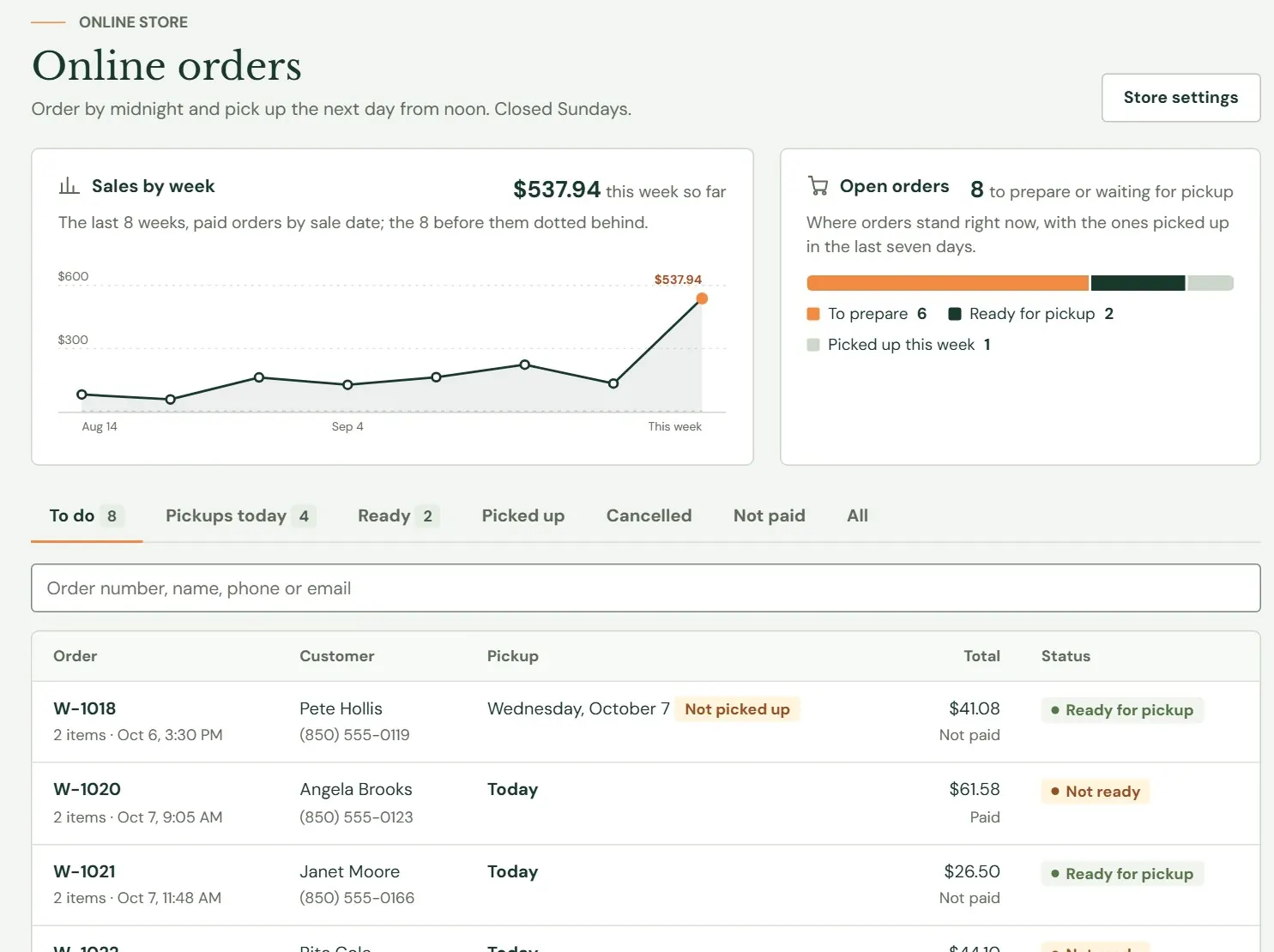
Online orders opens on the To do tab. Staff can work the orders too. The line under the heading repeats your pickup rule, so you can see at a glance what customers were promised. When ordering is off, it says so instead.
The tabs, from left to right, show these orders.
| Tab | What it shows |
|---|---|
| To do | Every open order, ready or not, with the oldest pickup day first. |
| Pickups today | Open orders whose pickup or delivery day is today or earlier, so late ones show up here too. |
| Ready | Open orders you have marked ready. |
| Picked up | Finished orders, newest first. Delivery orders read Delivered. |
| Cancelled | Cancelled orders, newest first. |
| Not paid | Checkouts still waiting for payment, including bank payments on their way, and checkouts that ran out of time unpaid. |
| All | Everything except checkouts that are still waiting for payment. |
 12345
12345- 1Your pickup rule, in the words customers see.
- 2Sales by week, the last 8 weeks. The charts appear once an order has been placed and paid.
- 3Where orders stand right now: to prepare, ready for pickup and picked up this week.
- 4The tabs. A small number shows on the first three when there is something in them.
- 5Search by order number, name, phone or email. The list narrows as you type.
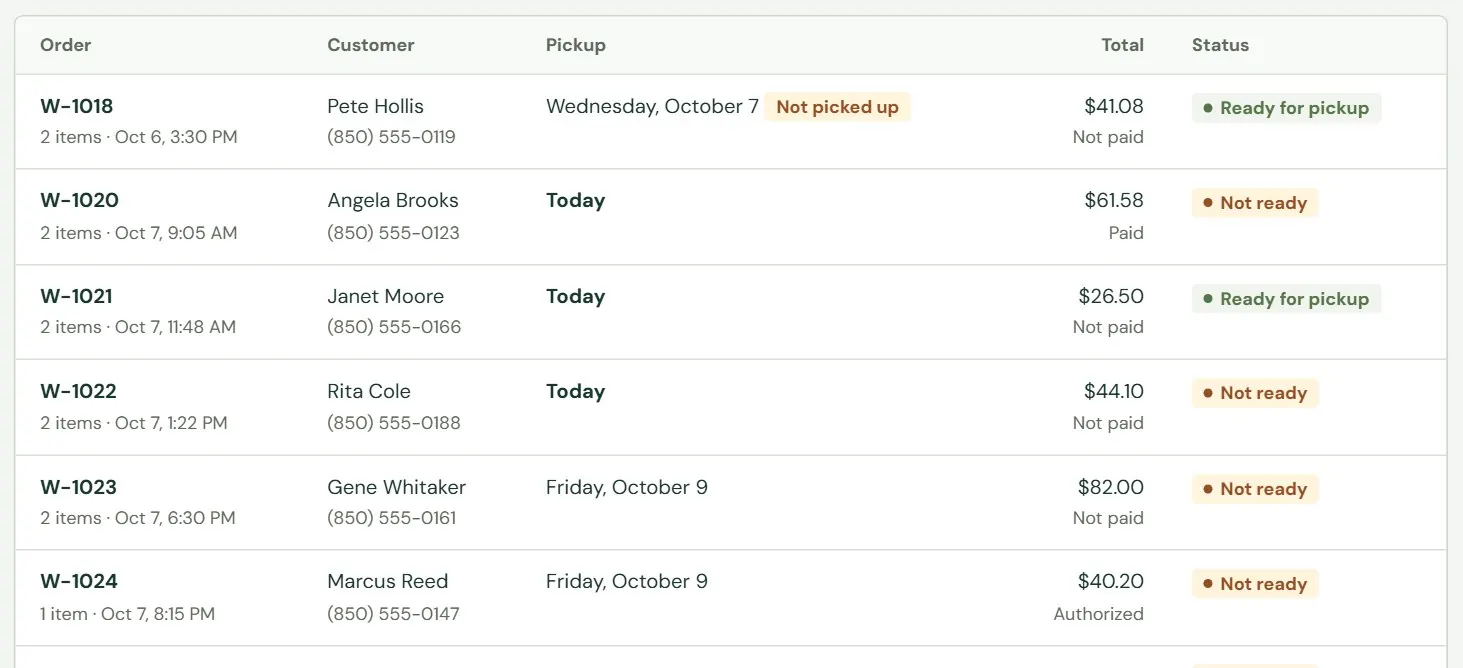 1234
1234- 1The order number, how many items, and when it was placed, in your store's time zone.
- 2The pickup day. Not picked up in orange means the day has passed and the order is still open. The heading says Pickup even for a delivery order.
- 3The total, with the payment word under it.
- 4Where the order stands. An orange Check badge next to it means Roadside flagged the order. Open it to read why.
A tab lists up to 200 orders; use the search box to find older ones. The list does not refresh by itself, so reload the page to see orders that arrived since you opened it. Search matches part of an order number, so 1022 finds W-1022. The search box at the top of every screen also finds orders, by number, name, business, email, phone, note, or the name or SKU of an item. An old unpaid checkout turns up only when you type its full order number.
Both charts count test orders, and Sales by week adds up each order's total, with tax and delivery, by the day the order was placed or paid. A pay-at-pickup order counts on the day it was placed, before the customer pays. Refunds are not taken off, and cancelled orders drop out.
- Test order
- An order paid through a practice card processor, marked TEST. No real money moves. If you find one, cancel it with Cancel test order, which puts the stock back.
One order
Press an order number to open it. The top of the page tells you the state of the order in a row of badges: whether it is ready, the pickup or delivery day, and the payment. Below that, on the left, are the items and totals, the payment, notes and the history. On the right are the customer and the buttons that move the order along.
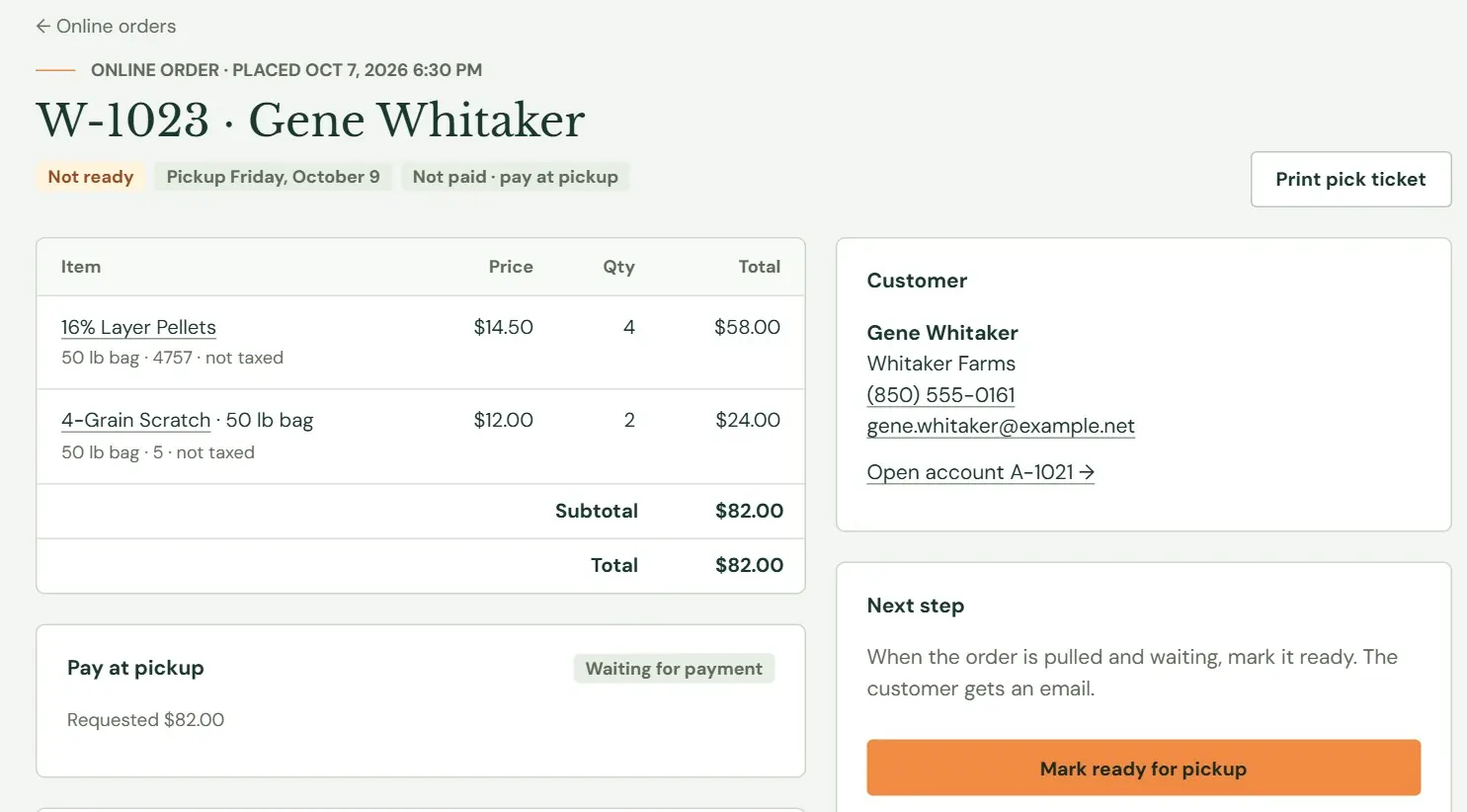 12345
12345- 1Back to the list.
- 2The order's state, its day and its payment. Not paid · pay at pickup means the customer will pay at the counter.
- 3Opens the pick ticket in a new tab.
- 4The items, with size and SKU. Not taxed appears under an item that carries no tax. Product names link to the product.
- 5Subtotal, each tax, and the total. Once money is paid, a Paid line follows.
The words in the badges are worth knowing. The first badge is the order's state.
| State | What it means |
|---|---|
| Waiting for payment | A card or bank checkout has started. The items and the day are set aside. Not for you to prepare yet. It lives on the Not paid tab. |
| Not ready | The order is open and waiting for you to pull it. It may be paid, held on a card or waiting for payment at the counter. |
| Ready for pickup | You marked it ready. For a delivery order this reads Ready for delivery. |
| Picked up | It was handed over. Delivery orders read Delivered. |
| Cancelled | You cancelled it. |
| Not paid | The checkout ran out of time, or the bank sent a bank payment back. The items and day went back. A payment that arrives late reopens the order with a note. |
The payment badge uses these words.
| Payment | What it means |
|---|---|
| Not paid | Nothing has been taken. An open pay-at-pickup order adds pay at pickup. |
| Payment pending | A card or bank payment is still being processed. A bank payment takes days. |
| Authorized | The card is held, not charged. |
| Paid | Paid in full, online or at the counter. When the money went on the customer's charge account, the screen says Charged to account instead. |
| Partly refunded, Refunded | Some or all of the money went back. |
| Voided | The order was cancelled or timed out with nothing taken. |
A delivery order has a line under the heading that reads Deliver to 4410 Old Bethel Rd, Baker 32531 · fee $2.00, followed by the driver's note. The fee is inside the total, but the table of items has no row for it. The button on the right still says Mark ready for pickup, and the customer's email says delivery. Finishing the order reads Delivered and paid.
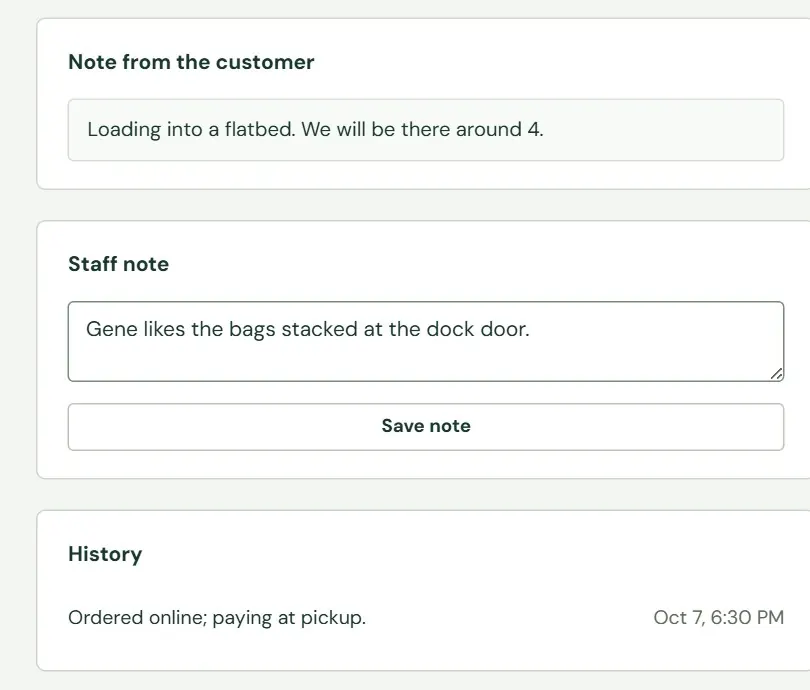 123
123- 1What the customer typed at checkout.
- 2For your own use. It is not shown to the customer and it prints on the pick ticket.
- 3Every event, with who did it and when.
The staff note holds up to 2000 characters. Press Save note to keep it. Orders cannot be edited: there is no way to change an item, add a line or enter a phone order by hand, and there is no delete. To fix an order that is wrong, cancel it and have the customer order again, or refund what is missing (see Refunds, in Chapter 19).
Take an order from new to picked up
The same steps work for every order. Only the payment differs.
- Find the order. A new order shows on Website home under Online orders to prepare, in an email if you set up alerts, and under To do.
- Print the pick ticket. Press Print pick ticket, then Ctrl + P in the new tab. Pull the items and tick each box.
- Mark it ready. Press Mark ready for pickup in the Next step box. The badge turns green and the customer gets an email, if Email customers when their order is ready is on.
- When the customer arrives, open the order. Search by number, name or phone, or use the Ready tab.
- Take the payment and finish. If the customer paid online by card, press Picked up. If the customer pays now, choose how from Paid at pickup by, then press Picked up and paid.
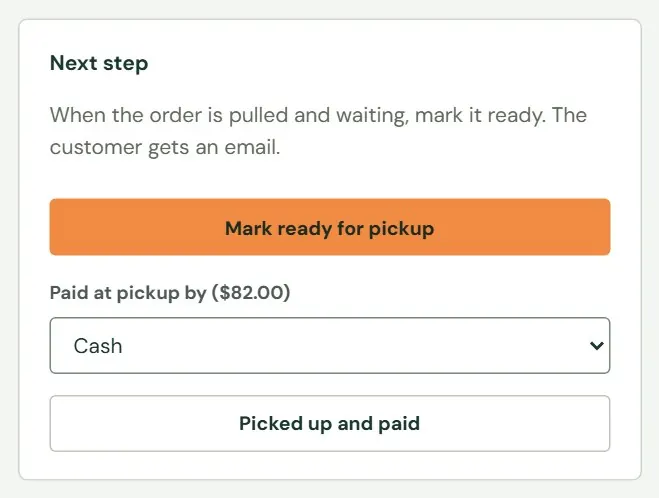 123
123- 1Moves the order to Ready and emails the customer.
- 2Cash, Card at the counter, Check or Charged to account.
- 3Records the payment and marks the order picked up in one press.
Card at the counter means you run the card on your own machine first. Roadside does not talk to that machine, so it only records that the customer paid that way. Pressing Picked up and paid records the whole amount due. There are no part payments. If you forgot to choose a way, Roadside says Choose how the customer paid. Marking an order picked up sends no email.
When the customer paid at the counter before the pickup day, record it first and finish later. The Record a payment box appears on a pay-at-pickup order while money is still due.
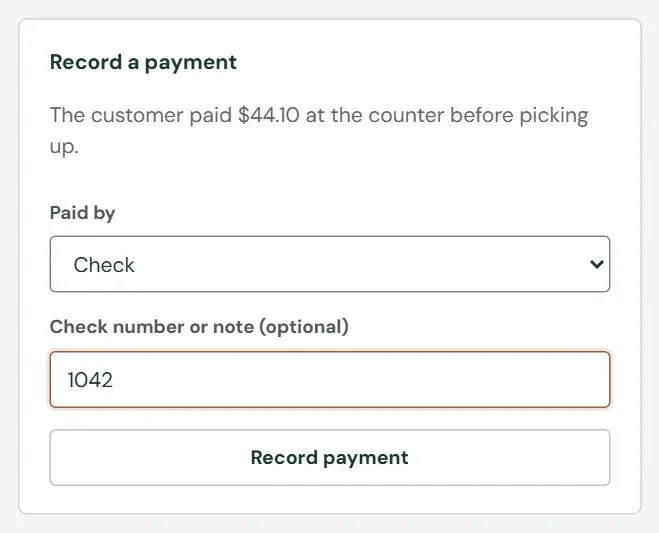 123
123- 1How the customer paid.
- 2A check number or a short note, up to 120 characters. Roadside refuses anything that looks like a card number and tells you to use a check number or a short note instead.
- 3Records the full amount. The message reads Payment recorded: $44.10.
The pick ticket
The pick ticket is a plain page you print and tape to the order while you pull it. It has the customer's name and phone, the pickup or delivery day, the total and what is due. Then comes a table of items with a box to tick for each, any customer note and staff note, and a line for who pulled the order and who handed it over. Print it with Ctrl + P. It has no print button of its own.
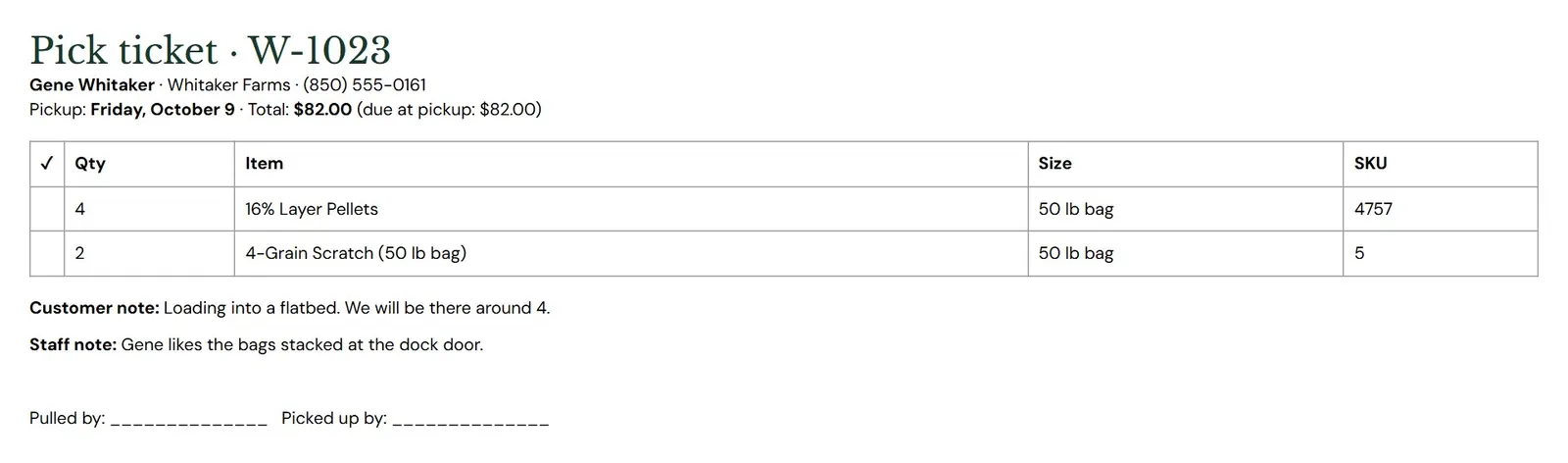 123
123- 1Who, when, the total, and what is due at pickup or on delivery.
- 2One row for each item, with a box to tick and the size.
- 3Space for the people who pulled and handed over the order. It sits below the notes.
Cancel an order
You can cancel any open order that has not been picked up. A checkout that is still waiting for payment cannot be cancelled by hand; it expires on its own. An order that was picked up is refunded instead.
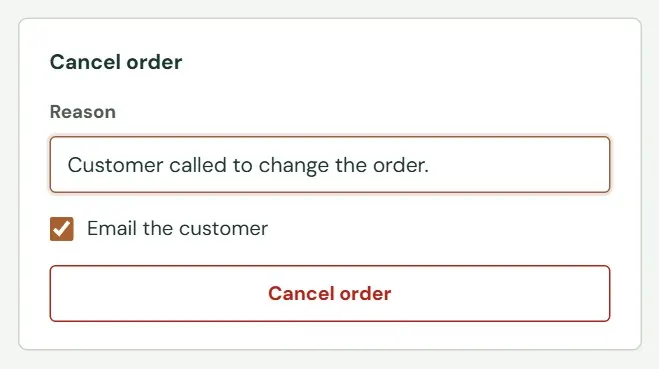 123
123- 1Your reason, up to 300 characters. It goes into the customer's email, so write it for the customer.
- 2Ticked by default. Untick it when you have already talked to the customer.
- 3Asks you to confirm, then cancels.
When you cancel, the items go back on the shelf, the pickup day opens up and the customer's email says why. Money is handled for you. A held card is released, a charged card is refunded, and the screen says so. If money was taken at the counter, Roadside asks how you gave it back. Staff can cancel an order only if no money is on it. Store owners and Managers can cancel any open order.
Charge a held card for what you have
When a store holds cards at checkout, an order opens as Authorized. The money is on hold, not taken. The Next step box says so and offers Mark ready and charge with the full amount.
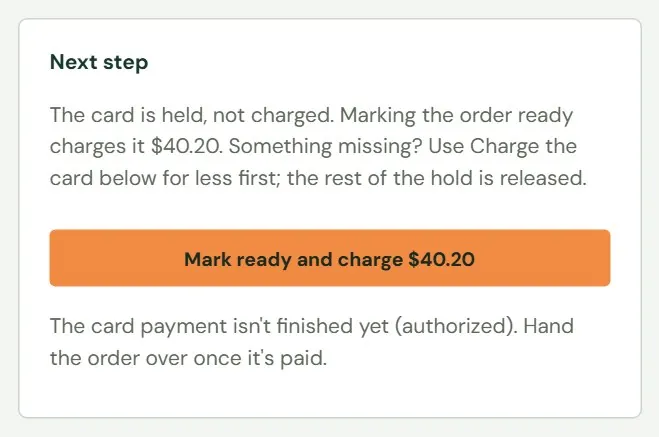 1
1- 1Charges the card for what is still owed, marks the order ready and emails the customer.
- Pull the order. If everything is on the shelf, press Mark ready and charge and confirm. Roadside charges the card and marks the order ready.
- If something is missing, charge less first. In the Charge the card box, type the smaller amount and press Charge the card. The rest of the hold is released at once.
- Wait a minute. The payment box reads Paid once the charge goes through.
- Mark the order ready. Press Mark ready for pickup, and finish the order with Picked up when the customer arrives.
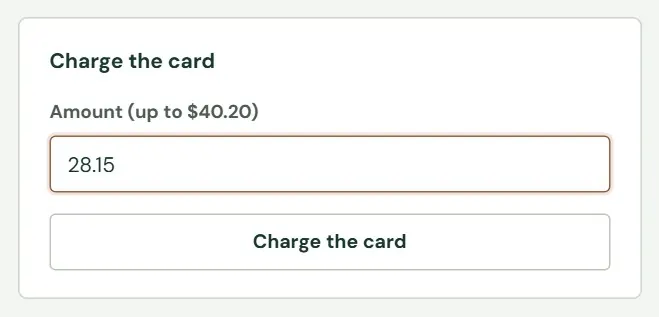 12
12- 1Already filled in with the most you can charge. Type less when an item is missing.
- 2Charges that amount and lets go of the rest of the hold.
Leave a held card alone and Roadside reminds you on day 5, then releases the hold itself at about day 6.5. Holds, in Chapter 19 has the details.
An item is out of stock
You cannot remove a line from an order or take a smaller payment. What you do depends on how the customer is paying.
| How the order is paid | What to do |
|---|---|
| Held card | Charge less first, as above. The customer pays only for what you have. |
| Card, already charged | Hand over what you have and refund the missing item. In Refund to the card, type the amount, choose Out of stock as the reason and press Refund. The money reaches the customer in several days. Type the item's price plus its tax yourself; Roadside does not work it out. |
| Pay at pickup | Call the customer. If the customer still wants the rest, collect the right amount at the counter, choose how they paid and press Picked up and paid. That records the full amount, so then open Refund at the counter, type the missing item's price plus tax, choose Out of stock, choose how you gave it back and press Record refund. If the customer would rather not take a partial order, cancel it. |
A refund does not put the item back on the shelf unless you list the item under Items coming back and leave Put them back in stock ticked. For an item that was never there, do not tick it. Fix the count on the product with a stock count instead (Chapter 13, Stock).
Close for a holiday
There are two ways to close, and they do different things.
- To close particular days, add them to Store info. Go to Website, Store info, add the date under Closed days with a label such as Christmas Day, and save (Chapter 3, Hours, closed days and contact details). Your website shows the day as closed, pickup orders skip it and delivery skips it too. Nothing else changes, so customers can still order for the days around it.
- To stop all online ordering, turn the switch off. Go to Online store, Store settings, General, untick Customers can order online and press Save general settings. Write a Message while ordering is off if you want customers to read something other than the standard one.
Choose Browse only instead when you want customers to keep seeing prices with no cart.
Either change reaches your website within a few minutes. While ordering is off, the website keeps its call-to-order wording and shows no cart. Orders already placed stay as they are, and you still prepare them. Turn ordering on again the same way.
Something here does not match your screen? Write to support@dirtroadsoftware.com with the name of the screen, what you pressed and what you expected. A picture of the screen helps.