
The sign at the top of your website
The Store sign is the small card at the top of every page of your website. It tells customers one timely thing at a time: a message you type, a closed day coming up, or the season you are in.
In this chapter
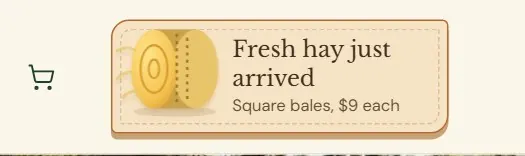
What the sign shows
This screen appears when your plan includes the Feed & Seed features, which the sample store's does. In the sample store's design the sign sits in the top right corner of the header on every page. It has a small drawing, a bold headline and a few words. A sign with a link opens that page when a customer presses it. A sign without a link calls the store. The Baby Chicks sign opens a small panel with more words first. Store owners and Managers can both put up and change signs.
 1
1- 1The sign: a drawing, a headline and a few words.
Only one sign shows at a time. Roadside goes down this list and shows the first one that applies.
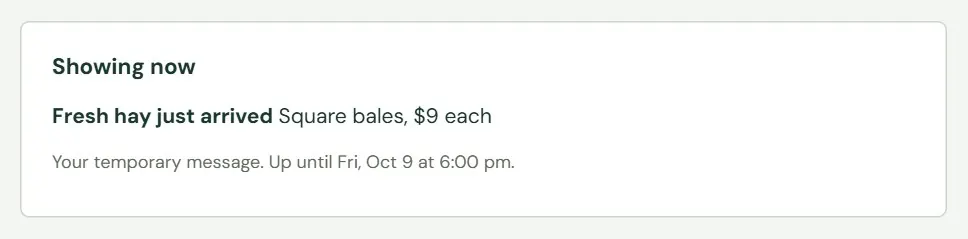
The Showing now card at the top of the screen tells you what the website is showing and why. It says whether the sign is your temporary message, a closed day from Store info, the Baby Chicks sign or a seasonal sign, and it says when the sign comes down. When nothing applies, it says there is no sign and the website shows none.
Put up a temporary message
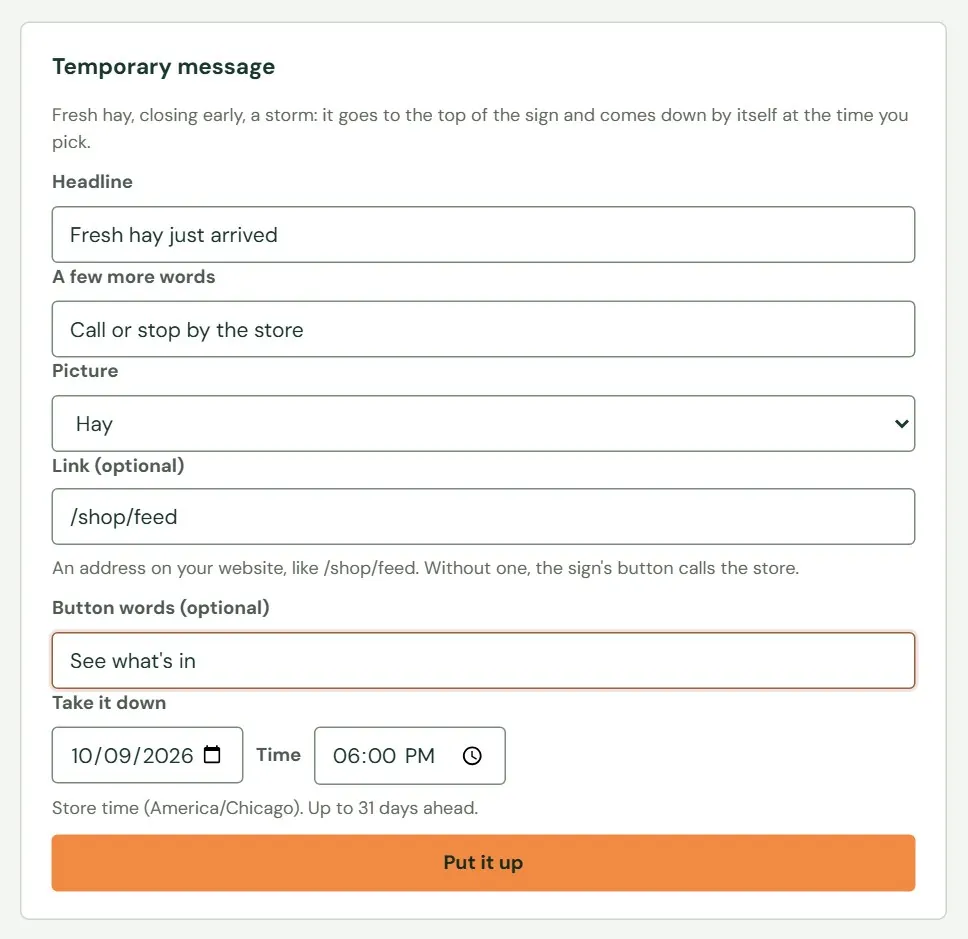
A temporary message is for news with a short life: fresh hay, closing early, a storm on the way. It goes to the top of the list and comes down by itself at the time you choose. There is room for one message at a time. Putting up a new one replaces the old one.
- Type the headline. A few words, like Fresh hay just arrived.
- Add a few more words if you want them, and choose a picture. A price or a hint is enough. Announcement is the default picture.
- Add a link if the sign should take customers somewhere. Type an address on your website that starts with a slash, like
/shop/feed. A fullhttps://address works too, and so doestel:followed by a phone number. Button words, up to 40 characters, change what the sign's button says. - Pick when it comes down. The form starts with tomorrow at 6:00 pm. Change the day and time to suit.
- Press Put it up.
 123456
- 1Headline, up to 40 characters. Required.
- 2A few more words, up to 60 characters.
- 3Picture: Baby chick, Seedling, Hay, Deer, Feed bag, Clock, Calendar, Rain, Snowflake, Sun, Announcement or Truck.
- 4Link, optional. Where the sign takes a customer. Leave it empty and the sign calls the store.
- 5Take it down: the day and time it comes off, in store time, up to 31 days ahead.
- 6Put it up.
Roadside tells you when the message comes down, and the website shows it within a minute. While a message is up, the form carries a green Up tag and the button reads Save message, so you can fix a typo. A second button, Take the message down now, removes it early.
 1
1- 1Your headline and words, and the time it comes down.
| If Roadside says | It means |
|---|---|
| What should the sign say? A few words, like "Fresh hay just arrived". | The headline is empty. |
| When should it come down? Pick a day and a time. | The day or time is missing. |
| That time has passed. Pick a time later than now. | The time is already behind you. |
| A temporary message stays up 31 days at most. For something longer, add a seasonal sign. | The day is more than 31 days away. |
| Use an address on your website starting with /, like /shop/feed, a full https:// address, or tel: and a phone number. | The link is not one of those three kinds. |
Seasonal signs
Some signs belong to a time of year. A seasonal sign shows between two dates every year, whenever nothing ranks above it. Every store starts with four. The table lists them as the sample store has them.
| Sign | Shows | Order | Customers press it to |
|---|---|---|---|
| Baby Chicks | Jan 15 to Aug 31 | 70 | Call the store, or read the chick status. |
| Spring planting | Mar 1 to May 31 | 50 | See farm and garden supplies. |
| Food plot season | Aug 15 to Nov 15 | 60 | See farm supplies. |
| Deer season | Sep 1 to Jan 15 | 40 | See deer feed. |
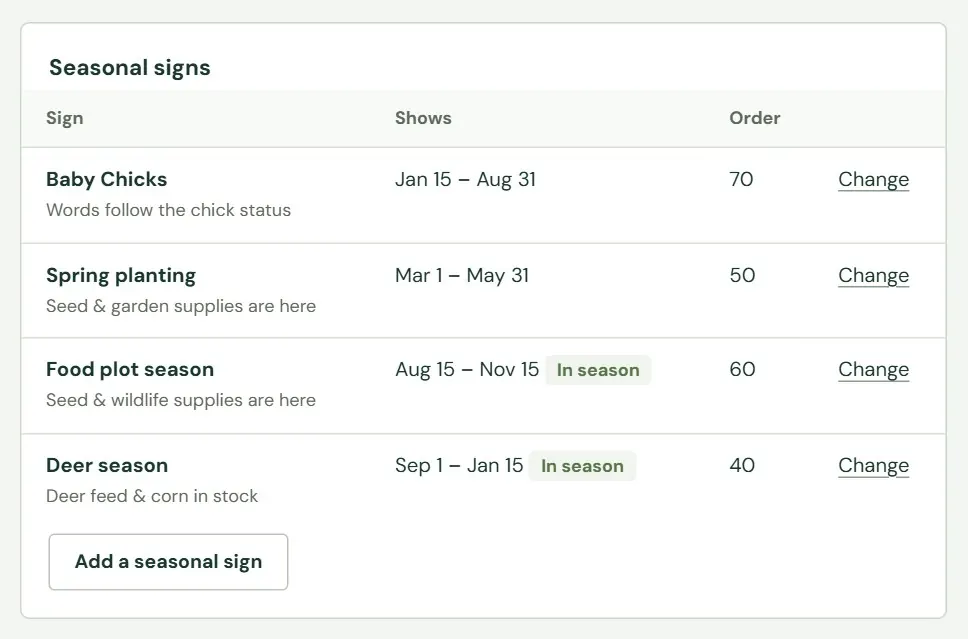
Two signs can be in season at once, as Food plot season and Deer season are in the picture below. Food plot season has order 60 and Deer season has 40, so the website shows Food plot season. The numbers run from 1 to 89. Closed days and your temporary message always come first, so 89 is the highest number you can give a sign.
 12345
12345- 1Each sign with its few words underneath.
- 2A green In season tag. A grey Off tag means you have switched the sign off.
- 3Order: when two signs are in season, the higher number shows.
- 4Change opens the sign's own form.
- 5Add a seasonal sign makes a new one.
Press Change on a row, or Add a seasonal sign, to open the form for one sign. It is the same form for both.
| Field | What goes in it |
|---|---|
| Headline | Up to 40 characters. Required. |
| A few more words | Up to 60 characters. |
| When someone opens the sign | Optional, up to 200 characters. What customers read when they press the sign. |
| Picture | The same list as the temporary message, without the baby chick, which belongs to the Baby Chicks sign. |
| Link and Button words | The same rules as the temporary message. |
| Shows every year from, and Through | A month and a day each. A season can run over New Year: September 1 through January 15 is fine. A day that is not in the month, such as February 30, gets a message saying the month has no such day. |
| Show this sign in season | Tick to use the sign. Untick to switch it off. |
| Order | A number from 1 to 89. |
A seasonal sign cannot be deleted. To retire one, untick Show this sign in season and the list marks it Off. The Baby Chicks sign has the same form with fewer fields: its headline, link, button words, dates, order and switch. Its other words follow the chick status below.
Baby chicks
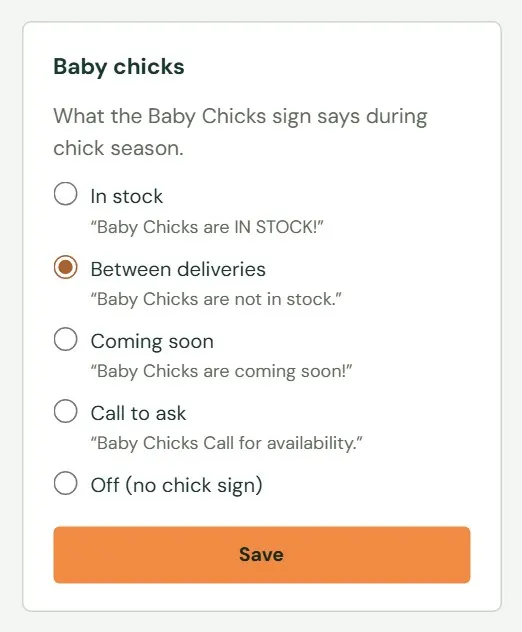
The status you choose here sets what the Baby Chicks sign says. The sign shows from January 15 through August 31 each year, so a status you set in October waits until chick season comes round.
 12
12- 1Choose one status.
- 2Press Save.
| You choose | The sign says | The panel it opens says |
|---|---|---|
| In stock | Baby Chicks are IN STOCK | The little peeps are here. Call the store for available breeds before you head over. |
| Between deliveries | Baby Chicks are not in stock. | No little peeps just yet. Call the store to ask about the next arrivals. |
| Coming soon | Baby Chicks are coming soon | Chick season is almost here. Call the store to ask when the first ones arrive. |
| Call to ask | Baby Chicks Call for availability. | Looking for little peeps? Give us a call for current chick availability and breeds. |
| Off (no chick sign) | Nothing. Another sign can use the spot. |
Between deliveries is the status until you choose another. The same status is on Store info under Notices (The Baby chicks notice, in Chapter 3). If your plan includes the website assistant, it uses this status when a visitor asks about chicks.
How soon a change shows
The sign is the one part of your website that does not wait for an update. The website asks Roadside for the sign each time a page opens and remembers the answer for a minute, so a change shows within a minute of saving. If it has not appeared, wait a minute and reload the page.
A closed day you add on Store info makes a sign the same way. The closed day also appears on the contact page and in your hours lists, and those follow with the next update, a few minutes after you save (Chapter 8, How your changes reach the website).
Something here does not match your screen? Write to support@dirtroadsoftware.com with the name of the screen, what you pressed and what you expected. A picture of the screen helps.