
Signing in safely
Your password and your phone keep strangers out of your website, your orders and your customer list. This chapter covers choosing a password, setting up two-step sign-in, what to do when you forget a password or lose a phone, and how long Roadside keeps you signed in.
In this chapter
Choose and change your password
A password has to be 14 to 128 characters long. Roadside has no rule about capital letters, numbers or symbols. A passphrase, which is a password made of four or five ordinary words that do not belong together, is easier to remember than a jumble and harder to guess. Pick words that have nothing to do with each other or with your store, and do not use the name of a product or a pet. A password manager works with the sign-in page if you use one.
Roadside turns a password down, and says why, in a few cases. It is under 14 characters. It is a guessable word such as password or a row of keyboard letters. It contains the first part of your email address, or uses fewer than 5 different characters. Or it appears in known data breaches. That last check uses a public list of leaked passwords, and only a short fingerprint of yours is looked up, never the password itself. A refusal reads like This password appears in known data breaches. Choose a different one. Change it and try again.
- Press your name at the bottom of the menu. My account opens.
- Fill in the Password card, then press Change password.
- Roadside says Password changed. Other sessions and remembered devices were signed out. You stay signed in on this browser, and an email tells you the password was changed.
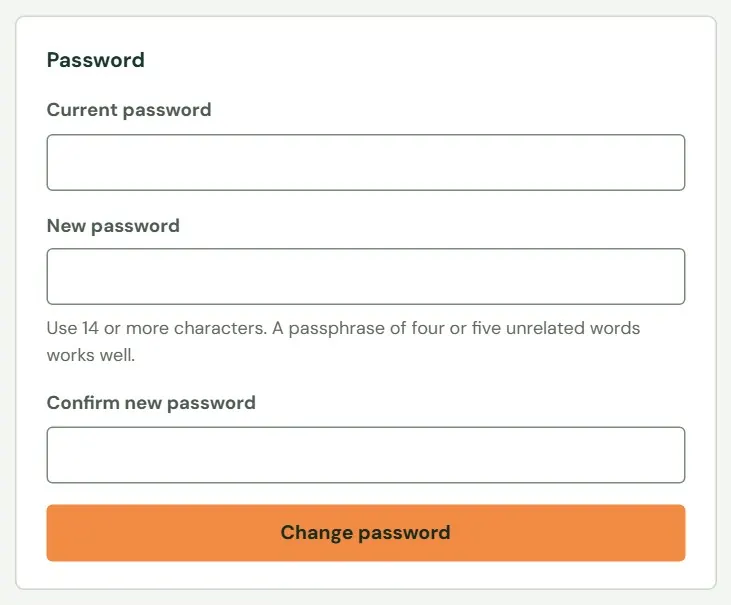 12345
12345- 1Your current password.
- 2The new one.
- 3The rule, in a line.
- 4The new one again.
- 5Press Change password.
Set up two-step sign-in
Your password alone is not enough to open Roadside. After it, you type a six-digit number from an app on your phone. Someone who learns your password still cannot sign in without your phone. Roadside asks everyone on a store's team to set this up at their first sign-in. The screens call it two-factor.
- Two-step sign-in
- After your password, a six-digit number from your phone. The screens call it two-factor authentication.
- Authenticator app
- An app on your phone that shows a new six-digit number every 30 seconds. Roadside names Google Authenticator, Microsoft Authenticator, 1Password and Authy. Any app that reads a QR code for sign-ins will do.
- Recovery codes
- Ten one-time codes Roadside shows once, for the day your phone is lost or broken. Each works one time.
- Put an authenticator app on your phone before you start, from your phone's app store.
- Sign in with your email and password. Roadside shows Set up two-factor authentication.
- Add an account in the app and scan the QR code, or choose to enter a key and type the one shown under Can't scan? Enter this key manually. The key stays the same if you reload the page.
- Type the six-digit code the app shows and press Turn on two-factor. If it says That code did not match. Check that your phone clock is set automatically, then try the next code, wait for a new number and try again.
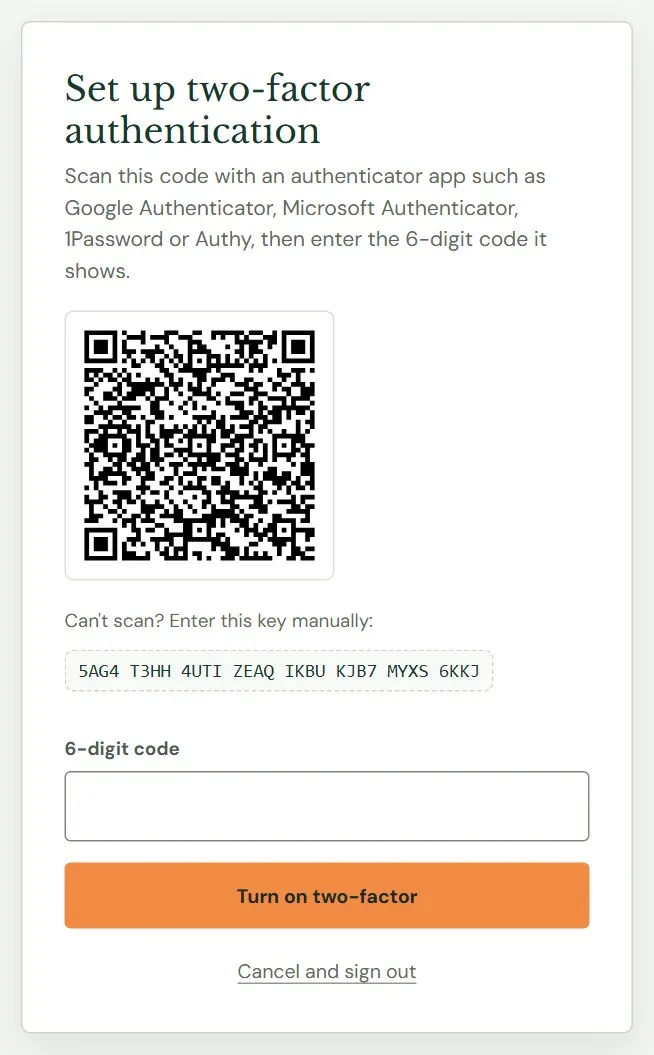 1234
1234- 1The QR code. Point your authenticator app's camera at it.
- 2No camera, or the scan fails? Type this key into the app instead.
- 3The six-digit code the app now shows.
- 4Press Turn on two-factor.
Save your recovery codes
Straight after set-up, Roadside shows ten recovery codes. They appear once and are not shown again.
- Keep them off the phone that holds the authenticator app. Losing that phone is the reason you would need them. A password manager works, and so does a printed page in the office drawer.
- New codes replace the old ones. If you lose the page, press New recovery codes on My account. Roadside shows ten new codes and the old ones stop working. My account also says how many you have left.
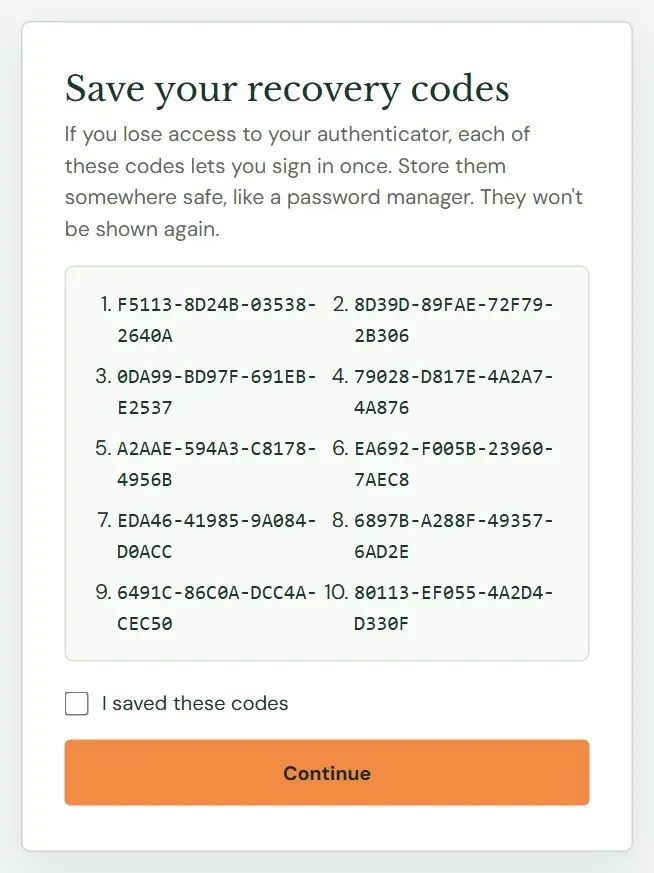 123
123- 1Ten codes. Each works once.
- 2Tick this after you have saved them. Roadside will not go on until you do.
- 3Continue signs you in.
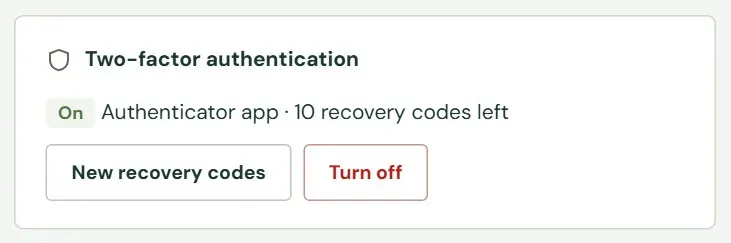 123
123- 1On means two-step sign-in is working.
- 2Replaces your recovery codes.
- 3Turn off. Roadside refuses it for anyone the store requires two-step for.
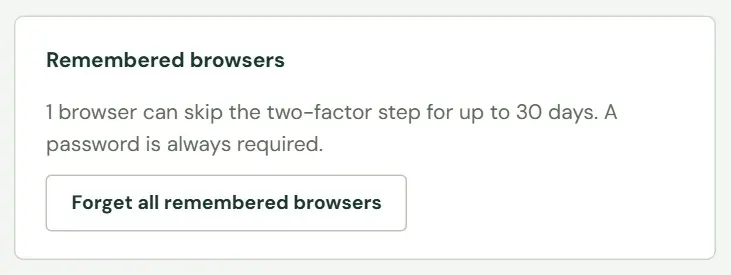 12
12- 1How many browsers skip the code step, and for how long.
- 2Makes every browser ask for a code again.
Sign in each day
- Type your email and password on the sign-in page and press Continue.
- Type the six-digit code from your authenticator app and press Verify.
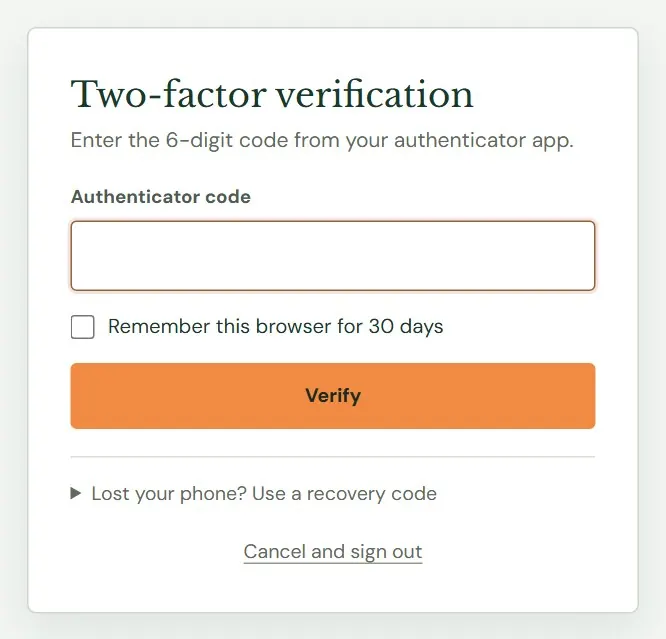 1234
1234- 1The six-digit code from your phone. It changes every 30 seconds.
- 2Skip this step on this browser for 30 days.
- 3Press Verify.
- 4No phone? This opens the box for a recovery code.
Each code works once, and Roadside accepts the one before and the one after the current one, so a phone clock that is slightly off still works. If it says That code is incorrect or already used. Wait for the next code and try again, wait for the number on your phone to change and type the new one. After 10 wrong tries in 5 minutes it says Too many attempts. Please wait five minutes.
- Remembered browser
- A browser you told Roadside to remember by ticking Remember this browser. It skips the six-digit code, and only that. Your password is still asked every time.
A remembered browser stops being remembered 30 days after you ticked the box, and sooner if you change your password, someone resets your two-step sign-in, or someone changes your role. Do not tick the box on a shared counter computer. If a computer goes missing, press Forget all remembered browsers on My account.
Roadside also asks you to prove it is you before sensitive changes, such as new recovery codes or inviting someone. A box called Confirm it's you opens and asks for your password and a current code. After that you will not be asked again for 10 minutes. Signing in with a code counts. Signing in on a remembered browser does not.
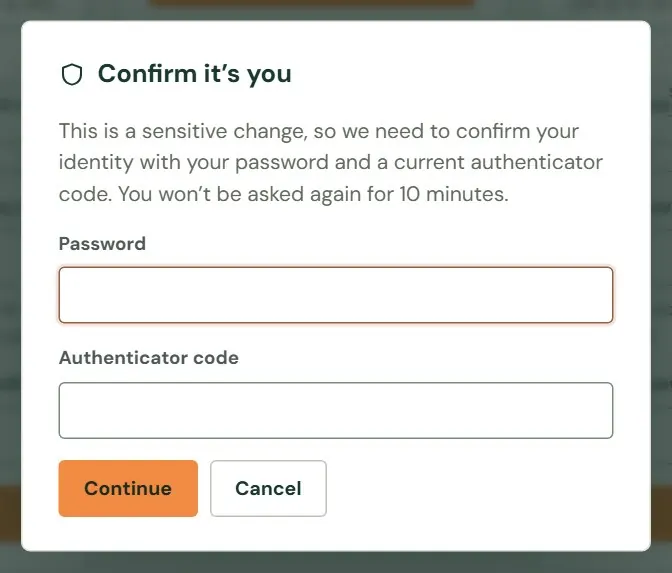 123
123- 1Your password.
- 2A current code from your authenticator app.
- 3Continue sends the change on its way.
If you forget your password
You can fix this yourself, with the email address you sign in with.
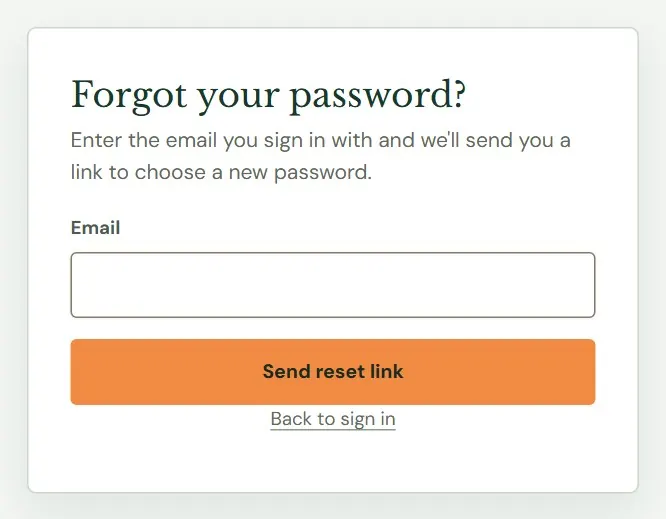 123
123- 1The email you sign in with.
- 2Press Send reset link.
- 3Back to the sign-in page.
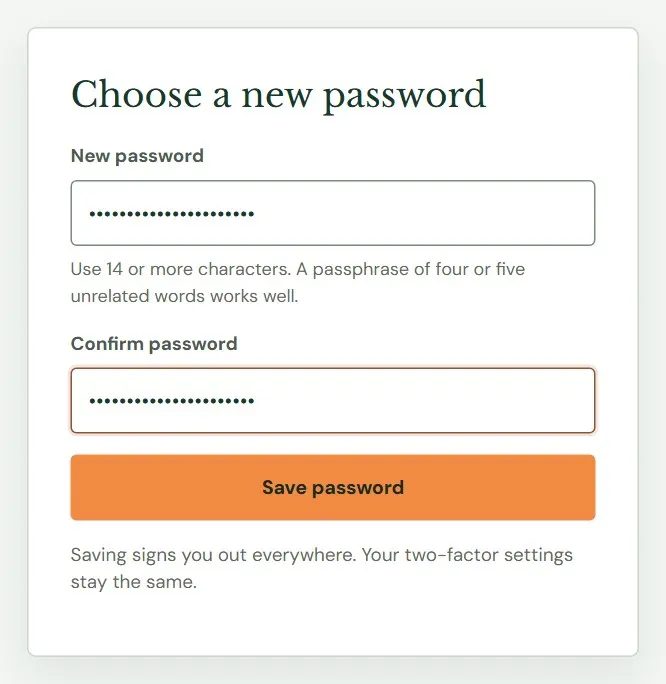 1234
1234- 1The new password.
- 2The rule again.
- 3Type it again.
- 4Press Save password.
- On the sign-in page press Forgot your password?
- Type your email and press Send reset link. The page gives the same answer whether or not the address belongs to anyone: If that address belongs to an account, a reset link is on its way. It expires in one hour. Check your spam folder if you don't see it in a few minutes.
- Open the email titled Reset your Dirt Road Software password and press its link. It works once and lasts one hour. Asking again replaces the earlier link.
- Choose a new password twice and press Save password. This signs you out everywhere. Sign in with the new password. Your two-step sign-in stays set up.
You can ask for a link 3 times an hour for one address. Past that, Roadside says Too many requests. Please wait a while and try again. If the email never comes, a Store owner or Manager on your team can make a reset link for you (Help a team member who is locked out, in Chapter 26).
If you are locked out or lose your phone
| The screen says | What to do |
|---|---|
| The email or password is incorrect. | Roadside never says which part is wrong. Check the email and the capital letters, or use Forgot your password? |
| Sign-in is temporarily locked for this account. Please wait 15 minutes. | The address has been tried more than 10 times in 15 minutes, right or wrong. Wait. The lock clears by itself, and nobody at Dirt Road has to do anything. |
| Too many attempts. Please wait five minutes. | Ten wrong codes in 5 minutes. Wait, then try the next code. |
| Too many requests. Please wait 15 minutes and try again. | Many people on one internet connection sent forms at once, such as a busy counter network. Wait. |
| No workspace yet | Your access has been turned off. Ask your Store owner or Manager. |
| This link is invalid, expired or already used. | The link has been used, replaced or has run out. The screen adds Ask your administrator for a new one. In your store that means a Store owner or Manager for an invitation, or Forgot your password? for a password reset. |
When you lose your phone
- On the code screen press Lost your phone? Use a recovery code.
- Type one of your ten codes and press Use recovery code. That code is used up.
- Set up your authenticator app again on the new phone, as in the steps near the top of this chapter. Roadside says Recovery code accepted. Set up your authenticator again to continue. Other sessions were signed out. It then shows ten new recovery codes. Save them.
With no phone and no recovery codes, ask another Store owner or Manager on your team to press Reset two-factor on your page. You set up the app again at your next sign-in. If nobody else can, write to support@dirtroadsoftware.com.
Google and Microsoft sign-in
If Dirt Road has turned them on for your store, the sign-in page also shows Continue with Google and Continue with Microsoft. You cannot switch them on yourself. They work only for a person who already has a Roadside account under the same email, and Roadside usually still asks for its six-digit code. You connect or disconnect an account on My account, in the Google & Microsoft sign-in card, and Microsoft has to be connected there once before its button works. If the page says We couldn't find an account for that Google sign-in, nobody has invited that email to Roadside yet.
How long you stay signed in
Roadside signs you out after an hour with no activity, and after 8 hours in total however busy you are. Opening a page or using search counts as activity. The sign-in page then says Your session expired. Please sign in again. If someone changed your role or password, it says Your access changed. Please sign in again. A sign-in left half done, between the password and the code, ends after 10 minutes. Press Sign out at the bottom of the menu whenever you leave a shared computer.
Something here does not match your screen? Write to support@dirtroadsoftware.com with the name of the screen, what you pressed and what you expected. A picture of the screen helps.