
Website changes
Some parts of your website are not on any screen in Roadside: the big photo at the top of the home page, a paragraph on Our story, the layout of the Shop page. You send those to Dirt Road as a website change, and Dirt Road makes them.
In this chapter
What counts as one website change
A website change is a request to Dirt Road for something on your website that you cannot edit in Roadside. One change covers related updates to one page. A new photo and two paragraphs on the same page is one change.
A homepage redesign, new navigation and a new page sent together are bigger than a standard change. Dirt Road talks that kind of request through with you before starting any work that costs extra.
- Website change
- A request you send to Dirt Road for a change to your website that you cannot make yourself. It has a number, a status and a thread of notes between you and Dirt Road.
- Allowance
- The number of website changes your plan includes each month. It starts over on the first of the month. Changes you do not use do not carry over.
- Website day
- A day Dirt Road sets aside to work on website changes. A new request waits for the next one.
Jobs you do yourself and jobs you send to Dirt Road
Photos, wording and the layout of a page belong to your website's design, which Dirt Road looks after. Facts about the store, products, stock and orders are yours to change in Roadside, and they reach the website without a request. Store info has a box on the right, Need something else changed?, with a Request a change button for the same reason.
| The job | Who does it | Where |
|---|---|---|
| Change your hours or add a closed day | You | Chapter 3, Hours, closed days and contact details |
| Change the phone number, address or email on the website | You | Chapter 3, Hours, closed days and contact details |
| Put a message in the sign at the top of every page | You | Chapter 4, The sign at the top of your website |
| Change a product's price, size, photo or description | You | Chapter 10, Add or edit a product |
| Mark a product in stock or out of stock | You | Chapter 13, Stock |
| Show your Google rating and pick the reviews to feature | You | Chapter 6, Reviews, and questions and answers |
| Send an old web address to a new page | You | Chapter 7, Old links |
| Swap the big photo at the top of the home page | Dirt Road, as a website change | This chapter |
| Rewrite a paragraph or fix a typo on Our story | Dirt Road, as a website change | This chapter |
| Add a box to the Shop page, such as Hay and Straw | Dirt Road, as a website change | This chapter |
| Change the menu at the top or the footer at the bottom | Dirt Road, as a website change | This chapter |
| Add a new page, such as hay delivery | Dirt Road, as a website change | This chapter |
How many changes you get each month
Your plan sets how many website changes you can send each month and how many days Dirt Road has to finish each one. The pictures in this chapter show 10 a month and 7 days. The Website changes row on Account shows the numbers for your store (Chapter 25, Account and Billing).
A request counts against the month you sent it, using your store's time zone. Two kinds do not count: a request Dirt Road marks Outside plan and a request you withdraw. If you have used the month's changes you can still send another. Roadside says so on the form, and Dirt Road checks with you before doing anything that costs extra. If your plan is suspended, cancelled or expired, the form shows a red banner and new requests pause until the plan is paid; What happens when a payment is late, in Chapter 25 explains it.
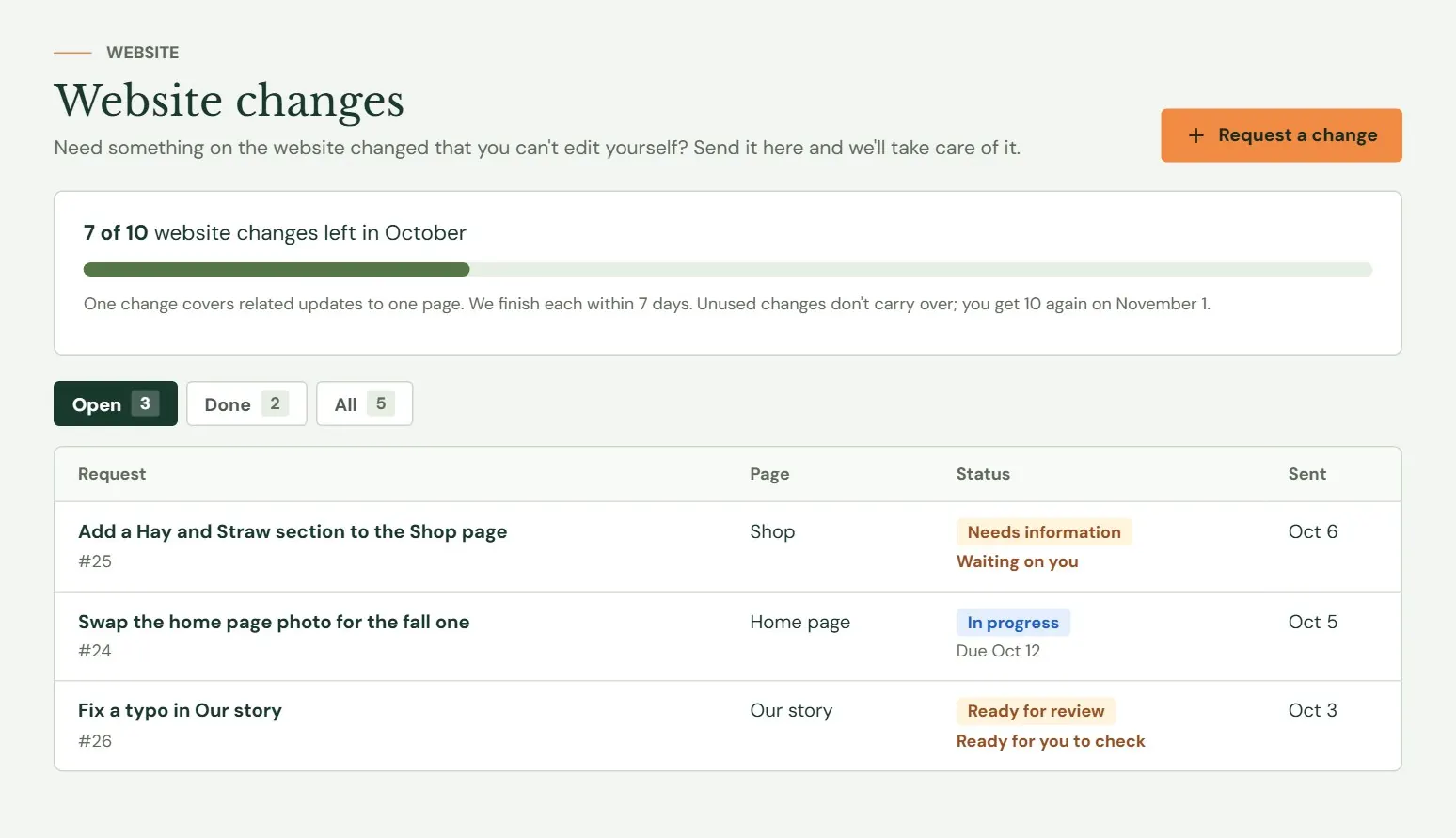 12345
12345- 1How many changes are left this month, and the day the count starts over.
- 2Open requests, Done requests, or All. Open is the one you land on.
- 3Press this to send a new request.
- 4While Dirt Road has a request, the day it is promised for. The date shows in red if it passes.
- 5Words in orange under a status mean the next move is yours: Waiting on you, or Ready for you to check.
Send a request
Press Request a change, either on Website changes or in the box on Store info. The form is one screen.
- Name the change. Type it in What needs changing?, for example Update the Chick Days date.
- Choose the page. Click in Which page? and a list appears: Home page, Shop, Contact page, Search results, Every page (header or footer), each department of your online store, and your website's other pages. Send separate requests for separate pages.
- Say what to change in Describe the change. Give the new wording, or say which attached photo to use.
- Say where in Where on the page? if the page has several places it could be. This box is optional.
- Add photos or files if they help, then press Send to Dirt Road.
The request opens with a line such as Sent. We'll have it done by Tuesday, Oct 14. The date is the day you sent it plus your plan's days to finish. Dirt Road is told at once. You do not get a confirmation email, because the request itself is your record: it stays in your list with its number.
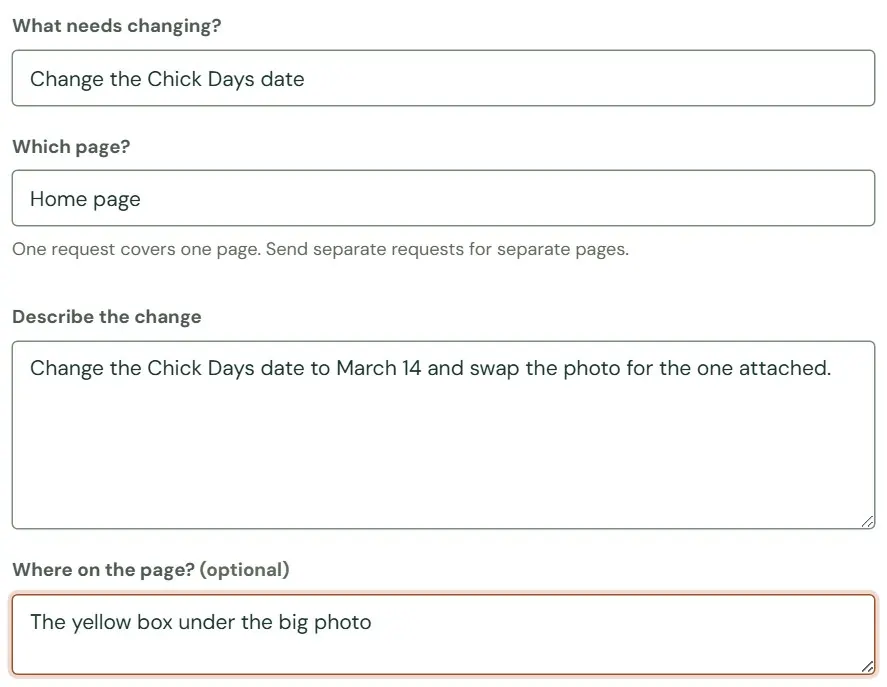 1234
1234- 1A short name for the job. Up to 160 characters.
- 2Pick a page from the list that drops down, or paste its web address. One request covers one page.
- 3What to change, in your own words. Up to 6,000 characters. Say which photo to use.
- 4Where on the page it is, if that helps. A box, a color or the words next to it will do.
Photos and files
The drop area under Photos and files takes JPEG, PNG, WebP, GIF and HEIC photos, PDFs, text and CSV files, and Word and Excel files. A file's name has to match what is inside it, so a photo renamed to end in .pdf is refused.
- Drag, choose or paste. Drag files onto the box, press Choose files, or paste a screenshot with Ctrl and V (on a Mac, Cmd and V) anywhere on the page.
- On a phone or tablet, a Take a photo button opens the camera.
- Size. Each file can be about 6 MB. Photos over 2.5 MB are made smaller before they are sent, and phone photos in HEIC form are sent as they are. If a file is too big the form says This file is over 6 MB. Send a smaller copy, or email it to us. The address for that is support@dirtroadsoftware.com.
- Count. One message can carry up to 20 files. Each starts to upload as soon as you add it, and shows its name and size with a Remove link. The Send to Dirt Road button waits until they finish. A file you add but never send is deleted after 2 days, and only the people on your team who can see Website changes, and Dirt Road, can open the files on a request.
What each status means
Every request has a status that says where it is. Roadside shows it as a colored tag in the list and at the top of the request.
| Status | What it means | Who moves it |
|---|---|---|
| Submitted | Dirt Road has the request and will queue it for the next website day. You see this again after you answer a question. | You, by sending it |
| Needs information | Dirt Road has a question before it can start. Its note is on the request, and the list says Waiting on you. | Dirt Road |
| Approved | It fits your plan and Dirt Road accepted it. | Dirt Road |
| Queued | It is lined up for the next website day. | Dirt Road |
| In progress | Dirt Road is working on it. | Dirt Road, or you with Needs another look |
| Ready for review | It is done. Look at the page and say whether it is right. The list says Ready for you to check. | Dirt Road |
| Completed | Done and live on your website. The request is closed. | You, with Looks right, or Dirt Road |
| Outside plan | Bigger than one standard change. Dirt Road talks it through with you before any work that costs extra. It does not use up one of your changes. | Dirt Road |
| Withdrawn | You took the request back. It does not use up one of your changes. | You |
The due date under a status is Dirt Road's promise. It runs from the day you sent the request, and it stops while a request is waiting on you. When you answer a question, Dirt Road gets the full number of days again.
Open a request, and answer a question
Press a request's name in the list to open it. The top shows its status and what that means, then your request, then Updates: the notes between you and Dirt Road, oldest first. Each note from Dirt Road says when it was written and shows the new status if the note changed it.
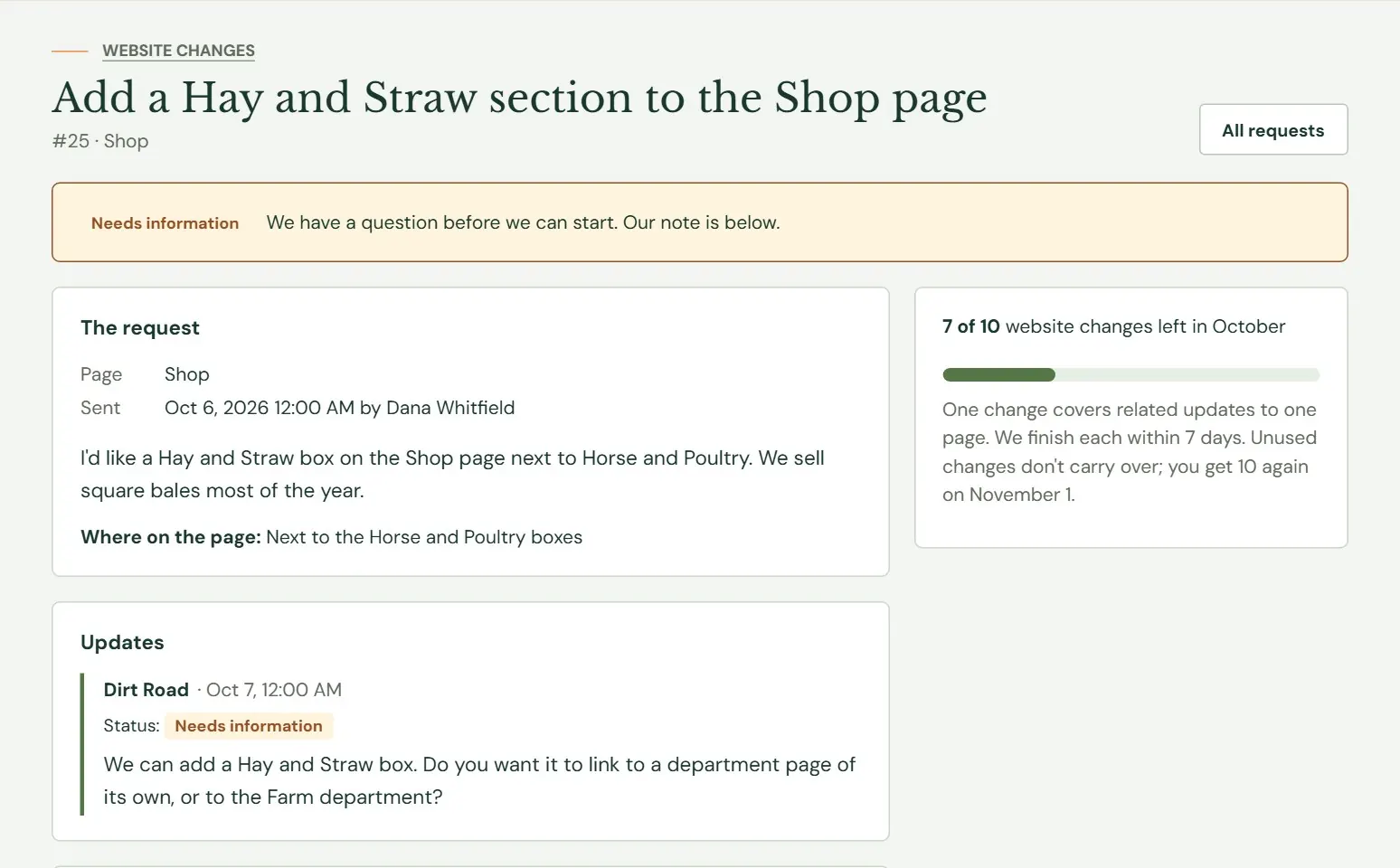 1234
1234- 1The status and what it means. Needs information is amber.
- 2What you sent: the page, who sent it and when, your words, and your note about where.
- 3Dirt Road's note with its question.
- 4The month's count, as on the list.
When the status is Needs information, a card called Answer our question sits under the notes.
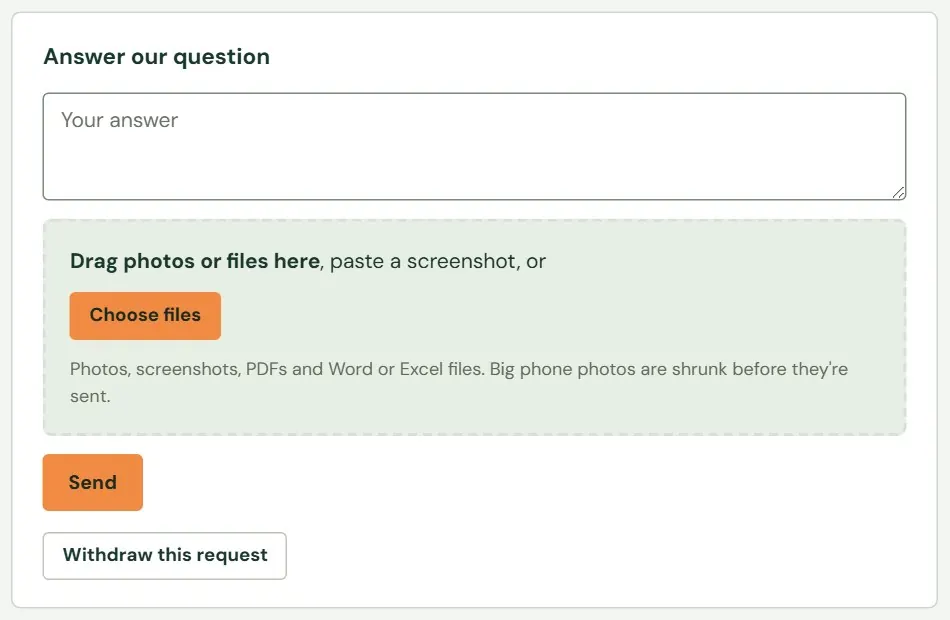 1234
1234- 1Type your answer here.
- 2Add a photo or file if it answers the question better than words.
- 3Press Send. The request goes back to Submitted with a fresh due date.
- 4Withdraw this request, if you would rather drop it. More on that below.
On a request in any other open status, the same card is called Add a note. Use it for anything Dirt Road should know, such as a change of mind or a better photo. Nothing in the status changes when you add a note.
Check the finished work
When a request reaches Ready for review, open the page on your website and look at it. The request page then shows a card called Is it right?
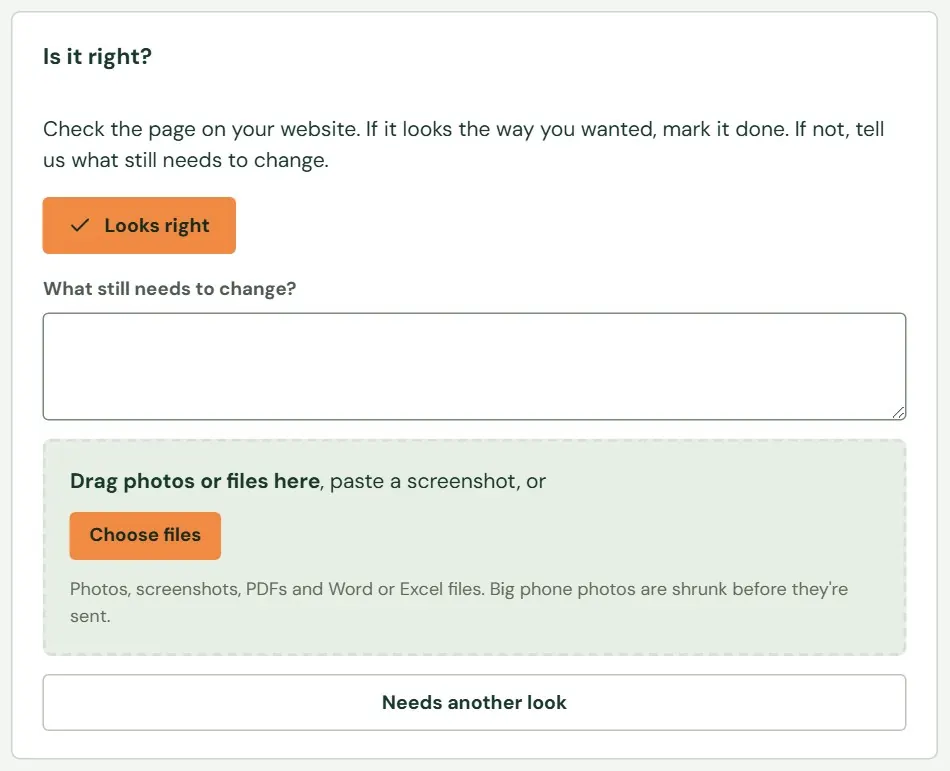 123
123- 1The page looks the way you wanted. This marks the request Completed.
- 2If something is still wrong, say what. The box is required for this choice.
- 3Press this to send the request back to In progress with your note.
- Look at the page on your website, and on a phone as well, since many customers will see it there.
- Press Looks right if it is correct. Roadside says Marked complete. Thanks for checking it.
- Or type what still needs to change in What still needs to change? and press Needs another look. Roadside says Sent back to us with your notes. You can attach a photo of the problem.
A Completed request is closed. Roadside says This request is closed. Send a new request instead if you reply to it, and the page offers a Send a new request link.
Withdraw a request
You can take a request back while its status is Submitted or Needs information. Press Withdraw this request and confirm. Roadside says Withdrawn. It won't count against this month. After Dirt Road approves a request you cannot withdraw it. Add a note to say you no longer want it.
Emails about your request
When Dirt Road writes back, the person who sent the request gets an email with the title, the new status, the message and a link to open the request. The subject reads Website change #25: Needs information when the status moved, and A note about website change #25 when it did not. Only the sender gets it, so forward it if someone else should see it.
Something here does not match your screen? Write to support@dirtroadsoftware.com with the name of the screen, what you pressed and what you expected. A picture of the screen helps.