
Stock
Roadside keeps a count for each size you choose to count. This chapter covers turning counting on, recording a delivery, a shelf count or a correction, reading the history, what an online order does to the count, and where low stock shows.
In this chapter
What Roadside counts
Counting is a choice you make for each size. A 50 lb bag you stock every week is worth counting. A custom order, a delivery fee or a service is not. A size you count has a number on hand, and Roadside changes that number when you record a delivery or a count and when a customer's online order goes through. Roadside learns nothing from a sale at the counter by itself, so a shelf count is how those sales get caught up.
- Counting (tracking)
- Roadside keeps a number for the size. The screens call this Track stock. A size you do not count always shows as in stock on the website.
- On hand
- How many Roadside believes are in the store right now.
- Reorder point
- The number at or under which you want to be reminded to reorder. You choose it for each size.
- Low and Out
- A size is Low when its count is at or under its reorder point, and Out when it is at zero or below.
Turn counting on or off, and set the reorder point
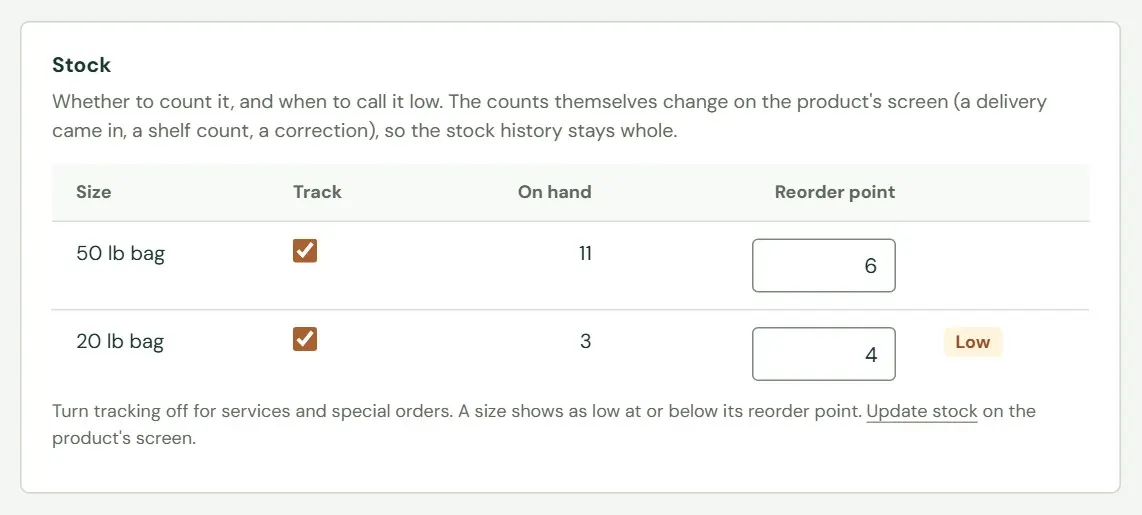
On a saved product, the Stock section lists each size with a Track tick, its count and a Reorder point box. Tick the sizes you count, type a reorder point for each and press Save product. A Low badge appears beside a size that is at or under its reorder point.
 1234
1234- 1Counted or not.
- 2The count. You cannot type it here.
- 3Low at or under this number.
- 4Shows when the size is low.
The count itself is not a box on this screen. It changes on the product page, one step at a time, so the history stays complete. A new product is different: On hand now is a box on the form, and a starting number other than zero goes into the history as Opening stock.
A size you count with nothing on hand shows Out of stock right now on the website, and customers cannot order it. If a product is new and you have not typed a count, Roadside treats it as zero. Untick counting for anything you want to keep selling without a count. Chapter 17, Store settings explains the switch that lets customers order items that are out of stock.
Record a delivery, a shelf count or a correction
This is the daily job, and it happens on the product's page, not in the editor. Staff can do it as well as Managers and Store owners. A Read only person sees the numbers without the form.
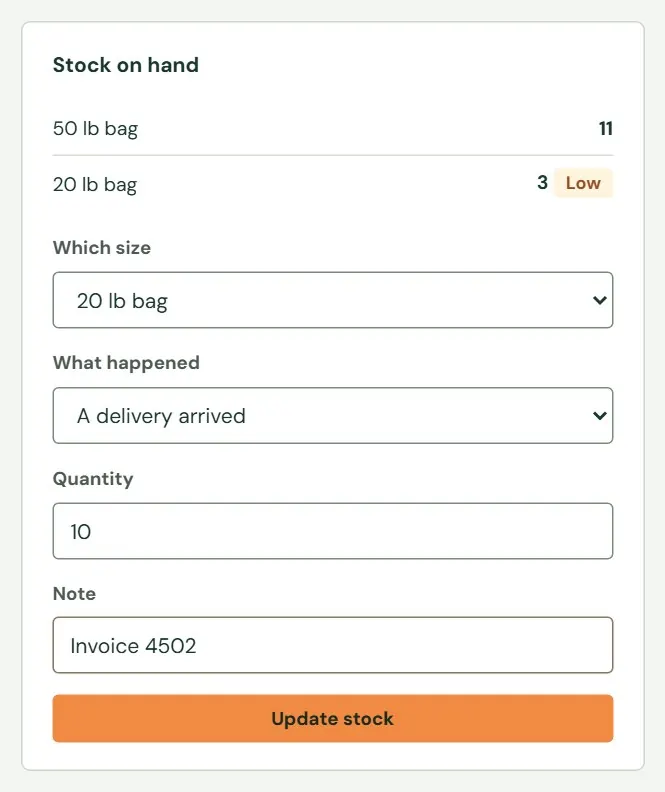 123456
- 1The count for each counted size.
- 2The 20 lb bag is at or under its reorder point.
- 3Which size. This appears when the product has several.
- 4What happened: a delivery, a shelf count or something else.
- 5How many. What it means depends on what happened.
- 6Saves it at once.
| What happened | Quantity is | What Roadside does |
|---|---|---|
| A delivery arrived | How many came in, such as 12. | Adds that many. |
| I counted the shelf | How many are on the shelf now, such as 13. | Sets the count to what you counted and records the difference. |
| Something else (damaged, used, found) | A change: -2 to take two away, +2 to add two. A note is required. | Adds or takes away that many. |
- Open the product's page and look at Stock on hand. If the product has several sizes, choose the size under Which size.
- Choose what happened, then type the quantity. Add a note: the supplier and invoice number for a delivery, or the reason for a correction, such as Torn bag.
- Press Update stock. Roadside says Stock updated. 14 on hand. and adds a line to the history.
If you leave something out, Roadside says what is missing: Enter how many arrived., Enter how many are on the shelf., Enter how much to add (or take away with a minus sign). or Say why stock is being adjusted (for example "damaged bag"). Roadside does not stop a correction from taking the count below zero, so check the number it reports back.
If a product or size does not count stock, there is no form. Roadside says Stock isn't tracked for this product. Turn counting on in the editor first.
The stock history
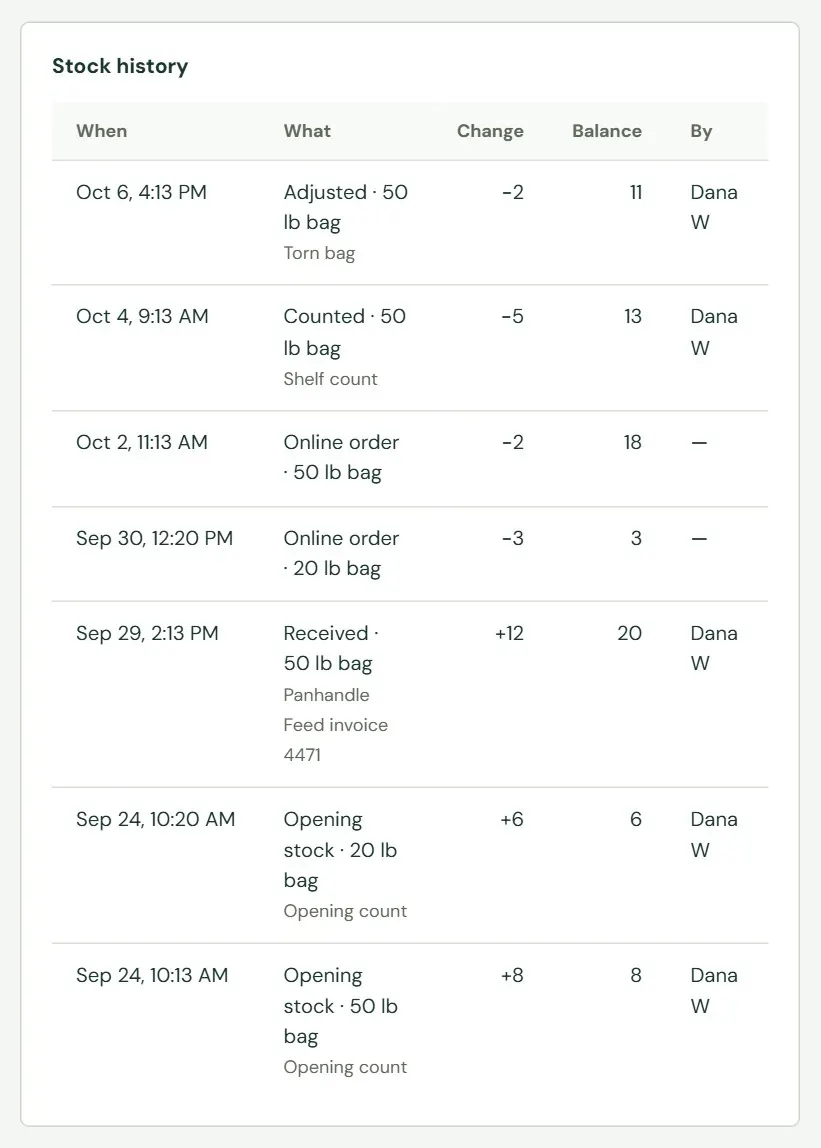
Under the product page's left column, Stock history lists the last 50 changes, newest first. It is the record to look at when a count looks wrong.
 12345
12345- 1The date and time, in your store's time.
- 2The reason, the size and your note.
- 3What the count changed by.
- 4What was on hand afterwards.
- 5Who did it. A dash means Roadside did it by itself.
The reasons you will see are Received, Counted, Adjusted, Online order, Order cancelled, Refund back on the shelf, Returned and Opening stock. A line cannot be edited or deleted, which is what makes the history worth trusting. To fix a mistake, record a correction with Something else and say why in the note, or take a shelf count.
What an online order does to stock
You do nothing for online orders. While a customer is paying by card, Roadside sets their items aside for a few minutes so nobody else can take the last bag. If the customer does not pay, the items go back. When the customer pays, the count drops and the history shows Online order. A cancelled order puts the items back (Order cancelled), and a refund can put them back too (Refund, back on the shelf).
The website counts a size as in stock when more are on hand than are set aside. So a size can look out of stock for a few minutes while someone's checkout holds the last ones. Chapter 18, Working the orders covers the orders themselves.
Where low stock shows
Low stock shows in five places, and Roadside does not send an email or a text when something runs low. Looking at these is how you find out.
| Where | What it shows |
|---|---|
| Products list | A badge on the On hand number, and the Low on stock and Out of stock filters. See Chapter 9, Finding your way around products. |
| The Stock chart | Fine, Low and Out for every counted size, with a link to the list of what is low. |
| The product page and the editor | An orange Low badge beside the size. |
| Website home, Products card | The line under the product count: 8 low on stock, or Stock levels look fine. |
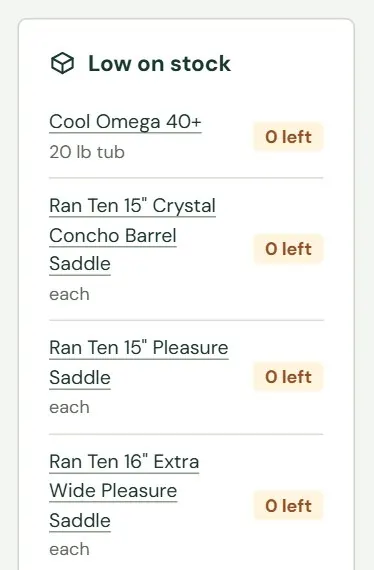
| Website home, Low on stock tile | Up to six sizes at or under their reorder points, with how many are left. It appears only when something is low. |
 123
123- 1Press a name to open the product.
- 2How many are left.
- 3Opens the Products list, filtered to what is low or out.
The Stock chart, the Products card and the tile count every size. The Low on stock and Out of stock filters on the Products list look at each product's first size only, so a product whose second size is low may count in the chart and not appear in the filtered list. Open the product to see all its sizes.
Suppliers on the product page
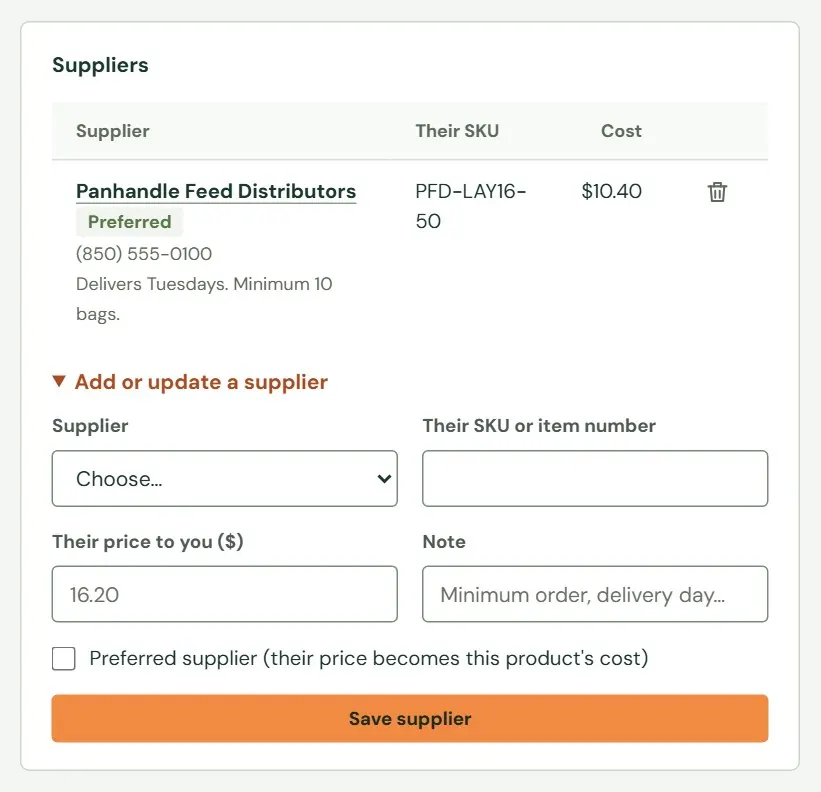
The Suppliers card records who you buy a product from, their item number and their price to you. A supplier is a customer-list account with the type Vendor, so add the supplier under Customers, Accounts first. Chapter 20, Customer accounts and contacts covers accounts. Everyone who can open Products can read the card. The Store owner and Managers can change it.
 123456
- 1The supplier's account, with their phone and your note.
- 2The preferred supplier's price is the product's cost.
- 3Removes the supplier from this product.
- 4Choose a vendor account.
- 5Tick it to make their price this product's cost.
- 6Saves the supplier.
- Open Add or update a supplier. Choose the supplier. If the list is empty, Roadside says Suppliers are accounts with the type "Vendor". Add a supplier's account first.
- Type their item number and their price to you. A note can say the minimum order or delivery day.
- Tick Preferred supplier if this is who you buy from. Their price becomes the product's cost, and Price history records a change from Supplier cost.
- Press Save supplier. Roadside says Supplier saved. Choosing the same supplier again updates it.
The card belongs to the product's first size. The supplier's own account page has a Products they supply list in return.
Something here does not match your screen? Write to support@dirtroadsoftware.com with the name of the screen, what you pressed and what you expected. A picture of the screen helps.