
Importing and exporting products
A spreadsheet is the quick way to add a long list of products or to change many prices at once. This chapter covers the file Roadside writes, the file it reads back, and the few things an update does that you might not expect.
In this chapter
Export your products
Press Export CSV at the top of the Products list. Your browser downloads a file named like products-2026-10-08.csv. A CSV file is a plain spreadsheet that Excel, Google Sheets and Numbers all open. It holds every product that is not archived, A to Z, with these columns: SKU, Name, Brand, Category, Size, Price, Cost, On hand, Reorder point, Taxable, Sell online, Barcode and Description.
Two things about the file are worth knowing before you open it. It lists only the first size of each product, so a product with a 50 lb bag and a 20 lb bag appears once, as the 50 lb bag. And it includes your Cost column. Staff and Read only people can export too, so treat the file the way you treat your price book. Importing is for the Store owner and Managers. Description in the file is the product's short summary, not the full description.
Import a spreadsheet
The easiest way to start is to export, change the file, and import it back. Roadside reads the same columns it writes.
| SKU | Name | Brand | Category | Size | Price | Cost | On hand |
|---|---|---|---|---|---|---|---|
| 4757 | 16% Layer Pellets | Mid-South Feeds | Poultry | 50 lb bag | 14.50 | 10.40 | 14 |
| 4 | 15% Layer Crumbles | Mid-South Feeds | Poultry | 50 lb bag | 16.95 | 12.15 | 6 |
| 9 | Southern Supreme Mare & Foal 16/7 | Mid-South Feeds | Horse | 50 lb bag | 21.83 | 17.45 | 22 |
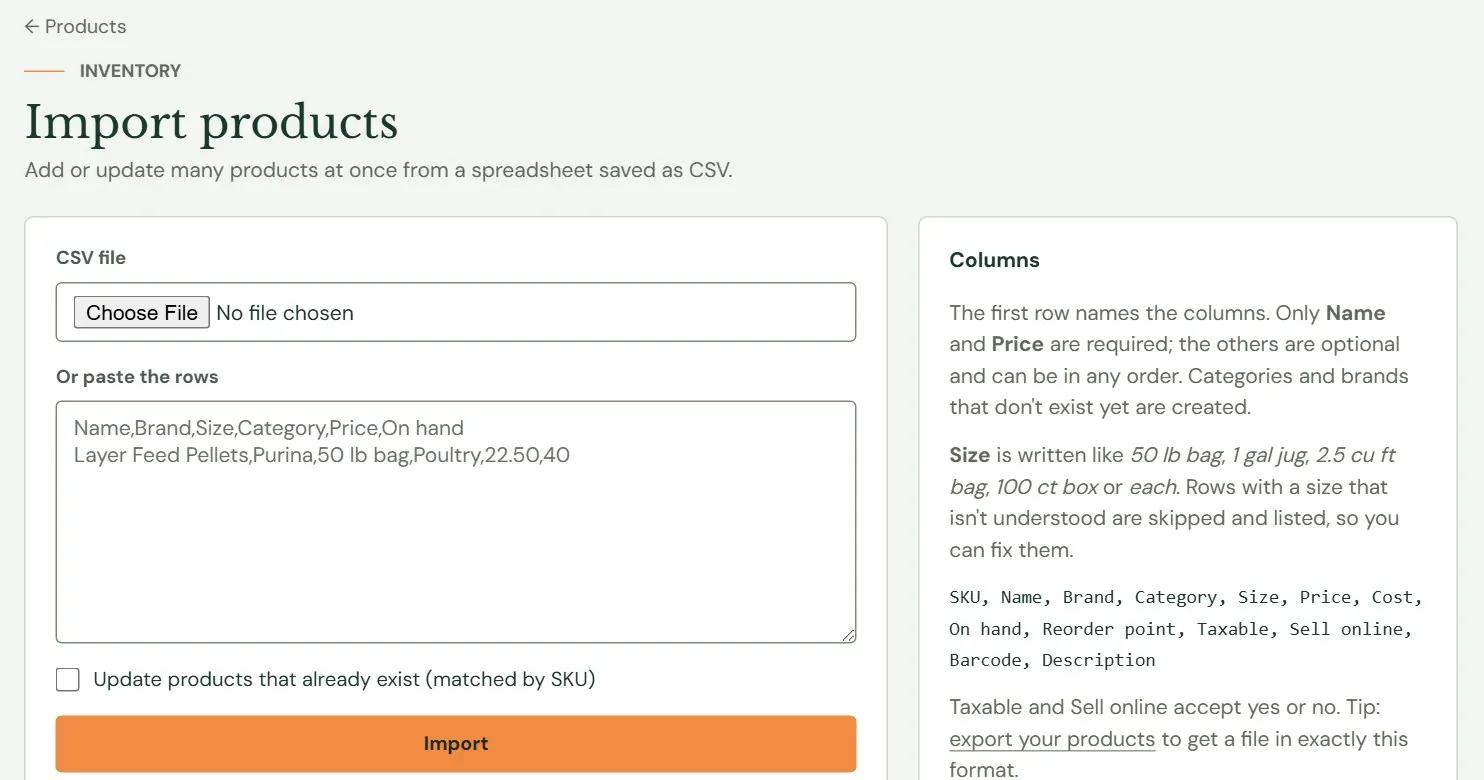 12345
12345- 1Choose a CSV file, up to 2 MB.
- 2Or paste the rows, header row first.
- 3Tick it only to change products you already have. Read the section below first.
- 4Runs the import.
- 5The columns Roadside reads.
- Make the first row the column names. Only Name and Price are required. The rest are optional, in any order. Extra columns are ignored.
- Write sizes in words such as 50 lb bag. The next section says how.
- Save the file as CSV. In Excel, choose CSV UTF-8 (Comma delimited). In Google Sheets, choose File, Download, Comma-separated values.
- Open Inventory, Products, Import and choose the file, or paste the rows into the box.
- Leave the update box unticked unless you mean to change products you already have.
- Press Import. Read the banner at the top of the screen.
- Check a few products. An import does not bring photos, a full description or more than one size. Add those in the editor.
The columns Roadside understands
Column names are not case sensitive. If your spreadsheet already has a different name for one, Roadside knows several.
| Column | Also understood as | What it holds |
|---|---|---|
| SKU | Item number, Item # | Your item number. It is how an update finds the product. |
| Name | Product, Product name, Item | Required. |
| Brand | Manufacturer, Make | A brand you do not have yet is created. |
| Category | Department | A category you do not have yet is created. |
| Size | Size / unit, Unit, Unit label, Pack size | See below. |
| Price | Retail, Retail price | Required. Like 22.50. |
| Cost | What you pay. | |
| On hand | Quantity, Qty, Stock | On a new product, the opening count. On an update, a shelf count. |
| Reorder point | Min | When the size shows as low. |
| Taxable | Yes or no. Yes, y, true, 1 and x all mean yes. | |
| Sell online | Online | Yes or no. No sets the product to Hidden. |
| Barcode | UPC | The digits under the bars. |
| Description | The product's short summary, not the long description. |
A spreadsheet sometimes puts a leading apostrophe in front of a cell. Roadside removes it.
How to write a size
Roadside needs the size as an amount, a unit and what it is sold as: 50 lb bag, 1 gal jug, 2.5 cu ft bag, 100 ct box, or just each. It understands the usual spellings, so lbs and pound work for lb. A size it cannot read skips the whole row, and the banner shows which row and what it saw: Size "5 pounds of grain" wasn't understood. Write it like "50 lb bag", "1 gal jug", "100 ct box" or "each".
Update products you already have
With Update products that already exist (matched by SKU) ticked, a row whose SKU matches a product changes that product. This is how you change many prices at once. With the box unticked, a row with a SKU you already use is skipped and the banner says so: SKU 4757 already exists (tick "Update products that already exist" to change it).
An update is more than a price change. For every product in the file it does all of this:
- It overwrites each column in your file, for every row, and an empty cell empties that field. An empty Cost cell sets the cost to nothing, and an empty Brand, Category, Barcode or Description cell clears it. To leave a field alone, leave that column out of the file.
- It changes only the product's first size. Other sizes, photos and the full description are not touched.
- It puts the sales tax class back to plain Taxable or Not taxed, which loses a class such as Livestock and poultry feed. Choose the classes again in the editor.
- It treats the On hand column as a shelf count and overwrites the count, so an out-of-date number in the spreadsheet replaces a good one.
- It sets a Draft product to For sale.
Rows with no SKU are always new products. Import the same SKU-less file twice and you have every product twice. New products start as For sale, counted, with the On hand number as the opening count. Sell online left empty means yes.
Read the result
When the import finishes, a banner at the top says how many products were added, how many were updated and how many rows were skipped, and lists the skipped rows, up to 50. The row number is the spreadsheet's row, counting the header as row 1. Each row is saved on its own, so one bad row does not stop the others. Fix the skipped rows and import only those.
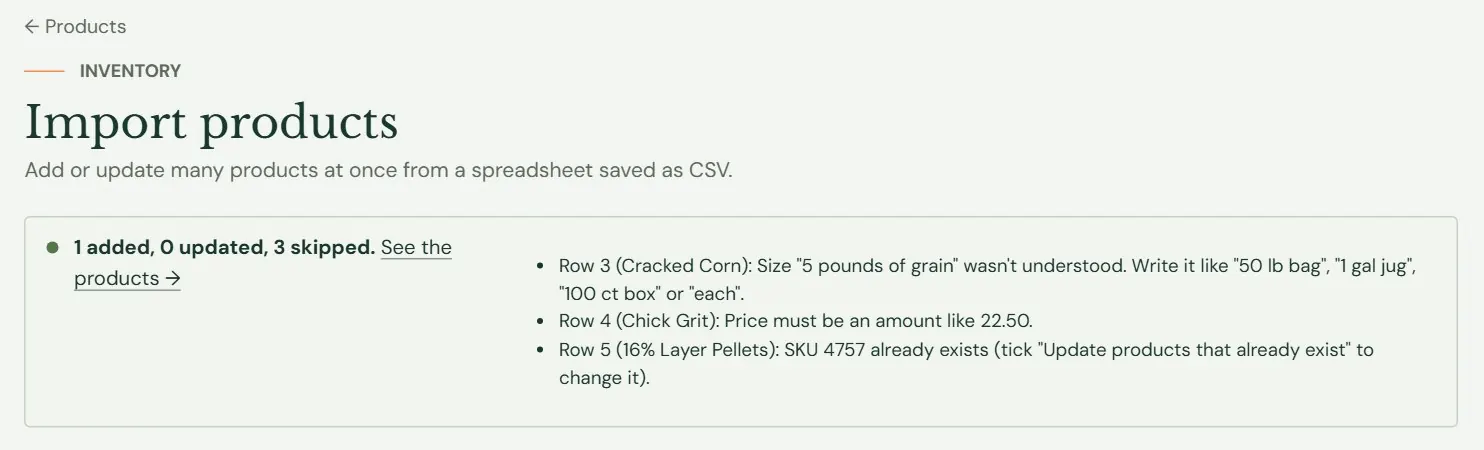 123
123- 1Added, updated and skipped.
- 2Each skipped row, with the reason.
- 3Opens the Products list.
A few messages stop the whole file before any row is read: Choose a CSV file or paste the rows., The file needs a header row and at least one product., The header row needs at least "Name" and "Price" columns., Import up to 5,000 products at a time. and That file is too large. The limit is 2 MB. Rows that fail show the reason after the product's name: Give the product a name., Price must be an amount like 22.50., Another product already uses the barcode and the size message above.
Something here does not match your screen? Write to support@dirtroadsoftware.com with the name of the screen, what you pressed and what you expected. A picture of the screen helps.