
How your changes reach the website
When you press Save, Roadside has your change at once. Your website follows a few minutes later, after Roadside rebuilds its pages and puts the changed ones on the live site. This chapter shows how that works and how to see where a change is.
In this chapter
From Save to your website
Customers never see Roadside. They see your website, which is a set of finished pages. When you save something that shows on a page, Roadside makes the affected pages again from everything you have saved, checks them, and puts the ones that changed on the website. Roadside's own screens show your change the moment you save it. The website is the part that waits.
- Publish
- Roadside rebuilding your website's pages from what you have saved and putting the changed ones on the website. This manual also says update. The screens say publish.
- Live
- What customers see on your website right now.
The wait of about a minute is on purpose. If you change a price, a photo and your Saturday hours one after another, those three saves become one update instead of three. Roadside also checks for itself every few minutes and starts an update when something differs from the last one, so your website does not depend on anyone remembering to press anything. In all, a change usually reaches the website in a few minutes.
What goes live at once, and what waits
Most of what you save in Roadside is part of the pages, so it travels with the next update. A few things are live sooner because the website asks Roadside for them each time it needs them.
| What you do | When customers see it |
|---|---|
| Change Store info: phone, hours, closed days, links | With the next update, a few minutes. |
| Save Reviews, Questions & answers or Old links | With the next update, a few minutes. |
| Change a product, a price, stock or a department | With the next update, a few minutes. |
| Change online store settings, or publish an article | With the next update, a few minutes. |
| Put up or take down the Store sign | Within a minute. No update. |
| Switch the website assistant on or off, or change its greeting or notes | Within a minute or two. No update. |
| A customer sends a message from the contact page | At once, in Messages. |
| Send Dirt Road a website change request | Not an update. It goes to us (Chapter 24, Website changes). |
The note in the corner after a save tells you which case you are in. For Store info, Reviews, Questions & answers and Old links it says Saved. Your website updates on the next publish, in a few minutes.
The Publishing tile
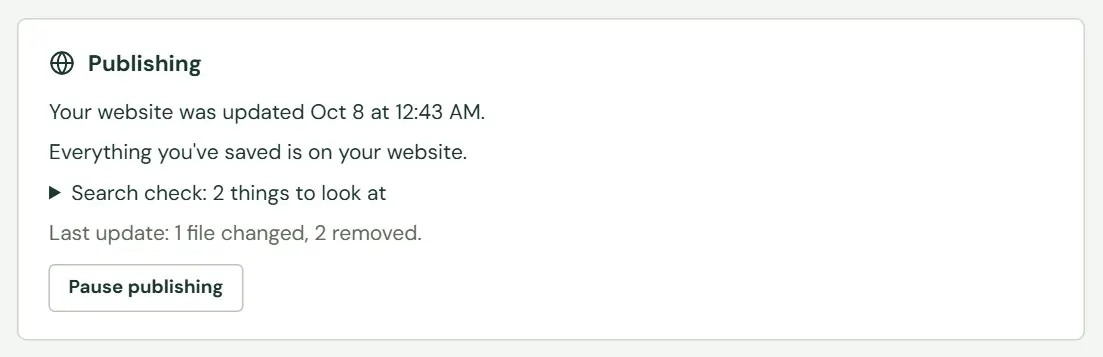
Website home has a Publishing tile that shows where your changes are. It appears when your website is published from Roadside. If you see no Publishing tile, Dirt Road updates your website another way, and support can tell you how. A Store owner and a Manager both see it. Staff do not.
 12345
12345- 1When the website was last updated. It is the last finished update, not the last time anyone saved.
- 2Where your changes stand.
- 3The search check, covered below.
- 4How much the last update changed. A file is one page, photo or other piece of the website.
- 5Pause publishing holds updates back until you resume them.
| The tile says | It means |
|---|---|
| Everything you've saved is on your website. | The website matches what you have saved. |
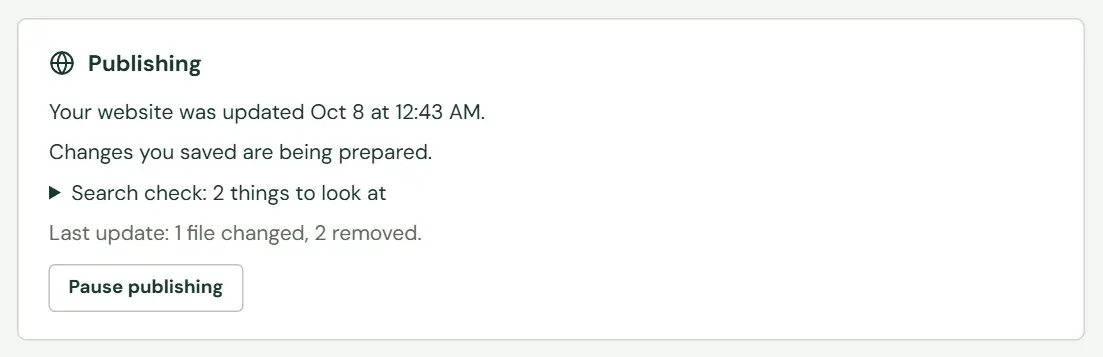
| Changes you saved are being prepared. | You have saved something the website does not have yet. It is on its way. |
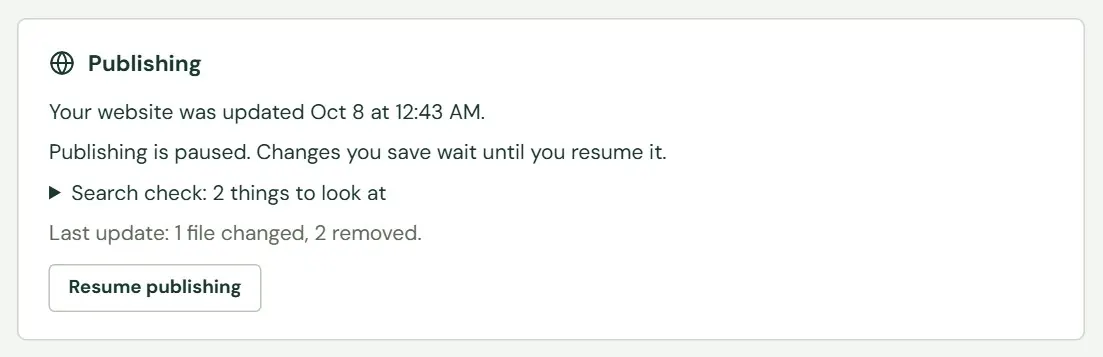
| Publishing is paused. Changes you save wait until you resume it. | Updates are on hold, until you press Resume publishing. |
| The last publish stopped: and then a sentence | Roadside found a problem and left the website as it was. The section What can stop an update, below, says what to do. |
| Your website hasn't been published from Roadside yet. | The first update has not run. If you are not expecting that, write to support@dirtroadsoftware.com. |
 1
1- 1Changes you saved are being prepared.
To check that a change is live, look at the tile. Your website was updated at a time after your save, and the line below it says everything is on your website. Then open the page. If you still see the old version, reload it, because your browser may be holding a copy.
The search check
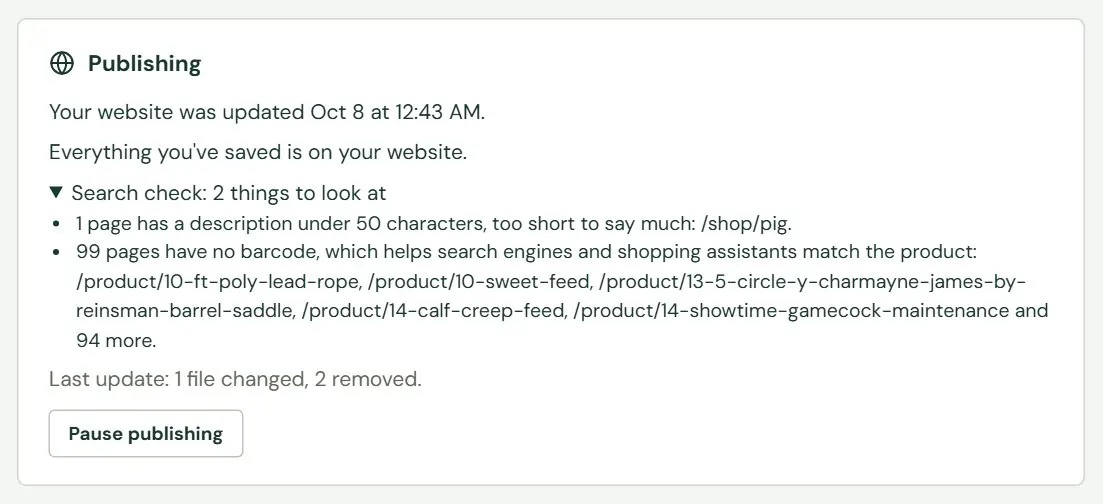
Each update also checks your pages the way a search engine reads them, and the tile lists what it finds under Search check. Press the line to open the list. If everything looks right, the tile says so. The check never stops an update. It is a short list of things to look at.
 123
123- 1The number of things to look at. Press it to fold the list open or shut.
- 2Each line says how many pages, what is wrong, and names up to five of them.
- 3The size of the last update.
- Alt text
- A sentence that describes a photo for people who cannot see it. Search engines read it too.
- Structured data
- Facts about your store and each product, such as your address, hours and prices, written so that search engines and AI assistants can read them.
| The check says | What it means and what to do |
|---|---|
| No barcode | A product has no barcode, which helps search engines and shopping assistants match it. Add the barcode to the product's size (Chapter 11, Sizes, prices and photos). |
| Photos without alt text | Add a sentence about what the photo shows, on the product's photo (Chapter 11, Sizes, prices and photos). |
| The same title or description as another page | Two pages would look alike in search results. Two products with the same name can cause it. |
| No title, a title over 65 characters, no description, a description over 160 characters or under 50 | Search results cut long ones off and say little for short ones. Send us the page as a website change (Chapter 24, Website changes). |
| No main heading, or more than one | The page has no single main heading. Send it to us as a website change. |
| No canonical address, structured data that does not parse, no store details, no product details, or questions the page does not show word for word | Behind-the-scenes details that help search engines. These belong to Dirt Road, so write to support@dirtroadsoftware.com with the line the tile shows. |
Pause and resume publishing
Pausing holds back every update until you resume. Your website keeps showing the last version it has. Pause when you want a run of changes to go up together, and resume when you are done.
- Press Pause publishing on the tile. Your browser asks you to confirm: Pause publishing for Baker Feed & Country Store? Changes you save wait until you resume it.
- Make your changes. Roadside keeps building the pages, so the tile can say what is waiting, but nothing goes to the website.
- Press Resume publishing. Roadside says Publishing is on again. and starts an update, which reaches the website in a few minutes.
 12
12- 1The paused line.
- 2Resume publishing.
Pausing holds back everything, not only the change you were thinking of. Phone numbers and hours wait, and so do prices, stock levels and articles. A store that pauses and forgets will show old prices and old stock to customers. Resume as soon as you are done. The Store sign and messages from the contact page are not affected by a pause.
What can stop an update
Before Roadside puts new pages on the website, it reads all the text customers will see. That includes what you typed in Store info, Reviews and Questions & answers, and product names, descriptions, photo descriptions and article text. It looks for leftover notes to yourself, or notes about where a fact came from. If it finds one, it stops the update and your website keeps its last version.
The rule is short: do not put a web address, or a note about where something came from, inside round brackets. These examples would stop an update.
| Stops an update | Passes |
|---|---|
| Call us (or visit www.bakerfeed.com) | Call us, or visit www.bakerfeed.com |
| Order ahead (bakerfeed.com/order) | Order ahead at bakerfeed.com/order |
| Fortified with vitamins (source: the label) | Fortified with vitamins, as the label says |
| Crude protein 14% (per the manufacturer) | Crude protein 14% |
| Good for layers (via Purina) | Good for layers |
In round brackets, these start a note that stops an update: source or sources (when not followed by of), via, according to, and from or per followed by the label, the manufacturer, the website or the site. A bracket that holds a web address does the same, whether it starts with http or www. or has .com in it. Three more stop an update wherever they appear: other_text, older label and site:, the way a search for one website is typed into Google. A bracket that only describes an ingredient, like (source of vitamin B6), is fine.
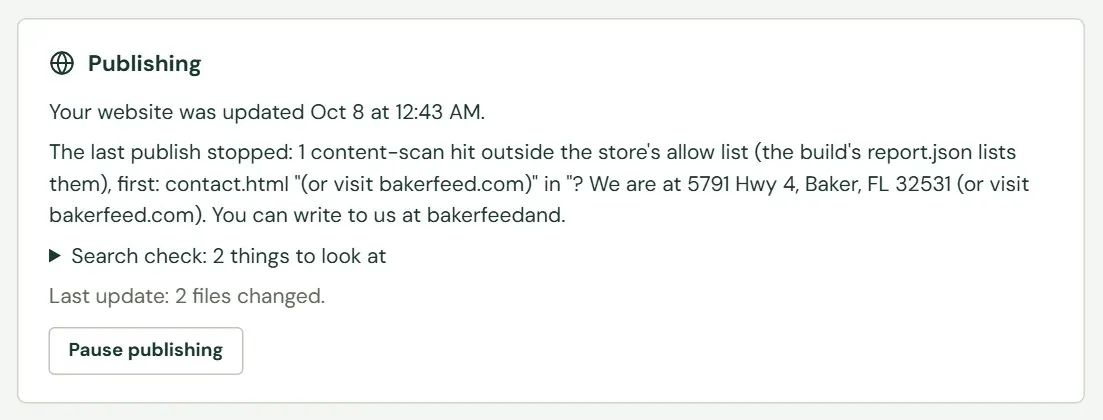 12
12- 1The sentence is written for us. The part for you is the page it names and the words it quotes.
- 2Everything else on the tile is as usual.
- Read the sentence on the tile. It names a page, such as
contact.htmlfor the contact page, and quotes the words it did not like. - Find those words where you typed them. A contact page answer is in Questions & answers. A product page is in the product. The Store info note is under your hours.
- Take the brackets, or the web address inside them, out, and save. The save starts a new update, and the tile moves back to Everything you've saved is on your website. when it is through.
If the tile says the last publish stopped and the sentence does not point at words you typed, the fix is ours. Write to support@dirtroadsoftware.com and paste the sentence the tile shows, along with what you saved just before. Your website stays up on its last version while we look.
Something here does not match your screen? Write to support@dirtroadsoftware.com with the name of the screen, what you pressed and what you expected. A picture of the screen helps.