
Reviews, and questions and answers
Reviews shows your Google and Facebook ratings and a handful of kind words from real customers. Questions & answers lets you answer what people ask at the counter, in your own words, on the pages you choose.
In this chapter
Your ratings on Google and Facebook
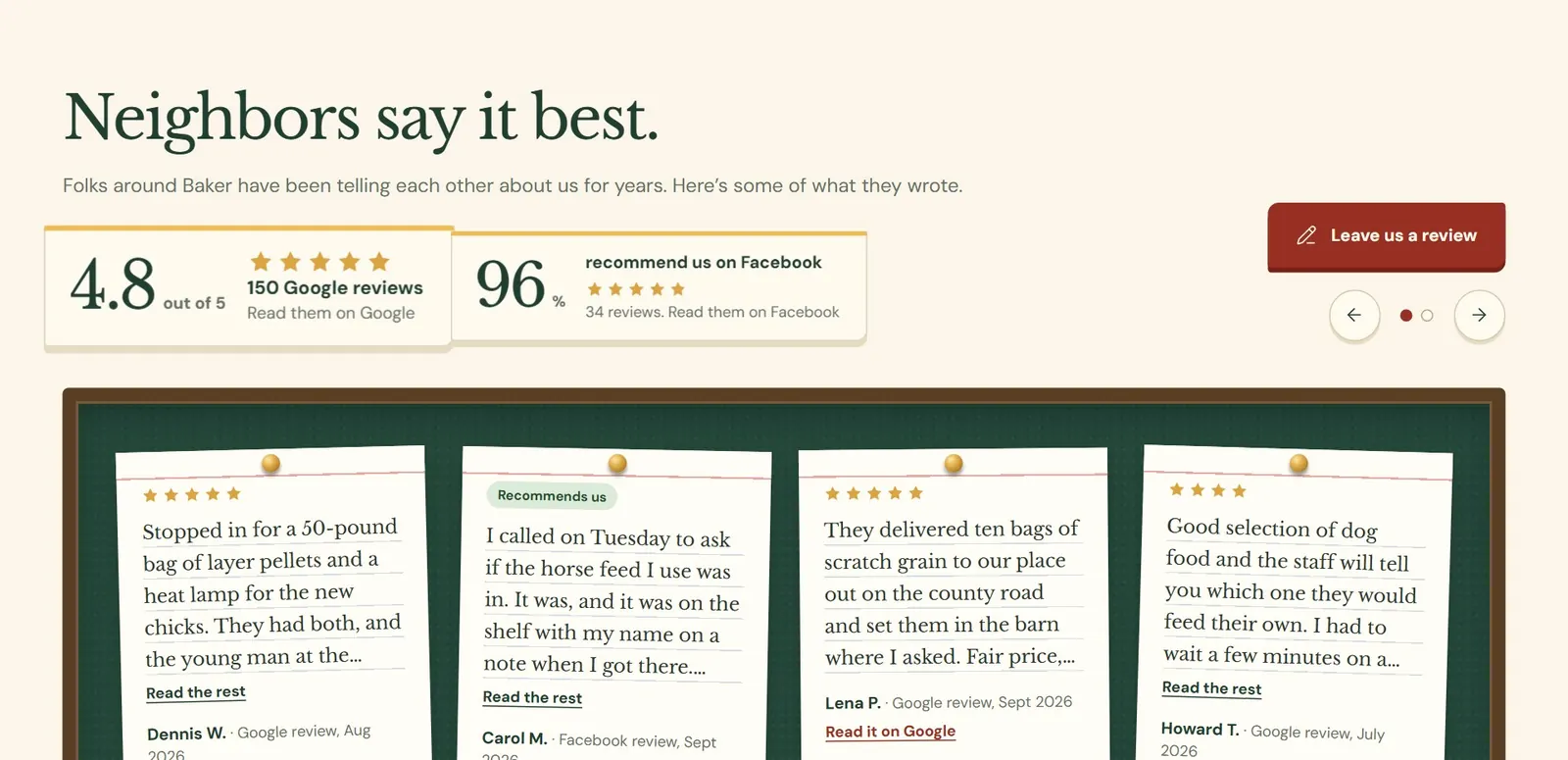
Roadside does not look up your ratings. You copy the numbers from Google and Facebook and type them in, and your website shows them next to the reviews you pick. When the numbers on Google or Facebook change, change them here. The ratings sit near the top of the reviews section on your home page, with a button for customers who want to leave one. Store owners and Managers can both change Reviews.
 123
123- 1Your Google rating and Facebook figure, each linking to your page there.
- 2The reviews you picked, each with the reviewer's first name and last initial.
- 3The button for a customer who wants to write one.
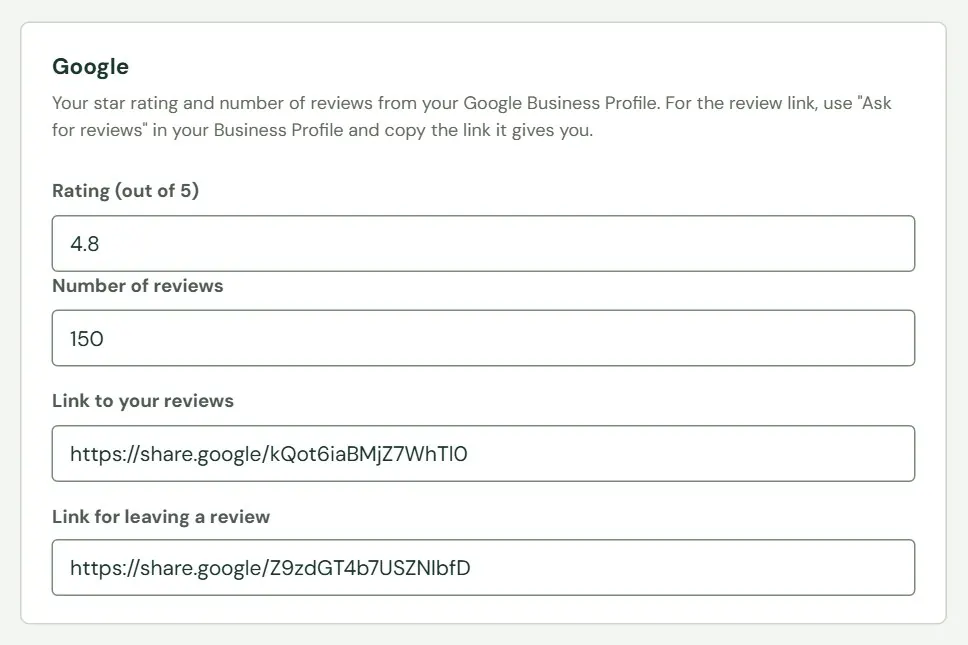
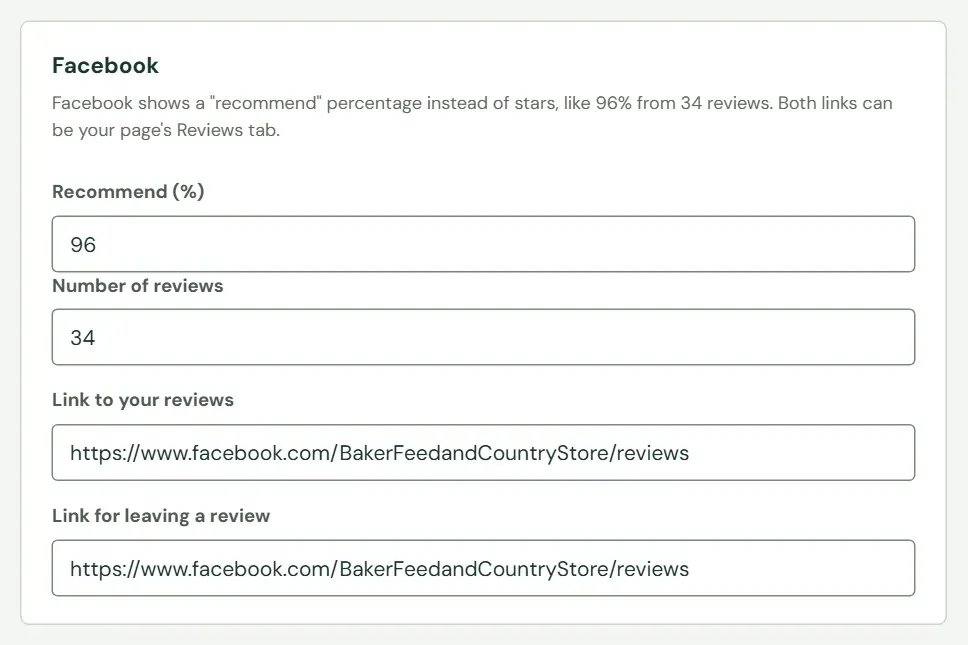
The Google card takes four things. The Facebook card has the same, except that Facebook shows a percentage who recommend a business instead of stars.
 1234
1234- 1Rating out of 5, like 4.8. A number from 1 to 5.
- 2Number of reviews.
- 3Link to your reviews.
- 4Link for leaving a review.
In your Google Business Profile, use Ask for reviews to get the link customers use to write a review, and copy it into Link for leaving a review. Both links have to start with https://.
 1234
1234- 1Recommend (%), a number from 0 to 100, like 96.
- 2Number of reviews.
- 3Link to your reviews. Your page's Reviews tab works.
- 4Link for leaving a review. The same address works here.
Google shows on your website only when it has a number of reviews above zero and a rating. Facebook needs a number of reviews above zero and a recommend percentage. When both are filled in, the website says 4.8 out of 5 from 150 Google reviews or 96% recommend us, from 34 Facebook reviews. If you do not use one of them, leave its boxes empty.
Reviews to feature
Below the two cards is a list of reviews to show on the website, up to 12, in the order you give them. Three empty rows follow the saved ones for adding more. Leave a quote empty and its row is skipped.
 1234567
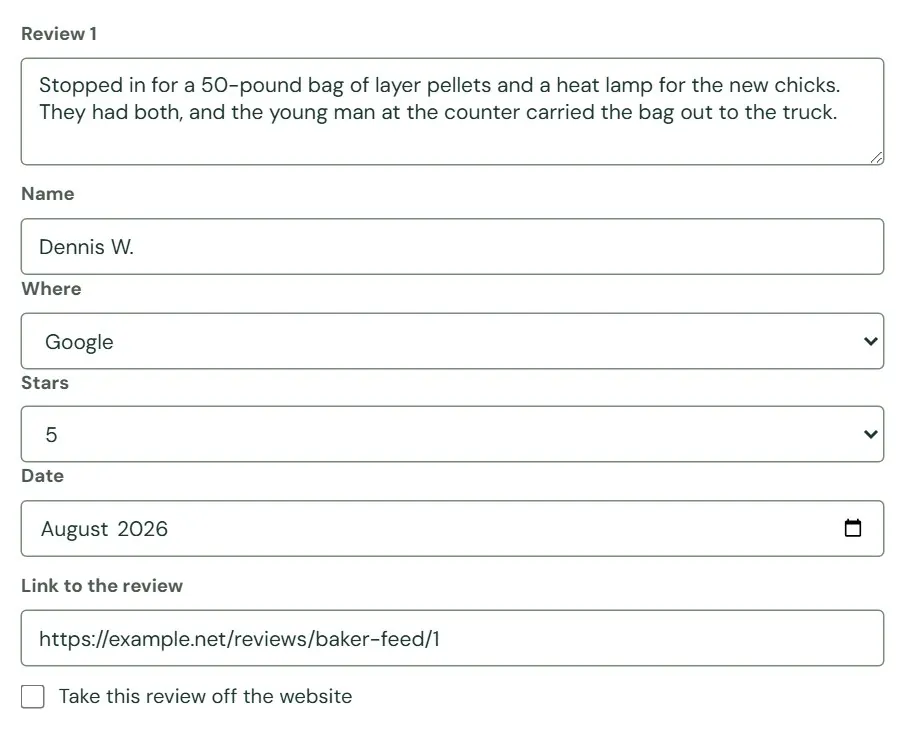
- 1The review, up to 700 characters. Copy the part worth showing.
- 2The reviewer's name.
- 3Where it was written: Google or Facebook.
- 4The stars, or None.
- 5The month it was written.
- 6A link to the review itself.
- 7Take this review off the website. It appears only on reviews already saved.
The website shows each reviewer by first name and the first letter of their last name, so a name typed as Teresa Jones appears as Teresa J., whatever you type. It shows no photo, and each review links back to where it was written. Spaces and line breaks in a quote run together into one paragraph. A name and a place (Google or Facebook) are required for every review you fill in. The stars, date and link are optional.
Pick reviews that say something specific: the help at the counter, a delivery, a feed that worked, your hours. They reassure someone who has not been in yet, and the words customers use help search engines connect your store with what people are looking for.
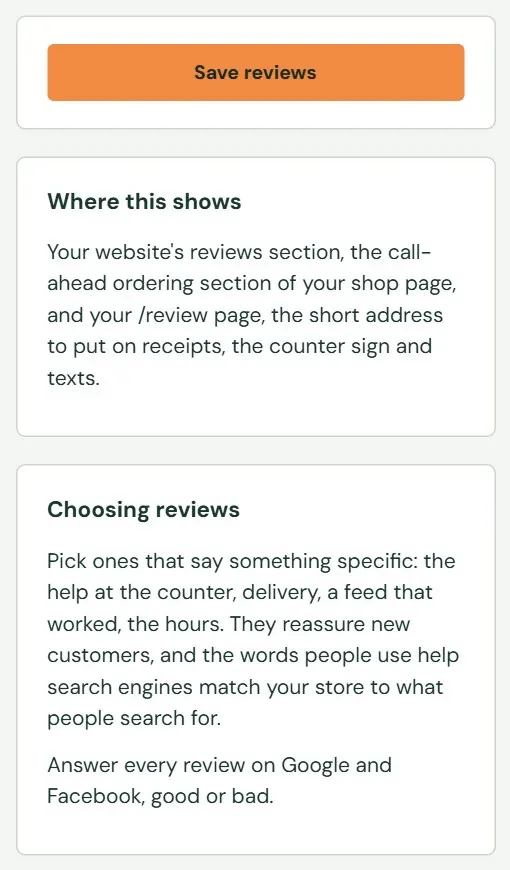 12
12- 1Save reviews saves both cards and the list together.
- 2Where they show: the reviews section, the call-ahead section of your Shop page, and your Leave a review page.
The Leave a review page has its own short address, /review on your website, which you can print on receipts, a counter sign or a text. Roadside tells you if something is wrong and saves nothing until it is fixed.
| If Roadside says | It means |
|---|---|
| Google's rating is a number from 1 to 5, like 4.8. | What you typed is not a number from 1 to 5. Facebook has a matching line for its percentage: a number from 0 to 100. |
| Google's link to the reviews must start with https://. | One of the four links was typed without it, or is not a web address. The line names which one. |
| Review 3 is longer than 700 characters. Shorten it to the part worth showing. | Cut the quote down. |
| Choose where review 3 was written. Add the name of whoever wrote review 3. | A review needs both. The number is the position in the list. |
| Feature up to 12 reviews. | Take some off before adding more. |
After a good save, your website shows the change with the next update, a few minutes later (Chapter 8, How your changes reach the website).
Questions and answers
Customers ask the same things over and over: do you deliver, what time do you close, where are you. Write the questions and your answers once, choose where they show, and your website lists them on those pages. Search engines and AI assistants, which are the chat programs people ask for answers, can quote what you write when someone asks the same thing. Store owners and Managers can both change Questions & answers.
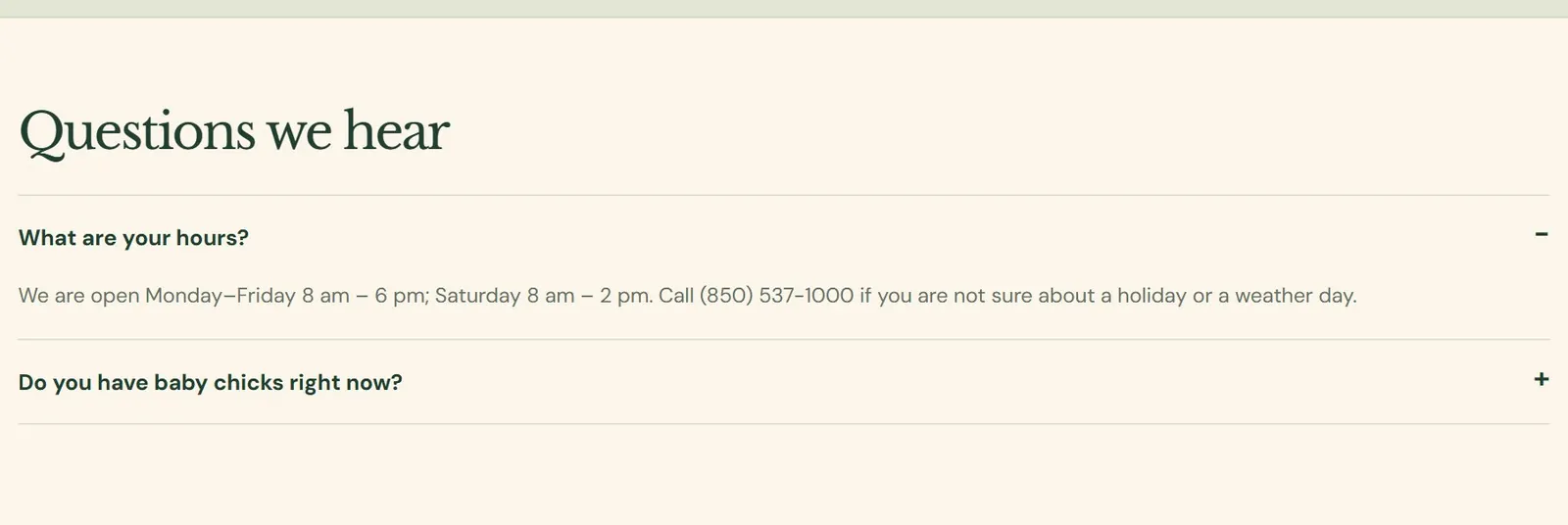 12
12- 1A question. A customer presses it to open the answer.
- 2Your answer, as you wrote it.
The page lists your questions in the order you give, up to 40. The list has three empty blocks at the end for new ones. Fill in both the question and the answer, or leave both empty. A question can be up to 200 characters and an answer up to 1,500.
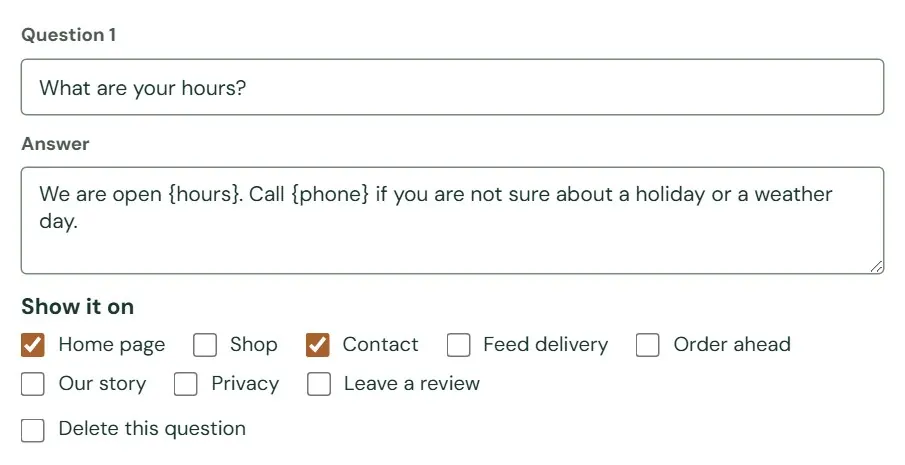 1234
1234- 1The question, as a customer would ask it.
- 2Your answer. A sentence or two, with the facts first.
- 3Show it on: tick each page that should list this question.
- 4Delete this question. It appears on questions already saved.
Show it on offers the Home page, Shop and Contact, and the pages your website's design has of its own. The sample store's are Feed delivery, Order ahead, Our story, Privacy and Leave a review. A question that has no page ticked is saved but appears nowhere. Press Save questions when you are done.
Use the questions people ask at the counter, on the phone and in the chat on your website, in the words they use. Answer in a sentence or two, with the facts first.
Answers that keep your details current
An answer can name your hours, phone number, address or email without you typing them. Write the word in curly brackets, like {hours}, and Roadside puts in whatever Store info holds on the day the page is made.
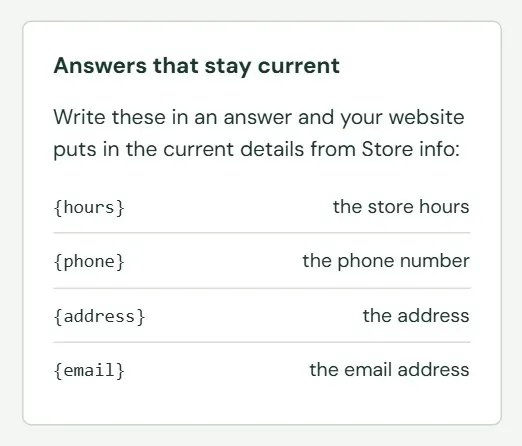 1234
1234- 1The days you are open and your hours, with days that share the same times grouped together.
- 2The phone number.
- 3The address on one line.
- 4The email address.
Here is an answer that stays right on its own: We are open {hours}. Call {phone} if you are not sure about a holiday or a weather day. When you change a time on Store info (Chapter 3, Hours, closed days and contact details), the next update puts it into every answer that uses it. Type the curly brackets and the word exactly as shown, with no spaces inside.
The assistant's screen links to this one. Beside each question a customer asked the assistant, Answer on your website opens Questions & answers with that question already typed into the first empty block (The website assistant, in Chapter 5).
Do not put a web address, or a note about where a fact came from, in round brackets inside an answer or a review. Roadside holds back the whole update when it finds one. What can stop an update, in Chapter 8 has the rule and examples.
| If Roadside says | It means |
|---|---|
| Question 2 needs both the question and its answer. | One of the two boxes is empty. |
| Question 2 is too long: questions up to 200 characters, answers up to 1500. | Shorten the question or the answer. |
| Up to 40 questions. Take some off before adding more. | Tick Delete this question on the ones you no longer need. |
Something here does not match your screen? Write to support@dirtroadsoftware.com with the name of the screen, what you pressed and what you expected. A picture of the screen helps.