
Hours, closed days and contact details
Store info is where you keep your phone number, address, weekly hours and closed days. Your website reads them from here, so you change a detail once and every page that shows it follows.
In this chapter
One screen, many places
Type your hours and contact details once. Roadside puts them wherever your website needs them: the top of every page, the contact page, the footer and the pages that list your hours. Search engines read the same details from your pages. Online pickup orders use your closed days too, so a customer cannot choose a pickup day when the store is shut.
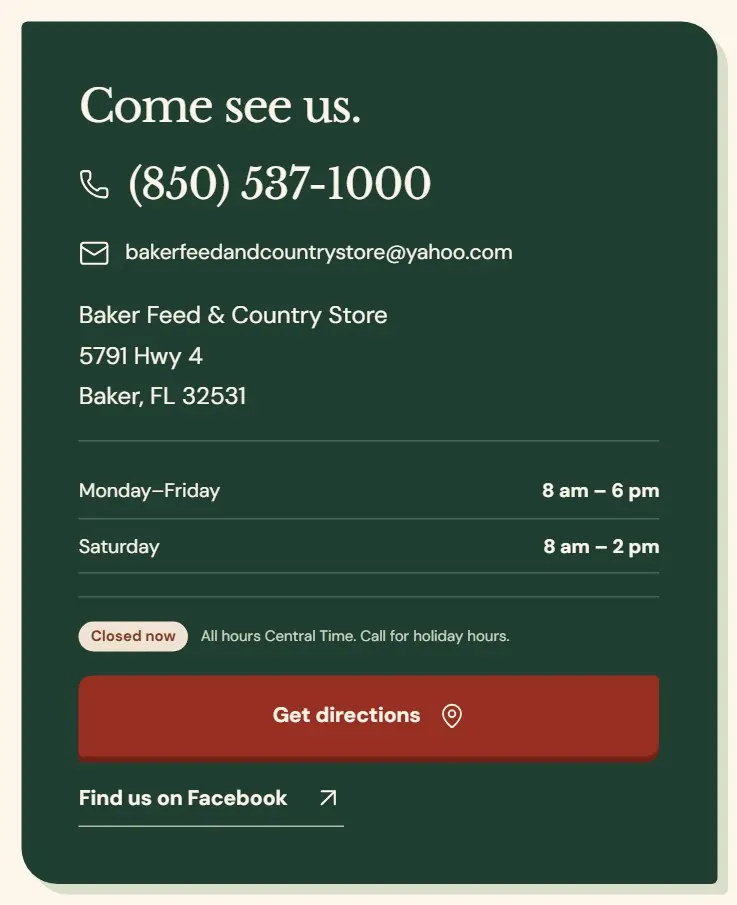 12345
12345- 1Your phone number. On a phone, a customer presses it to call.
- 2Your email address.
- 3Your address, with a Get directions button below.
- 4Your weekly hours.
- 5The note under your hours, next to a tag that says whether you are open right now.
Both Store owners and Managers can change Store info. Staff do not see it in their menu.
Phone, email, address and map location
The first card holds the four details customers look for first. The phone number, email and address appear on the contact page and in the footer. Messages from your contact page go to the email address you type here (Chapter 5, Messages and your website assistant).
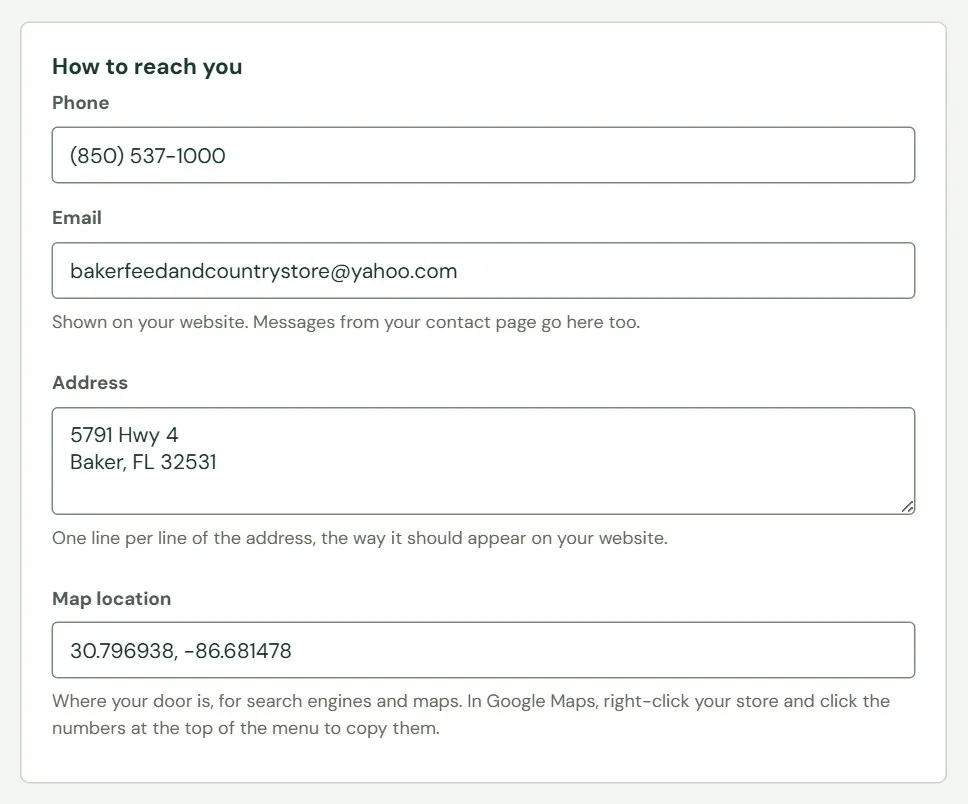 1234
1234- 1Phone. Type it the way customers should read it, like (850) 537-1000. It needs at least 7 digits.
- 2Email. Roadside saves it in lower case.
- 3Address. One line for each line of the address.
- 4Map location. Two numbers with a comma between.
Put the street on the first line and the city, state and ZIP code on the second, written like Baker, FL 32531. Roadside reads that second line to tell search engines your city, state and ZIP code. If you write it another way, they get the street only.
The map location is where your door is, as two numbers. Open Google Maps, right-click your store, and choose the numbers at the top of the menu that appears to copy them. Paste them into the box. They look like 30.796938, -86.681478. Search engines and maps use them, and so does your website assistant to measure how far a delivery is (The website assistant, in Chapter 5). Empty the box to clear the pin.
- Map location
- Your store's position on the map, written as two numbers: latitude, then longitude. Google Maps gives you both when you right-click a spot.
Your pages elsewhere
Your website's footer links to your Facebook page, your Google Business Profile and your Instagram page. Copy each address from your browser's address bar and paste it in. If you leave off the https:// at the start, Roadside adds it. Leave a box empty to leave that link out.
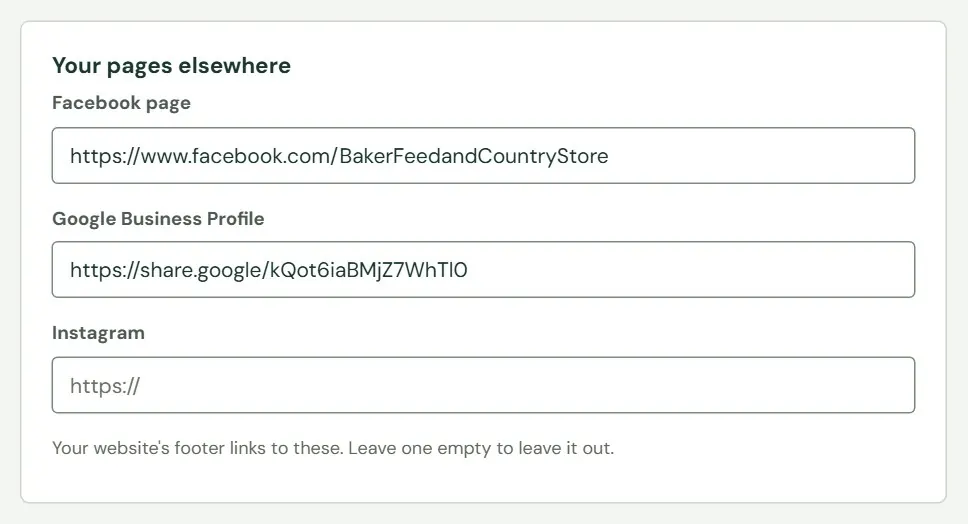 123
123- 1Your Facebook page.
- 2Your Google Business Profile.
- 3An empty box means no Instagram link on your website.
Weekly hours
Tick Open for each day you are open and set an opening and a closing time. A day with the box unticked shows as closed. The card tells you which time zone the times are in, such as Central Time. You cannot change the time zone here; it belongs to your store's record.
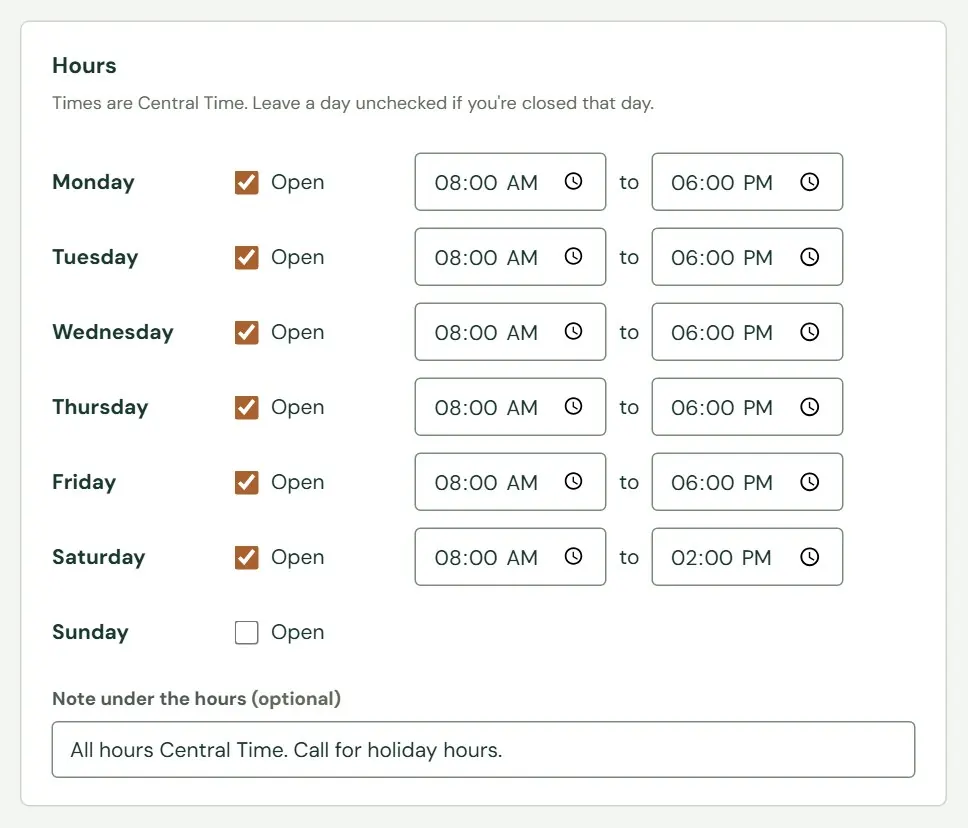 1234
1234- 1Tick Open on every day you are open.
- 2Opening time, then closing time.
- 3An unticked day is closed all day. Sunday here.
- 4A note under your hours, up to 200 characters.
Each day has one opening time and one closing time, and the closing time has to be later. A lunch break, or a day with two shifts, cannot be entered. Roadside joins days that share the same times, so Monday to Friday shows on one line on the contact page.
The small Open now or Closed now tag on the contact page is worked out in the visitor's browser from your hours and closed days, so it is right at the moment they look. Website home shows the same answer for you.
Closed days
Holidays, inventory days and bad weather go here: dates you will not be open. Your website shows them ahead of time, and pickup orders skip them. In the five days before a closed day, the sign at the top of your website says so too (Chapter 4, The sign at the top of your website).
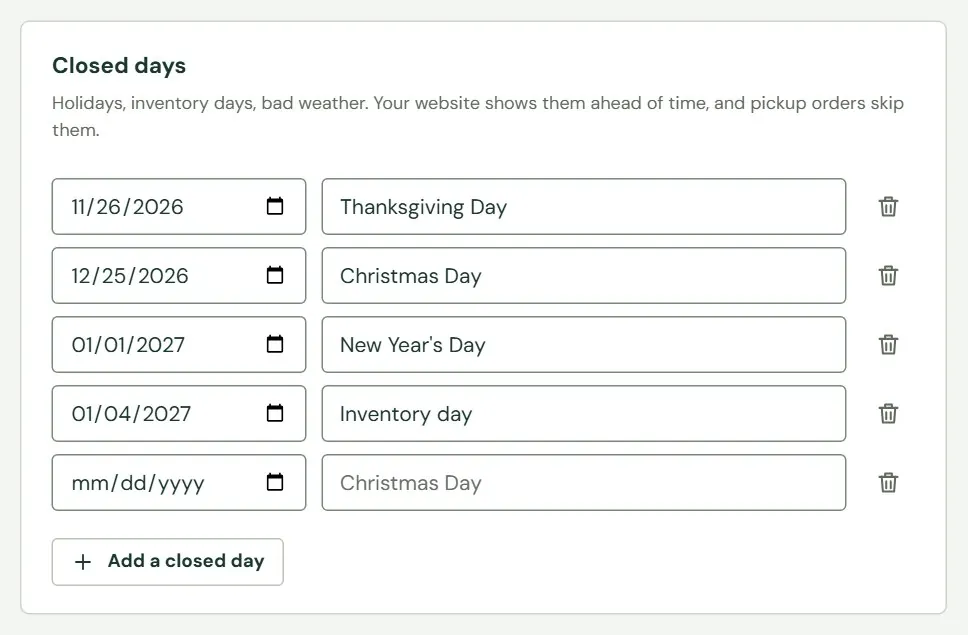 1234
1234- 1The date. Choose it from the calendar or type it.
- 2What it is for, such as Christmas Day. Optional, up to 80 characters.
- 3The trash button takes that day off the list.
- 4Add a closed day gives you another row.
There is always one empty row at the end. Fill it in, or press Add a closed day for more. You can list up to 60 days. A date that has already passed is dropped when you save, so the list never fills up with old holidays.
A closed day is closed from opening to closing. Roadside cannot enter a short day here, like closing at noon the day before a holiday. Put that in the note under your hours, or put up a temporary message on the Store sign.
The weekly hours handle the day of the week, and closed days handle dates. A store that is shut every Sunday leaves Sunday unticked. It does not need fifty-two closed days.
The Baby chicks notice
The last card, Notices, appears when your website's design has a switch for one. The sample store's has one, for baby chicks. It sets what the Baby Chicks sign at the top of the website says during chick season.
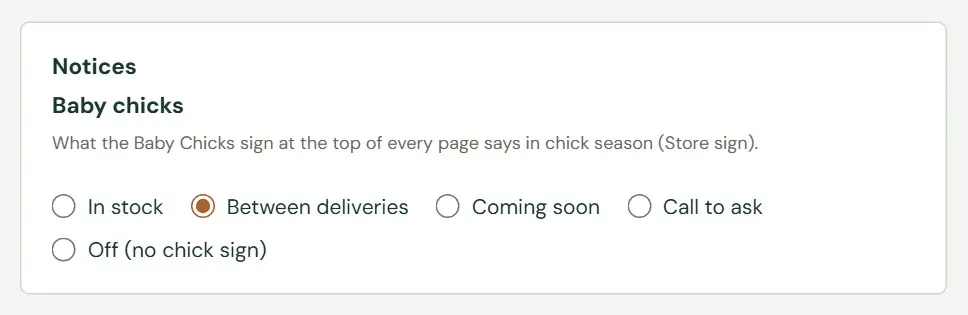 1
1- 1Choose one. Between deliveries is what the sign says until you change it.
The five choices are In stock, Between deliveries, Coming soon, Call to ask and Off (no chick sign). This is the same setting you find on the Store sign screen, so changing it in either place changes both. Baby chicks, in Chapter 4 shows what each choice puts on the sign.
Save, and when customers see it
Press Save store info at the bottom of the screen. Everything on the screen is saved together. If any field is wrong, nothing is saved and the fields to fix are marked in red under a banner that says to check them. Cancel takes you back to Website home without saving.
| Where | What Roadside says |
|---|---|
| Phone | Enter the store's phone number, like (850) 537-1000. |
| That email address doesn't look right. | |
| Map location | Enter the latitude and longitude with a comma between, like 30.796938, -86.681478. |
| A link | That Facebook page address does not look right. Copy it from the address bar. The same words name Google Business Profile or Instagram when one of those is wrong. |
| A day's hours | Enter the opening and closing times for Tuesday, or mark it closed. Or: Tuesday's closing time needs to be after its opening time. |
| The whole week | Open at least one day of the week. |
| A closed day | Pick a date for each closed day. Or: List up to 60 closed days at a time. |
When the save works, a green note appears in the corner of the window for a few seconds.
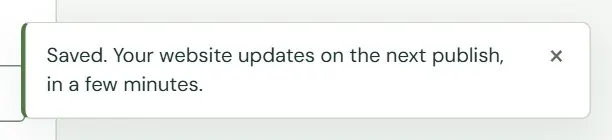 1
1- 1It says when your website will show the change.
The change is in Roadside at once. Your website shows it with the next update, a few minutes later. Chapter 8, How your changes reach the website explains what happens in between and how to see it on Website home.
The line under the heading of this screen says changes show as soon as you save. That holds for Roadside itself. For your website, trust the note in the corner: a few minutes.
What is not on this screen
Your store's name, logo and time zone are not on Store info. Write to support@dirtroadsoftware.com and we will change them. Photos, wording and the layout of a page are part of your website's design, and you ask for those as a website change. The Request a change button on the right side of Store info takes you there (Chapter 24, Website changes).
If your Roadside plan is suspended, cancelled or expired, saving Store info is paused and a red banner says so. The website stays online. The owner can see the plan and pay on the Account screen (Chapter 25, Account and Billing); Managers cannot open it.
Something here does not match your screen? Write to support@dirtroadsoftware.com with the name of the screen, what you pressed and what you expected. A picture of the screen helps.