
Compliance watch and Pricing check
Compliance watch lists the farm documents your customers have given you and tells you which are about to run out. Pricing check, when your plan includes it, shows where your prices sit against other stores. Both show you information. Neither changes a tax or a price by itself.
In this chapter
Compliance watch
Compliance watch is part of the Feed & Seed features. Farm customers hand you paperwork that has an end date, and a feed store needs to know when it lapses. This screen collects that paperwork from your customer accounts into one list. If your menu has no Feed & Seed group, write to support@dirtroadsoftware.com. Staff do not see it unless their role can open Accounts.
- Ag tax exemption
- A farm's exemption certificate: its number and the date it expires.
- Veterinary Feed Directive (VFD)
- A vet's written order that a farm needs before it can buy medicated feed. Roadside records the vet's name and the date the directive ends.
- Restricted-use pesticide license
- The applicator license a buyer needs for restricted-use pesticides: its number and expiry date.
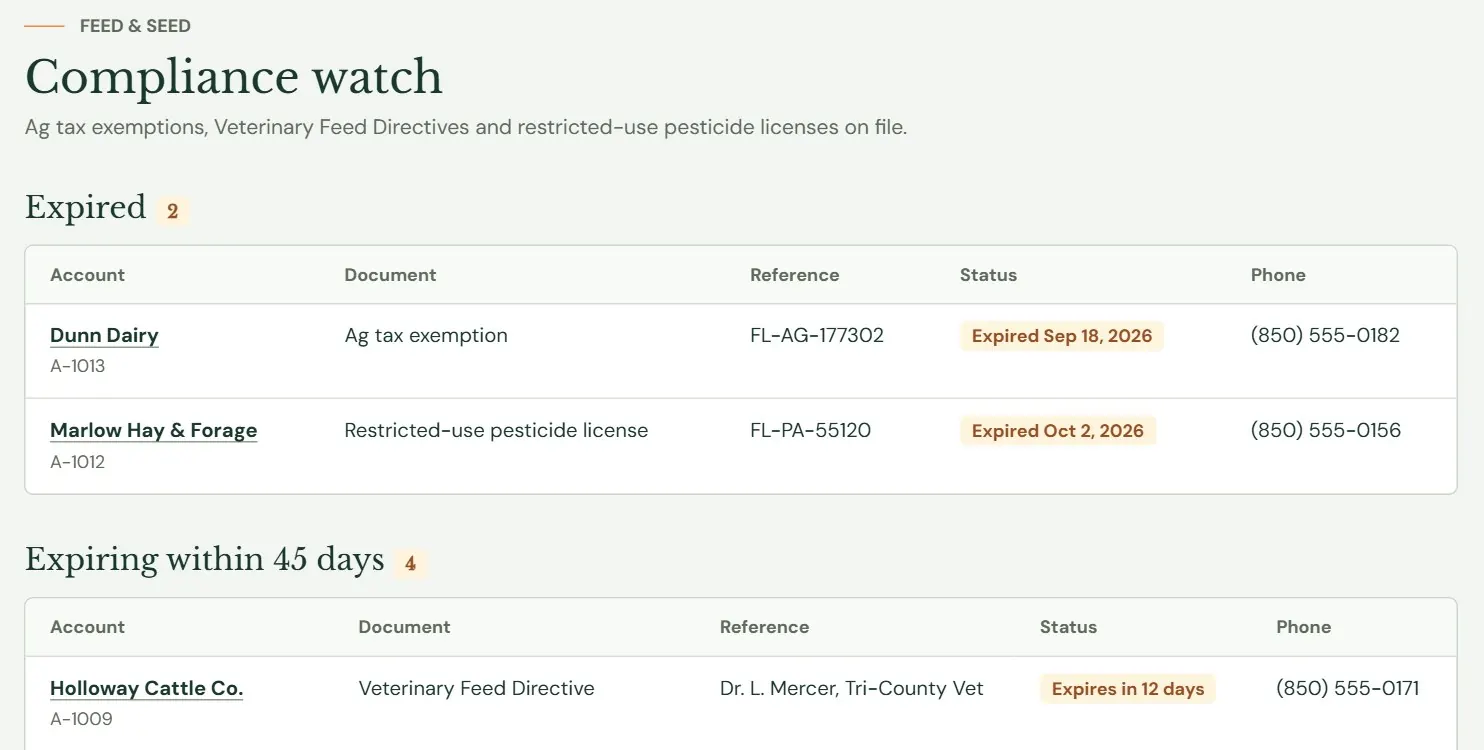 12345
12345- 1Documents past their end date.
- 2Documents that end within 45 days.
- 3The customer. Press the name to open the account.
- 4The document's number, or the vet's name.
- 5When it expired or how many days are left.
The screen has up to three lists, each with a count. Expired comes first, then Expiring within 45 days, then Current. A list with nothing in it is left out. Within each list the soonest end date comes first. The Status column reads Expired Oct 3, 2026, Expires in 12 days or Valid to Dec 1, 2026. A document with a number and no date reads On file and never expires. Website home shows the soonest six in its own Compliance watch tile.
Record a customer's farm documents
A customer appears on Compliance watch because of three pairs of boxes on their account. Open the account, press Edit, find Compliance documents, fill in what the customer gave you and press Save changes. Chapter 20, Customer accounts and contacts covers accounts.
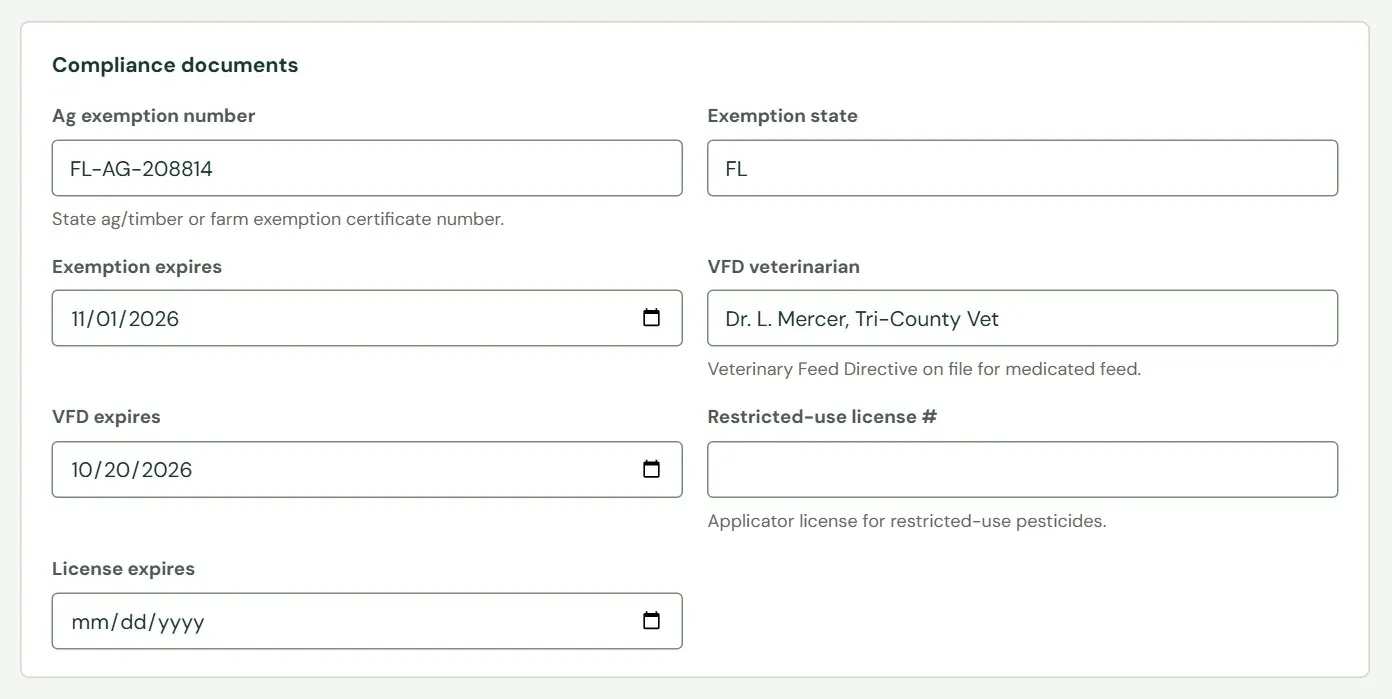 123456
- 1The farm's exemption certificate number.
- 2The date the certificate expires.
- 3The vet who wrote the Veterinary Feed Directive.
- 4The date the directive ends.
- 5The applicator license number.
- 6The date the license expires.
- A document counts as on file only when its first box has something in it: the certificate number, the vet's name or the license number.
- A date with nothing in the first box is ignored.
- A number with no date shows as On file and never expires.
The account's own page shows the three documents in a Compliance card, each marked Not on file, Valid to a date, Expires in N days or Expired. When a customer brings a renewed certificate, open Edit, type the new date and save. The customer moves back to Current.
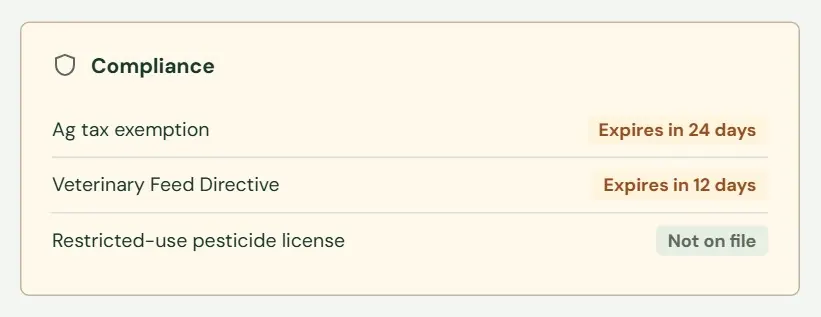 1
1- 1One line for each document.
Compliance watch keeps a record and shows a warning. It does not change the tax on an order, hold back a sale or send you a reminder, even for a document that has expired. Checkout works out tax from the item's sales tax class (Sales tax class, in Chapter 11) and from the customer's own Tax exempt setting on their account. If a customer's certificate lapses, change that setting yourself.
Pricing check
This appears when your plan includes Price Watch. Pricing check compares your prices with what other stores charge for the same items, so you can see where you are high and where you have room to go up. Staff can read the screen. Changing the settings, pressing Look up now and answering Same or Different belong to the Store owner and Managers.
Roadside finds other stores' prices by an item's barcode, its part number, or its name and size, which is why those boxes on a size are worth filling in (Chapter 11, Sizes, prices and photos). To do that, Roadside sends Dirt Road the product's name, brand, size, part number and barcode, and the town you set. It never sends your price or your cost. The comparing is done inside Roadside.
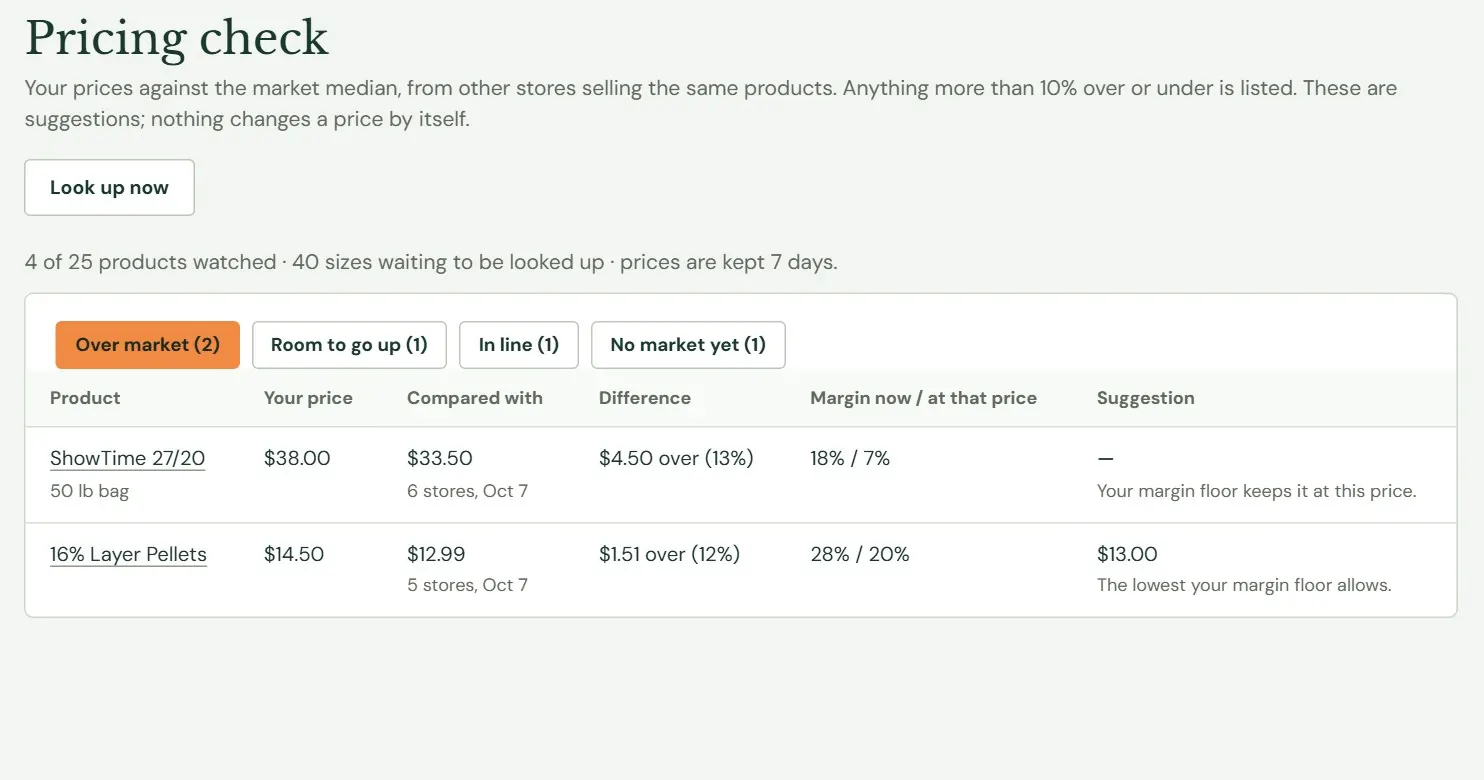 12345
12345- 1Asks for fresh prices.
- 2How many products your plan covers, and how long a price is kept.
- 3Four tabs, each with a count.
- 4How far your price is from the price you compare with.
- 5A suggested price, never below your margin floor.
| Tab | What is on it |
|---|---|
| Over market | Your price is above the comparison price by more than your limit. The furthest over comes first. |
| Room to go up | Your price is below it by more than your limit. The furthest under comes first. |
| In line | Within your limit either way. |
| No market yet | No store lists the item online, or the lookup came back empty. |
Each row names the product and its size. Press the name to open its Price Watch section in the editor. The row then gives your price, the price it is compared with and how many stores it came from, the difference, your margin now and at that price, and a suggestion. A suggestion never goes below cost plus your margin floor. When the market is under that, the note says Your margin floor keeps it at this price. or The lowest your margin floor allows. A size that has never been looked up is on no tab yet.
Pricing check suggests. You decide. If you agree with a suggestion, change the price yourself as described in Change a price, and run a sale, in Chapter 10.
How prices are compared
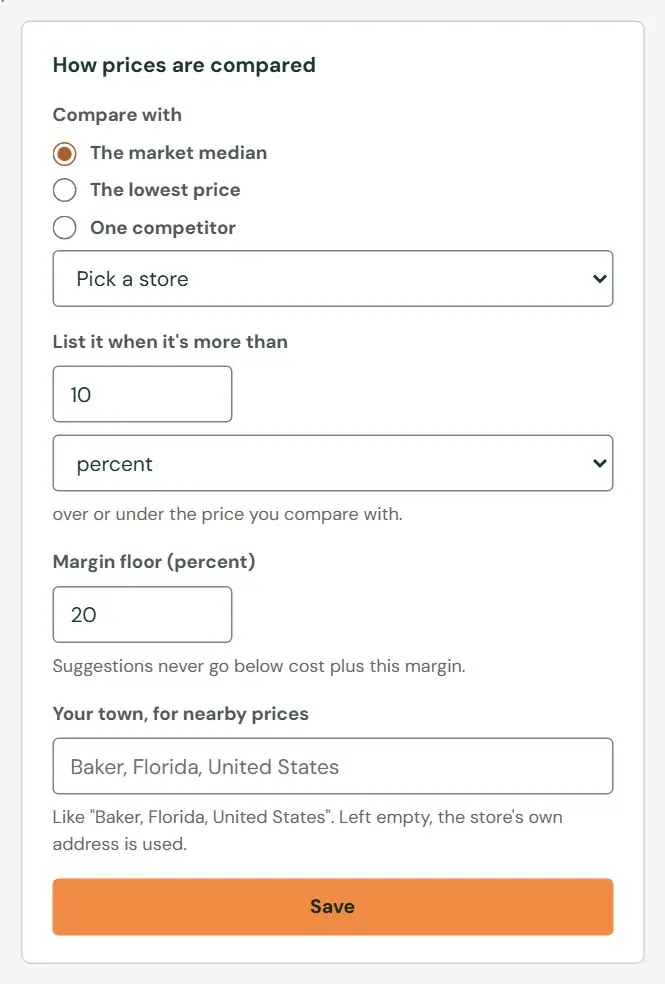 12345
12345- 1The median of other stores, the lowest price, or one competitor.
- 2How far over or under a price must be to be listed.
- 3Suggestions never go below cost plus this percent.
- 4Your town, for nearby prices.
- 5Saves the settings.
The card on the right of the screen is called How prices are compared. The median is the middle price among the other stores', so one store with an odd price does not swing the answer. Pick One competitor and choose the store from the list of stores seen so far. List it when it's more than takes a number in percent or in dollars. It starts at 10 percent. Margin floor is a whole percent from 0 to 99 and starts at 20. If you leave Your town empty, Roadside uses your store's own address. Press Save and Roadside says Saved.
Look up now, and Same or Different
Prices come from a lookup that runs through the day. Look up now on the Pricing check screen asks for up to 25 sizes to be looked up in a minute or two, and the rest follow a few at a time. Prices are kept for the number of days the screen shows, so looking up again before then shows the same ones.
Open a product's editor and choose Price Watch in the side menu to see the stores behind a number.
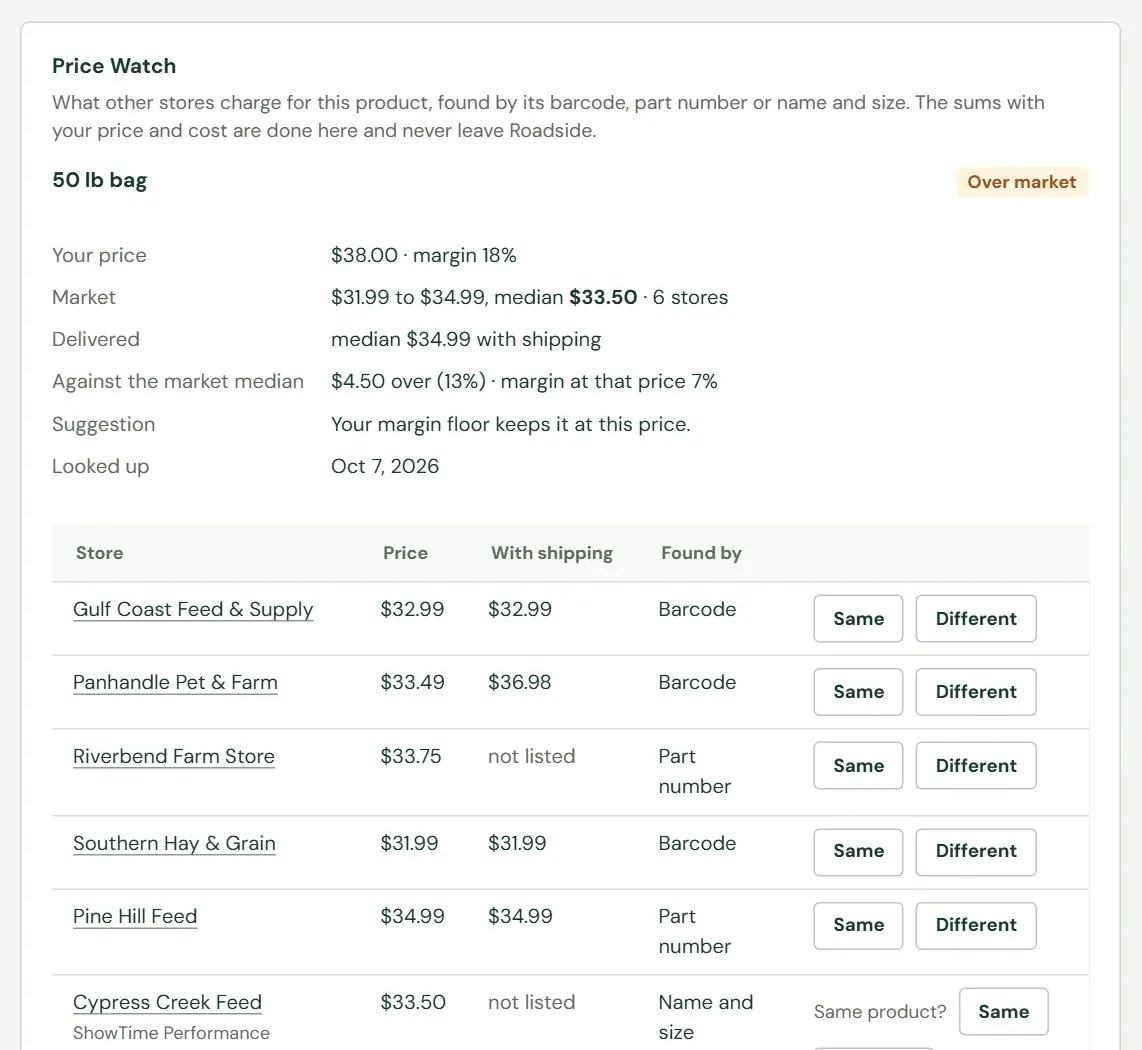 12345
12345- 1Where this size stands.
- 2Your price, the market, and what the comparison means for your margin.
- 3Each store that was found, and how Roadside matched it.
- 4Say the match is the same product.
- 5Say it is a different product.
The Found by column says how Roadside matched each store: Barcode and Part number are close to certain, and Name and size is a guess. For a guess Roadside asks Same product?. Press Same or Different, and Roadside re-does that size's numbers. Your answer reads Same product or Different product afterwards, with a Forget link to take it back. Offers that are not counted show in grey, and one marked far off the median is a price well away from the rest.
The section ends with its own Look up now for the product. Its results read Prices looked up., This product is past your Price Watch plan. or No store lists it online yet. Pricing check never changes a price on its own.
Something here does not match your screen? Write to support@dirtroadsoftware.com with the name of the screen, what you pressed and what you expected. A picture of the screen helps.