
Descriptions, feed tags and Fetch with AI
A product page tells customers what the product is and what is in the bag. This chapter covers the description box, the Feed tag for feed products, Fetch with AI when your plan includes it, and the wording rule that can hold back a website update.
In this chapter
The summary and the description
The Store owner and Managers can edit descriptions and feed tags. Staff and Read only people can read them on the product page. A product has two pieces of writing. The summary is one or two sentences in Basics. It shows on the product's card in lists and at the top of its page. The description is the longer "About this product" text further down the page. The Description card suggests what to put there: what the product is, who it is for and how to use it.
 12
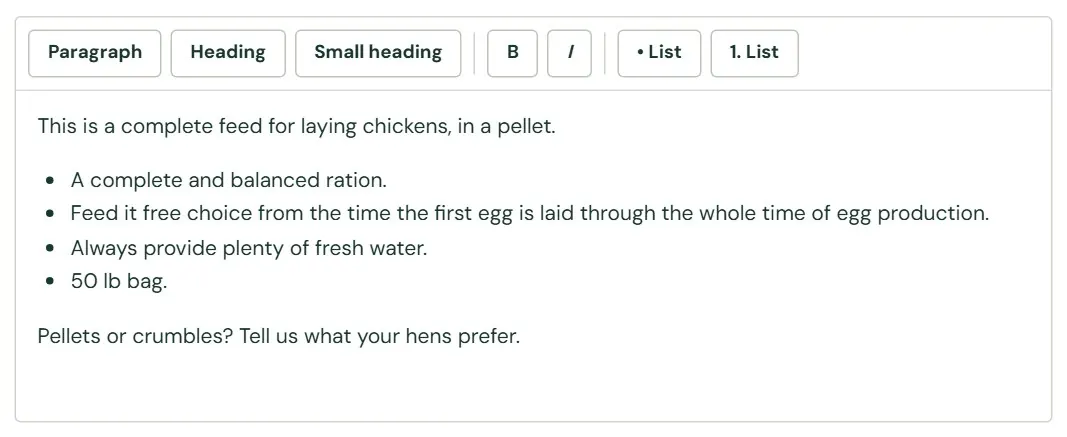
12- 1Headings, bold, italic and lists.
- 2Type or paste here.
The box takes paragraphs, two sizes of heading, bold, italic, and bullet or numbered lists. It has no button for links, pictures or tables. When you paste, only the plain words come in. Formatting from Word or a web page is dropped on purpose, so a pasted page never brings its fonts and colors with it. Press Save product to keep what you wrote.
Write it the way you would answer a customer at the counter: what it is, what it is for, which animals eat it. Do not type the guaranteed analysis or the ingredients here. The next section says why.
What the website adds under the description
Below your description the product page prints more, by itself. Typing the same things in the description would show them twice.
- An At a glance table, and extra sections such as feeding charts.
- The Guaranteed analysis table and the Ingredients list, from the Feed tag section.
- Feeding directions, or a Label statement when the text reads as a statement, from the Feed tag section.
- Cautions.
You can edit what comes from the Feed tag. The At a glance table, the extra sections and the Cautions come from the maker's information that Dirt Road loaded for you, and they have no edit screen. If one of them is wrong, write to support@dirtroadsoftware.com with the product's name and what it should say.
The Feed tag
The Feed tag section is where a feed product's bag label goes: the guaranteed analysis, the ingredients and the feeding statement. It is part of the Feed & Seed features. If you sell feed and the editor has no Feed tag section, write to support@dirtroadsoftware.com.
- Guaranteed analysis
- The table of nutrients printed on a feed tag: crude protein, crude fat, crude fiber and so on, each with an amount.
- As fed and dry matter
- As fed means the percentages are measured on the feed as it comes in the bag. Dry matter means they are measured with the water taken out. Use whichever the tag says.
- AAFCO statement
- The sentence on a label saying the feed meets the nutrient levels set by AAFCO, the Association of American Feed Control Officials. It is often followed by feeding directions.
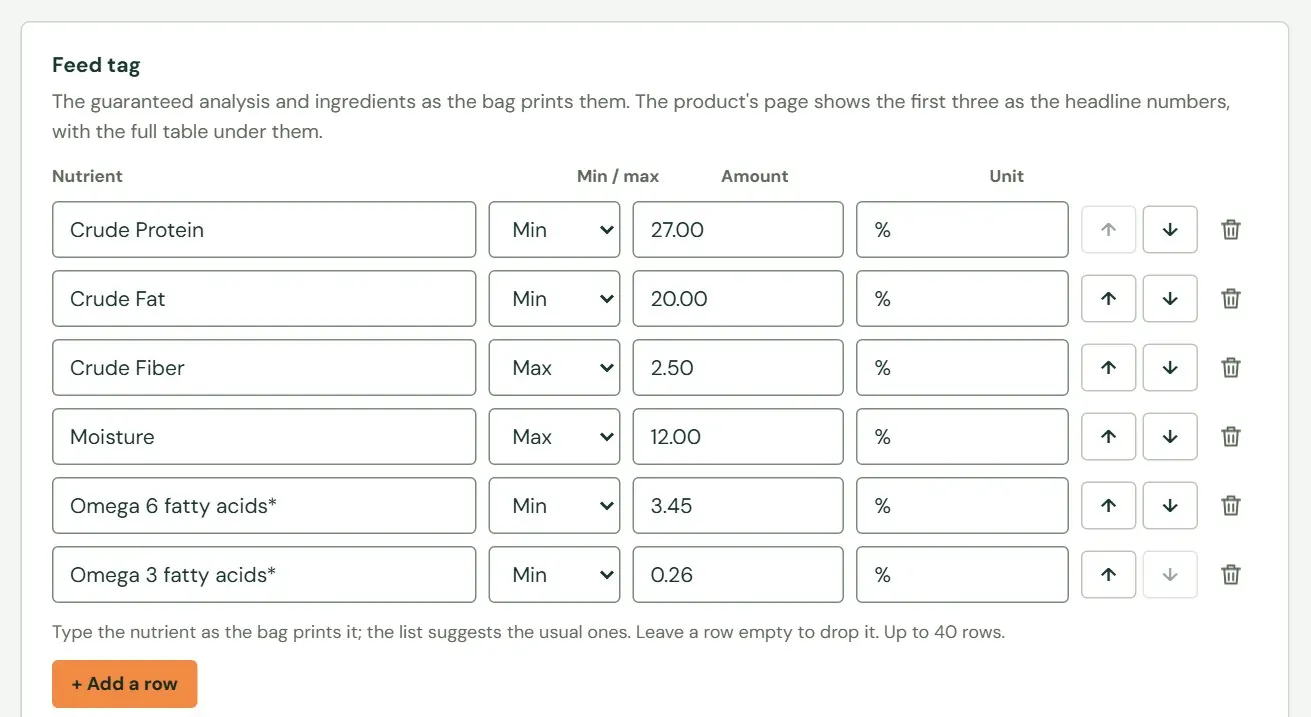
- Type the nutrient as the bag prints it, such as Crude Protein. Roadside suggests the usual names as you type, plus any you have used before.
- Choose Min, Max or About. The website prints (min) or (max) after the amount. About prints nothing extra.
- Type the amount: the number alone, with no notes. 12.0 or 80,000,000 is right. 12.0 (as fed) is not.
- Type the unit. A percent prints tight, 12%. Anything else prints with a space, 200 ppm.
- Press + Add a row for the next nutrient. A row with nothing in it is ignored, so a stray empty row does no harm.
 123456
- 1The nutrient, typed the way the bag prints it. The list suggests the usual ones.
- 2Min, Max, About, or none.
- 3The number only, such as 27.00 or 80,000,000.
- 4The unit: %, ppm, mg/kg, IU/lb and so on.
- 5Move the row up or down, or remove it.
- 6Adds another row. A tag holds up to 40.
 123
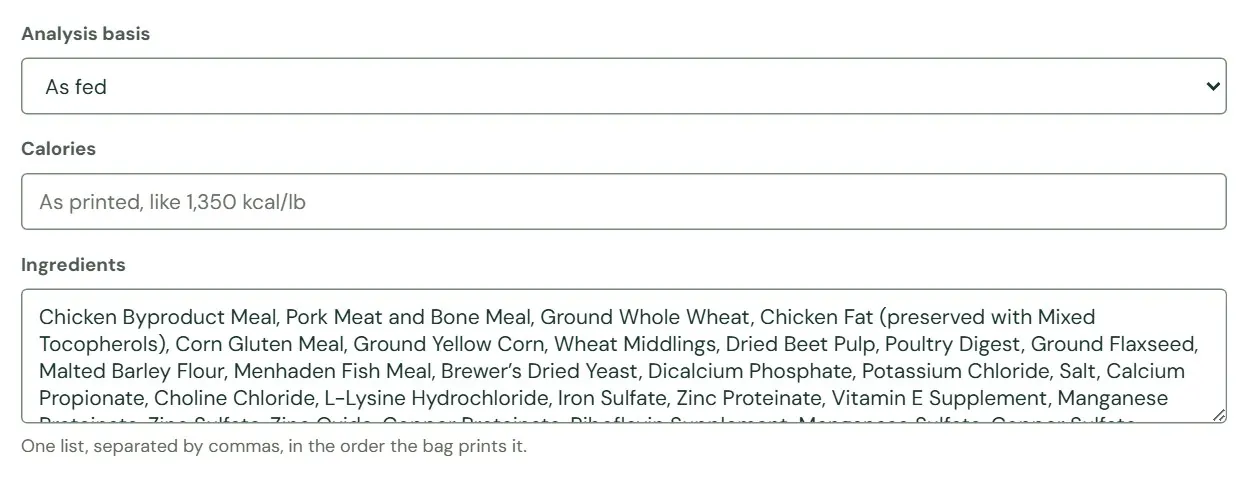
123- 1As fed or Dry matter.
- 2Calories, typed as the bag prints them, like 1,350 kcal/lb.
- 3One list, separated by commas, in the order the bag prints it.
Under the ingredients is AAFCO or feeding statement (optional), a box with the same toolbar as the Description. Type the label's statement first. Then give the feeding directions as a short lead-in and a list with one line for each weight, such as Toy (5 to 15 lbs): 1/2 to 1 1/4 cups per day.
Press Save product to keep the tag. Roadside saves only the parts you changed, so a tag that came from the maker's information stays exactly as it came until you edit it. If a row is wrong, the red note says which one: Row 3 of the guaranteed analysis needs both a nutrient and an amount. or Row 3 of the guaranteed analysis (Crude Fat) has more than an amount in it. Type just the amount and unit, like 80,000,000 CFU/lb, and leave notes off the row.
How the website shows the headline numbers
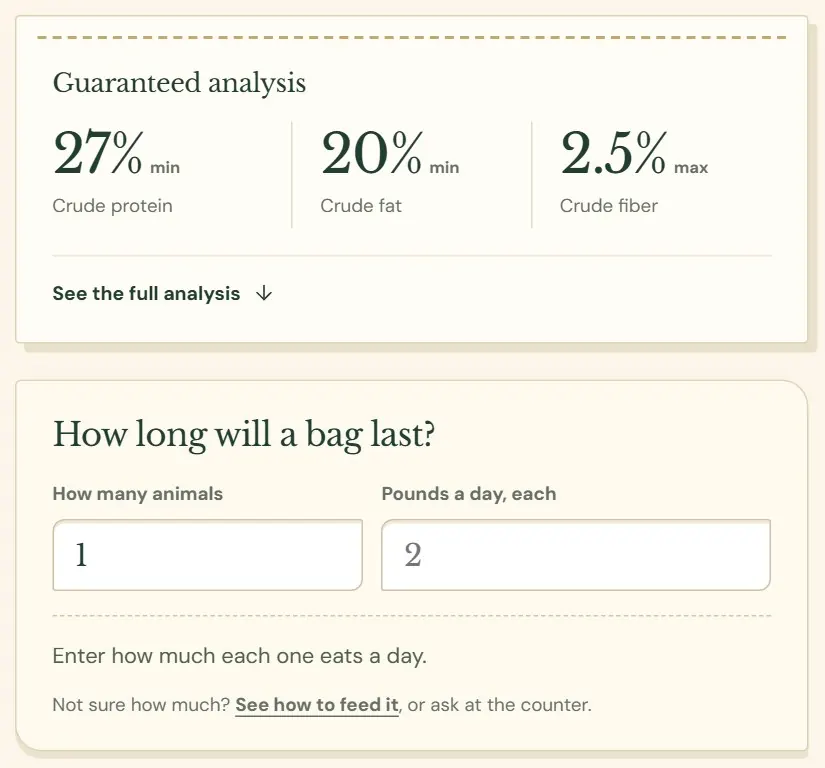
Customers see the tag twice on the product page: a card beside the price with the three numbers people compare, and the full table lower down under Product details. The card links to the table with See the full analysis. When the size text has a weight in pounds, a How long will a bag last? calculator sits under it.
 123
123- 1The headline numbers: Crude Protein, Crude Fat and Crude Fiber.
- 2Jumps to the full analysis table.
- 3Shoppers enter how many animals and how many pounds a day.
The card on the website always shows Crude Protein, Crude Fat and Crude Fiber, in that order. It finds them by name, so type those three names exactly, with % as the unit. The preview beside the form, As the website shows it, lists the first three rows instead. When your first three rows are other nutrients, the preview and the website will not agree.
Fetch with AI
This appears when your plan includes it. The Fetch with AI button sits at the top of New product and of every product's editor. You give it the address of a product's web page, usually the maker's page. It drafts the name, brand, category, summary and description, the feed tag, the barcode and part number where it can find them, and up to three photos. Nothing is saved until you press Add product or Save product.
- Press Fetch with AI. A box opens and asks for the product's page.
- Paste the address from your browser's address bar, starting with
https://. - Press Fetch. A bar shows how far along it is. Long pages take up to about two and a half minutes. The box stays open while it works, and Esc does not close it.
- Read the note that appears under the heading, then check every field. The sections still to do are marked For you.
- Press Add product or Save product.
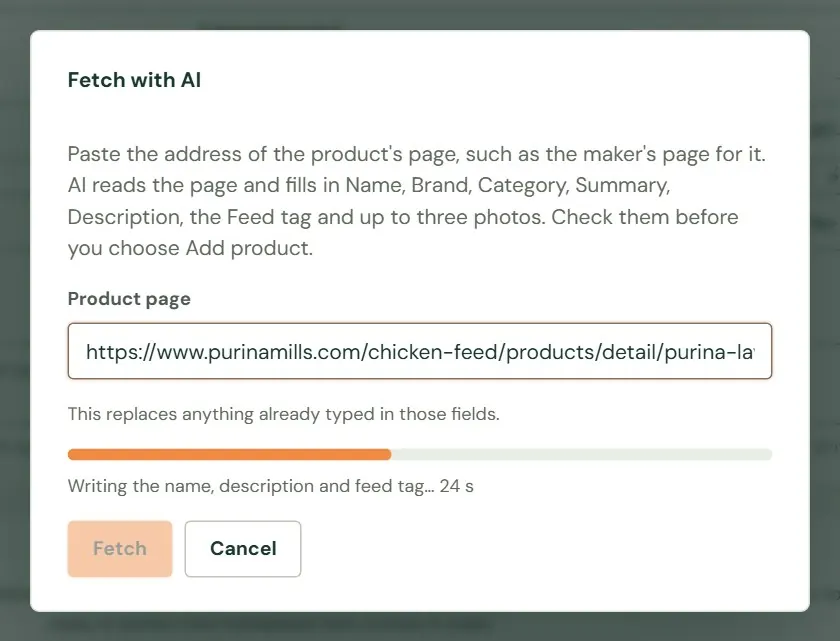 123
123- 1The address of the product's page.
- 2How far along it is, and what it is doing now.
- 3Fetch is off while it works.
Fetch with AI replaces whatever is already typed in Name, Brand, Category, Summary, Description and the Feed tag. Run it on a blank form, or on a product whose text you are happy to replace.
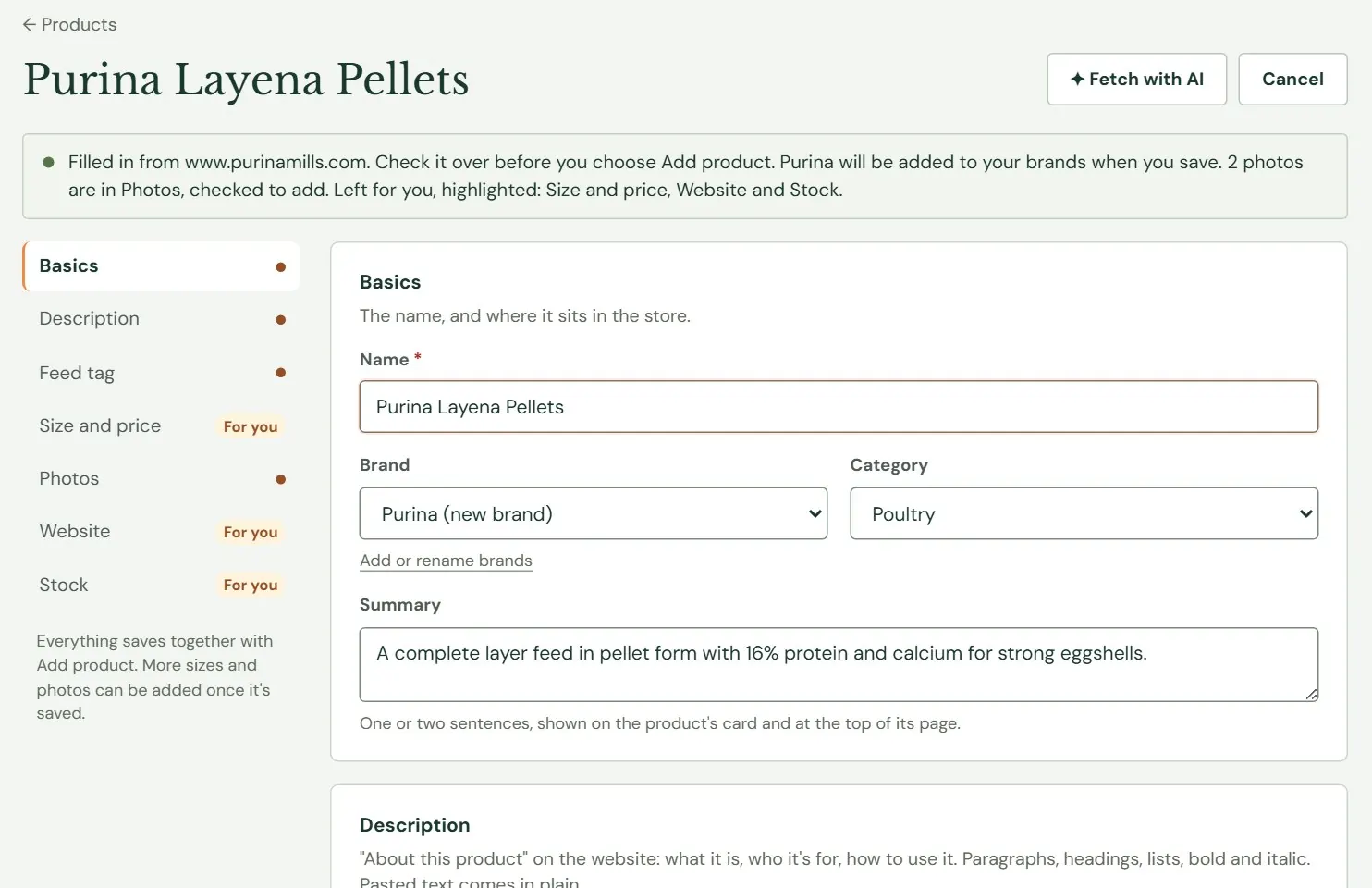 123
123- 1What it filled in, what is new, and what is left for you.
- 2Sections with a mark or For you still need a look.
- 3A brand you do not have yet is added when you save.
What to check
- Name and brand. A brand you do not have yet shows as Purina (new brand) and is added to your brands when you save.
- Category. It may come back empty. Choose one.
- Summary and description. The AI writes them from one web page, so read every sentence. Make sure they describe the bag you sell.
- The feed tag. Compare the numbers and the ingredients with the bag in your hand.
- Photos. They appear under Photos from the product's page with a tick. Uncheck the ones you do not want. A product keeps five photos, so only as many as fit start ticked.
- Barcodes and part numbers. A new product's first size gets them when it has none. On a saved product they are matched to sizes by amount and unit, and anything that matched no size is named in the note.
- Size, price, Website and Stock. Fetch with AI leaves these to you.
| Roadside says | What to do |
|---|---|
| That doesn't look like a web page address. | Copy the address from the browser's address bar. It starts with https://. |
| That's a lot of products in one hour. | Each person can fetch 30 products an hour. Wait a few minutes. Photos have their own limit of 60 an hour. |
| Fetch with AI couldn't reach Dirt Road's console, or didn't work this time. | Try again in a minute. |
| A message about your monthly allowance, or about the license key. | Write to support@dirtroadsoftware.com with the words on the screen. |
Words that stop the website from updating
Before every update, Roadside reads the text customers can see: product names, summaries, descriptions, photo alt text, search titles and descriptions, and the rest of the writing on your website, such as reviews, answers and notices. It holds the whole update back when it finds a note that looks like one left for staff:
- A source note in brackets, such as
(source: purinamills.com),(via ...),(according to ...),(from the label ...)or(per the manufacturer ...). - Any brackets that contain a web address, such as
(www.purina.com)or(https://...).
An ingredient like Calcium carbonate (source of calcium) is fine. While an update is held back, the website keeps its old pages. The Publishing tile on Website home says The last publish stopped and quotes the page and the words it found. Take those words out, press Save, and the next update goes through. Chapter 8, How your changes reach the website explains the tile.
Text pasted from a web page, and text written by Fetch with AI, can carry a source note. Look for brackets in the summary and description before you save.
Something here does not match your screen? Write to support@dirtroadsoftware.com with the name of the screen, what you pressed and what you expected. A picture of the screen helps.