
The email list
The email list is your record of the people who said you may email them, with proof of when and how they said it. This chapter covers who is on it, how to add people, and how to use the list with the email service you already have.
In this chapter
- What the list does, and what it does not
- How people get on the list
- The list screen
- One person's page
- Add one person
- Import a list from a spreadsheet or another service
- Confirm sign-ups by email
- Unsubscribes, and who you cannot add back
- The sign-up page and the form for your website
- Export the list to send a newsletter
What the list does, and what it does not
Roadside keeps the list and the proof behind each name. It does not send newsletters. When you want to send one, you export the list and send it from an email service of your own, such as Mailchimp or whatever you use today. Only the Store owner and the Manager see the Email list, and both can do everything in this chapter. Staff and Read only roles do not see it.
The only message Roadside sends to anyone on the list is the one-time email that asks a new sign-up to confirm. Order receipts and pickup notices are separate and keep going out whatever a person's status is.
The Email me news and specials box at checkout does not add anyone to this list. When a shopper ticks it, Roadside saves the answer on the order, which shows a green Asked for news by email badge, and tags their customer account email sign-up. To get that person on the list, use the sign-up page, the form on your website, Add person or an import.
How people get on the list
Each person arrives in one of five ways. The From column on the list says which.
- Sign-up form: the sign-up page Roadside hosts for you.
- Form on your website: a sign-up box on your own website.
- Added by staff: someone on your team used Add person after the customer asked.
- CSV import: they came in with a file.
- Link in an email: they had left the list and joined again from a link.
- Consent record
- What Roadside keeps for each person: the date they agreed, the exact words they agreed to, where it came from, and, if they left, when. It is your proof that they asked for your emails.
- Double opt-in
- A sign-up that only counts after the person clicks a link in an email you send them. It keeps out mistyped addresses and addresses someone signed up for another person. The settings screen calls it Send a confirmation email first.
- CSV file
- A plain spreadsheet file with a row for each person. Excel, Numbers and Google Sheets can save and open it.
The list screen
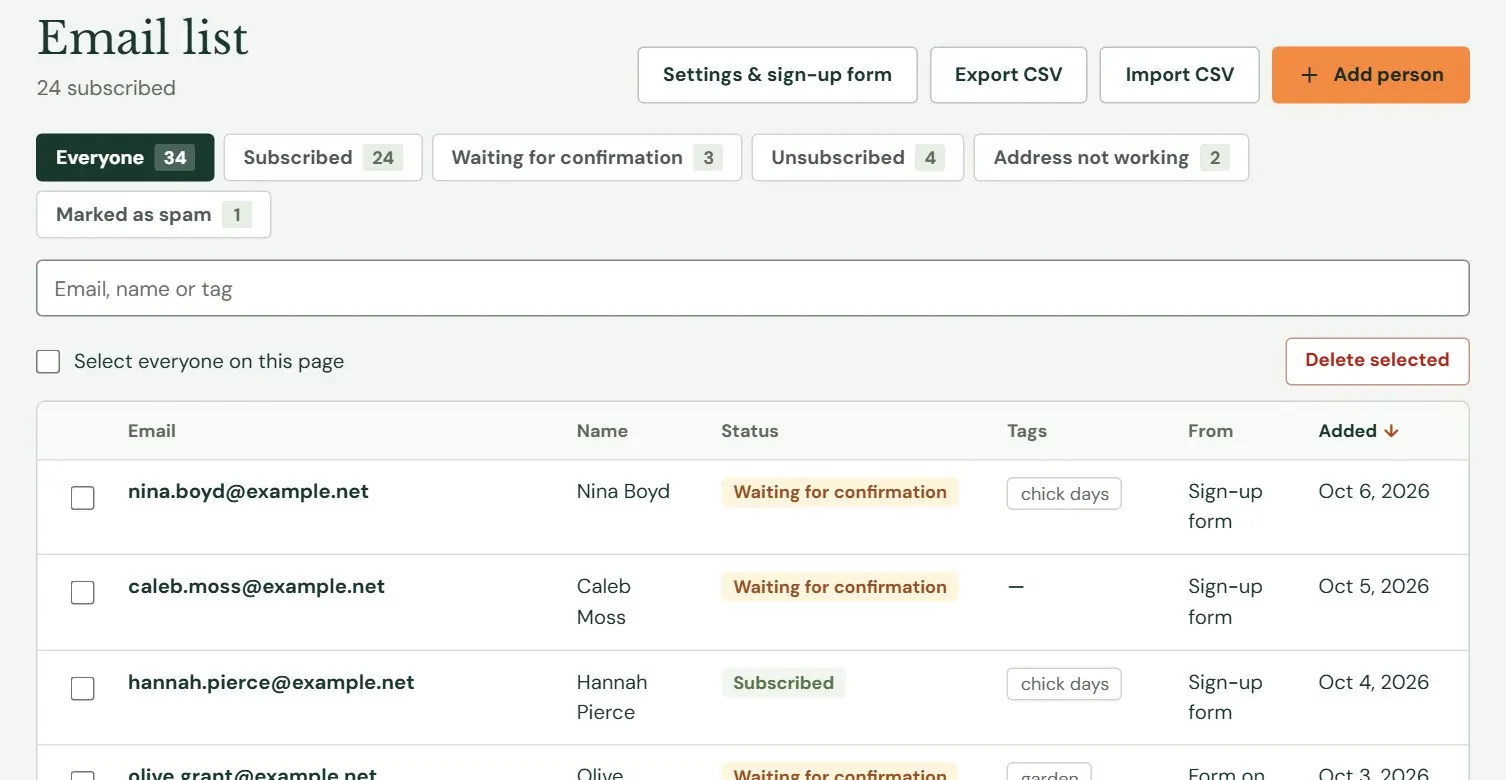
The top of the screen says how many people are subscribed. Below it, the buttons along the top right are Settings & sign-up form, Export CSV, Import CSV and Add person.
 12345
12345- 1Settings, export, import, and adding one person.
- 2Show one status at a time. A status with nobody in it has no button.
- 3Search by email, name or tag. The list narrows as you type.
- 4Where the person stands. Press the email to open their page.
- 5How they got on the list.
| Status | What it means |
|---|---|
| Subscribed | They agreed, and you may email them. |
| Waiting for confirmation | They signed up, and Roadside has asked them to confirm. They are not on your list yet. |
| Unsubscribed | They asked to stop. You cannot add them back. |
| Address not working | Email to this address came back, so it is not used again. |
| Marked as spam | They reported one of your emails as spam, so they are not emailed again. |
The list is 50 to a page, newest first. Press Email, Name, Status or Added to sort by it. The small tags under the Tags heading are yours: horses, chick days, whatever helps you pick a group later.
To delete people, tick them (or tick Select everyone on this page) and press Delete selected, up to 500 at once. Delete is for a mistake, such as a file you should not have imported. It removes the person and their consent record. For someone who asked to stop getting email, use Unsubscribe, which keeps the record.
One person's page
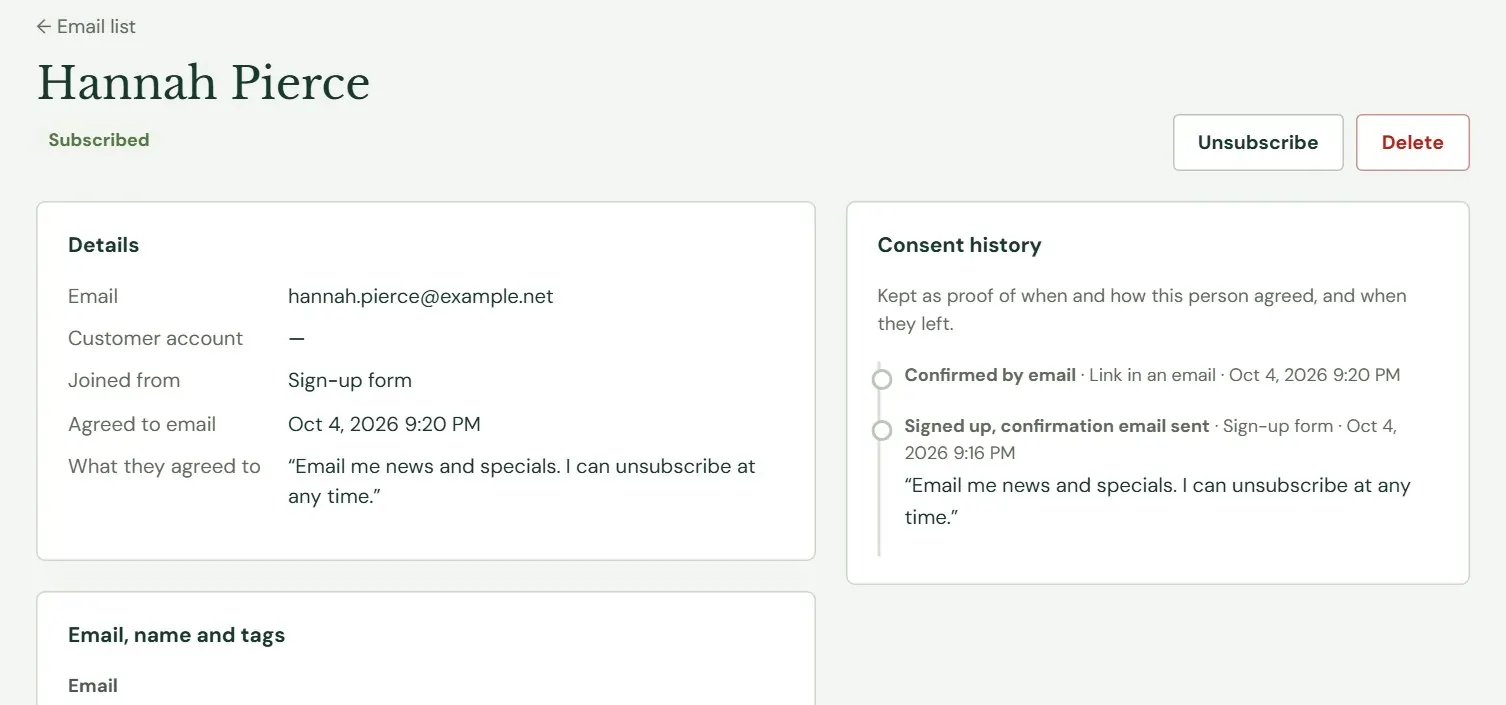
Press an email address to see everything about that person. If the person's email matches an account in Roadside, the Customer account line links to it, so you can see what they buy. Tags are separated by commas, up to 300 characters in all.
 1234
1234- 1Unsubscribe or Delete. A person waiting for confirmation also has Send confirmation again.
- 2Where they came from and the exact words they agreed to.
- 3Fix a typo in the email address, or change their name and tags. Their consent history stays with them.
- 4Each step, newest first: the date, where it happened, and who did it when a person on your team was involved.
Add one person
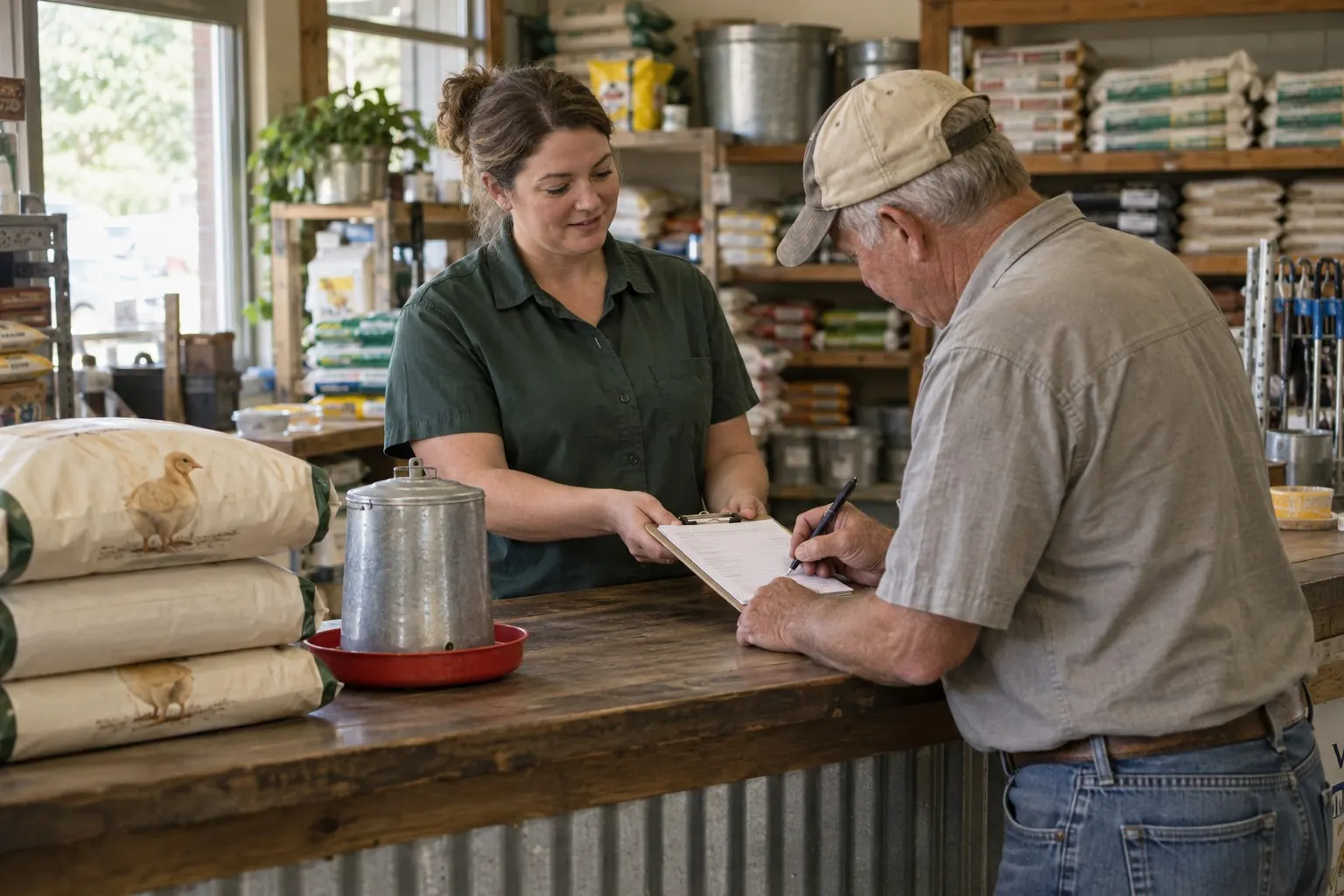
Use this when someone tells you at the counter or on the phone that they want your emails. They are added at once, with no confirmation email, because you are vouching that they asked.
- Press Add person.
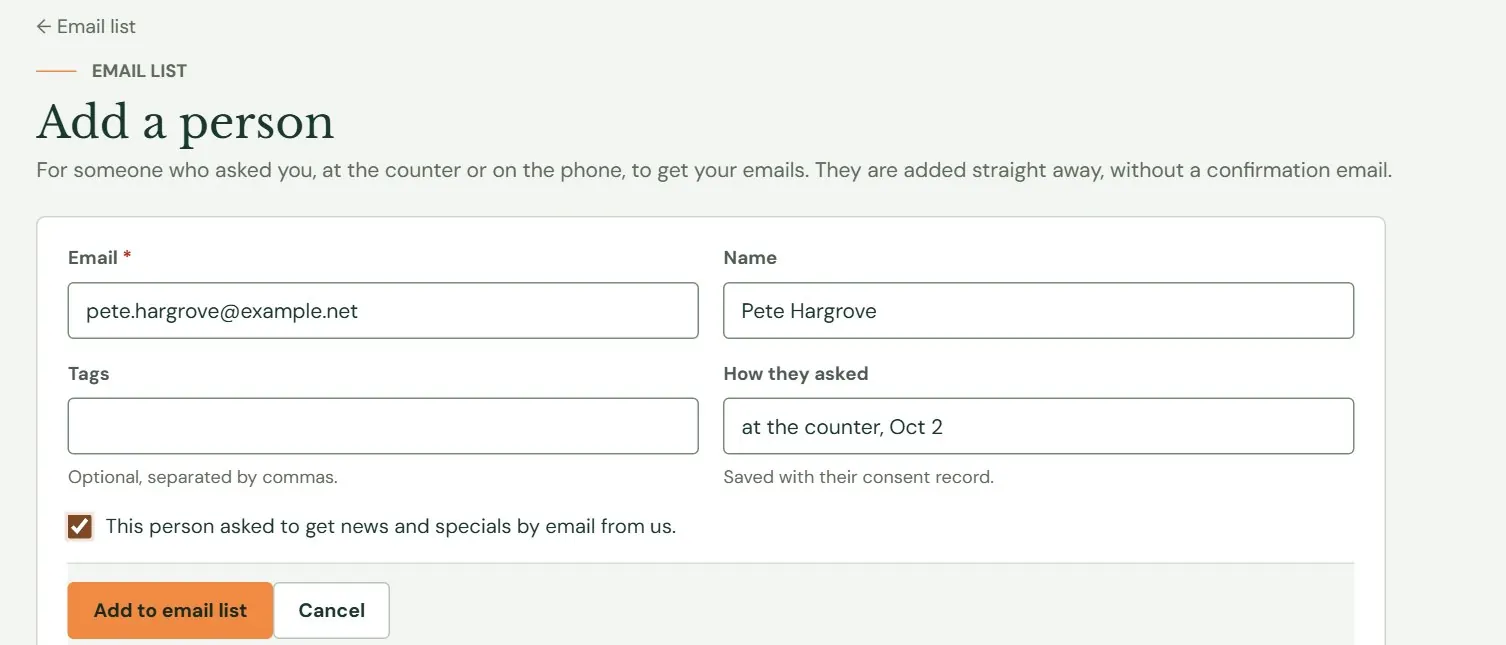
- Type their email address. A name and tags are optional.
- Write how they asked in How they asked, for example at the counter, Oct 2. It is saved with their consent record.
- Tick the box that says This person asked to get news and specials by email from us. Roadside will not add them without it.
- Press Add to email list. Their page opens and says the address is on your email list.
 1234
1234- 1The address. Check the spelling before you save.
- 2Where and when they asked.
- 3You confirm that they asked.
- 4Adds them as Subscribed.
If the address is already on the list, Roadside tells you rather than adding it twice. If the person left the list earlier, Roadside refuses, and the section on unsubscribes explains why.
Import a list from a spreadsheet or another service
If you already have a list in a spreadsheet, in Mailchimp or in an older system, bring it over with a CSV file. Only import people who said yes to getting email from your business. A list of everyone who ever bought from you, or a list you bought, does not count, and the import screen says so.
- Get the file ready. The first row must be headings, and one of them must be Email (also accepted: Email address, E-mail, Customer email). Roadside uses Name, or First name and Last name, and Tags when they are there. Delete anyone who unsubscribed in your old system. From Excel, save as CSV UTF-8. The file can have up to 25,000 rows and be 5 MB.
- Press Import CSV and choose the file.
- Add tags to everyone in the file if you like, for example imported, 2026 customers.
- Tick the box that says everyone in the file agreed to get email from your business and that anyone who asked to stop has been taken out.
- Press Import.
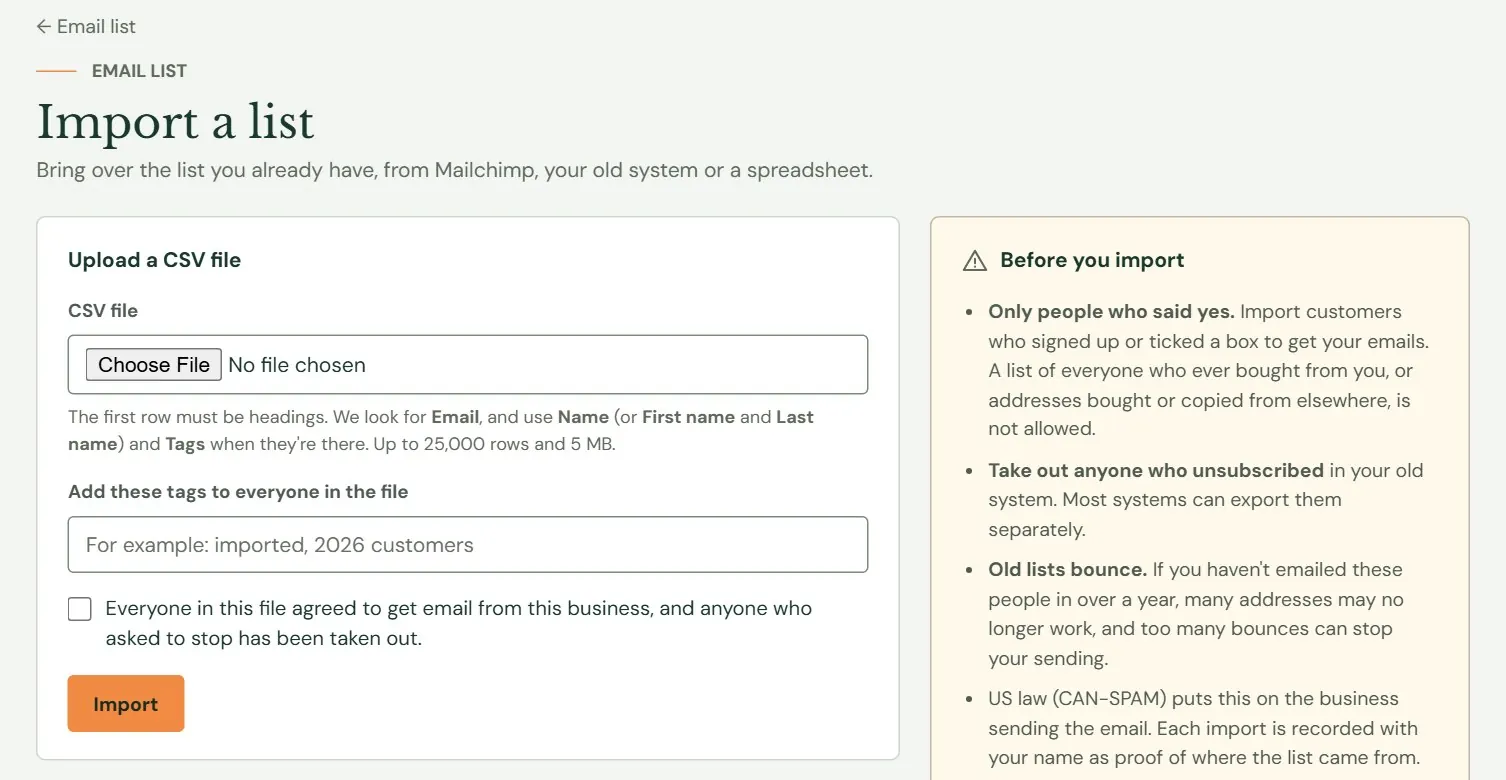 12345
12345- 1Choose your CSV file.
- 2Optional. Added to everyone in the file.
- 3You must tick this to import.
- 4Starts the import at once.
- 5Read this before you import.
Everyone in the file is subscribed straight away, with no confirmation email, and each person's record says Imported from the file name, by your name. When the import finishes, a box reports the counts. It says how many people were added and how many were already on the list, with and without changes. It says how many were skipped because they had unsubscribed, bounced or reported spam, and how many lines were not email addresses or were listed twice. It shows the first 20 problem lines, such as Line 7: "bob@" is not an email address. Press See the email list to go back.
An import has no preview and no undo. If you imported the wrong file, tick those people on the list and use Delete selected. Old lists also go stale: many addresses that worked two years ago bounce now, and a lot of bounces can get your sending stopped by your email service.
Confirm sign-ups by email
With Send a confirmation email first (recommended) ticked, which is how Roadside starts out, a person who signs up on a form is not added until they click the link in an email Roadside sends to that address. It stops fake and mistyped addresses, which keeps your emails out of spam folders. People you add yourself and people you import are added straight away, as above.
 1
1- 1Leave this ticked unless you have a reason not to.
The new sign-up sees Check your email and the status Waiting for confirmation appears on your list. The email's subject reads Please confirm, then your store's name and email list, and it holds one link. The link opens a page with a button, Yes, sign me up, and pressing it puts the person on the list. It is a button on purpose, so that programs that scan email links cannot confirm for someone.
If a person says the email never came, open their page and press Send confirmation again. Roadside sends at most one every 10 minutes to the same address. If it says one went out in the last 10 minutes, wait and try again. If it says email is not set up, write to support@dirtroadsoftware.com. Sign-ups nobody confirms are removed after 30 days.
Unsubscribes, and who you cannot add back
The sign-up pages tell people that every email has an unsubscribe link. Roadside does not send your newsletters, so that link comes from your email service. Pick one that puts it in every email, which most do. Inside Roadside, a person goes to Unsubscribed when you press Unsubscribe on their page, or when they press the Unsubscribe link on the page their confirmation email opens. The page says You're unsubscribed and adds that order receipts and pickup notices still arrive as usual, with a link for anyone who pressed it by mistake.
A person whose status is Unsubscribed, Address not working or Marked as spam cannot be added back by you or by an import. Only their own new sign-up does that, by the sign-up page, your website's form, or the link in an email. If you try to add one, Roadside names the date they left and says why you cannot.
To take someone off the list yourself, open their page and press Unsubscribe, not Delete. Unsubscribe keeps the record that they left, so a later import cannot put them back by accident. Delete erases it, and the person can then be added again.
When someone unsubscribes from a newsletter you sent through another email service, Roadside does not hear about it. Open that person's page here and press Unsubscribe, so your next export does not carry them forward.
The sign-up page and the form for your website
Roadside can host a sign-up page for you and give you a form to paste into your website. Both are off until you tick Accept sign-ups from a form. While it is off, the sign-up page does not exist.
- Tick Accept sign-ups from a form.
- Write the heading and a sentence or two about what you send, for example how often.
- Check What people agree to. The wording starts as Email me news and specials. I can unsubscribe at any time. It shows under the form and is saved with every sign-up as proof of what they agreed to.
- Press Save settings. The link and the form appear.
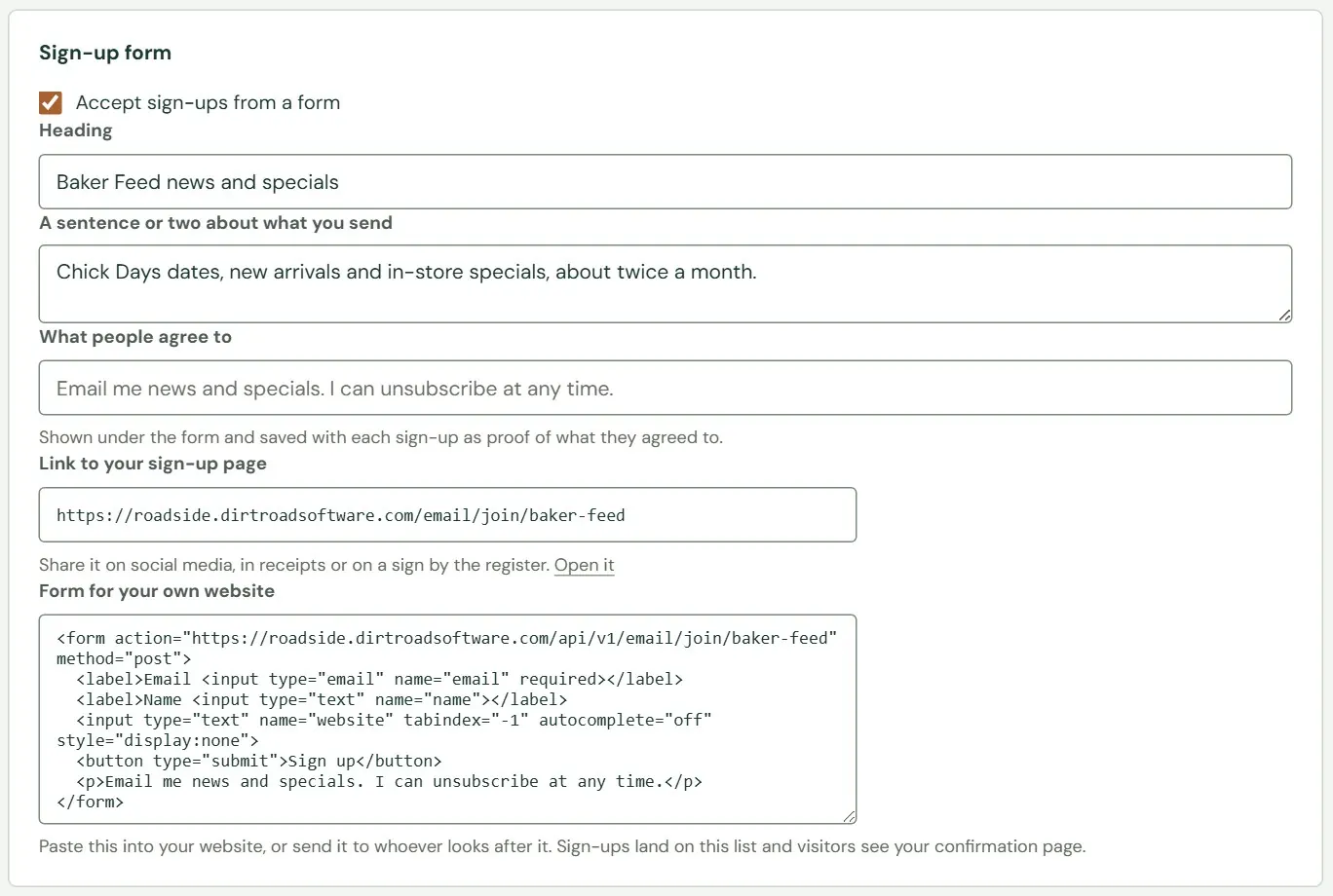 12345
12345- 1Turns the sign-up page and the form on.
- 2The heading people see.
- 3The words they agree to.
- 4The address of your sign-up page. Share it on social media, on receipts or on a sign by the register.
- 5The form for your own website. Copy it as it is.
The sign-up page is a plain page with your heading, a box for an email, a box for a name that is optional, a Sign up button and your agreement wording underneath. Someone who joins sees Check your email when confirmation is on, or You're on the list when it is off.
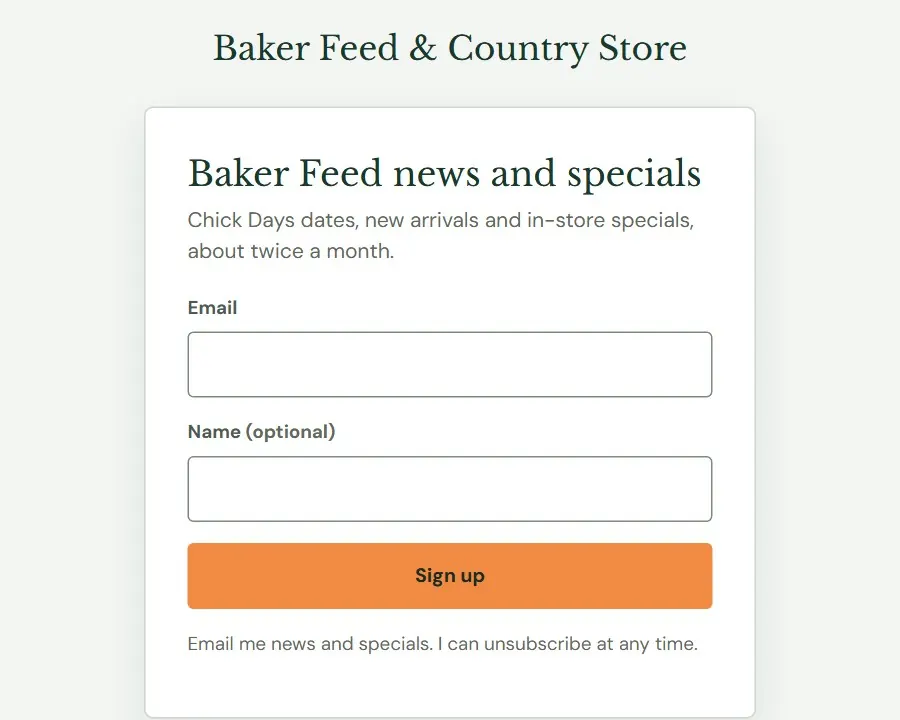 123
123- 1Your heading.
- 2The only required box.
- 3Sign up.
Send the form code to whoever looks after your website, or ask support@dirtroadsoftware.com. Sign-ups from it land on this list, marked Form on your website, and the visitor sees a confirmation page. The form has one box the visitor never sees. Roadside uses it to turn away robots, so leave it alone.
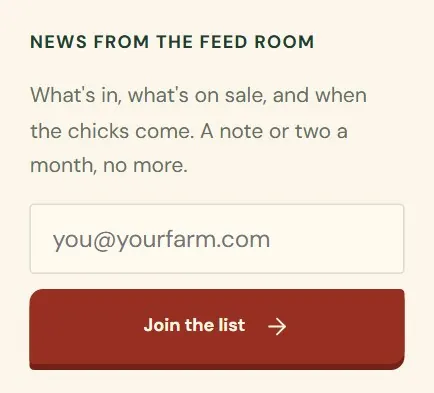 123
123- 1What the store tells visitors about the list.
- 2Where a visitor types an address.
- 3Sends it to Roadside, which adds it to your list.
On a website like the sample store's, whose footer already has an email box, the box starts sending sign-ups to Roadside a few minutes after you turn the form on. Before that, it opens the visitor's own email program.
Export the list to send a newsletter
Press Export CSV and Roadside downloads a file named email-list- and the date. It has a row for everyone on the list, whatever is on screen, with these columns: Email, Name, Status, Tags, Source, Agreed, Unsubscribed and Added.
- Open the file in a spreadsheet and keep only the rows where Status says subscribed. The file also lists people who left or whose address stopped working, so delete those rows before you send anything.
- Keep the Tags column if you want to send to a group, such as only the people tagged chick days. Most email services can read a tags or groups column when you upload.
- Upload the rows to your email service the way it asks for a list of contacts, and send your newsletter from there.
Export again before each send. People join and leave between newsletters, and Roadside does not send the changes to your email service for you.
Something here does not match your screen? Write to support@dirtroadsoftware.com with the name of the screen, what you pressed and what you expected. A picture of the screen helps.