
Find what your store has and set it up
Your full menu shows the screens you can open. All of Roadside also shows the owner which tools the store can set up or ask about.
In this chapter
Check what your store can open
All of Roadside is one page that sorts Roadside's tools by where they stand for your store. Open it when a screen you expected is not in your menu.
The page is laid out in bands. Everyone sees On your road: what your plan includes and your menu shows. A Store owner or Manager may see two more. Ready when you are holds tools that are already the store's. Further down the road holds tools that are not in your plan, and looking there buys nothing. A band shows only when it has something in it.
When a screen is missing, work through these in order.
- Press Full menu near the foot of the menu, then open the group again. The everyday menu is the shorter of the two.
- Type the screen's name in Find anything… at the top. Search finds the screens you are allowed to open.
- Open Store account, then All of Roadside, and look for the screen. Read its tag against the table below.
- If the page does not list it for you, ask a Store owner or Manager. Staff and Read only people see only the first band. Chapter 41, Give the right people access to Roadside explains roles.
| The tag reads | It means | What to do |
|---|---|---|
| Yours. In the full menu | The screen is in the full menu now. It is not in the everyday menu. | Press Full menu to reach it, or add it to the everyday menu: Put a screen in the store's everyday menu, in Chapter 3. |
| Yours. Not set up | The store has the tool and it has not been set up. | The Store owner sets it up: Set up a tool the store already has, in Chapter 3. |
| Yours. Dirt Road can switch it on for you. | The store has the tool, and Dirt Road switches it on. | Press Contact Dirt Road Software beside it, or open a Support ticket: Send a question about Roadside, in Chapter 40. |
| Not in your plan, or An upgrade. Not in your plan | The store's plan does not include the tool. | The Store owner can ask Dirt Road about it: Ask Dirt Road about something the store needs, in Chapter 3. |
Some cards also carry a button that begins Try it:. A store uses it to walk through a job, one step at a time, on invented records. The page is headed Practice, not your store, and nothing in it is saved to your store. Press Back to my store when you are done.
An old bookmark can also land on a tool the store does not have. The page that opens names the package the tool is part of. Staff see Ask your store owner about adding this.
Put a screen in the store's everyday menu
The everyday menu is the shorter menu your team can work from. If people keep switching to the full menu for one screen, such as Deposits when someone balances the bank each week, add that screen to the everyday menu. It changes the menu for everyone at the store, not only for you.
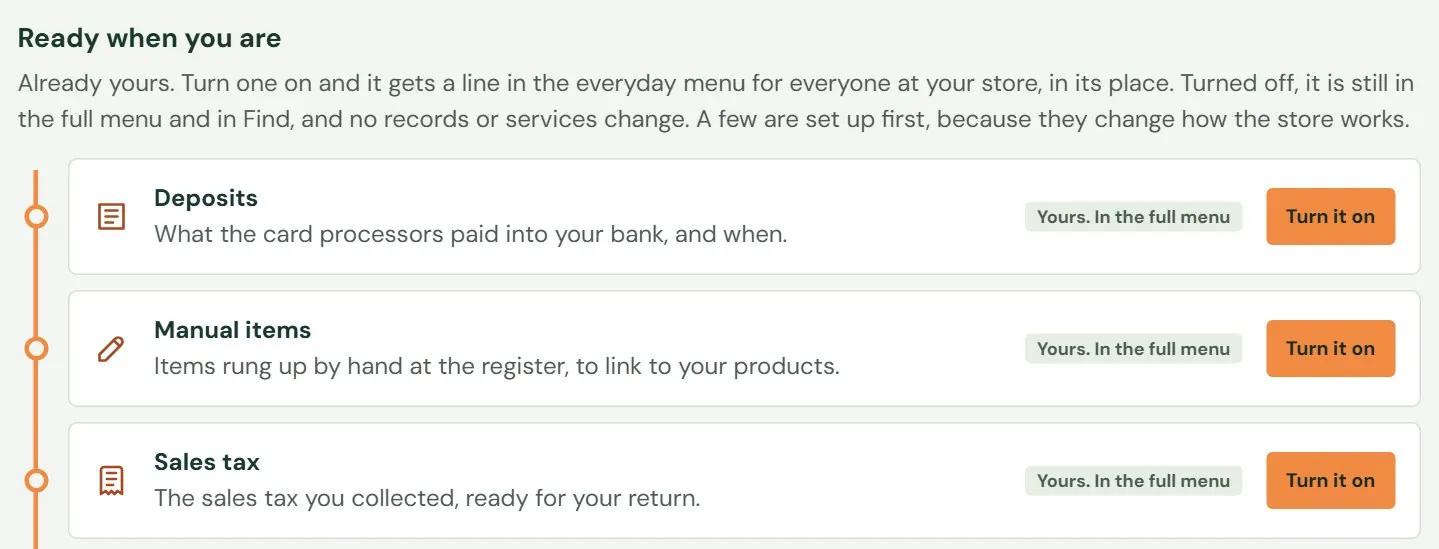
- 1Ready when you are: tools that are already the store's.
- 2This tag means the screen is in the full menu now.
- 3Turn it on adds the screen to the everyday menu.
- Open Store account, then All of Roadside.
- Under Ready when you are, find the screen. Its tag reads Yours. In the full menu.
- Press Turn it on. The screen gets a line in the everyday menu for everyone at your store, in its place. Its tag changes to In your everyday menu, under and the name of its group.
To take it out again, come back to the same line and press Turn it off. Turned off, the screen is still in the full menu and in Find anything…, and no records or services change.
A few tools in this band have a Set it up button in place of Turn it on, because they change how the store works. See Set up a tool the store already has, in Chapter 3.
Set up a tool the store already has
A few tools wait for the Store owner to set them up, because they change how the store works. Blog and Discounts are two of them. Until a tool is set up, its screens are not in the menu. The picture shows the sheet for another, the customer portal, where account customers sign in on your website to read their statements and invoices.
- Add-on
- An extra tool in Roadside other than a website upgrade. The store may have it already and need only set it up, or may be able to buy it for a plan that offers it.
- Upgrade
- An extra tool for the website that a store buys on top of its plan. A tool tagged An upgrade. Not in your plan is one the store has not bought. Other extra tools are add-ons.
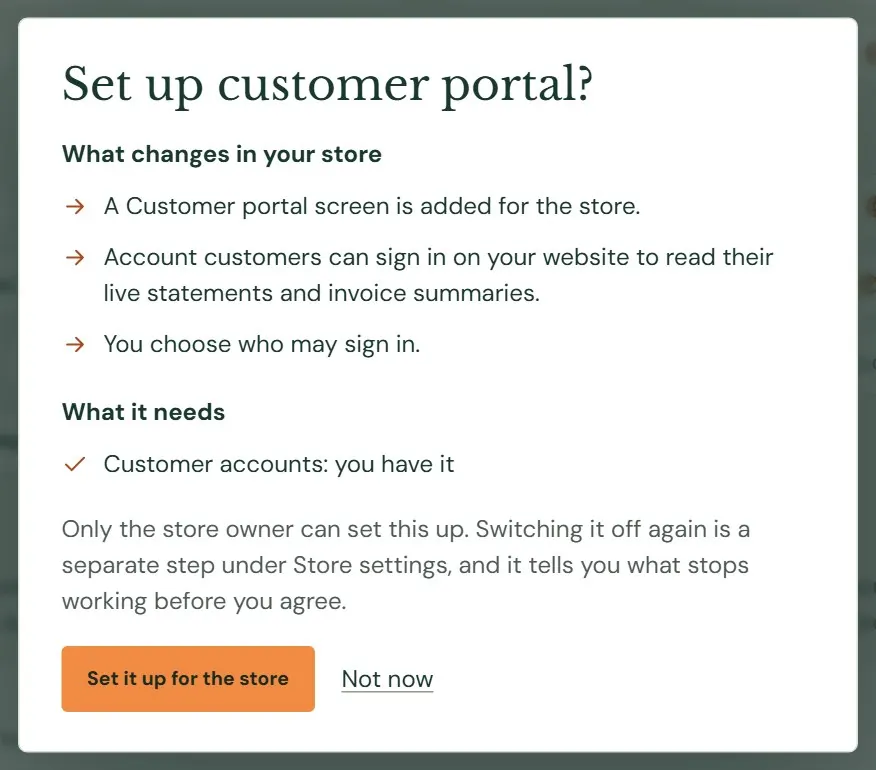
- 1What changes in your store.
- 2What it needs, and whether the store has it.
- 3Set it up for the store starts the tool.
- 4Not now closes the sheet and changes nothing.
- Open Store account, then All of Roadside.
- Find the tool under Ready when you are and press Set it up. Its tag reads Yours. Not set up. A sheet opens with the tool's name in a question, such as Set up customer portal?
- Read What changes in your store. The first line names the screens that are added for the store. The lines after it say what the tool does once it is on.
- Read What it needs. Each line names something the tool depends on and whether you have it. When the plan lacks one, the sheet says It can't be set up until everything it needs is in your plan. and offers only Not now.
- Press Set it up for the store. The tool's screens get a line in the store's everyday menu. To leave things as they are, press Not now.
Only the Store owner can set a tool up. A Manager sees the same line with the words Only the store owner can set this up. in place of the button. Switching a tool off again is a separate step under Store settings: Switch off a tool the store set up, in Chapter 3.
Once Discounts is set up, start at Turn on Discounts for the store, in Chapter 22. For Blog, see Chapter 35, Write and publish a store article.
Switch off a tool the store set up
What the Store owner set up from All of Roadside is listed on one screen, each tool with its own Switch it off button. The menu line for this screen shows only while the store has something set up.
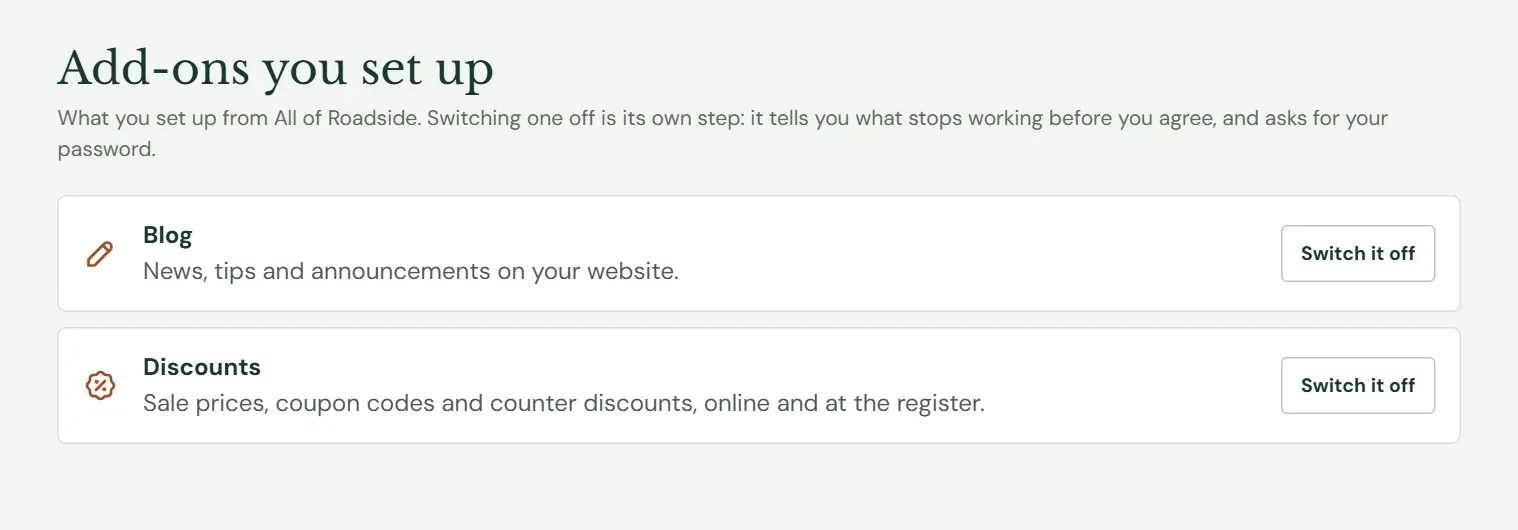
- 1What this store set up from All of Roadside.
- 2One tool: its name and what it does.
- 3Switch it off opens a page first. Nothing stops until you agree.
- Open Store settings, then Add-ons you set up.
- Press Switch it off beside the tool. A page opens with the tool's name in a question, such as Switch off Blog? The tool is still on.
- Read What stops working. It names the screens that leave the menu for everyone at the store, and what stops. For Blog it says Your posts come off your website.
- Read What is kept. It says Its records are kept, and they come back if you set it up again.
- To go ahead, press Switch it off on that page and give your password when Roadside asks. To keep the tool, press Keep it on.
A tool that another tool needs cannot be switched off first. The page then names the other tool and offers only Back. A store with SEO Articles sees this for Blog: Turn off SEO Articles first. It needs Blog. SEO Articles is not among the tools listed on this screen, so open a Support ticket if you need it stopped: Send a question about Roadside, in Chapter 40.
Ask Dirt Road about something the store needs
Tools under Further down the road are not in your plan. Each card has two buttons. See what it adds opens a page about the tool. I want this for my store starts a request to Dirt Road.
- Open Store account, then All of Roadside, and find the tool under Further down the road.
- Press See what it adds if you want to read about it first. That page says Dirt Road will tell you the price before anything is added. It has the same I want this for my store button, a Contact Dirt Road Software button and, on some stores, an Upgrade button.
- Press I want this for my store. The request form opens.
- Read It would add and What stays the same.
- Check What you'd like, and add a few words under A note for Dirt Road, if you like.
- Press Send request to Dirt Road. To back out, press Not now.
The form says what sending does: This sends a request. It doesn't buy anything or change your plan. Dirt Road will tell you what fits, what it costs and how the setup goes, before anything changes.
To see a request you sent, open Store account, then Plan and billing, and press Requests to Dirt Road on the Plan tab. Dirt Road's answer appears there. Chapter 39, Check your plan and pay a Dirt Road invoice covers that screen.
A Manager sees Ask your store owner in place of the request button, and can raise a question through a Support ticket: Send a question about Roadside, in Chapter 40.
Included on every plan except Static Website and Online Store. For one more register, the Plan tab has its own line: Need another register? Ask Dirt Road to add one.
Something here does not match your screen? Write to support@dirtroadsoftware.com with the name of the screen, what you pressed and what you expected. A picture of the screen helps.