
Mark an order ready and hand it over
Tell the customer when the bags are pulled, then hand the order over and record what was paid. Read what each button does before you press it, because a finished order stays finished.
In this chapter
Tell a customer their order is ready
Included on Online Store, Counter + Online Store and Whole Store plans.
Your store tells the customer. No ready notice goes out when the payment arrives or when the bags are pulled. The ready email is sent when someone presses Mark ready for pickup on the order.
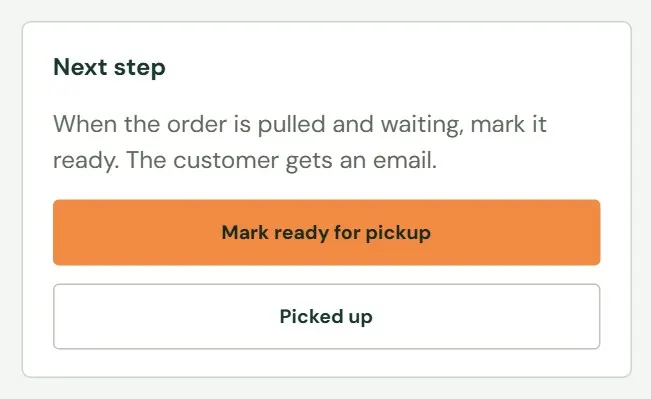
- 1Next step holds the buttons that move the order along.
- 2Mark ready for pickup marks the order ready and sends the ready email.
- 3Picked up finishes the order when the customer has it.
- Open Orders and press the order's number. An order waiting to be pulled is on To do.
- Check the bags against the order.
- Press Mark ready for pickup on the Next step card. The order's badge turns to Ready for pickup. The message confirms that the order was marked ready, and says the customer was emailed when ready emails are on.
- When the customer arrives, find the order. Use the Ready tab, search by name, or scan the customer's pickup code (Hand over an order from its pickup code, in Chapter 28). Check Who may pick up if someone else has come for it.
- Hand it over and press Picked up. Hand over, at the top of the order, opens a box with the items to tick and its own button, which finishes the order the same way. The order moves to the Picked up tab. When Email customers when an order is picked up is on, the customer gets one email saying when it was picked up or delivered, and the message adds The customer was emailed (if email is set up).
The email goes out only when Email customers when their order is ready is switched on. With it on, the first line of the Next step card ends The customer gets an email. With it off, call the customer yourself. The ready email says how long your store holds the order, from your pickup rules (Choose what customers can cancel or change online, in Chapter 25). For a pickup it also gives your store's hours and address, and it carries the customer's pickup code. Choose who receives order emails and what refunds you offer, in Chapter 25 shows where both email switches are. The email goes to the address the customer typed at checkout, which is on the order's Customer card.
The buttons follow how the order is going out.
| Order | When it is ready | When it is handed over |
|---|---|---|
| Pickup | Mark ready for pickup | Picked up |
| Local delivery | Mark ready for delivery | Delivered |
| Shipped | Mark packed | Mark shipped |
For an order to ship, press Mark packed when the box is packed and labeled, and Mark shipped when it has gone. Neither button asks for a tracking number. You buy the label in your own account with the shipping service, and the order's Shipping card names the service the customer chose. The customer's email says the order is packed, which service it goes out by and the address.
A card that is held changes the first button. It reads Mark ready and charge with the amount, and Staff can press it as well as Store owners and Managers. Pressing it charges the card as it marks the order ready, and the message names the amount being charged. Until the charge has gone through, the card says The card payment isn't finished yet and offers no Picked up button. Hand the order over once it reads Paid. Charge only what you can supply or release the hold, in Chapter 30 covers charging less than the hold.
Hand over an order from its pickup code
Included on Online Store, Counter + Online Store and Whole Store plans.
Every open pickup order placed on your website has a pickup code, such as 7K3M-9QXA. The customer has it in the order email and on the order page, as letters and numbers and as a QR code, a square pattern a phone's camera reads (Help a customer show their pickup code, in Chapter 24). Scanning it opens the order in Roadside with everything the counter needs in one box.
- Pickup code
- A short code, such as 7K3M-9QXA, that belongs to one open pickup order placed online. The customer shows it at the counter, and scanning it opens that order in Roadside.
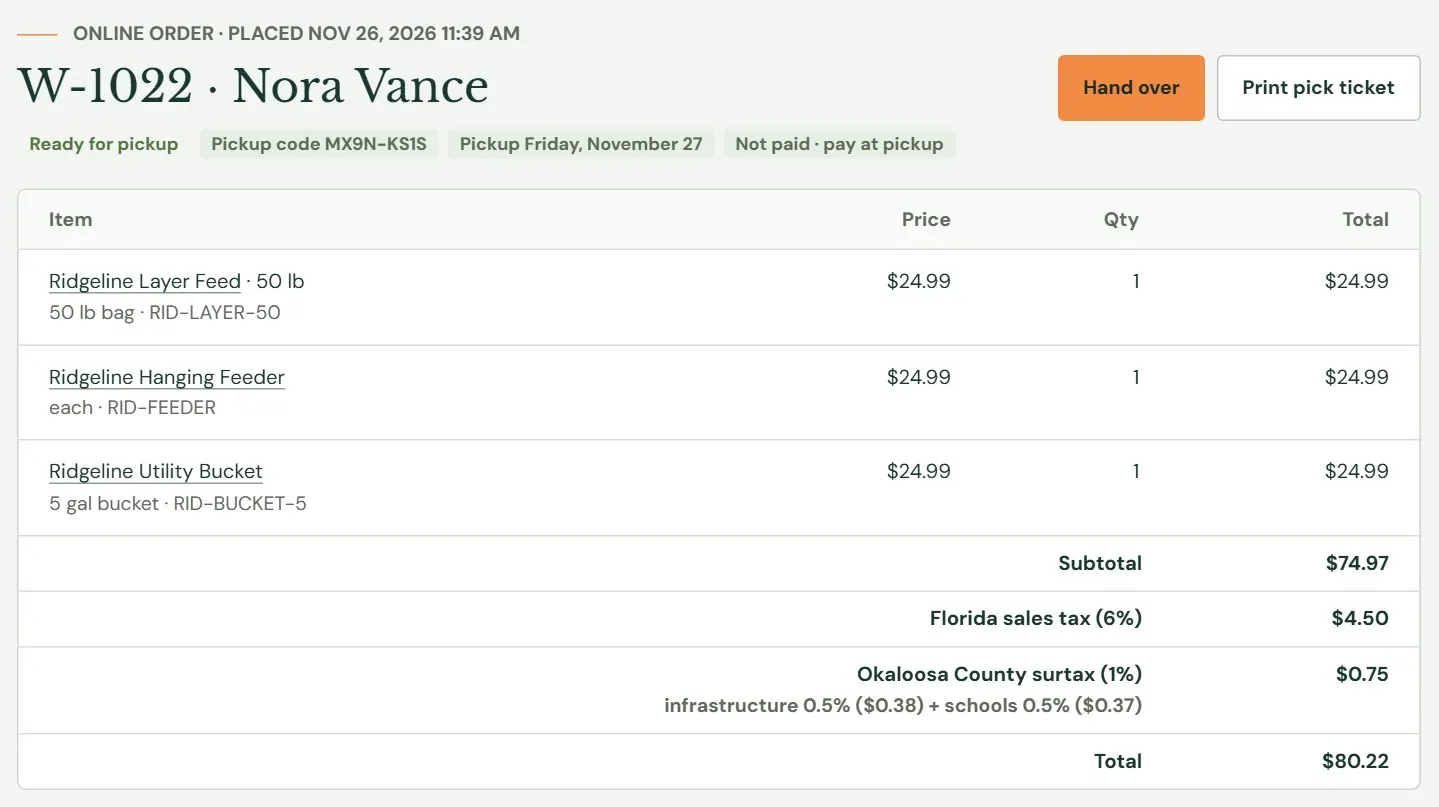
- 1Pickup code: the same code the customer has.
- 2Hand over opens the hand-over box.
- 3Print pick ticket prints a ticket that scans to this order.
On the order, the code is the badge that reads Pickup code 7K3M-9QXA. A delivery, a shipped order and a sale rung up at the register have no code, and the badge goes when the order is picked up or cancelled. A code only points at an order. Someone who scans it without being signed in to your store's Roadside sees a page that says to show the code at the counter, and nothing about the order.
- Scan the customer's code with the camera of a phone or tablet that is signed in to Roadside. The order opens with the hand-over box showing. If the device is not signed in, the page has a Sign in to hand it over button, and the order opens after you sign in.
- Or open the order and press Hand over. Find it on the Ready tab or search by name. The button is at the top of every open pickup order placed online.
- Read the line under the heading. It reads Ready for pickup since Fri Nov 27, 9:14 AM., or Not marked ready yet. Check everything below is here before you hand it over.
- Check Customer, Pickup day and Payment. An order for an account also lists May pick up, the people on that account. A note from the customer and your staff note follow.
- Tick each item as it goes out. The count reads 2 of 3 ticked., then All ticked. The ticks are a checklist for the person at the counter. They are not saved, and the button works whatever is ticked.
- If money is due, take it at your counter first. Payment reads the amount, such as $42.79 due at pickup. Choose how the customer paid from Paid at pickup by: Cash, Card at the counter or Check.
- Know what the last button does before you press it. It records the whole amount due as paid the way you chose, and it finishes the order. A finished order cannot be marked ready or cancelled afterwards. Money goes back only as a refund, which a Store owner or Manager gives (Give money back for an order, in Chapter 30). When picked-up emails are on, the customer is emailed that the order was picked up, with the final receipt when a balance was paid at that moment.
- Press Picked up and paid. On an order with nothing due the button reads Mark picked up, and it finishes the order with no payment recorded.
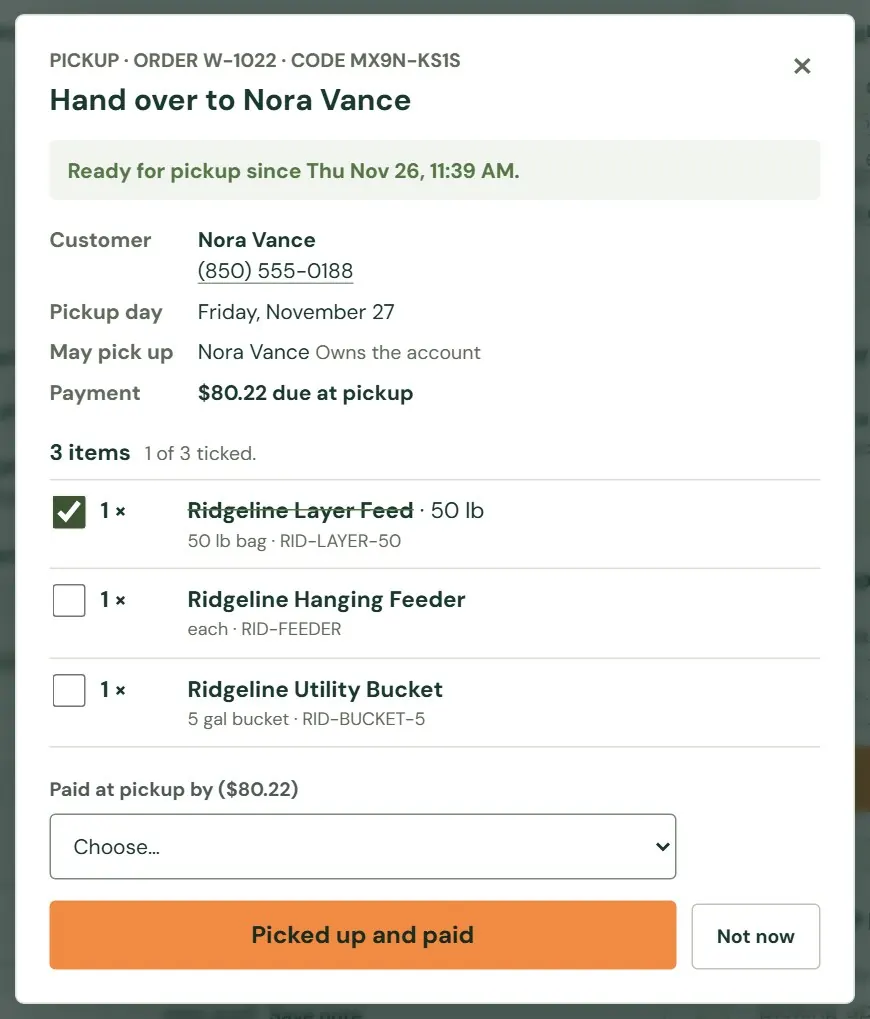
- 1Whether the order is ready, and since when.
- 2Payment: what is due at pickup, or what was paid.
- 3One box to tick for each item.
- 4Paid at pickup by, with the amount due.
- 5Picked up and paid records the payment and finishes the order.
- 6Not now closes the box and changes nothing.
It worked when the message reads Order picked up. and the order is on the Picked up tab. When picked-up emails are on, the message adds The customer was emailed (if email is set up). The box does the same job as the Next step card (Tell a customer their order is ready, in Chapter 28, Record what the customer paid at pickup, in Chapter 28), so press one of them, not both. Not now closes the box and leaves the order as it was.
| What you see after a scan | What it means |
|---|---|
| Already picked up | The order was handed over, and the box gives the day and time. It says Don't hand it over again. |
| This order was cancelled | The box says Don't hand anything over; check with a manager if the customer has questions. |
| No order matches pickup code 7K3M-9QXA. Look the customer up by name or order number. | The code belongs to no order at your store. You are back on the Orders list, so search there. |
| The card payment isn't finished yet. Hand the order over once it's paid. | A card is held or a payment is still going through. The box has Not now and no button that finishes the order. For a held card, mark the order ready, which charges it (Tell a customer their order is ready, in Chapter 28). Otherwise wait until the order reads Paid. |
When a code will not scan, ask the customer to read it out. Find the order by name or order number, because the search box does not take a pickup code, and match what they read against the badge.
The pick ticket of an open pickup order carries the same code, so a ticket taped to the bags scans straight to the hand-over box.
Staff hand over orders and record what was paid at pickup, the same as Store owners and Managers. A Read only person can scan a code and read the box, which tells them Someone who can manage orders marks it picked up. Cancelling and refunding stay with Store owners and Managers.
Included on every plan except Static Website and Online Store. The Paid at pickup by list in the box also has Charged to account and Store credit, on the terms given in Record what the customer paid at pickup, in Chapter 28.
Record what the customer paid at pickup
Included on Online Store, Counter + Online Store and Whole Store plans.
A pay-at-pickup order reads Not paid · pay at pickup until someone records the money. Roadside does not take this payment for you. You take the cash, the check or the card at your counter, then tell Roadside how the customer paid.
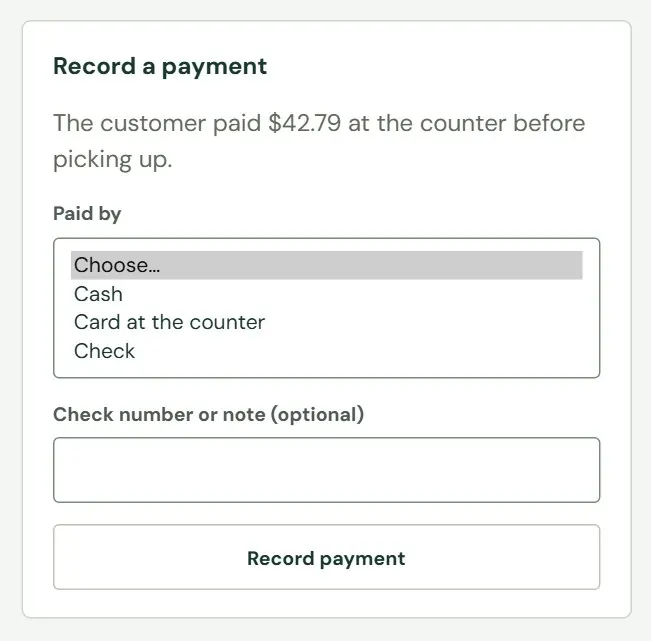
- 1Record a payment, with the amount the customer owes.
- 2Cash.
- 3Check. Its number goes in the box under the list.
- 4Record payment saves it.
Most customers pay when they collect. One press records the money and finishes the order.
- Take the payment at your counter.
- Open the order. On the Next step card, choose how they paid from Paid at pickup by. The label carries the amount due. The list has Cash, Card at the counter and Check.
- Press Picked up and paid. The message reads Order picked up. When picked-up emails are on, it adds The customer was emailed (if email is set up)., and the email carries the final receipt.
The hand-over box has the same Paid at pickup by list and the same button (Hand over an order from its pickup code, in Chapter 28).
Included on every plan except Static Website and Online Store. The list also has Charged to account when the customer has an open charge account and you are allowed to charge to accounts. It has Store credit when the customer has store credit to spend. Store credit has to cover everything that is due.
A customer who pays before the pickup day is recorded on the Record a payment card, and the order stays open until they collect.
- Open the order and choose Paid by on the Record a payment card. It offers the same ways to pay.
- For a check, type its number in Check number or note (optional). The box holds up to 120 characters.
- Press Record payment. The message reads Payment recorded: $42.79. and the order reads Paid.
- When the customer collects, press Picked up.
Card at the counter means you ran the card on your own card machine. Roadside records that the customer paid that way. It does not run the machine. Both ways record the whole amount due, so there is no box for a part payment.
Before you record a payment a second time, look at the order again. If the badge reads Paid, or History shows a payment, it is already recorded. The Record a payment card is gone from an order with nothing due.
Something here does not match your screen? Write to support@dirtroadsoftware.com with the name of the screen, what you pressed and what you expected. A picture of the screen helps.