
Ask Dusty for help in Roadside
Ask Dusty where to find a screen or what is running low. The Store owner chooses which jobs he may prepare and who may ask him.
In this chapter
Ask a question about your store
Included on every plan except Static Website and Online Store.
- Dusty in Roadside
- The assistant you open with Ask Dusty to ask about store records you can see with your own Roadside sign-in.
- Press Ask Dusty at the foot of the menu on a signed-in page. When work is waiting for your OK, the button shows how many items are waiting. On a phone, press Dusty on the bottom bar.
- If you see tabs, choose Talk. With questions-only access, the conversation opens directly. Type a question in Ask, or tell Dusty what to do (up to 1,000 characters). For example, ask where to find stock on hand. If your browser shows the microphone, you can press it and speak.
- Press the arrow to send. Read Dusty’s answer below your question. While he is answering, the square button stops the reply.
Dusty uses your own Roadside sign-in. He can look up the records you can open, including what sold best this week or what is running low if you have access. For a change he can prepare for your OK, see Ask Dusty to get a change ready, in Chapter 5.
If an answer stops partway, ask again. If Dusty cannot be reached, check your connection and retry. People signed in as Read only cannot ask Dusty. Dusty tells you when this month’s help is running low and when it starts fresh.

- 1The Talk tab opens your conversation.
- 2Choose a suggested job, such as changing a price.
- 3Press the arrow to send your question.
Have Dusty show you where to go
Included on every plan except Static Website and Online Store.
- Open Ask Dusty. If tabs are visible, choose Talk. Type the job you need help with or choose Where do I find a screen?. If you can edit products, you can choose Show me how to change a price when it appears.
- Follow Show me how or Walk me through it when the reply offers it. For a price, Dusty points you to Products, the product record and the price field. The walkthrough saves nothing.
- While a walkthrough is running, look in the box that explains the current step. If it offers the checkbox, tick Don't start walkthroughs on their own to choose when walkthroughs start. You can still start one from a reply.
Refunds and sign-in changes stay with the person doing the job. If you want Dusty to get a price change ready for approval, see Ask Dusty to get a change ready, in Chapter 5.
Choose what Dusty may change
Included on every plan except Static Website and Online Store.
- After my OK
- This setting lets Dusty prepare a change and wait for you to check it. Nothing is saved until someone presses the button on the card.
Only the Store owner changes these settings, and Choose who may ask Dusty, in Chapter 4 covers who may ask Dusty and approve a change.
- Find the job under What Dusty may do. To let Dusty explain the work, choose Just answer. Choose After my OK if he may prepare the change and wait for you to check it. Choose Never to turn that job off.
- Check the selected choice on the row. Each choice saves as you make it. Change stock counts starts at Never. Choose After my OK there before asking Dusty to prepare a count.
- If Dusty says a job is off, you can still ask him for directions. Store questions and suggested answers to customer questions are marked Answers only. They have no approval choice.
Product drafts, draft supplier orders, descriptions, prices, hours and website messages start at After my OK. Draft supplier orders need Storehouse ERP, Roadside’s purchasing and inventory software. A sale price needs Discounts set up in Roadside (Turn on Discounts for the store, in Chapter 22). The hours row includes pickup when the store has online ordering.
Refunds, deleting records, payment and bank settings, and who can sign in always stay with you. Dusty can take you to the right screen.
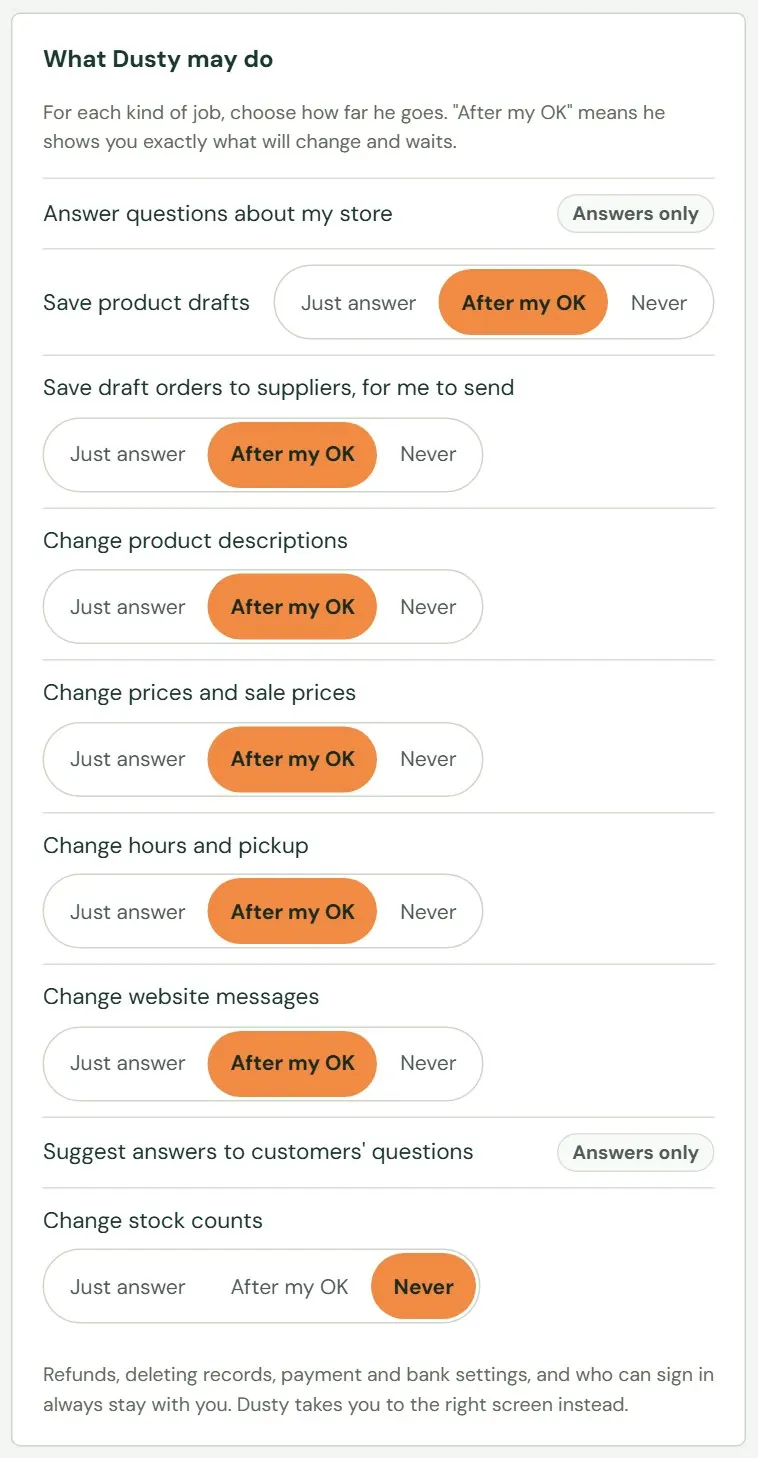
- 1Choose a job by its row.
- 2Dusty may explain how to do it.
- 3Dusty may prepare a change for approval.
- 4Switch this job off.
Choose who may ask Dusty
Included on every plan except Static Website and Online Store.
- Find Who may ask him. The Owner row stays on Ask, and approve changes.
- Choose a setting for Managers and for Staff. Managers start on Ask, and approve changes. Staff start on Ask questions only. The Store owner can select either choice for either role.
- Check that the choice you want is selected. Roadside confirms the saved choice. If someone can ask but cannot approve a particular change, check their access to the record and the choice for that job in Choose what Dusty may change, in Chapter 4.
Only the Store owner can change these settings. Managers and Staff are the only roles listed to change. People with the Read only role cannot ask Dusty.
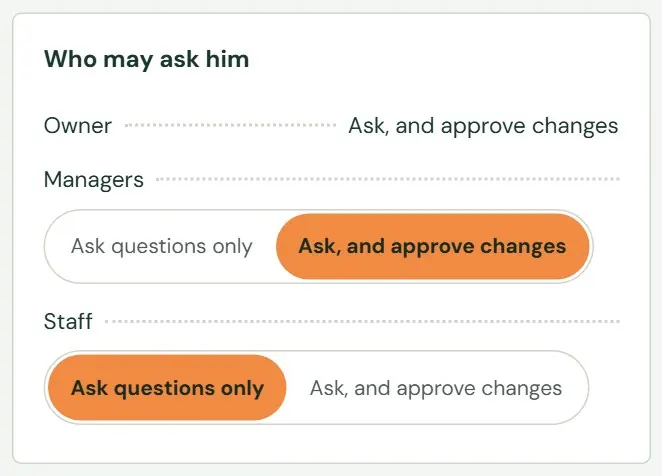
- 1Who may ask him is the heading for role settings.
- 2Managers start with approval access.
- 3Staff start with questions only.
- 4Choose this to let Staff ask and approve changes.
See how much help the store has used
Included on every plan except Static Website and Online Store.
- Read This month. It lists Questions answered, Changes you approved and Drafts he prepared.
- Look under the bar for the share of this month’s help used and the date it starts fresh. Dusty tells you before it runs low and finishes the job he is doing. Finding screens and records never uses any of this help.
- To check a particular change, read What he did lately. It lists up to 30 recent entries, newest first. A prepared note and its approval have separate entries. Look for who asked and who approved it.
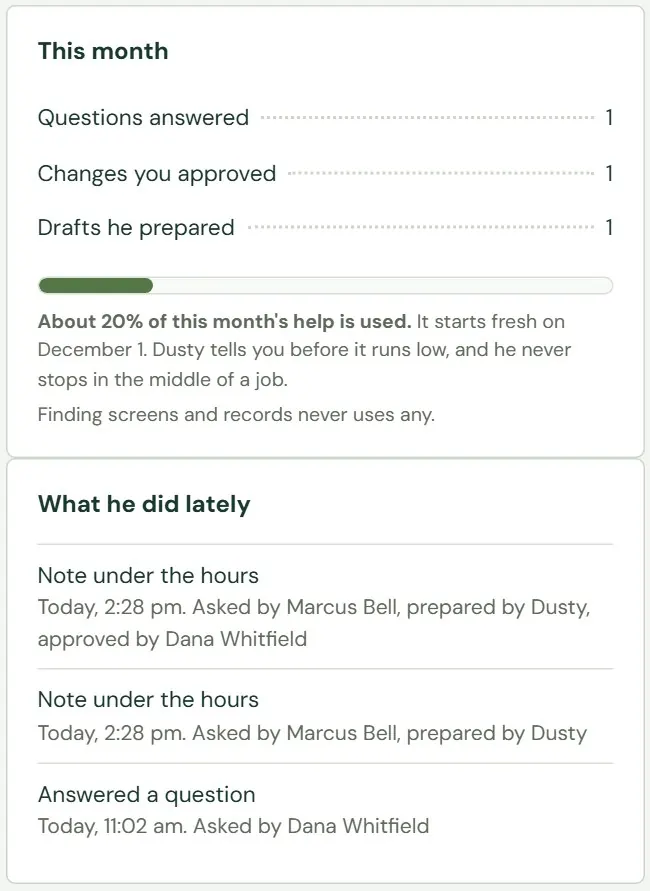
- 1This month is the heading for the store’s help totals.
- 2Read the totals for answers, approvals and drafts.
- 3Find the most recent work first.
Something here does not match your screen? Write to support@dirtroadsoftware.com with the name of the screen, what you pressed and what you expected. A picture of the screen helps.