
Check a change Dusty prepared and give your OK
Dusty shows exactly what will change and waits. Look it over, press the card’s button to save it, or set it aside.
In this chapter
Ask Dusty to get a change ready
Included on every plan except Static Website and Online Store.
- Waiting for your OK
- The list where you review changes Dusty has prepared before they take effect.
Staff members with approval access from the Store owner can follow these steps too.
- Press Ask Dusty at the foot of the menu and choose Talk. Tell him which record to change. For example, ask him to set the regular price of the 50 lb bag of Ridgeline Layer Feed to $26.99. The regular price is the usual price. A sale price is the price during a promotion.
- Open Waiting for your OK to find the card. Dusty can prepare a product draft, description, regular or sale price, stock count, hours, closed day, hours note, pickup change or website message. The store record stays as it was until someone approves the card.
- If Dusty gives directions and no card, check the job and the person asking. The job needs After my OK and the person needs permission to make the change on its own screen. A role set to Ask questions only gets directions. See Choose what Dusty may change, in Chapter 4 and Choose who may ask Dusty, in Chapter 4.
A sale price needs Discounts set up in Roadside (Turn on Discounts for the store, in Chapter 22). Storehouse ERP handles purchasing and inventory. With Storehouse ERP, Dusty can also draft an order to a supplier from your reorder rules for you to check and send.
Look over a change and say yes
Included on every plan except Static Website and Online Store.
Staff members with approval access from the Store owner can follow these steps too.
- Open Ask Dusty and choose Waiting for your OK. You can also open the list from Today if it shows that card. Articles and product drafts waiting for review count here too. If the list says Nothing is waiting, there is nothing to review.
- Find the change by its title and who asked for it. Press Look it over. For a price, compare the product, size and proposed figures with the shelf. The card says when the new price applies and where it shows. For a closed day, check the date against your calendar.
- If details are missing, the card can say “This card is not ready. Look it over before saving.” Open Change the details if the fields are folded away. Fill in the missing details, press Update and check the revised card.
- If the change is right, press the button that names it, such as Save regular price. A typed or spoken yes in Talk leaves the card waiting. To refuse the change, press Not now. The record stays as it was.
- After you approve, look for Saved and the name of the person who approved it. On a regular-price change, sales already made keep their price.
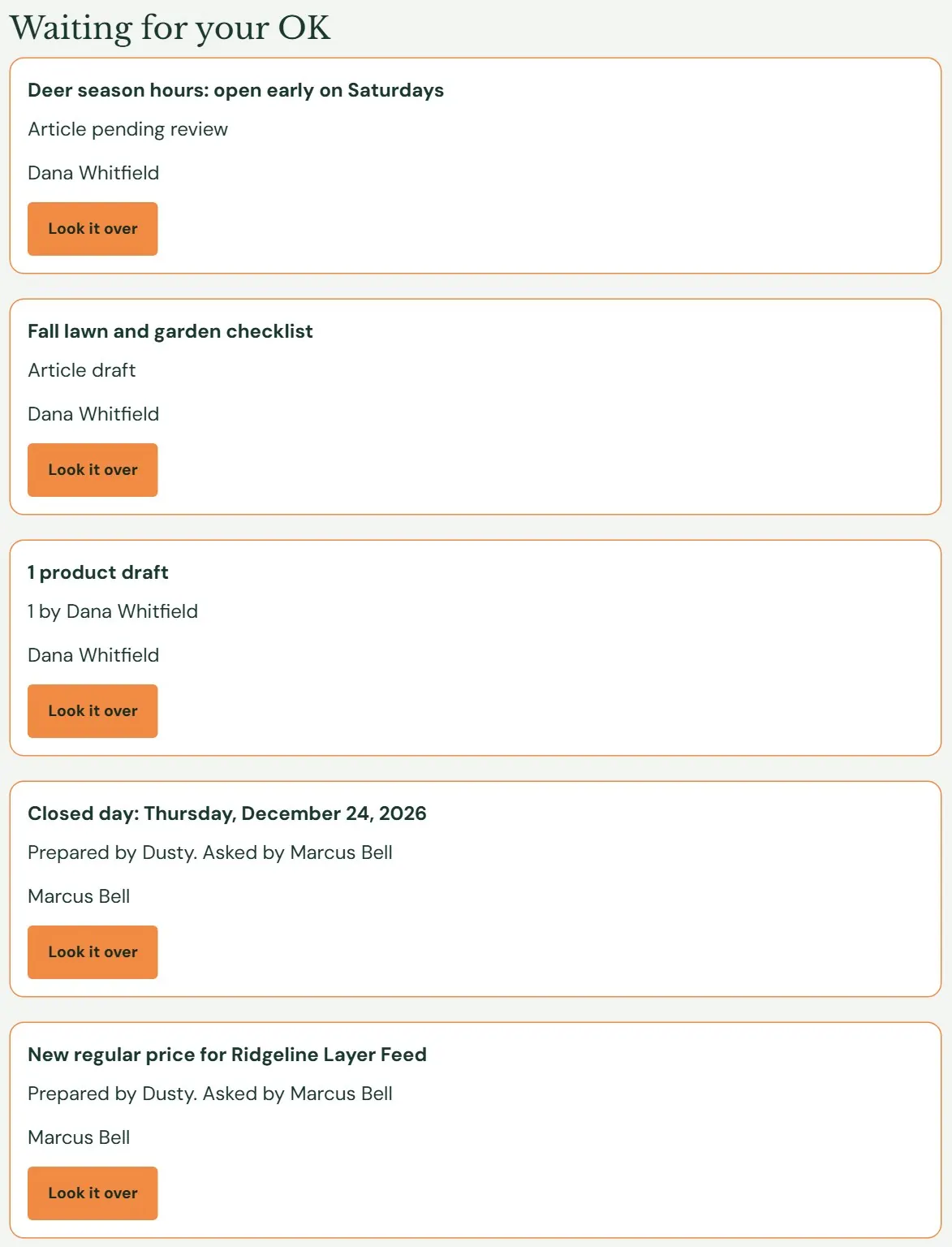
- 1Check everything waiting for review.
- 2Check who asked, then press Look it over.
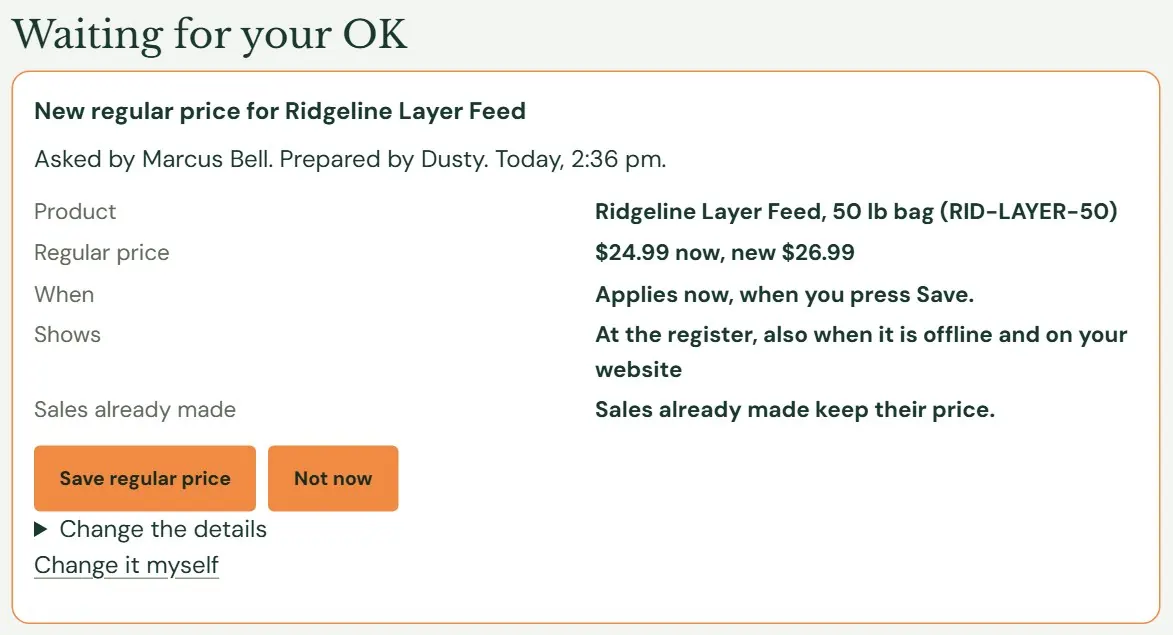
- 1Read the full card for the change you opened.
- 2Approve this price for this size.
- 3Set the card aside.
- 4Open the product record.
Other cards name the work on their button. For products, look for Save product draft, Save product text, Save sale price or Save stock count. For a closed day or a note under the hours, look for Save closed day or Save note.
For weekly hours or pickup settings, the button reads Yes, save these. For a website message, look for Save notice, Save closed message or Save thank-you message. Save unsent order leaves the supplier order for you to send.
Set a change aside or make it yourself
Included on every plan except Static Website and Online Store.
Staff members with approval access from the Store owner can follow these steps too.
- Find the change in Waiting for your OK and press Look it over. To drop it, press Not now. The card says “Set aside. Nothing was changed.”
- To keep the request but correct a price, open Change the details. Type the amount in New regular price and press Update. Check the revised card. Press Save regular price only when it reads the way you want. On a draft supplier order, Change the amounts opens the quantities. Correct them and press Update to review the order again.
- If you prefer to make the edit on its own screen, press Change it myself. A regular-price card takes you to the product record. An hours or closed-day card takes you to Hours and contact.
If the card offers Change what Dusty may do, the Store owner can follow it to the job settings. See Choose what Dusty may change, in Chapter 4.
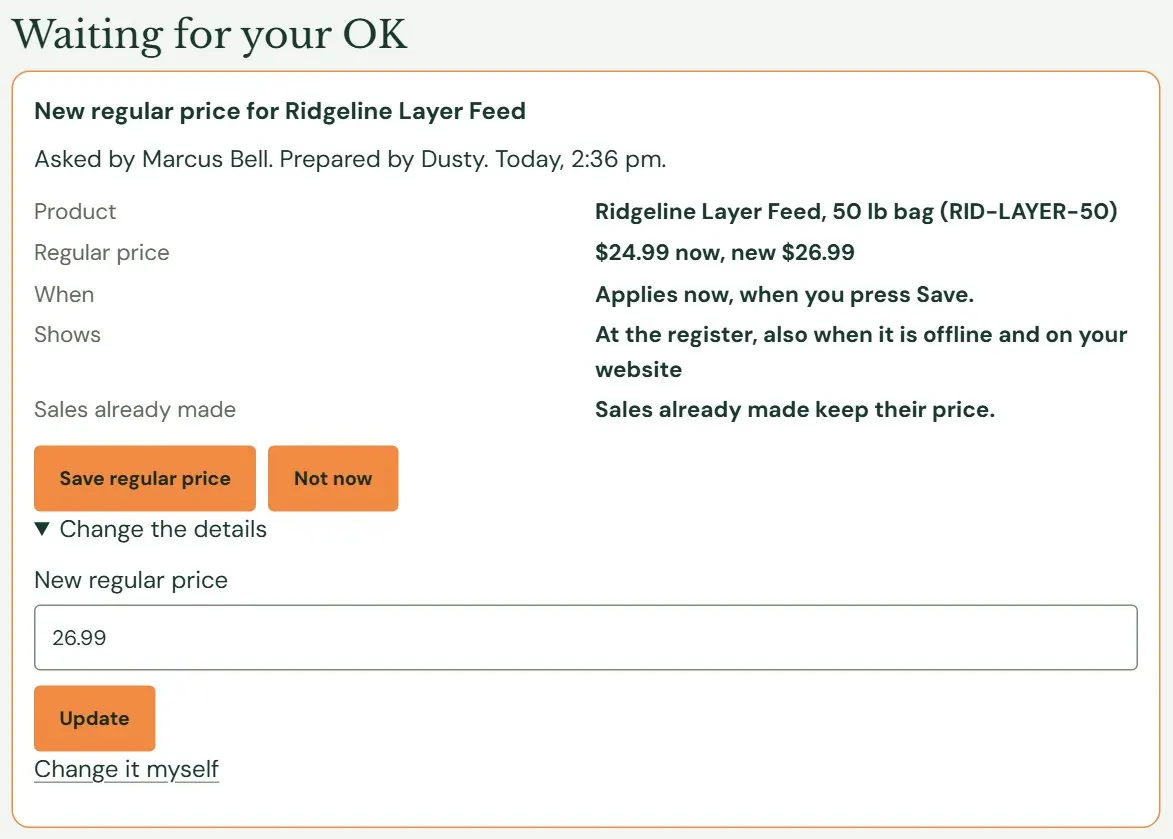
- 1Open the price field.
- 2Put the corrected figure on the card.
- 3Save the price after checking it.
Check a card whose figures changed while it waited
Included on every plan except Static Website and Online Store.
Staff members with approval access from the Store owner can follow these steps too.
- If you press the card’s save button after the record has changed, Dusty explains what changed since he prepared the card. Nothing was saved. On the pictured card the store price moved from $24.99 to $25.49 while the proposed $26.99 was waiting.
- Read Current figures and compare the store’s price now with the proposed price. If you still want to change it, press Review current figures. Check the refreshed card and correct its details if needed before pressing its save button.
- If the proposal no longer fits, press Set it aside. To check or change the record yourself, press Change it myself.
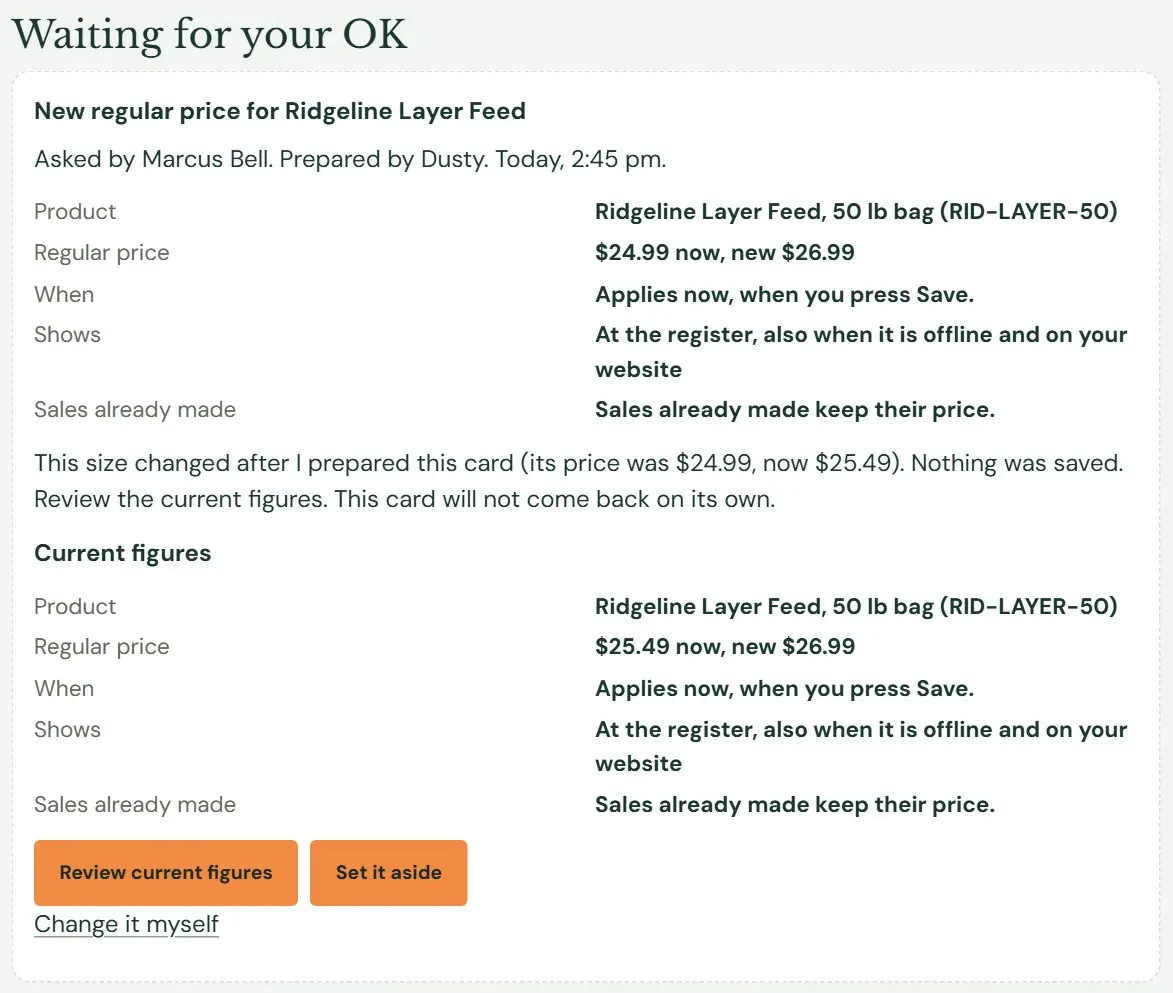
- 1Read why the price was left alone.
- 2Compare the current price with the proposed price.
- 3Bring the current figures into review.
Undo a change Dusty saved
Included on every plan except Static Website and Online Store.
Staff members with approval access from the Store owner can follow these steps too.
- Look for Undo on the Saved card right after you approve. If you asked for the change, you can also find the card with your original question in Talk while that conversation is available. If you can no longer open the card, make the correction on the change’s own screen.
- If the card offers Undo, press it to prepare a separate card. If one is already waiting, press Open that card. Check what will be put back before pressing the button that names the correction.
Undo is available for up to 7 days while the saved change is still in place. The button on the undo card depends on the job.
| Saved change | What to do |
|---|---|
| Regular price or stock count | Press Put back regular price or Undo stock correction. If stock has moved since the correction, count the shelf again. |
| Sale price | While Dusty is still watching the unchanged sale, use Cancel sale price before it starts or End sale price now while it is running. |
| Product text, checkout messages or pickup settings | Check the earlier text or settings. The buttons are Save product text, Save closed message, Save thank-you message and, for pickup, Yes, save these. |
| Store hours, hours note, existing closed day or website notice | Use Yes, save these for weekly hours, Save note for the note, Save closed day for a changed closed-day reason or Save notice to restore a previous notice setting. |
Remove a newly added closed day through Open Hours and contact. A notice with no previous setting also needs to be changed on Hours and contact. The website shows the correction after it is published.
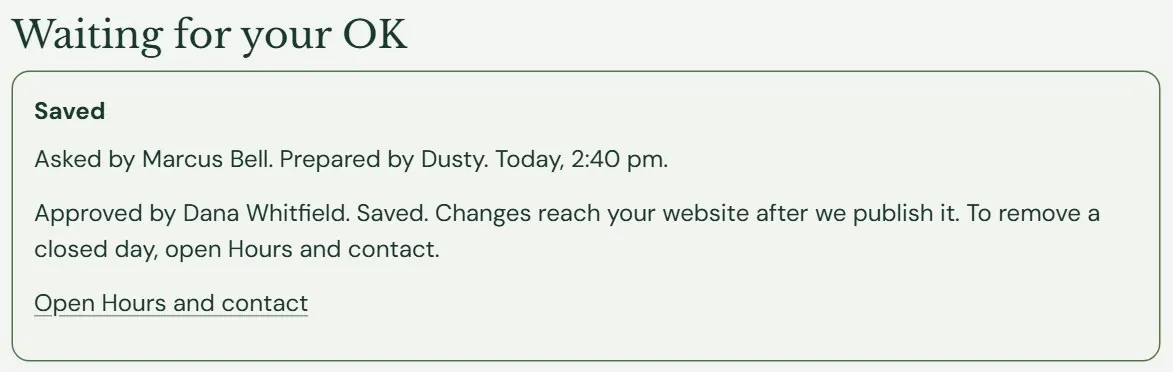
- 1The closed day has been saved.
- 2Check who approved it and where to remove it.
A new product draft and a draft supplier order never offer Undo. Archive the product draft on its product page or discard the unsent order on Purchase orders. The Store owner can check recent activity in See how much help the store has used, in Chapter 4.
Something here does not match your screen? Write to support@dirtroadsoftware.com with the name of the screen, what you pressed and what you expected. A picture of the screen helps.