
Set up website chat and read visitors' questions
Website chat gives visitors answers while they browse. It is separate from the contact form, which sends your store a note to answer, and from Ask Dusty, which works inside Roadside for a store's own team where the plan includes it.
In this chapter
Put the chat button on the website
Your store must have the AI chatbot upgrade.
- Website chat
- The assistant that answers visitors’ questions on your store’s website.
- Tick Show the chat on my website. In Button words, type up to 40 characters, or leave it empty for “Chat with us”.
- Tick Show the chat's own round button on phones if you want that button. Leave it unticked when your website's phone bar already has a chat button.
- Under Chat script, choose the one Dirt Road set up for your store. This connects the website to your assistant. In Chat name for your store, enter the name Dirt Road set up, using lowercase letters, numbers and dashes.
- Press Save website chat. Open your live home page and press the chat button. On a phone, check that there is one way to open chat where you expect it.
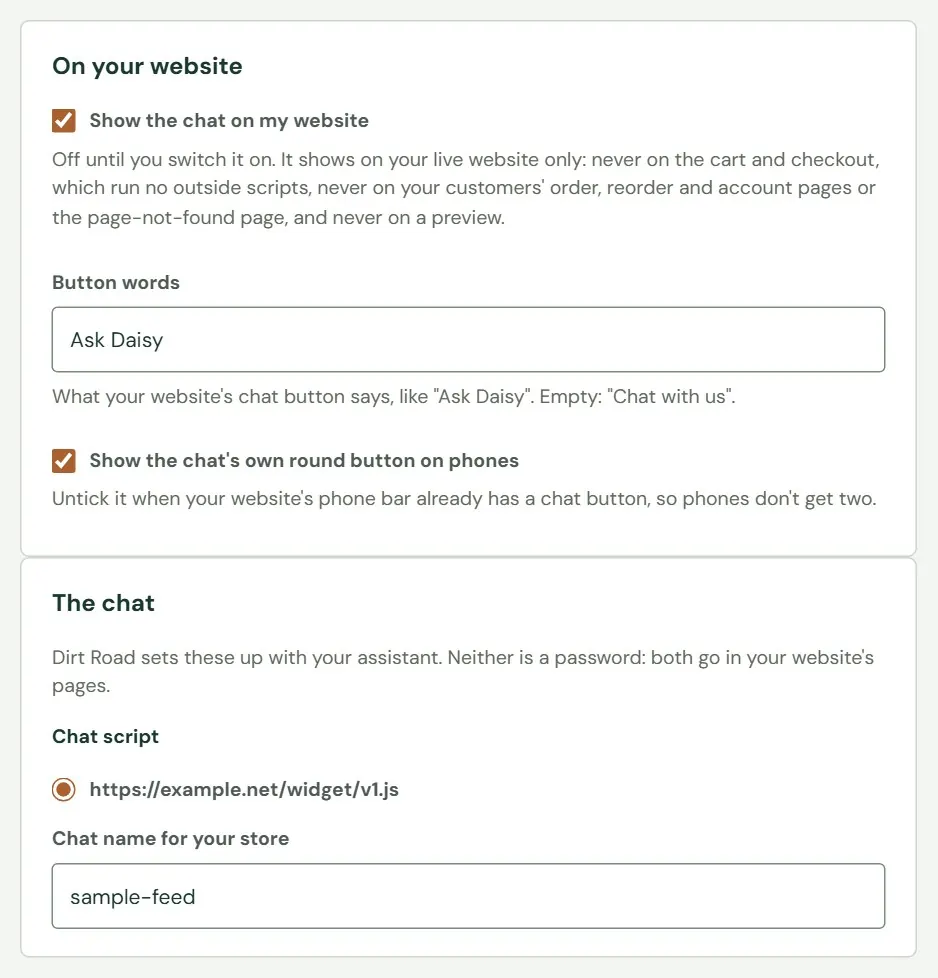
- 1Switch on chat for the live website.
- 2The words customers press to open chat.
- 3Choose whether phones get the separate round button.
- 4Choose the chat script Dirt Road set up.
If something looks wrong
If the chat button is missing, open your live home page. The cart, checkout, order, reorder and account pages, the page-not-found page and previews never show chat. Check that the box is ticked and your assistant is on (Change what the assistant says first, in Chapter 9).
No script listed under Chat script? Ask Dirt Road to set up your chat.
Change what the assistant says first
Your store must have the AI chatbot upgrade.
- At the top, look for Switch name off or Switch name on. The button uses your assistant's name. Press it to change whether visitors can chat. Confirm if you switch it off. The button saves that change on its own.
- In Greeting, type the first words a visitor should see when they open chat. You have 500 characters.
- If your assistant has delivery settings, enter the distance you deliver free in Free delivery radius (miles). Your assistant measures in a straight line from your store's map location. Outside that distance it tells the customer to call. This setting changes what your assistant says about delivery. Checkout uses its own rules.
- In What name should know, where name is your assistant's name, give short facts such as a holiday closing or fresh hay in the barn. You have 2,000 characters. These notes take precedence over other information your assistant has.
- Press Save. Open chat on your live home page to read the greeting. If the delivery answer is wrong, check the miles here and the map location in Correct the phone number, address or map pin, in Chapter 6.
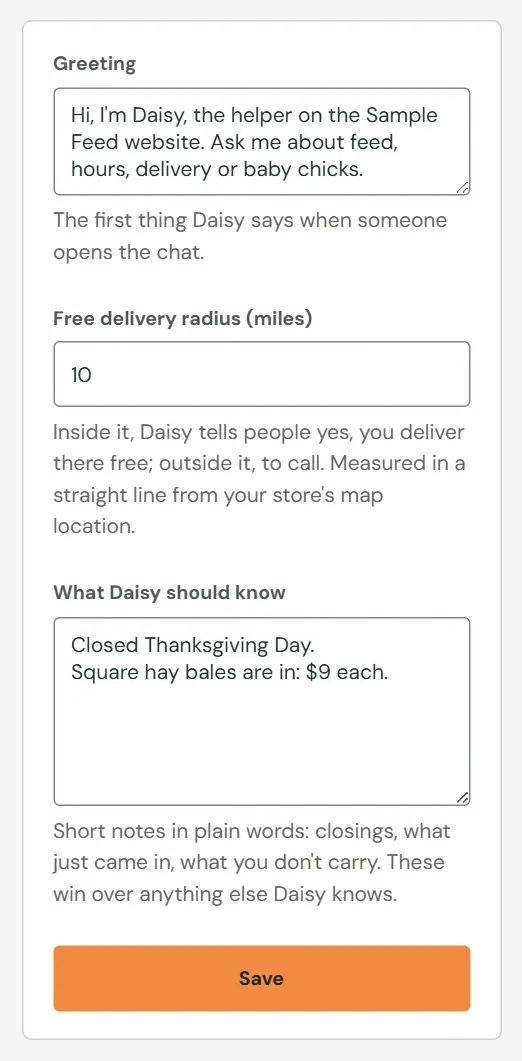
- 1The greeting is the first thing a visitor reads.
- 2The distance is measured from the store's map location.
- 3Save applies the greeting and settings on this form.
See what customers ask most
Your store must have the AI chatbot upgrade.
- Choose Last 7 days, Last 30 days or Last 90 days for the lists. The three totals at the top always cover the last 30 days. If the lists look empty, try a longer period.
- Under Conversations, press a visitor's First question to read the whole exchange. Under What customers ask, the most frequent questions come first.
- Beside a question you want on a store page, press Answer on your website. Roadside starts a public question with those words. Add your answer, tick the page and press Save questions. See Answer a question on the right page, in Chapter 10.
- Under Contact details people left, read what the visitor asked and use the phone number or email they gave for a reply. Press The conversation if you need the rest of the exchange.

- 1Last 7 days narrows the lists to a week.
- 2Last 30 days is selected here.
- 3Conversations counts chats.
- 4Answers counts replies from your assistant.
- 5Contact details left counts the contacts visitors shared.
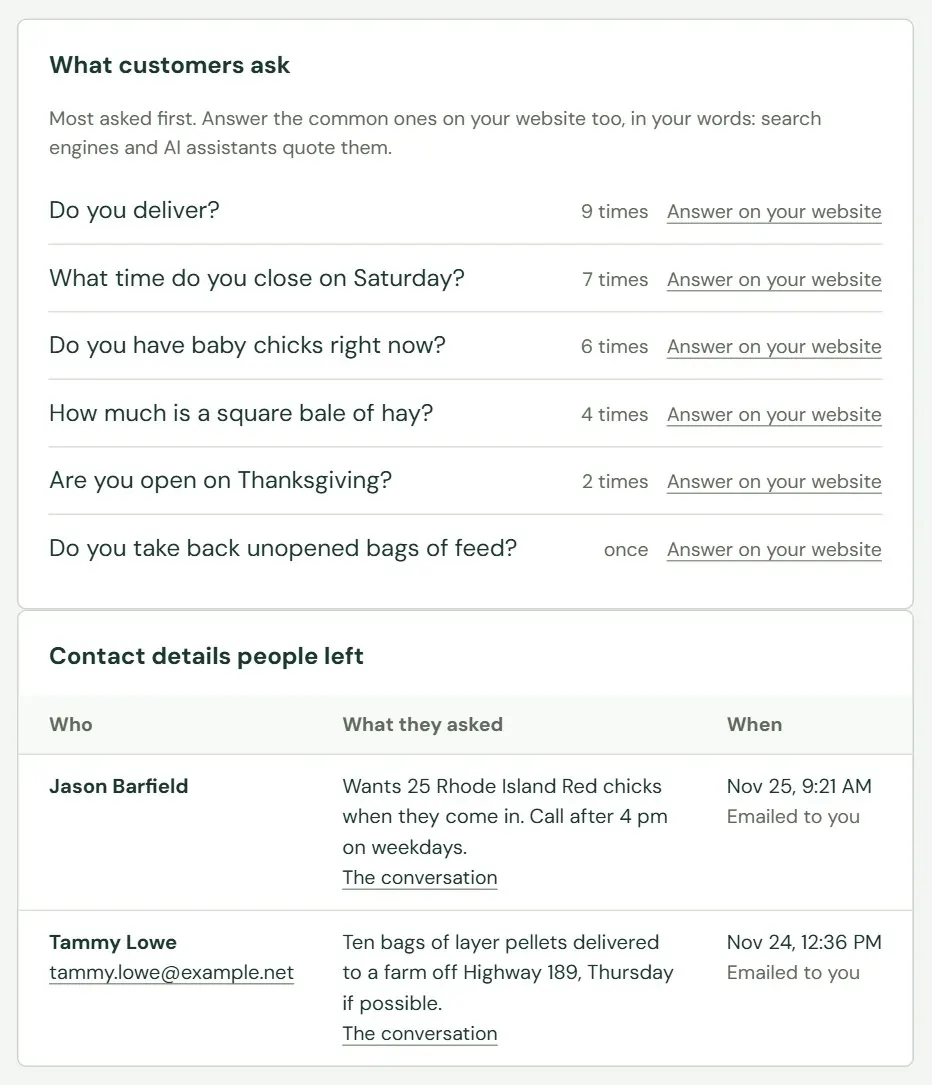
- 1What customers ask lists questions in order of frequency.
- 2Each question has its own link to start a public answer.
- 3Find the visitor's request and any contact details here.
Something here does not match your screen? Write to support@dirtroadsoftware.com with the name of the screen, what you pressed and what you expected. A picture of the screen helps.