
Compare an item's price with the market
Before changing a shelf price, check what other stores charge for the same size. Price Watch suggests a price. You decide whether to change yours.
In this chapter
Find prices worth checking
Your store must have the Price Watch add-on, offered on Online Store, Counter + Online Store and Whole Store plans.
- Price Watch
- A tool that compares your price with what other stores charge for the same size and suggests a price for you to consider.
- Open Pricing check. Choose Over market for sizes priced higher than the market price you compare with, or Room to go up for sizes priced lower. Both tabs use the difference your store set. In line shows sizes within that difference.
- Find the size you sell. Read Your price beside Compared with. The store count and date sit under the market figure. Difference gives the gap in dollars and percent. Margin now / at that price lets you weigh the change before you consider the Suggestion.
- No market yet can include a size because no store lists it online, or because the competitor you chose has no price for it. A Store owner or Manager can press the product name to check the listing or look up the size. See Check that the comparison is for the same item, in Chapter 21.

- 1Over market lists sizes priced more than your set difference above the price you compare with.
- 2Room to go up lists sizes priced more than your set difference below the price you compare with.
- 3In line includes prices close enough to the comparison.
- 4No market yet lists sizes without a price to compare.
Market checks must be active for the store. If Pricing check is locked, open Check what your store can open, in Chapter 3 to check what your store has.
Choose what counts as a price difference
Your store must have the Price Watch add-on, offered on Online Store, Counter + Online Store and Whole Store plans.
- The market median
- The middle price among comparable listings for the size you sell.
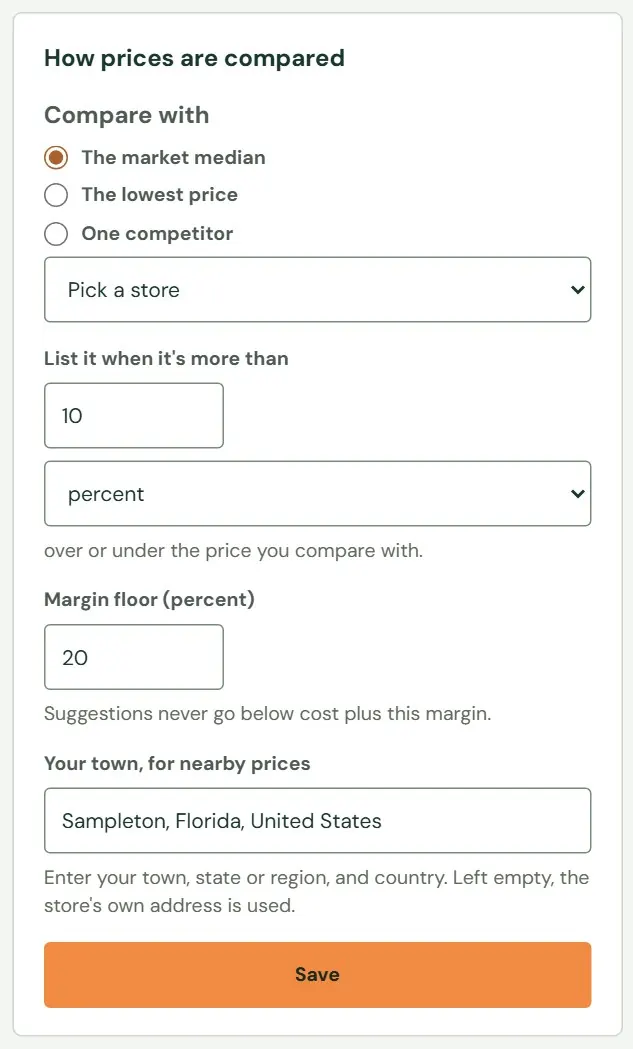
- Under How prices are compared, choose The market median for the middle price among comparable listings, or The lowest price. To follow a particular seller, choose One competitor and choose its name from Pick a store.
- Under List it when it's more than, type the difference that matters to you and choose percent or dollars. Roadside puts a size in Over market or Room to go up only when the gap exceeds that figure.
- Set Margin floor (percent) to the margin you want to keep when considering a lower price. Roadside uses the cost on the size to work out how low it can suggest going.
- Under Your town, for nearby prices, enter your town, state or region, and country, or leave it empty to use the store's address. Press Save. To start a market check, press Look up now. Your shelf price changes only when you edit it yourself.
- 1Use the middle price.
- 2Use the lowest price found.
- 3Save the comparison settings for your store.
Check that the comparison is for the same item
Your store must have the Price Watch add-on, offered on Online Store, Counter + Online Store and Whole Store plans.
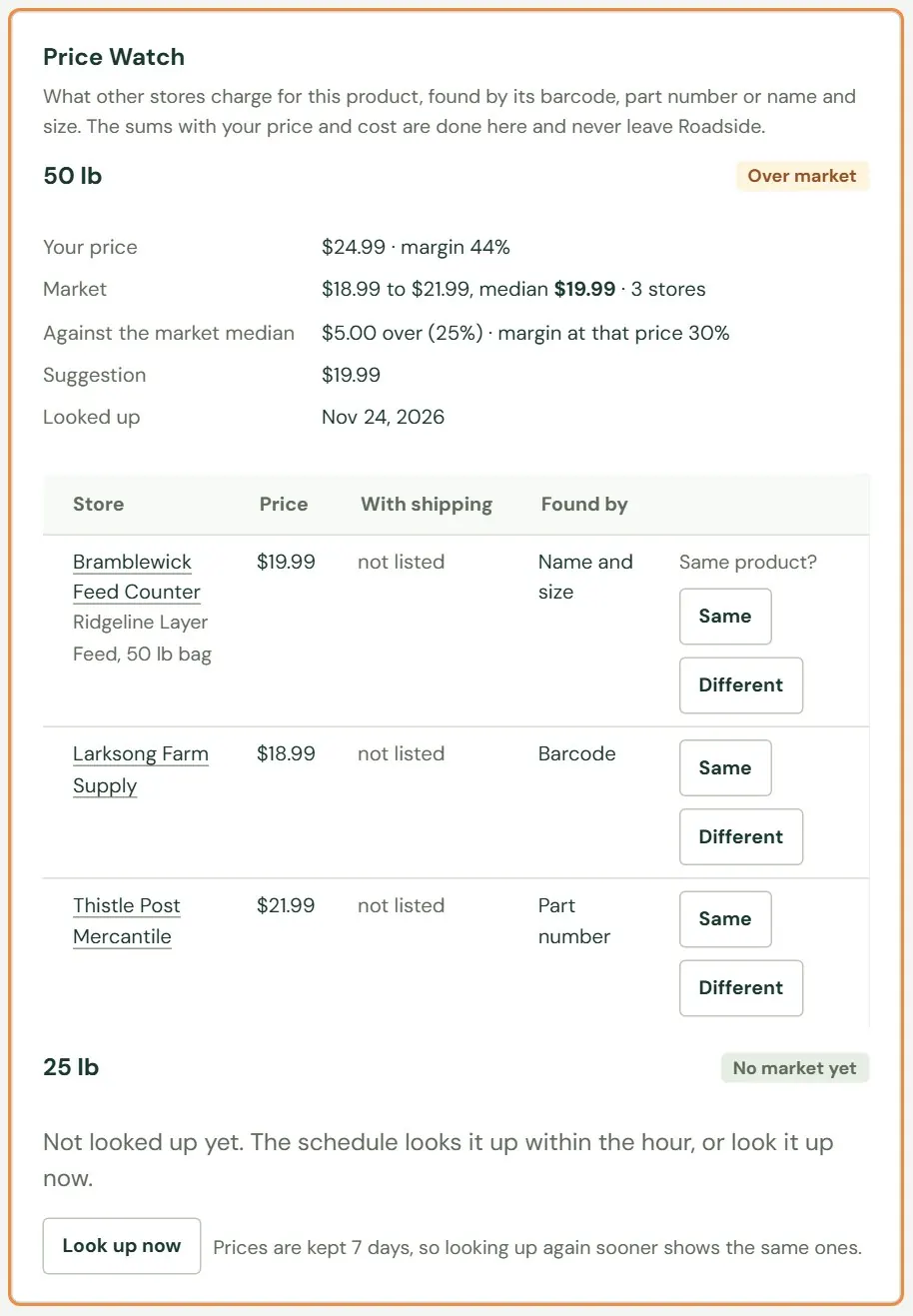
- Open the product for editing and open Price Watch. Find the size you sell. Your price sits beside your margin. Market gives the range and median from other stores. Read Suggestion and check the date under Looked up. Roadside keeps the calculations that use your price and cost inside Roadside.
- In the table for that size, follow the store link when there is one. Check the maker, package and size against yours. Found by tells you whether the listing matched by barcode, part number or name and size. With shipping shows the delivered price when the seller lists it.
- Under Same product?, press Same if the items match, or Different if the listing is for something else. Roadside looks up the size again. The row shows Same product or Different product. Press Forget to clear your answer.
- To check this product’s sizes, press Look up now on the product. Prices are kept for the number of days the panel shows. Looking again during that time shows the same prices.
Each hourly check looks up a few sizes. If you press Look up now on the store’s Pricing check screen, it says “Up to 25 sizes will be looked up in a minute or two. The rest follow a few at a time through the day.”
- 1Open Price Watch on the product.
- 2Same confirms the listing is for this item and size.
- 3Different flags a listing for another item or size.
If you decide to change your regular price, open Sizes and prices, change Price ($) on the size you sell and save the product. See Change a shelf price or put it back, in Chapter 14.
Included on Counter + Stock and Whole Store plans. Set what a particular customer pays under Products > Customer pricing.
Something here does not match your screen? Write to support@dirtroadsoftware.com with the name of the screen, what you pressed and what you expected. A picture of the screen helps.