
Give customers their own prices
Put contractors on a price level, agree a contract price with one farm, and give a lower price from ten bags up. The counter charges each customer the price that wins, and so does the website on a plan with the Online Store.
In this chapter
Set up price levels
Included on Counter + Stock and Whole Store plans.
A price level is a percent off the regular price for a group of customers: contractors, farms that buy by the ton, your own employees. The regular price is set on the product (Change a shelf price or put it back, in Chapter 14 of Core Roadside), or at one place by a price book. Which price a customer is charged is worked out by the rules in See which price a customer pays, in Chapter 25.
- Price level
- A percent off the regular price for the customers and accounts you put on it.
- Contract price
- One customer's or account's agreed price for a size.
- Quantity price
- A lower price from a quantity up, for every customer who has no contract price for that size.
If the page shows a notice that starts These prices take effect once your store's prices are kept in Storehouse., the counter charges the regular and sale prices (and so does the website, on a plan with the Online Store), and nothing you set on Customer pricing or Price books is charged yet. What you set is kept and waits. Send Dirt Road a ticket under Store account > Support (Send a question about Roadside, in Chapter 40 of Core Roadside) and ask for the store's prices to be kept in Storehouse.
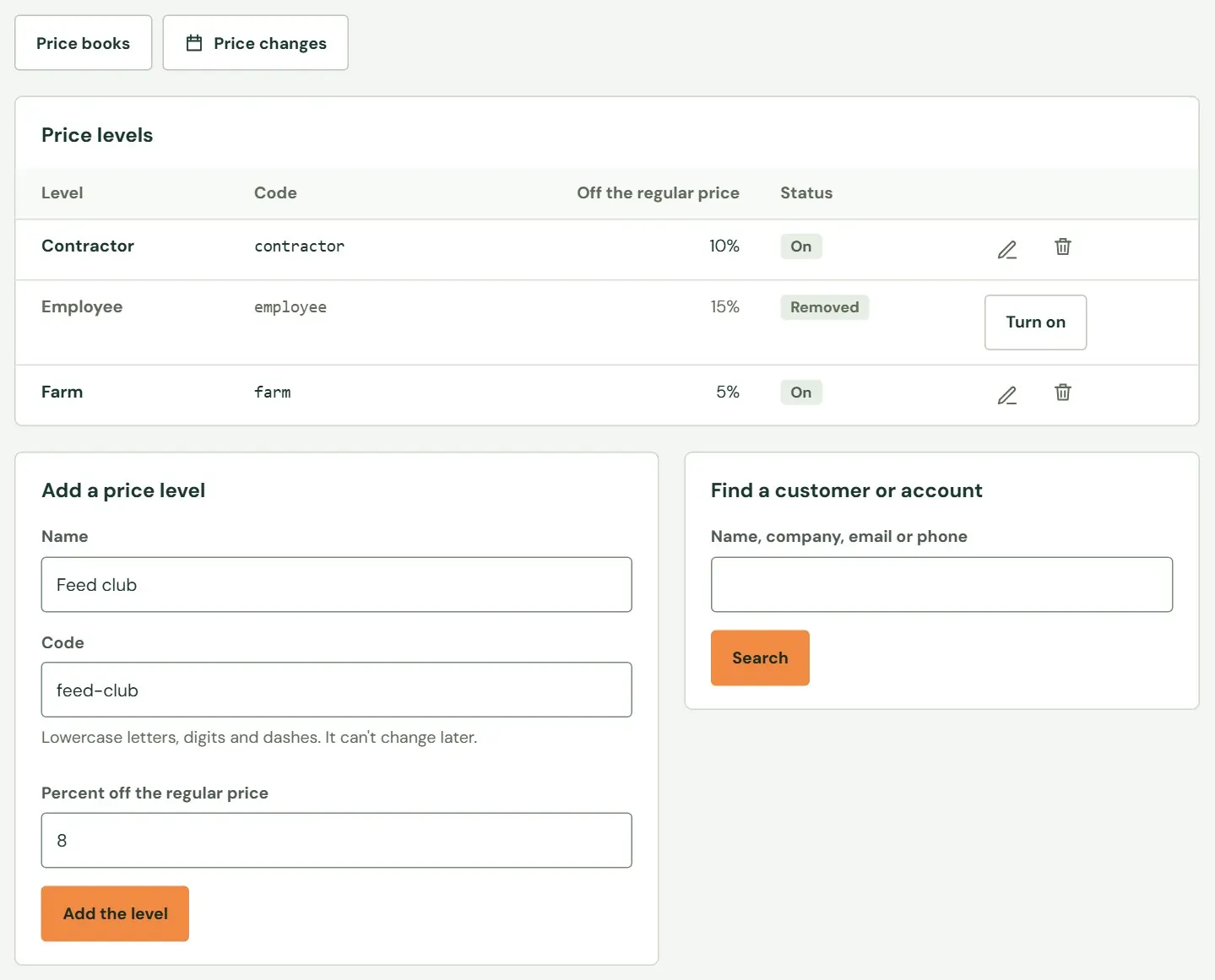
- 1The level's name, as customers' pages and receipts show it.
- 2The percent taken off the regular price.
- 3Status: a removed level reads Removed. Turn on, in its row, brings it back.
- 4Saves the level you typed.
- 5Opens Price books, for a different regular price by place.
- Open Products > Customer pricing and, in Add a price level, type the Name, such as Contractor.
- Type the Code: lowercase letters, digits and dashes, such as contractor. It can't change later, and no two levels share one.
- Type the Percent off the regular price, such as 10: above 0 and below 100, with up to four decimals.
- Press Add the level. Nobody is on the level yet, so no price changes. Roadside says Level Contractor added., and the level is listed as On.
Changing a level's percent changes the level's price for everyone on it from the next sale: press the pen on its row, change the figure, then press Save the level. Removing a level stops its percent for everyone on it from the next sale, and their price is worked out again without it. To remove one, press the trash button and answer Remove the level Contractor? Its customers will pay the regular price. The level stays listed as Removed and its customers keep it. Turn on brings it back for all of them at once.
Put a customer or account on a level
Included on Counter + Stock and Whole Store plans.
A customer's own page in Customer pricing is the one place to put them on a level. Accounts and the people in them are set up under Customers (Find a customer by name, phone or contact, in Chapter 33 of Core Roadside). A person on an account is priced as the account (See which price a customer pays, in Chapter 25).
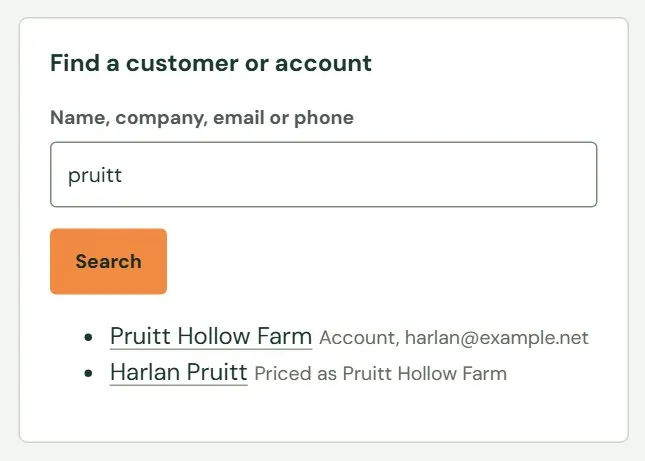
- 1Type part of a name, company, email or phone number.
- 2An account. Its page sets the level and contract prices for everyone on it.
- 3A person on an account. The link opens the account's page.
- Type in Name, company, email or phone on Find a customer or account, and press Search. A person on an account shows Priced as and opens the account's page.
- Open the customer or account. An account's page also lists People on this account.
- Choose the Level on the Price level card, such as Contractor (10% off), or None: the regular price to take them off.
- Check the level, then press Save the level. Saving puts them on that level, or takes them off, from the next sale. Roadside says Level saved., or No level now: the regular price.
Customers and accounts with their own pricing, on Customer pricing, lists everyone with a level or a contract price; the pen opens their page.
Agree a contract price with one customer
Included on Counter + Stock and Whole Store plans.
A contract price is the price you agreed with one customer or account for one size, such as a spring bid on layer pellets. How it ranks against levels, quantity prices and sales is in See which price a customer pays, in Chapter 25.
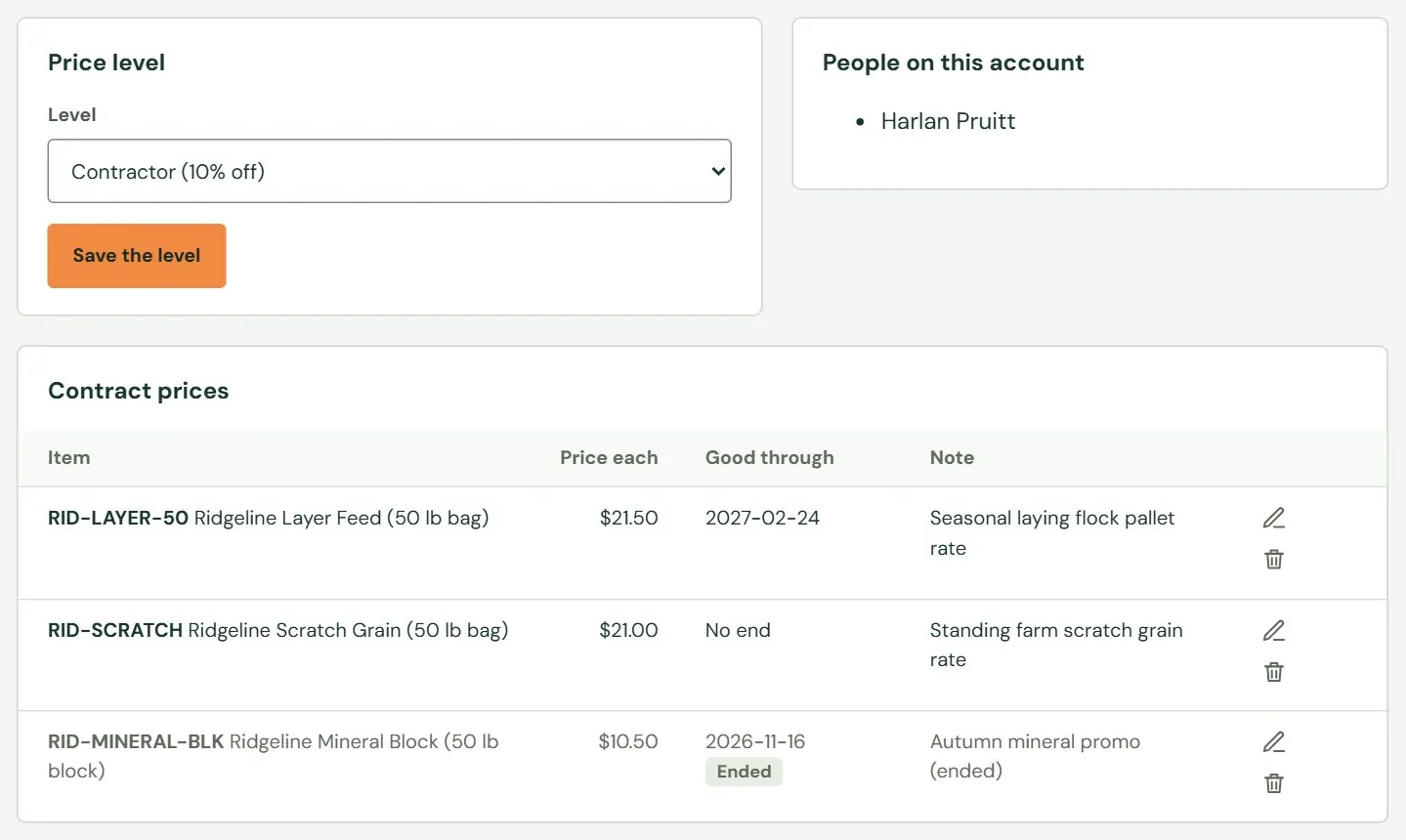
- 1The account's level, for everyone on the account.
- 2The sizes this account has its own price for.
- 3The last day the price is good, or No end.
- 4Its last day has passed. Remove it or give it a later day.
- Open the customer or account (Put a customer or account on a level, in Chapter 24). For a person on an account, open the account: Roadside refuses a contract price on the person with <name> is priced as their account. Add the contract price to the account.
- Type the SKU in Add a contract price. A customer has one contract price for a size: saving one for a SKU they already have replaces it.
- Type the Price each, such as 17.25: per bag, or per pound for a size sold by the pound.
- Choose the Good through day, the last day the price is good, or leave it empty for no end. A Note, such as Spring bid, takes up to 200 characters and no card number.
- Check the price, then save it. Saving makes it their contract price for the size from the next sale, even above the regular price. Press Add the contract price. Roadside says Contract price saved for <SKU>., and the line is listed with its Good through.
The pen on a line changes the price, the day or the note. A contract price ends by itself at midnight, store time, at the end of its Good through day, and the line stays listed with the badge Ended. Removing a line ends it from the next sale. To remove one, press the trash button and answer Remove the contract price for <SKU>? Once a contract price has ended or is removed, the customer's price for the size is worked out again by all the other rules.
Give a lower price from a quantity up
Included on Counter + Stock and Whole Store plans.
A quantity price is for every customer who buys enough of a size, walk-in customers included, except a customer with a contract price for that size: 10 bags or more at $18.50 each, or a pallet price from 40 bags. A size can have several, one for each starting quantity. The quantity is everything of that size on the sale or in the cart, added together. How it ranks against a level is in See which price a customer pays, in Chapter 25.
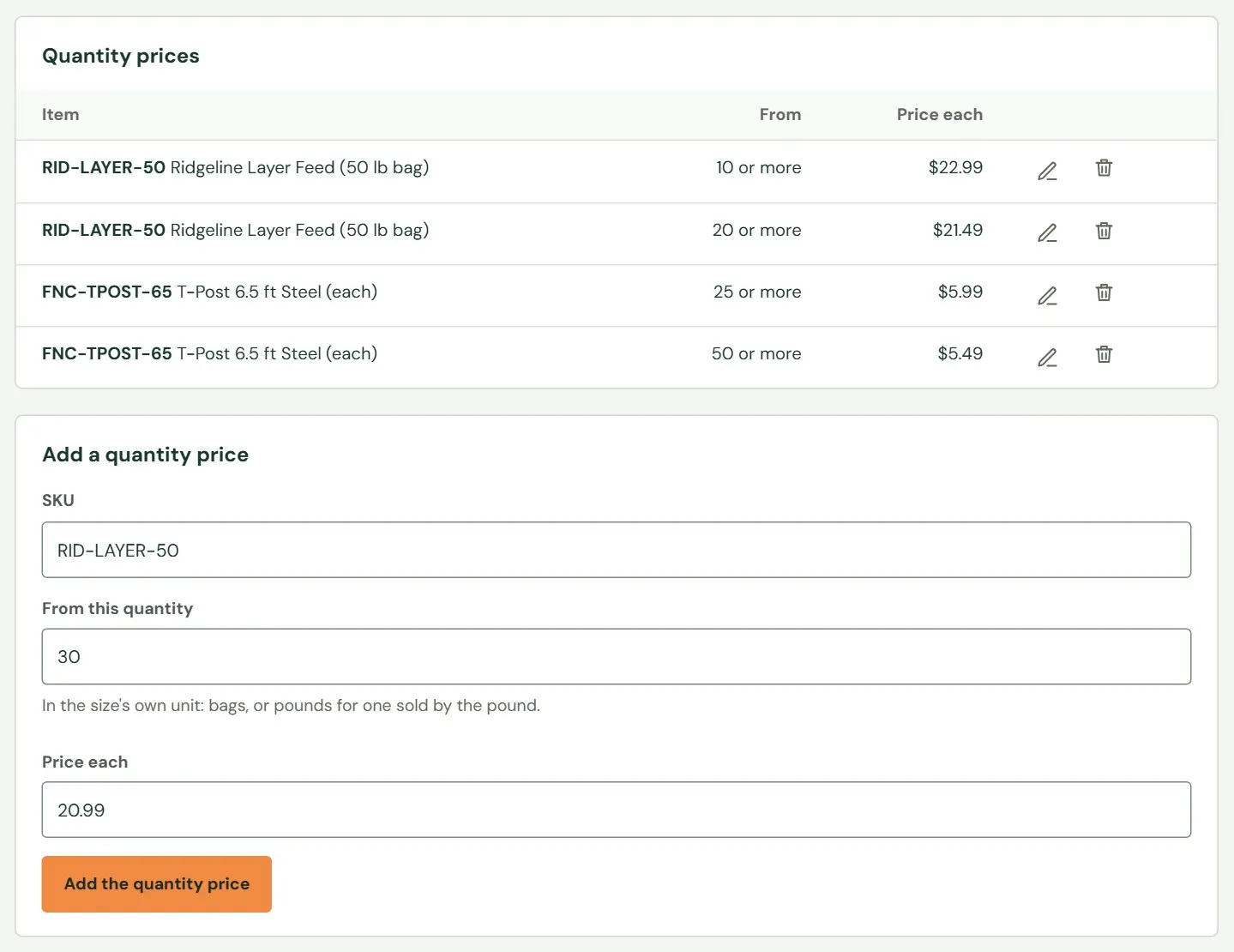
- 1The quantity the price starts at, in the size's own unit.
- 2What each one costs from that quantity up.
- 3Saves the quantity price typed in the form.
- Find Add a quantity price on Customer pricing and type the SKU.
- Type From this quantity, such as 10, in the size's own unit: bags, or pounds for one sold by the pound.
- Type the Price each, such as 18.50.
- Check both figures, then save. From the next sale, the price is offered to anyone without a contract price for the size who buys that many or more, and it is charged where it wins. Press Add the quantity price. Roadside says Quantity price saved for <SKU>., and the line shows, such as 10 bags or more at $18.50.
Adding a price for a SKU and quantity that already have one changes its price, as the pen on a line does. Removing a line ends that price from the next sale: press the trash button and confirm. If Roadside says <SKU> isn't in Storehouse yet. Save its product once (or fill the store) and try again., here or on a contract price, open the product, press Edit and save it once.
Something here does not match your screen? Write to support@dirtroadsoftware.com with the name of the screen, what you pressed and what you expected. A picture of the screen helps.