
Move stock between locations
Follow the bags from one location to the other. Record what leaves, count what arrives and keep a shortage open while you still expect the rest.
In this chapter
Draft a transfer
Included on Counter + Stock and Whole Store plans.
- Transfer
- Stock moved from one location to another.
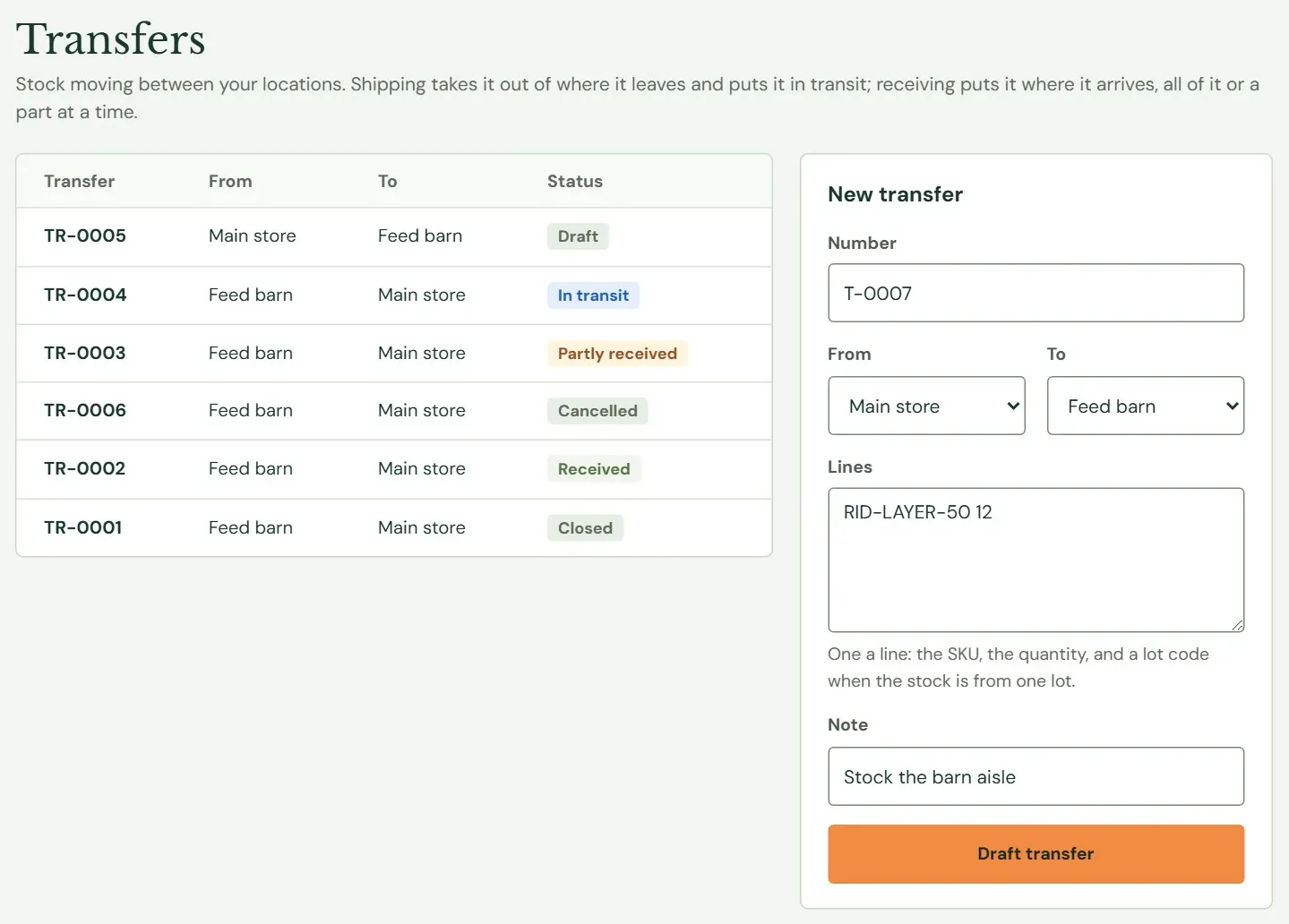
Staff can draft a transfer. With one active location you still see Transfers and the draft form. Both location lists offer the same place. A draft needs two different active locations, or Roadside says A transfer goes from one location to another. To add a place where you keep stock, see Add a location, in Chapter 15.
- Check the route. Roadside fills in Number. Choose where the stock leaves under From and where it will arrive under To.
- List what you need. In Lines, type the SKU (your item number for the size), a positive quantity and, for stock from one lot, its code. Separate them with spaces or commas. For 12 bags of layer feed, a line might read
RID-LAYER-50 12. Use one line per size and lot, up to 500 lines per transfer. Add a Note if needed. - Save the request. A draft leaves stock where it is. Press Draft transfer. Roadside says Transfer drafted. Ship it when it leaves. The transfer opens as Draft. Check the quantities under Asked for.
- 1Read the status before opening a transfer number.
- 2Choose the location the stock leaves.
- 3Type the size and quantity on each line.
- 4Save the request here before anything leaves.
Ship a transfer
Included on Counter + Stock and Whole Store plans.
- In transit
- Stock shipped on a transfer and not yet received.
- Open the draft by its number. Check both locations under the heading and match each SKU and Lot to the load. Home bins, when assigned, appear under Size.
- Count what leaves. The Ship column starts at Asked for. Change it to what actually goes. Type 0 for a line that stays behind. A blank uses the amount asked for.
- When the load leaves, take it out of the sending location. Shipping puts those units in transit. Neither location can sell those units while they travel. Staff can press Ship. Check for Shipped. The stock is in transit until it's received. The status reads In transit and Shipped shows what went.
If a named lot is on hold or recalled, the transfer cannot ship it. Keep it off the load and enter zero for that line before shipping the other goods. If the whole draft is called off, cancelling ends the draft and leaves stock in place. Press Cancel transfer and confirm the number. Roadside says Transfer cancelled. Nothing moved. The list reads Cancelled.
Each register sells from its assigned location (Move a register to another location, in Chapter 1 of Counter & Charge Accounts).
Included on Online Store, Counter + Online Store and Whole Store plans. The website sells from the default location. Stock sent from there leaves the website's available quantity when it ships.
Receive a transfer
Included on Counter + Stock and Whole Store plans.
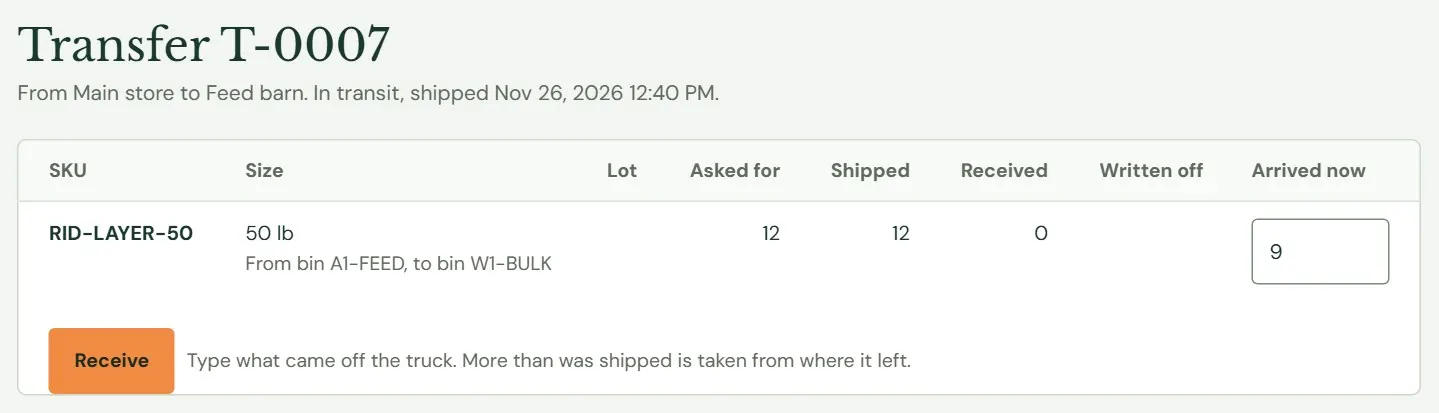
- Open the transfer number for the load. Check where it is going. Compare Shipped with Received to see how much is still on the way.
- Count what came off this truck. Under Arrived now, type only what arrived this time. Leave a line blank if none arrived. If 12 shipped and 9 came off, type 9. When the other 3 come, enter 3.
- Check any extra before you receive it. Receiving puts the bags at the arriving location. If you enter more than is still in transit, the extra comes out of the sending location and raises Shipped. Staff can press Receive. Look for Received. and check the total under Received.
- 1Compare what shipped with what has arrived so far.
- 2Type the quantity in this load.
- 3Read the home bins to check where the bags go.
- 4Record this arrival once.
Partly received keeps the balance in transit. Once all shipped units arrive, the status reads Received. If Roadside says That receipt was recorded already., check the total before entering more. A named lot put on hold or recalled on the way cannot be received on the transfer. Ask a Manager or Store owner to check the lot.
Close a transfer and write off the rest
Included on Counter + Stock and Whole Store plans.
Only a Manager or Store owner can close a shipped transfer. Use this when both locations have checked the load and agree that nothing else is coming.
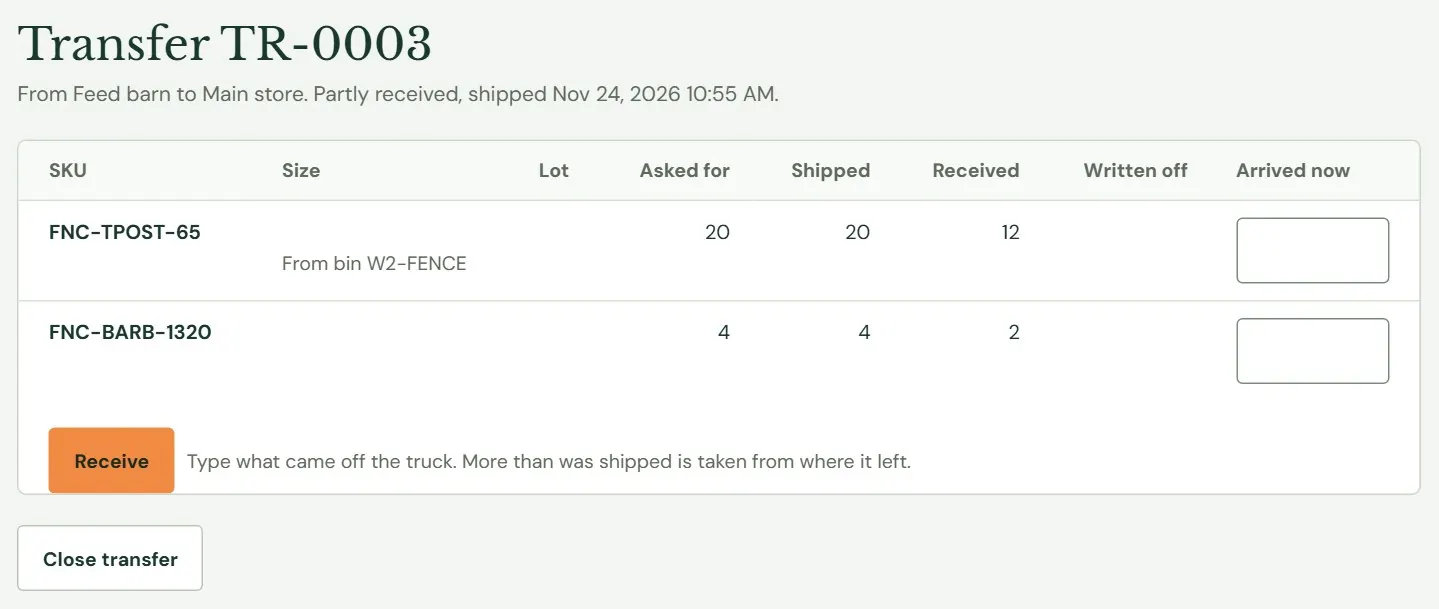
- Open the transfer number. Compare Shipped and Received on every line. Record any bags already at the destination first (Receive a transfer, in Chapter 19). Leave the transfer open if you still expect another load.
- Check the shortage before closing. Closing permanently writes off every unit still in transit. You cannot reopen the transfer or receive against it afterwards. If everything arrived, there is nothing to write off. Press Close transfer, check the number in the confirmation and confirm.
- Check what was lost. Roadside says Closed. Anything still in transit was written off as shrink. The status reads Closed. Written off shows the shortage on each affected line.
- 1Check how many reached the destination.
- 2Look here after closing for the quantity lost.
- 3Close only when you know no more of this load will arrive.
Something here does not match your screen? Write to support@dirtroadsoftware.com with the name of the screen, what you pressed and what you expected. A picture of the screen helps.