
See what is due and how a vendor is doing
Three reports show what is still on order, what should arrive each week and which lines are late. Vendor history shows how a vendor has done on time and on fill.
See what is still on order
Included on Counter + Stock and Whole Store plans.
Every order that is sent or partly received, with what each line ordered, what came and what is still open, valued at the order's cost. A line is late when its expected date has passed with something still open. Drafts are not on it until they are sent.
Open orders, Expected deliveries and Vendor history are tabs on Purchase orders. They only read: nothing on them changes an order, and they are worked out each time you press Show.
- Lead time
- The usual days from sending an order to its delivery.
- Fill rate
- What came in as a share of what was ordered, by value.
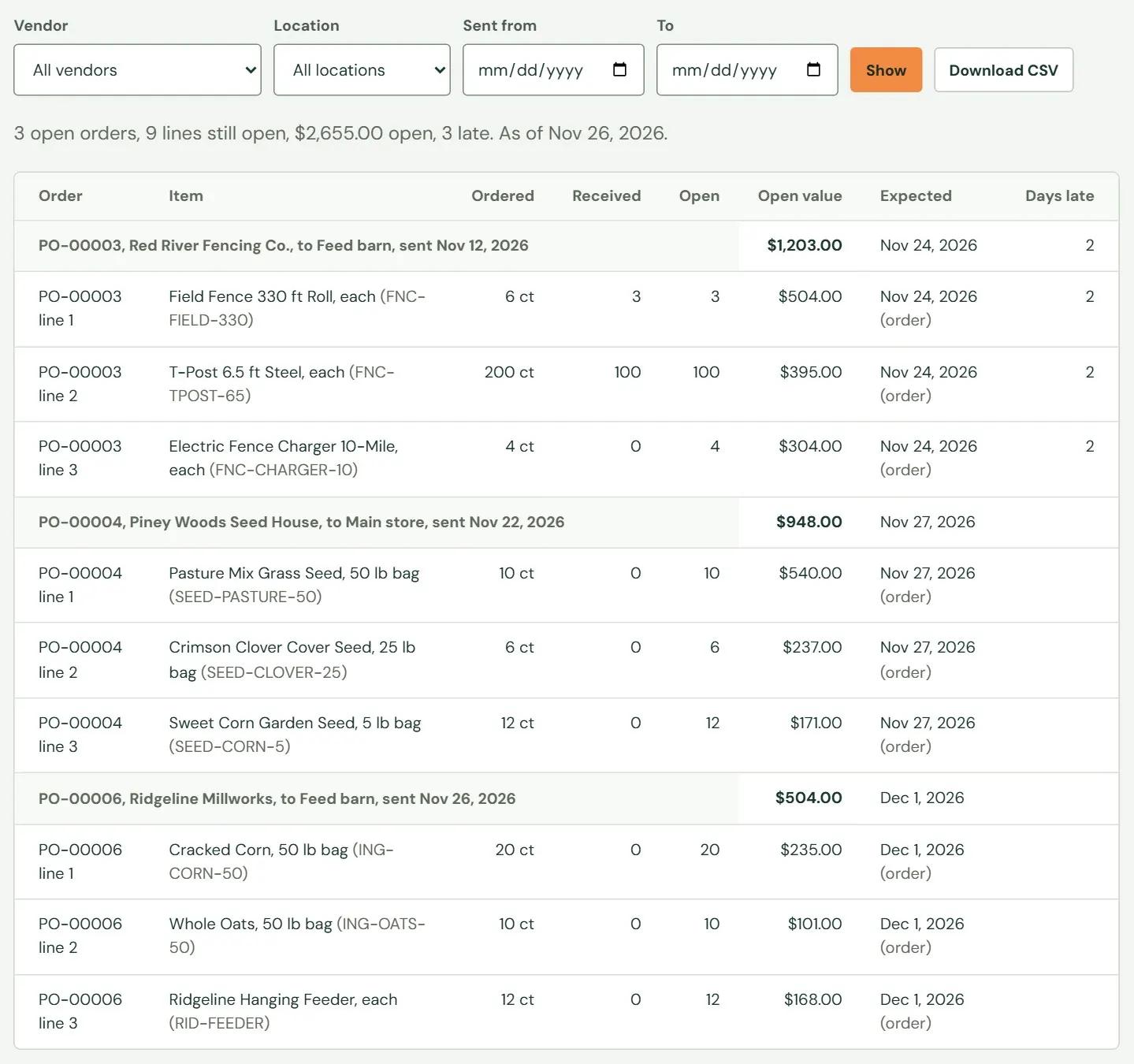
- 1Narrow the report to one vendor or location.
- 2Read how many orders and lines are open, their value and how many are late.
- 3Read what each line still has coming.
- 4Find the lines past their expected date.
- 5Download the report as a spreadsheet file.
- Open Purchase orders and the Open orders tab.
- Choose a Vendor or Location to narrow it, and dates under Sent from and To for orders sent in that range. Empty dates take every date. When your store has an inactive location, it is left out of the list unless you tick Include inactive locations. Press Show.
- Read the summary: <n> open orders, <n> lines still open, <$> open, <n> late. As of today's date.
- Read each order and its lines. An order's row names its vendor, where it goes and when it was sent, with its open value. Each line shows Ordered, Received, Open, Open value, Expected and Days late.
- Press Download CSV for a file of the same lines, named
open-orders-and the date.
Expected is the order's expected date, marked (order), or the day it was sent plus the lead time, marked (lead time): the vendor item's lead time, or the vendor's when the item has none. A line with neither reads No date. With nothing open the report reads No open orders. A range that runs backwards says The range starts after it ends. Press an order's number to receive against it or close what will never come (Receive a delivery against its purchase order, in Chapter 9, Close or cancel an order, in Chapter 6). The summary's order count matches the orders whose badge reads Sent or Partly received for the same filters.
Plan the week's deliveries
Included on Counter + Stock and Whole Store plans.
What is still coming, by the week it is expected (Monday to Sunday). Late lines are first. A line's date is its order's expected date, or the day it was sent plus the vendor's lead time. That lead time is the vendor item's when it has one. Use it to plan who is on the dock and where the pallets go.
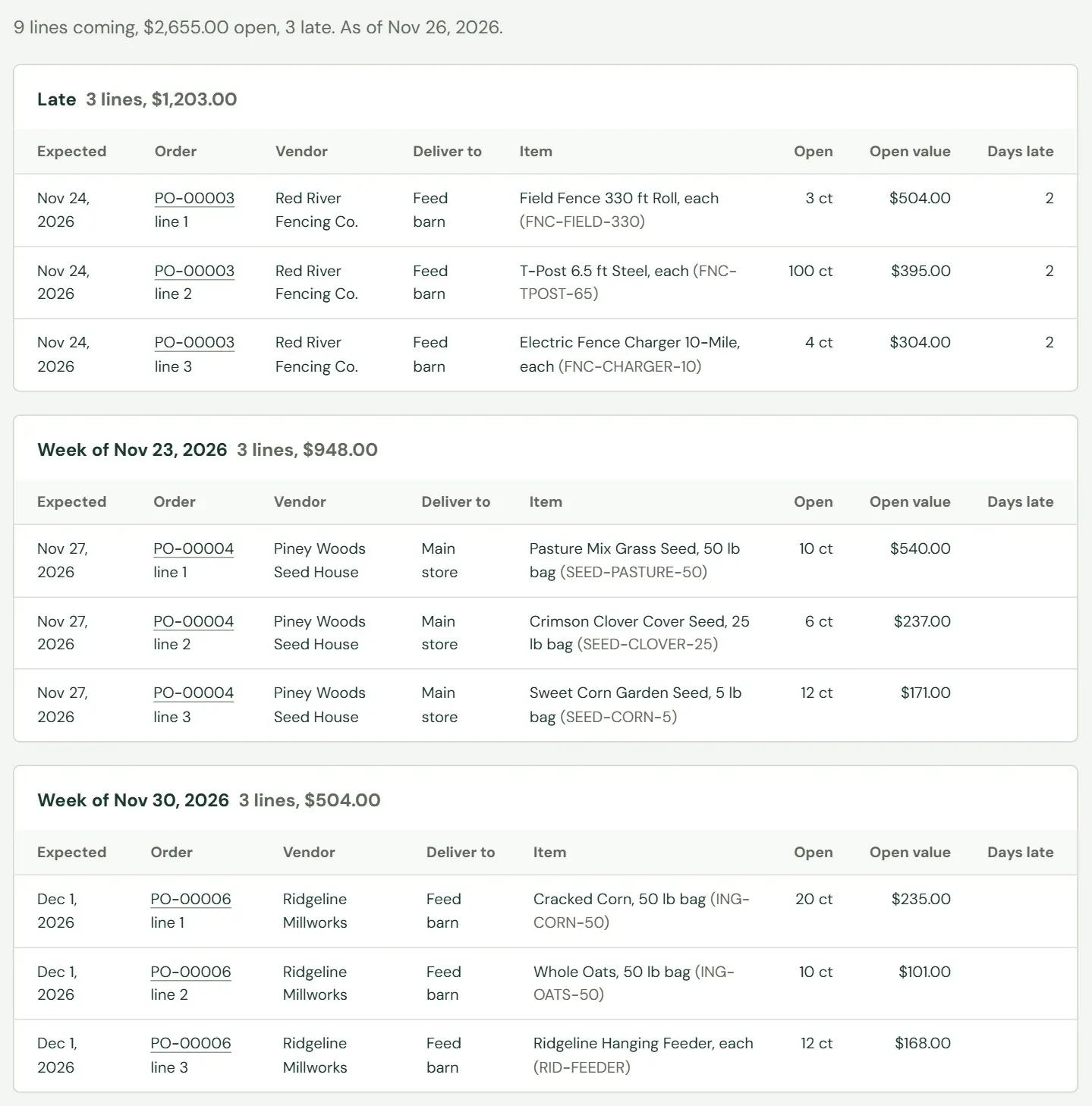
- 1Start with the lines already past their date.
- 2Read each week's lines, Monday to Sunday.
- 3Read the day each line is due.
- 4Read what each line is worth at the order's cost.
- Open the Expected deliveries tab.
- Narrow it if you need to, by vendor, location, or dates under Expected from and To. A date range leaves out lines with no expected date. Press Show.
- Read the groups in order. Late comes first, then Week of and the Monday, then No expected date. Each heading gives its number of lines and their value. Each line shows Expected, Order, Vendor, Deliver to, Item, Open, Open value and Days late.
- Call the vendor about each late line, and press Download CSV for a printed schedule.
The summary reads <n> lines coming, <$> open, <n> late. As of today's date. With nothing open it reads Nothing is expected. The date is the order's, one for all its lines: set it when the order is started, or on the draft's Order details card (Add what you need in the vendor's packs, in Chapter 6). Once the order is sent it stays. On a phone, Walk lists the same orders for receiving, late first (Receive a delivery on the phone, in Chapter 17).
Check how a vendor has done
Included on Counter + Stock and Whole Store plans.
Choose a vendor and a range of days to see what was ordered, what came in and what went back, and how the vendor did. Until a vendor is chosen it reads Choose a vendor and Pick a vendor above to see its orders, receipts and returns.
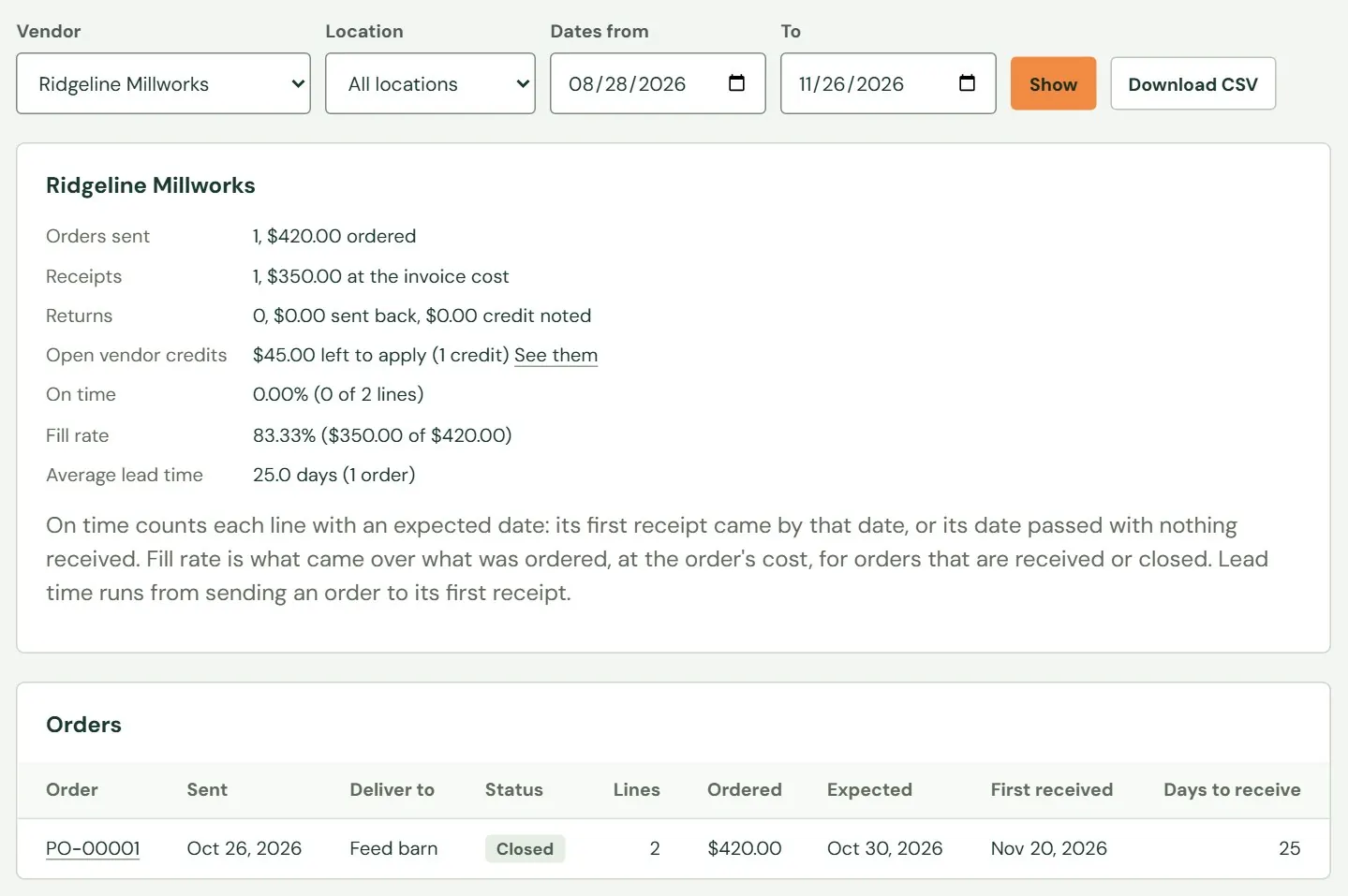
- 1Read the share of lines that came by their date.
- 2Read how much of what was ordered came in.
- 3Read how many days the vendor took on average.
- 4See the vendor's credits still to use on a bill.
- Open the Vendor history tab and choose the Vendor.
- Choose the dates under Dates from and To, and a location if you want one. Empty dates take every date. Press Show.
- Read the vendor's figures. Orders sent, Receipts and Returns count and value what happened in the range. Open vendor credits gives what is left to apply today, whatever the dates, with See them (Record a vendor's credit memo, in Chapter 14). On time, Fill rate and Average lead time follow.
- Read the three tables under the figures: Orders, Receipts and Returns, each with its numbers as links.
- Press Download CSV for the orders, receipts, returns, totals and rates in one file.
The screen says how each rate is worked out: On time counts each line with an expected date: its first receipt came by that date, or its date passed with nothing received. Fill rate is what came over what was ordered, at the order's cost, for orders that are received or closed. Lead time runs from sending an order to its first receipt. The rates cover orders sent in the range. Until there is something to measure they read Nothing to measure yet, No finished orders, Nothing received yet, or Nothing to average: 2 left out because the receipt is dated before the order was sent. A vendor's returns themselves are in Start a return to a vendor, in Chapter 11.
Something here does not match your screen? Write to support@dirtroadsoftware.com with the name of the screen, what you pressed and what you expected. A picture of the screen helps.