
Set a different regular price by place
A price book gives one location, the counter or the website its own regular price for the sizes you put in it.
In this chapter
Add a price book
Included on Counter + Stock and Whole Store plans.
Feed sold off the dock at the feed barn may carry a different price from the same bag on the store floor. A price book holds those prices. Its price is the regular price at that place for everyone. Customer prices are worked out from it by the rules in See which price a customer pays, in Chapter 25. A level's percent comes off it. A quantity price or a sale price takes over only when it is lower than what the customer would otherwise pay, and a contract price is the customer's price whatever its amount. A size the book leaves out takes the next book that prices it there, or the product's regular price (Change a shelf price or put it back, in Chapter 14 of Core Roadside).
- Price book
- A different regular price for a location, the counter or the website.
A book has two settings, chosen when it is added and fixed after that. Where it applies is Website, Counter or Website and counter. Location is Every location or one of your locations. The counter is priced at the register's location (Move a register to another location, in Chapter 1 of Counter & Charge Accounts).
Included on Online Store, Counter + Online Store and Whole Store plans. The website is priced at the store's default location, the one it sells from. A book for another location never prices the website.
When two books price the same item, the one for that place and that location wins, then the one for the location, then the one for the place at every location. A store with a Counter book for every location and a Counter book for the Feed barn charges the Feed barn book's price at the Feed barn's registers for the sizes it prices, and the other book's price everywhere else. Only books that are on count.
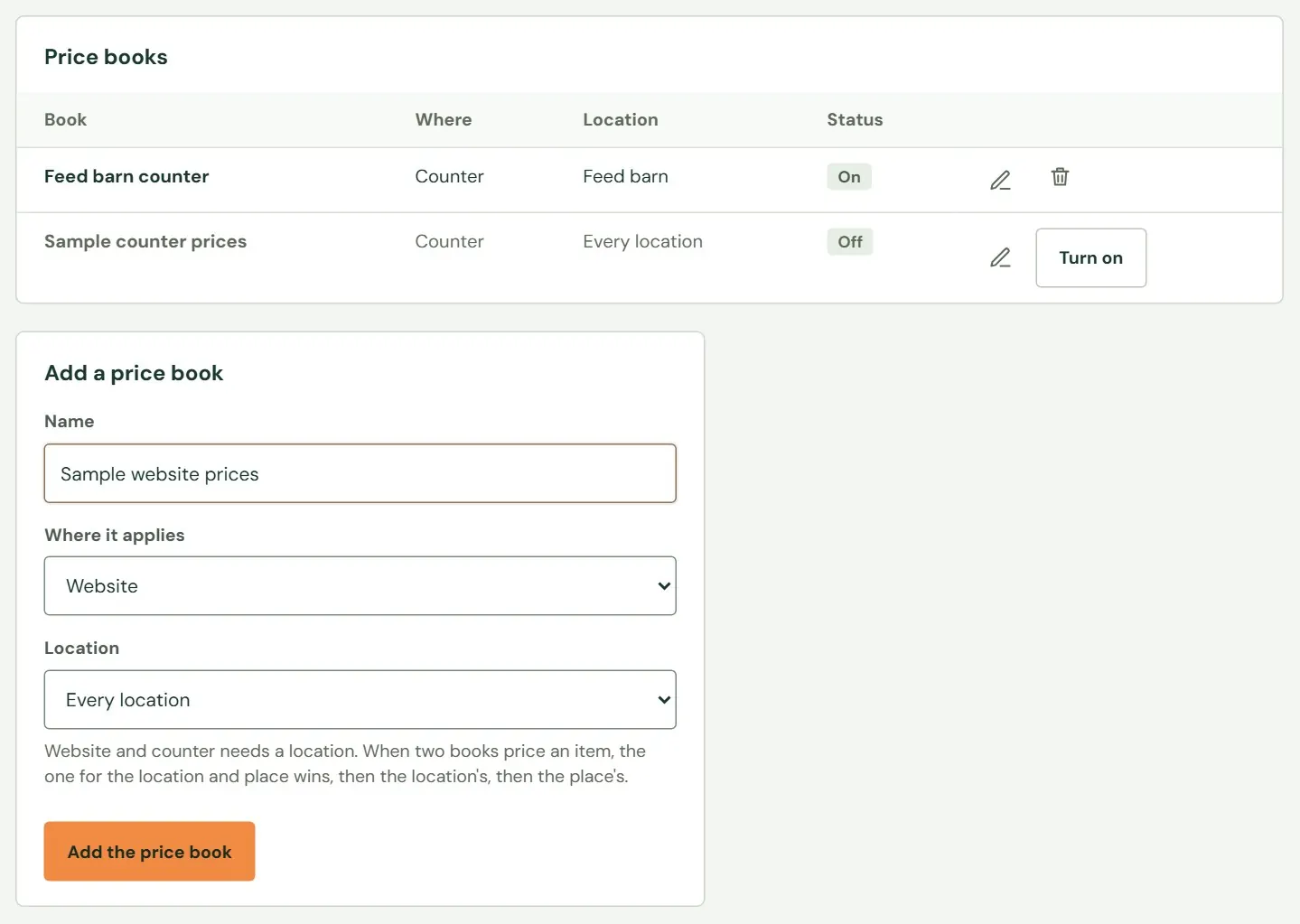
- 1Website, Counter, or Website and counter.
- 2Every location, or the one location the book is for.
- 3Status: a book that is off charges none of its prices. Press Turn on in its row to bring it back.
- 4Saves the book and opens it, ready for prices.
- Open Products > Customer pricing and press Price books.
- Type the Name in Add a price book. Receipts print it under the item when the book sets its price, so name it as a customer should read it, such as Feed barn counter.
- Choose Where it applies and the Location. Website and counter needs one location: with Every location it would be every sale, and Roadside refuses it with A price book is for the website, the counter or one location. Choose a channel or a location.
- Press Add the price book. A book with no prices changes nothing. Roadside says Price book <name> added. Now give it prices. and opens the book (Put prices in a book, in Chapter 26).
There is one book for each place and location. Adding a second for the same pair is refused with There is a price book for that already. Turn it on or change its prices instead. If the location list does not show a location, it is inactive (Add a location, in Chapter 15).
A scheduled price change writes the product's regular price and leaves the prices in a book as they are (Set up a price change, in Chapter 27).
Put prices in a book
Included on Counter + Stock and Whole Store plans.
A book prices only the sizes you add to it, one SKU at a time. Open a book with the pen on its row in Price books. Its prices are listed under <name>: prices, with the form to add one below.
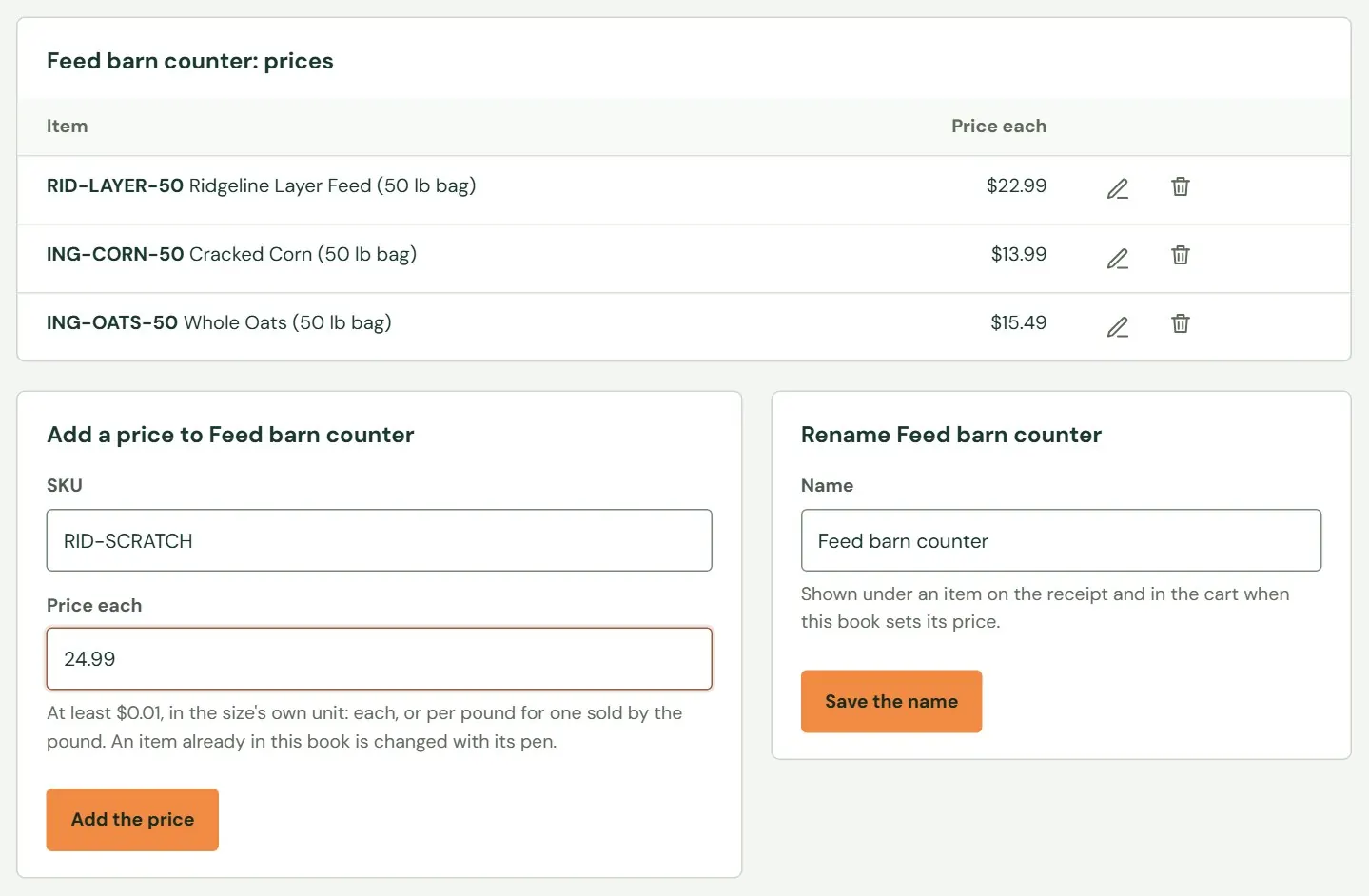
- 1The size, by SKU and name.
- 2The regular price for this size at the book's place.
- 3Saves the price typed in the form.
- Type the SKU in Add a price to <book>.
- Type the Price each, such as 21.99. It is at least $0.01, in the size's own unit: each, or per pound for one sold by the pound.
- Check the price, then save it. From the next sale at the book's place, this becomes the size's regular price there, unless a more specific book that is on also prices it. A price saved in a book that is off waits until the book is turned on. Press Add the price. Roadside says Price saved for <SKU>., and the size is listed with its price.
An item already in the book is changed with its pen: Edit the price for <SKU>, then Save the price. Taking an item out ends this book's price for it from the next sale. To take one out, press the trash button and answer Remove the price for <SKU> from <book>? Roadside says Price removed. That item is at its regular price there.: that is the next book that prices it there, or the product's regular price.
Rename a book
The name is shown under an item on the receipt and in the cart when the book sets its price. It is not shown where the book's price is the same as the regular price.
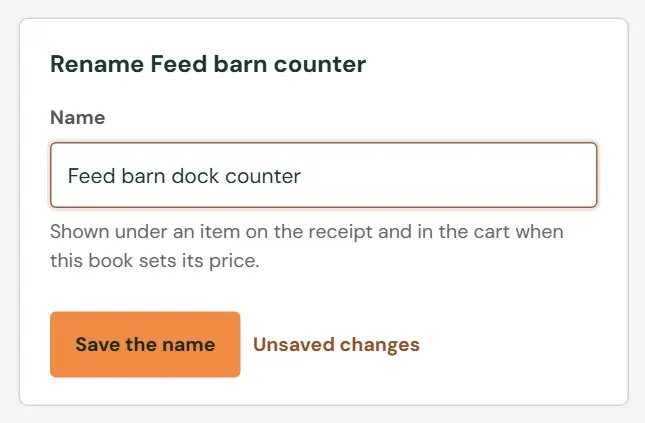
- 1The name customers read under the item.
- 2Saves the name.
- Open the book and find Rename <book>.
- Type the Name, up to 120 characters.
- Press Save the name. Roadside says Price book <name> saved. Its place and location stay as they were.
Turn a price book off
Included on Counter + Stock and Whole Store plans.
A book is never deleted. Turn it off when its prices should stop, such as a dock price for the busy season, and turn it on again when they should come back. Its prices are kept while it is off.
- Find the book under Price books.
- Decide that its prices should stop. Turning it off stops all of its prices from the next sale. Each of its items then takes the next book that prices it there, or the product's regular price.
- Press the trash button on its row and answer Turn off the price book <name>? Its prices stop applying. Roadside confirms that the book is off, and Status reads Off.
Turning a book on again makes its prices count from the next sale, wherever it is the most specific book that is on and prices the size. To do so, press Turn on on its row. Roadside says Price book <name> is on again. A book whose location was made inactive shows A location that's off under Location.
Something here does not match your screen? Write to support@dirtroadsoftware.com with the name of the screen, what you pressed and what you expected. A picture of the screen helps.