
Count and receive with your phone
Walk opens the same count or receipt for a delivery that the office sees in Roadside. Take your phone to the shelf or the truck and save what you find there.
In this chapter
Open Walk on a phone
Included on Counter + Stock and Whole Store plans.
- Walk
- The pages of Roadside made for a phone, for counting stock and receiving a delivery. What you save there is saved on the same count or receipt the office sees.
- Sign in to Roadside on the phone and open Walk (phone). The page heading reads Walk. The two buttons show how many counts are open and how many deliveries are expected.
- Choose the job. On the first Walk page, check the Count stock button. If it reads No counts open, ask a Manager or Store owner to start one in Counts. Otherwise press it to choose your count. Receive a delivery lists the expected purchase orders and open receipts.
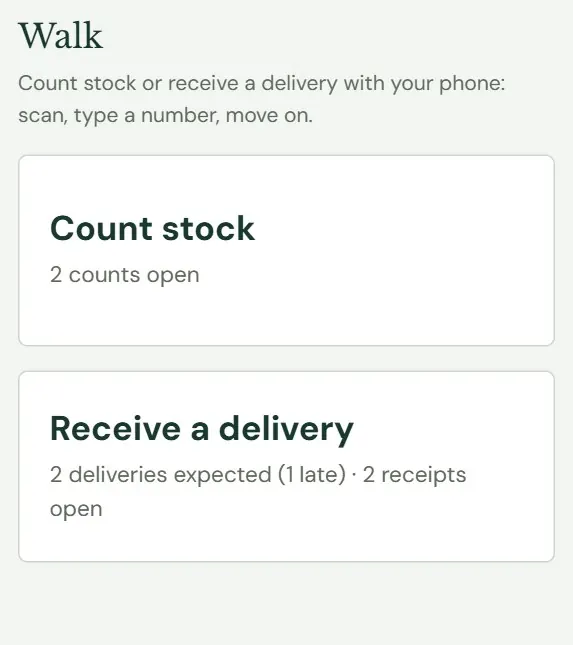
- 1Choose Count stock to find your sheet.
- 2Choose Receive a delivery to find an order or open receipt.
If you already have an open count or receipt on screen, press Do this on a phone to open that same record in Walk. Saving there updates the count in Counts or the receipt in Receipts.
Count stock aisle by aisle
Included on Counter + Stock and Whole Store plans.
- Choose the count by number and location. Under Counts being counted, each row shows how many sizes have been counted. Blind means the people counting see their entries but no expected figures.
- Scan the size or press its row under Still to count. You can also scan a size you find off the sheet. Check its SKU. For How many on the shelf?, enter the total at this location. If the scan brings up How many cases?, check how many units make a case. Use Count single units instead or Count cases instead to switch.
- For a size kept by lot, enter a quantity for each lot you count. Match the code and date on the bag. Put loose stock without a lot under No lot. Leave an uncounted lot blank. Walk only lists recorded lots. If the code on the bag has never been recorded for this size, add it under Lots and expiry with Quantity received empty. Return to the count and scan the size again. If the lot still has no row, enter its code and count on the desk sheet (Count the sheet, in Chapter 16).
- Press Save. The phone reports how many sizes are counted and updates Sizes counted. If someone else saved this size while its card was open, compare both entries. Add them together only if you counted different stock. If the phone reports a waiting save, check for the saved message when the signal returns.
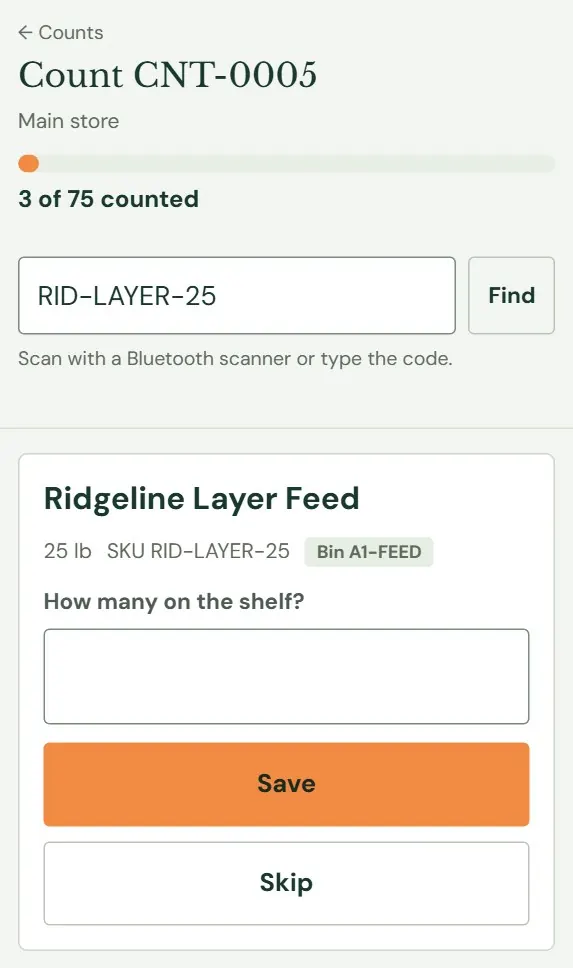
- 1Scan or type the code to find a size.
- 2The bar and the line under it show how many sizes have a saved count.
- 3Type how many you found on the shelf.
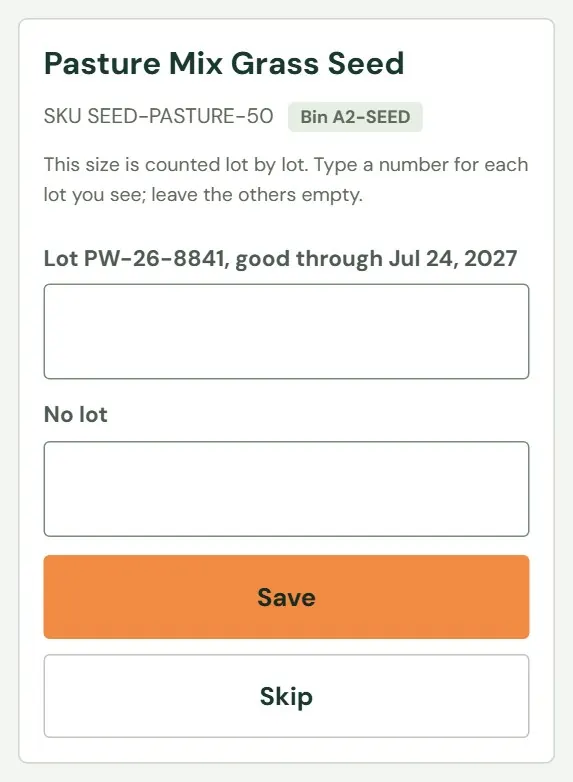
- 1Enter each lot's own quantity.
- 2Match the bag's lot code and good-through date.
Open each size counted by lot and check every lot before sending. Walk marks the size counted after its first saved lot. The question can say Every size is counted. while other lots are blank. If a size counted as a whole has stock in a lot when you send it, Walk refuses the count. Open that size, enter each lot and any stock in No lot, then save.
Press I'm done counting. Choose Keep counting if anyone has more to enter. Sending closes counting for everyone without moving stock. Staff, a Manager or a Store owner can press Send for review.
Look for Sent for review. A manager posts it from the Counts page. The same count at the desk reads In review. Only a Manager or Store owner can post its differences (Post or cancel a count, in Chapter 16). If the count closed while you had it open, check its status with the person reviewing it. If Walk says You can't count here. Ask a manager for the stock permission., show that message to the Manager.
Receive a delivery on the phone
Included on Counter + Stock and Whole Store plans.
- Match the purchase order and vendor to the delivery. Under Expected, late orders come first. Press the order to start its receipt or reopen the one already started. You can also choose its number under Receipts open. Check the vendor and location at the top.
- Work through Still to check. Scan the bag or open its line. If all 40 expected units came in good shape, All 40 came saves 40 good and zero damaged. The button shows the quantity for that line. For a shortage, damage or a lot, enter the quantities and lot details, then press Save.
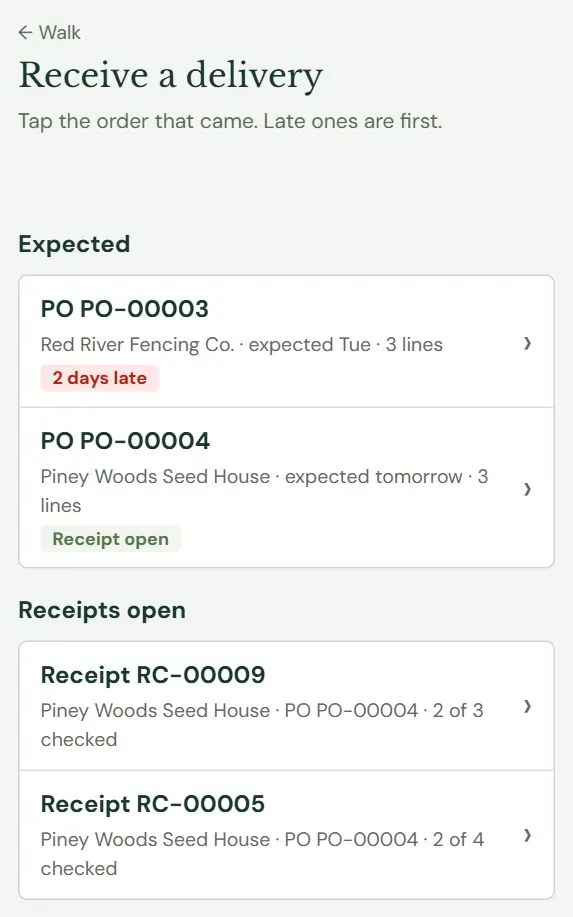
- 1Find the purchase order for the truck that came.
- 2Check the overdue order's number against the delivery.
- 3Reopen a receipt by its number.
In good shape takes the units that can go into stock. On a case scan, How many cases? takes the good cases. Type single units instead switches that field to Received. Enter damaged units separately in Damaged, even when the good quantity is in cases. For a lot, copy the Lot code and Good through date from the label before saving.
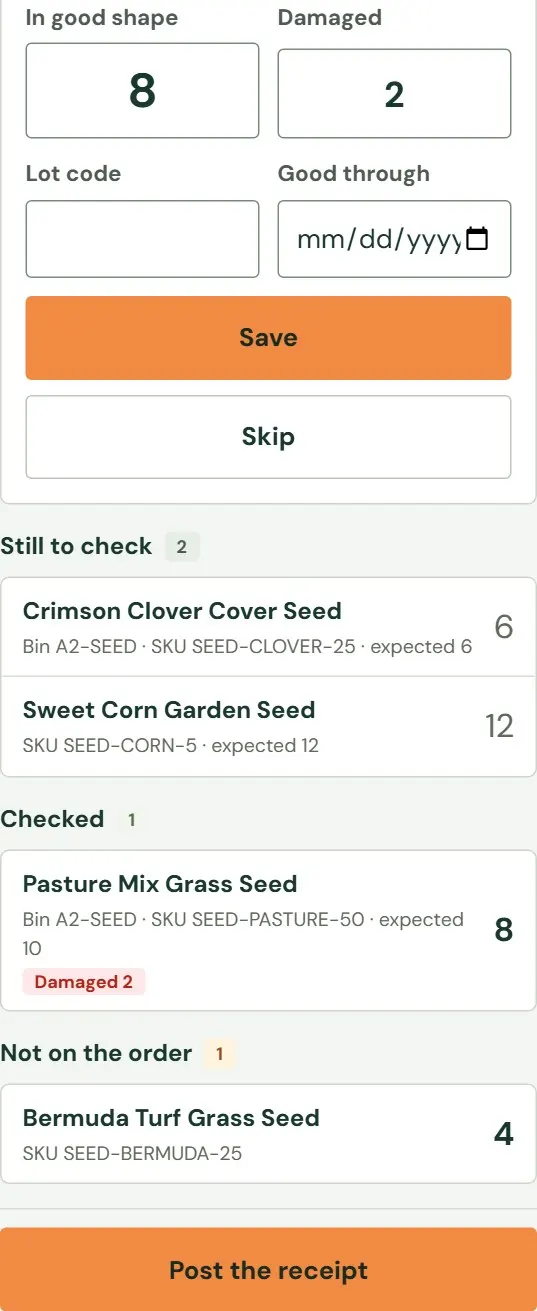
- 1Open a checked line to read what was saved.
- 2Check that the damaged quantity is recorded separately.
- 3Check the sizes added outside the order.
- 4Review the receipt before confirming the post.
For an extra size, scan its code. When Walk asks whether to add it, press Add it, enter the quantities and press Add it to the receipt. Enter the cost of one unit if asked. Check Not on the order for the added line.
Post the checked delivery
- Check every short or missing line before posting. An untouched order line posts for the outstanding quantity on that line. Enter zero good units for a line that never came. Add any freight or other Landed costs on the same receipt at the desk before posting (Add freight and other landed costs, in Chapter 9).
- Posting adds the good units at their cost including their share of freight and other landed costs. It recalculates average cost. Good units received against the order reduce what is outstanding. Damaged units stay out of stock. Posting cannot be undone. Staff, a Manager or a Store owner can press Post the receipt. Read the short, damaged and unchecked line counts. Choose Not yet to correct anything, or Post it to finish.
Check for Posted on the same receipt under Receipts at the desk. If posting is refused, read the reason on the phone's receipt screen. For You can't receive or post here. Ask a manager for the purchasing permission., ask your Manager to finish the receipt.
Scan with a scanner or the phone's camera
Included on Counter + Stock and Whole Store plans.
- Open the count or receipt and find Barcode or SKU. With a Bluetooth scanner, put the cursor in that box and scan the label. To type instead, enter the barcode or SKU and press Find.
- For the camera, press Scan if it shows. Allow camera access and point it at the barcode. If the camera fails, Walk says The camera isn't available here. Scan with a Bluetooth scanner or type the code.
- Check the size on the item card. If the code has no match, scan again or type the SKU. Without a signal, choose a line already on the sheet or look it up when the signal returns.
Something here does not match your screen? Write to support@dirtroadsoftware.com with the name of the screen, what you pressed and what you expected. A picture of the screen helps.