
Count a location and post the differences
Keep selling while you count. Storehouse ERP compares what you found with the stock record at the time you counted each size. A Store owner or Manager checks the differences before they change stock.
Start a count
Included on Counter + Stock and Whole Store plans.
Use Counts when you want a numbered sheet and a chance to review it before stock changes. For an immediate correction at the default location, see Record a delivery, shelf count or damaged bag, in Chapter 18 of Core Roadside. For the basic stock grid on one product, see Count several size and color combinations, in Chapter 18 of Core Roadside.
- Full count
- A count of every size with a stock record at one location, including sizes recorded at zero. A kit's components are counted individually.
- Cycle count
- A count of the sizes you list by SKU at one location.
- Blind count
- A count that hides the expected quantities from the people counting. Their own saved counts still show.
- Check the Number and choose the Location. A Store owner or Manager starts the sheet. Staff can open an existing sheet by its number.
- Choose what goes on the sheet. Leave Sizes to count empty for a full count or type one SKU per line for a cycle count. For a kit, list its components. Tick Blind count: the people counting don't see what's expected if you want to hide the figures. Add a Note if needed.
- Starting keeps the expected figures as they stand and moves no stock. Press Start count. Check the number, location and Counting on the sheet that opens. If Roadside says the count was started already, check the sheet it opened. If another count has that number, choose an unused number.
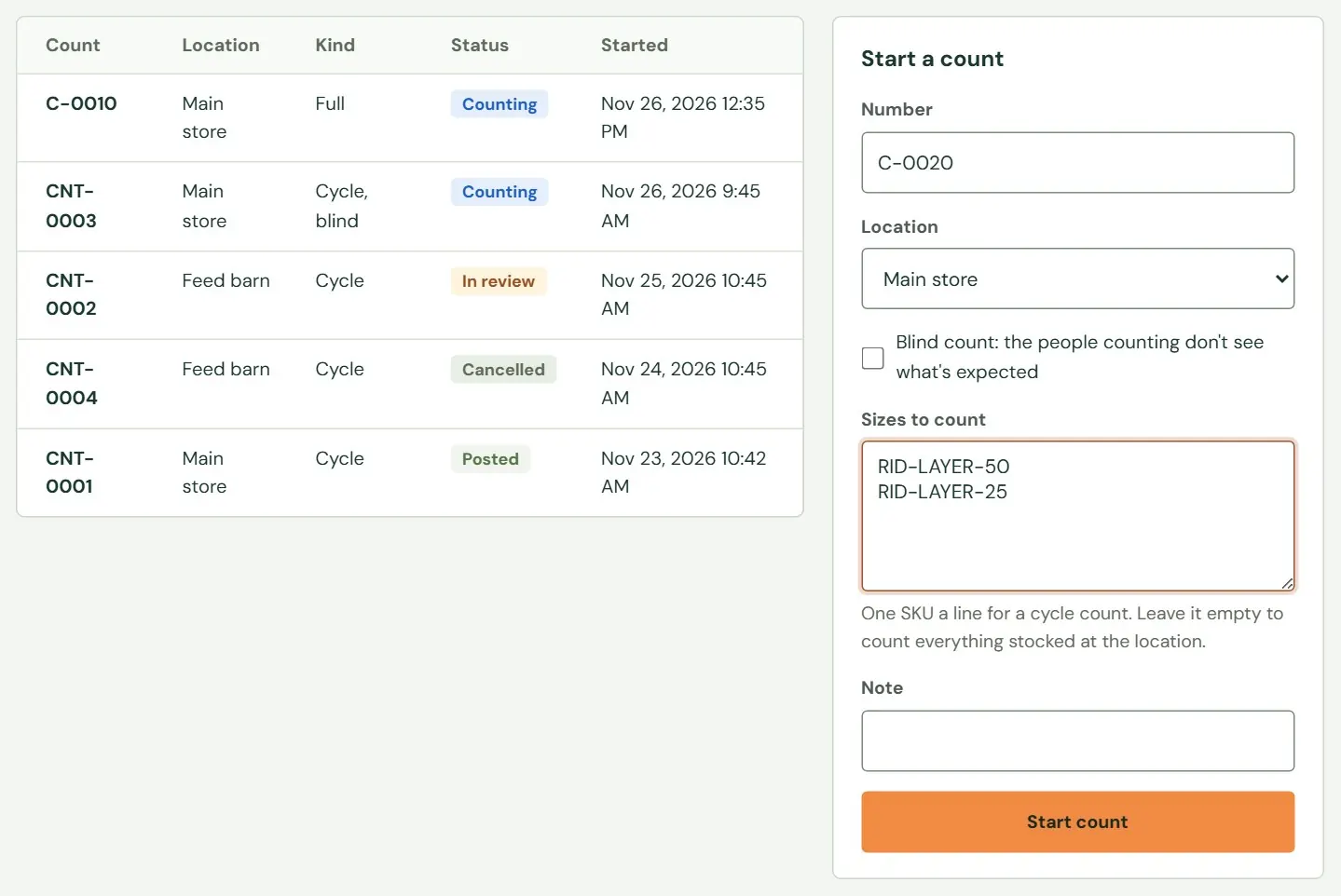
- 1Read Kind to tell a full count from a cycle count.
- 2Find the sheet still being counted or waiting for review.
- 3Tick the box to hide expected figures while counting.
- 4Enter one SKU per line to count selected sizes.
- 5Start the sheet for the location you chose.
Count the sheet
Included on Counter + Stock and Whole Store plans.
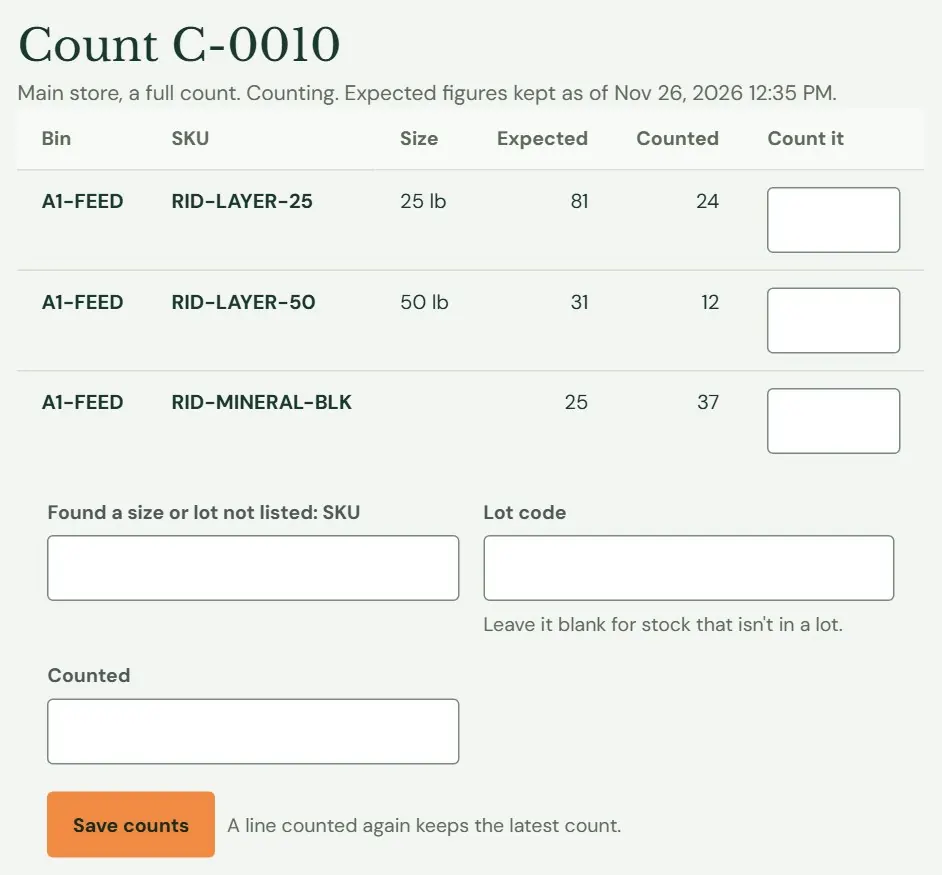
- 1Follow the home bins in order.
- 2Read the figure kept when the count started.
- 3Check the last quantity saved for this size.
- 4Enter a size or lot missing from the sheet.
- 5Save the quantities you typed.
- Open a sheet marked Counting. Check the location under the count number. Follow the Bin column where home bins are assigned. Count the whole location's quantity of each size, including any bags stored away from their home bin.
- Type the shelf quantity in Count it. Enter zero for a size you checked and found empty. Leave an uncounted box blank. Under Count each lot below, enter each lot separately by its code and good-through date. Use No lot for stock without a lot.
- Add a size or lot you find off the sheet. Enter its SKU in Found a size or lot not listed: SKU, the Lot code if it has one, and the quantity in Counted. The code must belong to a lot recorded for that size. If the message reads <SKU> has no lot <code>., check the bag. If the code is right, add the lot under Lots and expiry. Leave Quantity received empty to add the lot without moving stock. Return to the sheet and enter the count.
- Save as you count. Press Save counts. Look for Counts saved. and the quantity in Counted. Counting a line again replaces its earlier figure. Leaving a box blank keeps the earlier entry. If the message reads Nothing was typed in, so nothing changed., enter the quantity and save again.
On a blind sheet the expected figures for sizes and lots stay hidden while you count. To carry the same sheet on a phone, press Do this on a phone (Count stock aisle by aisle, in Chapter 17).
Send a count for review
Included on Counter + Stock and Whole Store plans.
- Open the count by number and check the saved quantities. Save anything still typed in Count it. Ask anyone counting on a phone to finish saving too. A blank line with no saved figure will stay uncounted.
- Sending closes counting for everyone. If a size counted as a whole has stock in a lot when you send the sheet, Roadside refuses it. Count each lot and any stock in No lot, then save. Staff, a Manager or a Store owner can send the sheet. Press Send for review and confirm the count number. The message reads Sent for review. Counting is closed. The status is In review. Stock stays as it was until a Store owner or Manager posts.
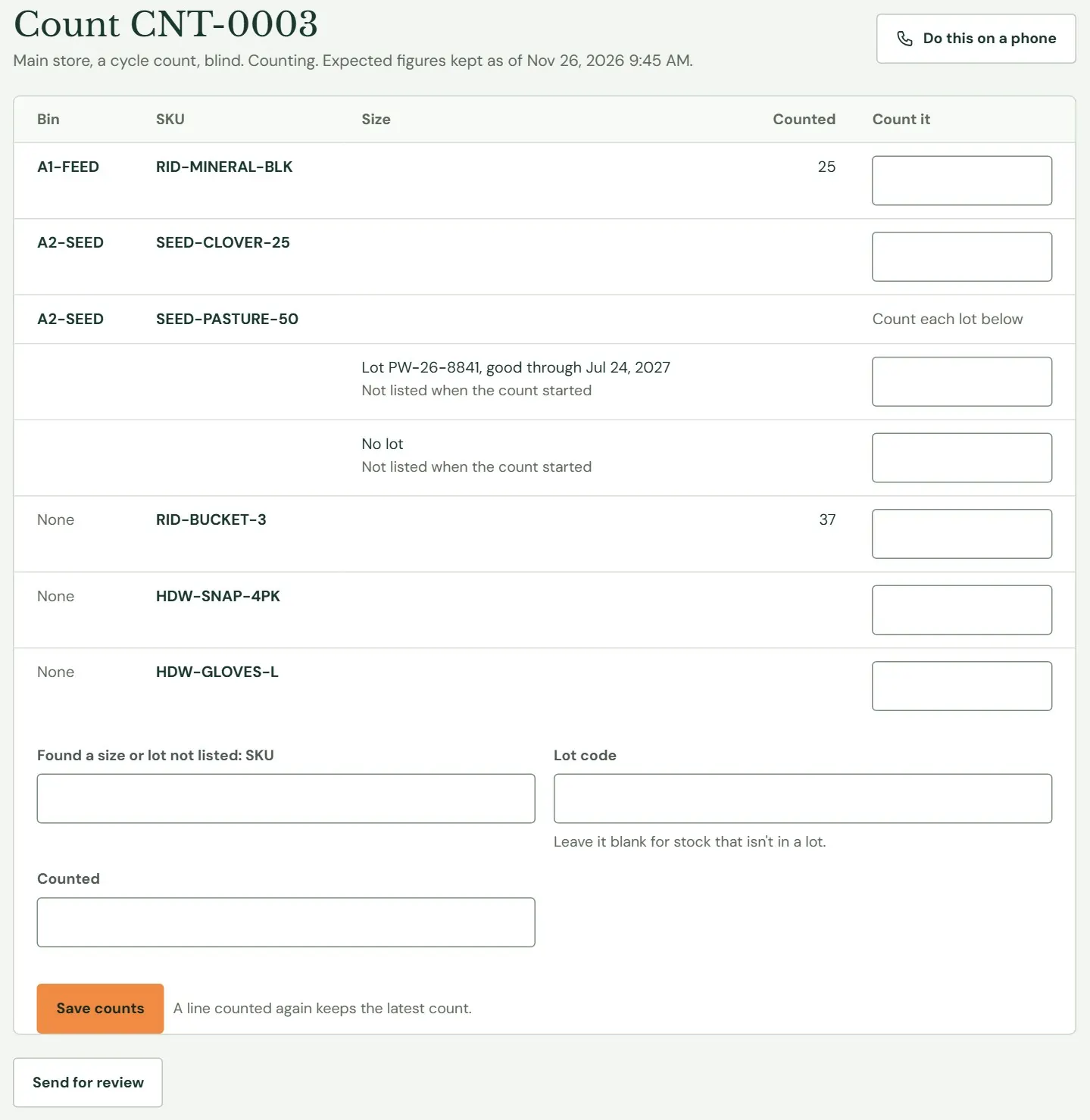
- 1Match the lot code and date before entering a quantity.
- 2Open this count in Walk to carry it with you.
- 3Send the saved sheet when everyone has finished counting.
Post or cancel a count
Included on Counter + Stock and Whole Store plans.
Open the count by number. A Store owner or Manager can post a count marked In review, or cancel one marked Counting or In review. Staff can read the differences.
- Difference
- What posting a count adds to or takes from stock on hand for a size or a lot: the quantity counted, less what was on hand when it was counted.
- Check what moved before each line was counted. The sheet explains, Moved since is what sold or arrived between the start of the count and the line's count. The difference is counted less on hand when counted, and it's what posting records. Lines nobody counted stay as they are. Moved since includes every stock movement between those times, including transfers and corrections. If the sheet started at 20 bags, two sold, and you counted 17, the difference is one bag short. A sale after you counted stays sold.
- Check the lot rows. The sheet explains, A size counted by lot shows each lot under it: each lot's difference moves that lot, and the size moves by their sum. The size's figures add up its counted lots only; a lot not counted stays as it is. A lot can go below 0 when more was sold from it since its count than was counted: posting still records the count. Look for Not counted and the warning Below 0 once posted.
- Posting applies all counted differences together. If you disagree with even one, cancel the count and start another. Roadside refuses the whole post if any difference was counted more than seven days ago. If a size counted as a whole has stock in a lot by posting time, the refusal reads Count <number> has a size counted as a whole that has stock in a lot here now, so it's counted lot by lot. Cancel this count and start a new one to count each of its lots.
- Post when every difference is ready. Each difference changes stock on hand, dated when the line or lot was counted. Posting never changes cost and cannot be undone. Press Post differences and confirm the number. Look for Posted. Each difference is in the stock record as a count. Check a changed size in Stock history.
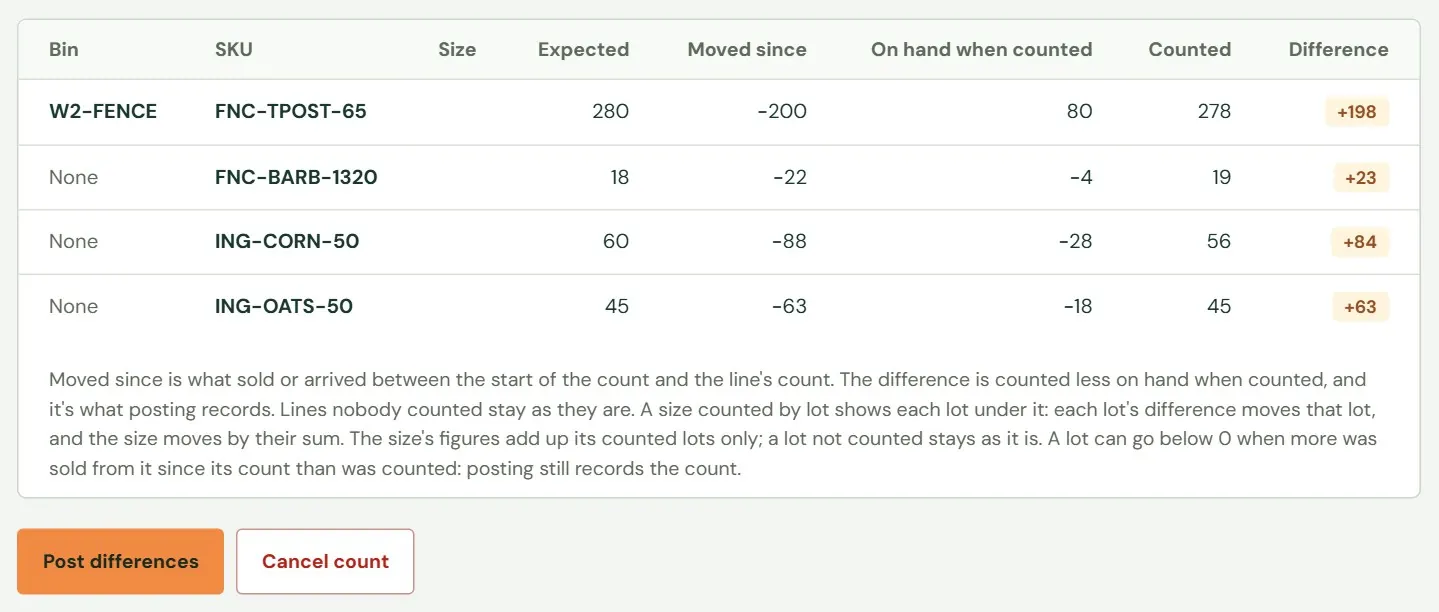
- 1Check what moved before this line was counted.
- 2Read the recorded quantity at the time of counting.
- 3Check how much the stock record would change.
- 4Find lines that posting will leave alone.
- 5Post after checking the differences.
The age warning reads Counts older than 7 days can't be posted; count again. The limit runs from the count of the line or lot that would move. While counting is open, count it again and save. If the sheet is already in review, cancel it and start another count.
To discard an unposted sheet, cancelling closes it without moving stock. Press Cancel count and confirm the number. The status reads Cancelled and the message reads Count cancelled. Nothing moved.
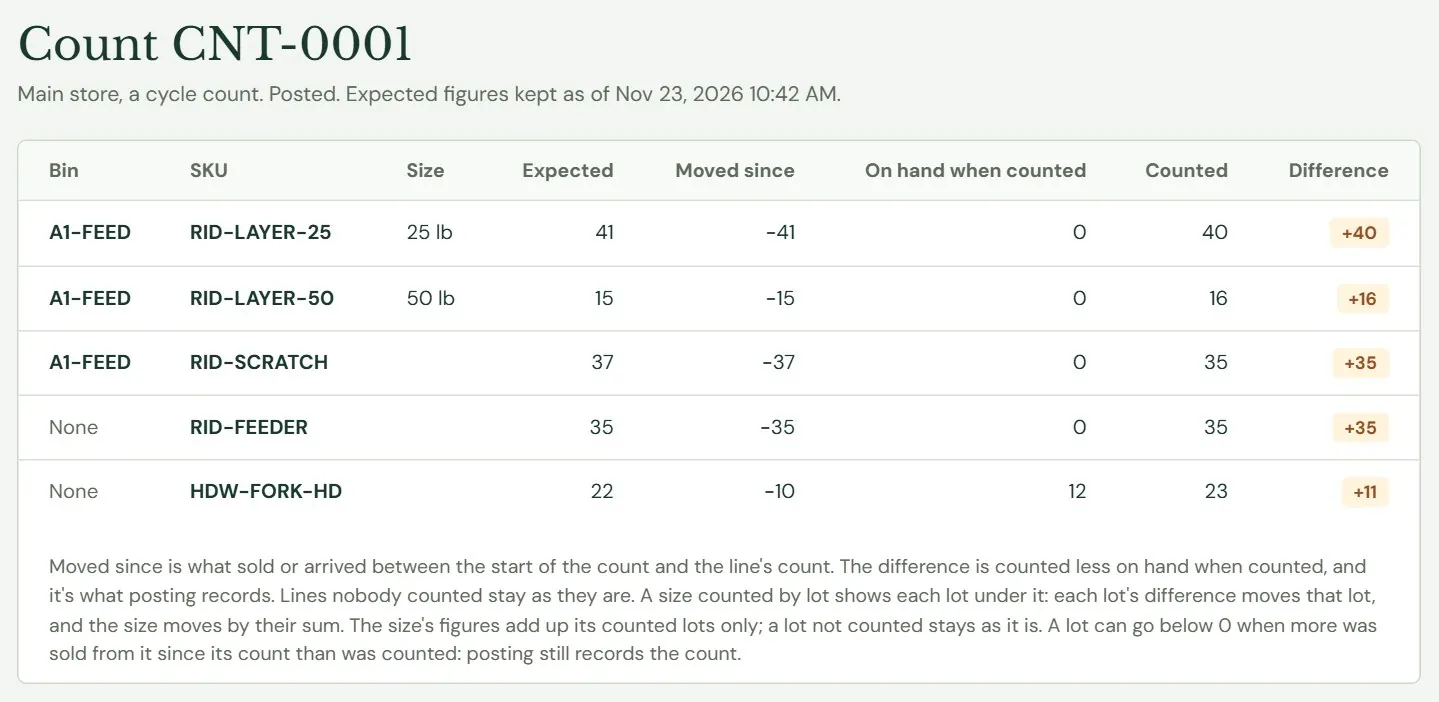
- 1Check for Posted before looking up the stock movements.
Something here does not match your screen? Write to support@dirtroadsoftware.com with the name of the screen, what you pressed and what you expected. A picture of the screen helps.