
Make your own blends
Give a size a recipe, then make it in blend runs. Completing a run uses up the ingredients and puts the blend on the shelf at what they cost.
Give a size a recipe
Available on Counter + Stock and Whole Store plans when your store has the Feed Mill add-on.
Blends are part of the Feed Mill add-on. A blend is a size you mix yourself from other products you stock, such as a horse mix made a ton at a time from oats, sweet feed and minerals. It keeps stock like any other size (Record a delivery, shelf count or damaged bag, in Chapter 18 of Core Roadside), and you sell it like any other size. The recipe lives on the size's product, on the Blend screen; the mixing is done on Blend runs (Start a blend run, in Chapter 23).
- Blend
- A size you make by mixing other products, from a recipe.
- Blend run
- One making of a blend, which uses up its ingredients.
Before you start, check four things. The blend's size must track stock: otherwise its card reads This size doesn't track stock. A blend keeps stock of its own, so turn on Track stock in its product first. (Set when a size counts as low, in Chapter 18 of Core Roadside). Every ingredient must track stock too. A size sold as a kit cannot be a blend, because a kit keeps no stock of its own (Sell a set of products as a kit, in Chapter 3). Blends do not go inside other blends: an ingredient cannot be a kit or another blend.
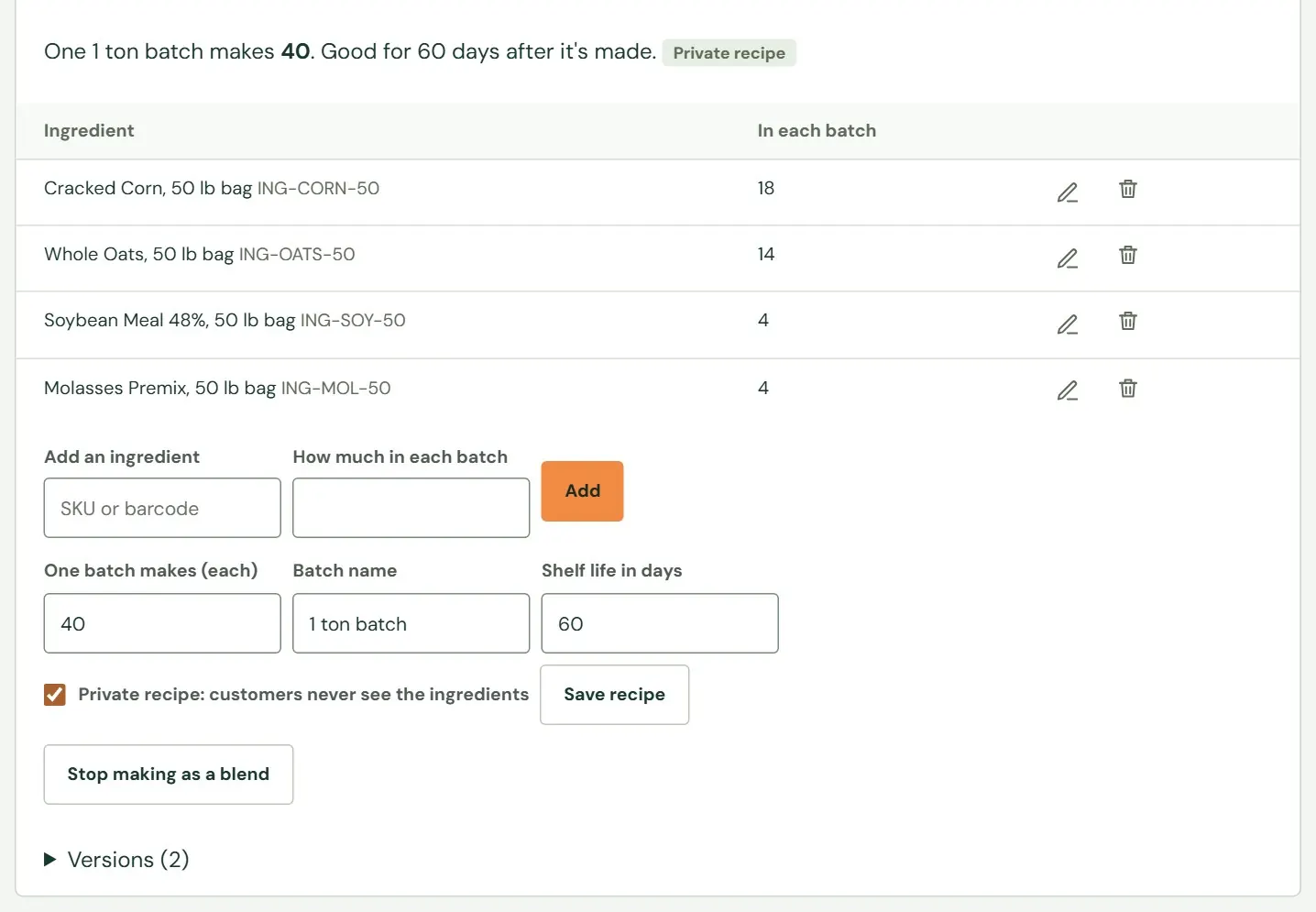
- 1What one batch makes, the shelf life and the Private recipe badge.
- 2Each ingredient, by name and SKU. The pen changes its amount; the trash takes it out.
- 3How much of the ingredient goes in one batch, in that ingredient's own unit.
- 4Tick to mark the recipe private, then save the recipe.
- 5Open to see every saved version of the recipe and which one is current.
- Open the product and press Blend. The screen has one card for each of the product's sizes. Use the card of the size you make.
- Add the first ingredient. Type its SKU or barcode in Add an ingredient and the amount in How much in each batch, in that ingredient's unit. For the first ingredient only, also type One batch makes, in the blend's own unit, and a Batch name such as 1 ton batch. Press Add. Roadside says Added to the blend.
- Add the other ingredients the same way, one at a time. A recipe holds up to 50.
- Fill in the recipe form under the ingredients: One batch makes, Batch name, and Shelf life in days if the blend keeps only so long (1 to 3,650 days). Tick Private recipe: customers never see the ingredients if you want the recipe marked private.
- Press Save recipe. Saving a recipe moves no stock and changes no cost. Roadside says Saved.
It worked when the card shows a line such as One 1 ton batch makes 40., then Good for 60 days after it's made. or No shelf life set., and the ingredients are listed with their amounts. A private recipe carries the badge Private recipe. The box marks the recipe on this screen. It does not change the product's Feed tag, where you type the ingredients a customer reads on the website (Copy the bag's feed tag onto the product, in Chapter 17 of Core Roadside).
The shelf life matters when your store keeps lots: each run then puts what it made in a lot that is good for that many days from the day the run is completed (Find a lot and see which sells first, in Chapter 21).
Change a recipe
Changing an ingredient, or pressing Save recipe, saves the whole recipe again as its next version, and a run started before the change keeps the version it started with. Press the pen beside an ingredient to change its amount, then Save. The trash takes an ingredient out, after asking Take <name> out of this blend? Versions lists the saved versions, the one in use marked Current and the others Retired.
If Roadside refuses an ingredient, it says why, such as That product is in the blend already. Change its quantity with the pen., No product of the store's has that SKU or barcode. or More than one product has that number. Use its SKU instead.
An ingredient whose product is archived stays in the recipe with the badge No longer in the store. No run of the blend can start or be completed until you take it out with its trash.
Stop making a size as a blend
Stop making as a blend takes the recipe away and leaves the size's stock as it is. Roadside asks Stop making <size> as a blend? Its stock stays as it is. Confirm, and the card reads Not a blend. To make it again, add its ingredients again.
Start a blend run
Available on Counter + Stock and Whole Store plans when your store has the Feed Mill add-on.
A blend run is the record of one mixing. Start it when you are about to mix, for the number of batches you plan. Starting uses up nothing: the ingredients come off stock only when you complete the run. Store owners, Managers and Staff all start, complete and cancel runs. Staff do not see what a run cost.
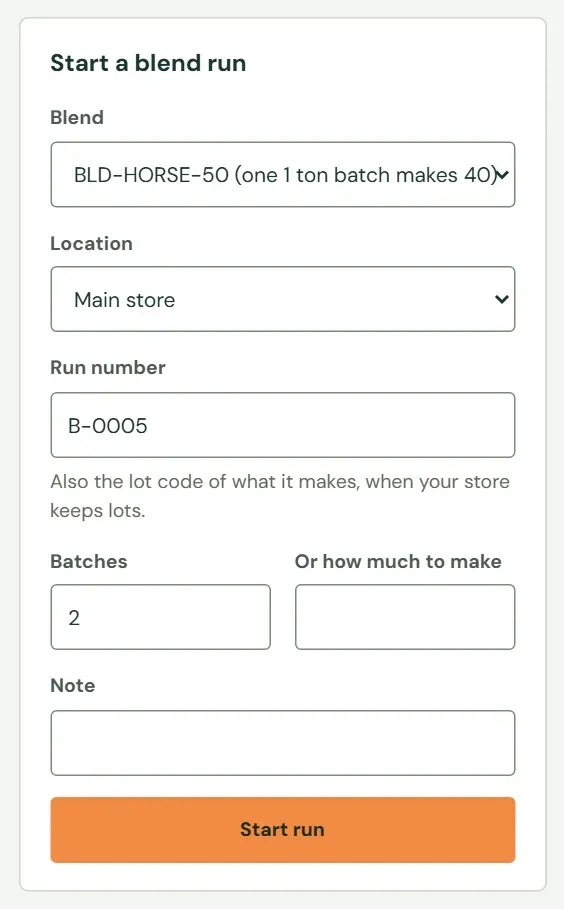
- 1Choose the blend. Each choice says what one batch makes.
- 2The run's number, filled in for you. It is also the lot code of what the run makes when your store keeps lots.
- 3How many batches you will mix. Clear it to type an amount in Or how much to make.
- 4Starts the run. Nothing comes off stock yet.
- Open Blend runs. The Start a blend run card is beside the list.
- Choose the Blend. Each line reads like BLD-HORSE-50, 50 lb (one 1 ton batch makes 40).
- Check the Location. The ingredients come off stock there and the blend goes on the shelf there. It starts at your default location.
- Check the Run number. Roadside fills in the next one, such as B-0003. You can type your own: up to 32 letters, digits, dots, dashes and underscores, starting with a letter or a digit, used once in the store. A cancelled run keeps its number.
- Type the Batches, or the amount. Batches starts at 1. To plan by weight or count instead, clear Batches and type Or how much to make; Roadside works out the batches from what one batch makes. Fill in one of the two, not both.
- Add a Note if it helps the person mixing, then press Start run.
It worked when Roadside says Started blend run B-0003. and the run is listed with the state In progress. Planned shows the amount and the batches, and Made reads Not yet.
When Roadside refuses, it says why:
- Type how many batches to make, or how much of the blend to make: one of them. Both boxes were filled in, or neither.
- No size is made as a blend yet. Give a product's size a recipe on its Blend screen first. The card shows this in place of the form.
- An ingredient of this blend, <name>, is no longer in the store. Take it out of the blend on its Blend screen, then start a new run. (Give a size a recipe, in Chapter 23)
- This store already has a blend run numbered <number>. Type another number.
Complete a blend run
Available on Counter + Stock and Whole Store plans when your store has the Feed Mill add-on.
Complete the run once the mixing is done, with what came off the mixer. This is the press that moves stock and cost, all at once, at the run's location:
- Each ingredient comes off stock: its amount in each batch times Batches made. When your store keeps lots, its lots are used first-expiring-first.
- The blend goes on the shelf: the amount in What it made. When your store keeps lots and the recipe has a shelf life, or the blend already has lots, it goes in a lot of its own. The lot is coded with the run number, with -2, -3 and so on added when that code is taken.
- The blend's cost is set from the ingredients. Each ingredient's cost in Storehouse times what it used, added up, divided by what the run made, is the run's Unit cost. That cost is averaged into the blend's average cost the way a posted receipt averages its cost in (Post the receipt into stock, in Chapter 9), so later sales carry it. An ingredient with no cost in Storehouse, or with its cost kept in another unit, counts as costing nothing.
- Waste moves nothing. It is written on the run only. The ingredients used up are what the batches took.
Low ingredient stock never stops a run. An ingredient can go below zero, and the run is marked Went short. A run that made more than twice what its batches should is marked More than expected, and is not refused either. There is no button that undoes a completed run.
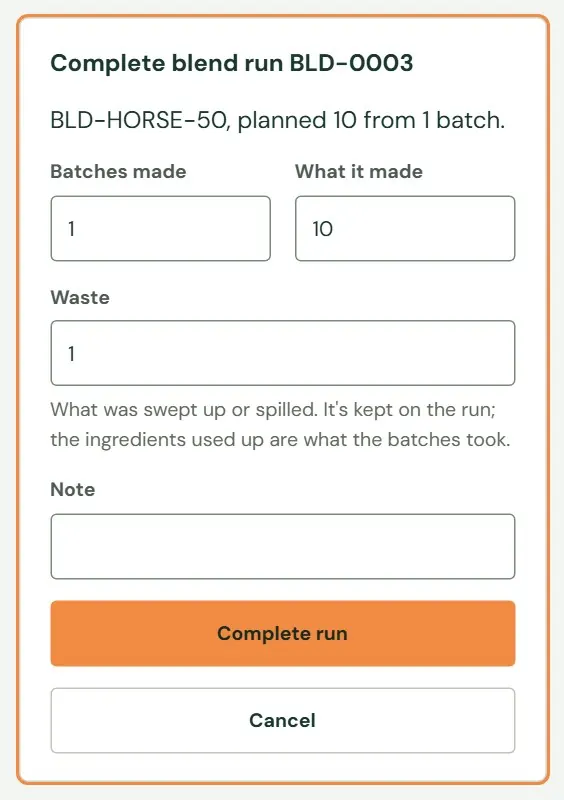
- 1Type what the run made, in the blend's unit.
- 2Type what was swept up or spilled. It is kept on the run and moves no stock.
- 3Completes the run: the ingredients come off stock and the blend goes on the shelf.
- Open Blend runs and find the run under In progress. Press its pen. The Complete blend run <number> card opens with a line such as BLD-HORSE-50, 50 lb, planned 80 lb from 2 batches.
- Check Batches made. It starts at the planned batches. Change it if you mixed more or fewer: the ingredients used up follow this number.
- Type What it made. It starts at the planned amount.
- Type the Waste, if any, and a Note.
- Check the numbers, because the next press moves the stock and the cost and cannot be taken back. Then press Complete run. The card's own Cancel button only closes the card; the run stays in progress.
Roadside answers Blend run <number> is complete: <quantity> <unit> on the shelf, its ingredients used up. The run's state reads Completed, Made and Waste show what you typed, and the blend's stock on hand at that location has gone up by what it made. A Store owner or a Manager also sees Unit cost, such as $18.20 each for a blend sold by the bag, or a price per pound for one sold by weight.
When the run went short or made too much
If the message goes on Some ingredients went short (below zero, or more than their lots held), so they need a count., the run reads Went short. Roadside used more of an ingredient than it had on record, or more than its lots held. Count that ingredient at the run's location so the record matches the shelf (Start a count, in Chapter 16).
If it goes on It made more than twice what its batches should, so check the recipe's yield., the run reads More than expected. Check One batch makes on the recipe, and check that What it made was typed in the right unit.
If Roadside refuses, it says why. Type what the run made. means What it made was left empty. A run that made nothing cannot be completed: cancel it instead (Cancel a blend run, in Chapter 23).
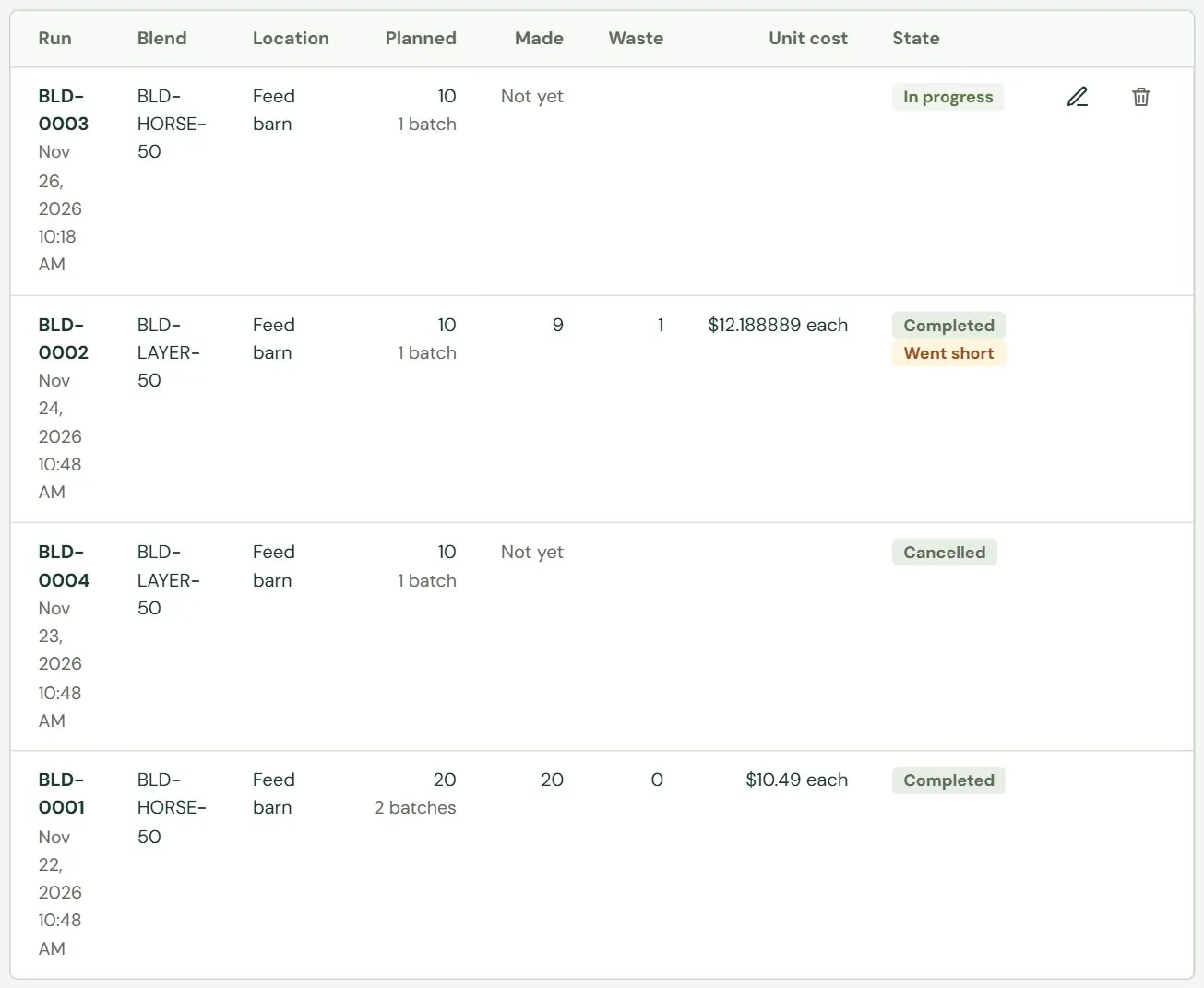
- 1What the run made. Not yet until it is completed.
- 2What one unit of the blend cost to make. Store owners and Managers see it.
- 3An ingredient went below zero, or past what its lots held. Count it.
- 4In progress, Completed or Cancelled.
Cancel a blend run
Available on Counter + Stock and Whole Store plans when your store has the Feed Mill add-on.
Cancel a run that will not be mixed. Cancelling uses up nothing and moves no stock or cost. A completed run cannot be cancelled.
- Open Blend runs and find the run under In progress.
- Press its trash button. Roadside asks Cancel blend run <number>? Nothing is used up.
- Confirm. Roadside says Blend run <number> is cancelled. Nothing was used up. The run reads Cancelled under Show Cancelled or All, and keeps its number.
Something here does not match your screen? Write to support@dirtroadsoftware.com with the name of the screen, what you pressed and what you expected. A picture of the screen helps.