
Take a full copy of your Storehouse records
Download everything Storehouse keeps for the store as one zip, and find the copy made for you each month.
In this chapter
Download all your Storehouse records
Included on Counter + Stock and Whole Store plans.
Export your data puts your stock, products, prices, vendors, purchase orders, counts, lots and everything else Storehouse keeps for the store into one zip file you can keep or hand to your accountant. Store owners and Managers open it. It is a copy to keep: nothing in Roadside reads it back in.
- Zip file
- One file that holds many files packed together. Your computer opens it like a folder.
Two spreadsheets inside are made to open right away:
products.csv, with one row for each size;inventory.csv, with what is on hand at each location.
The rest is for whoever needs the full record: a file of lots, and every Storehouse table as a CSV file and again as JSON lines, a plain text form programs read. A list names every file with its row count and a checksum, which shows the file arrived whole.
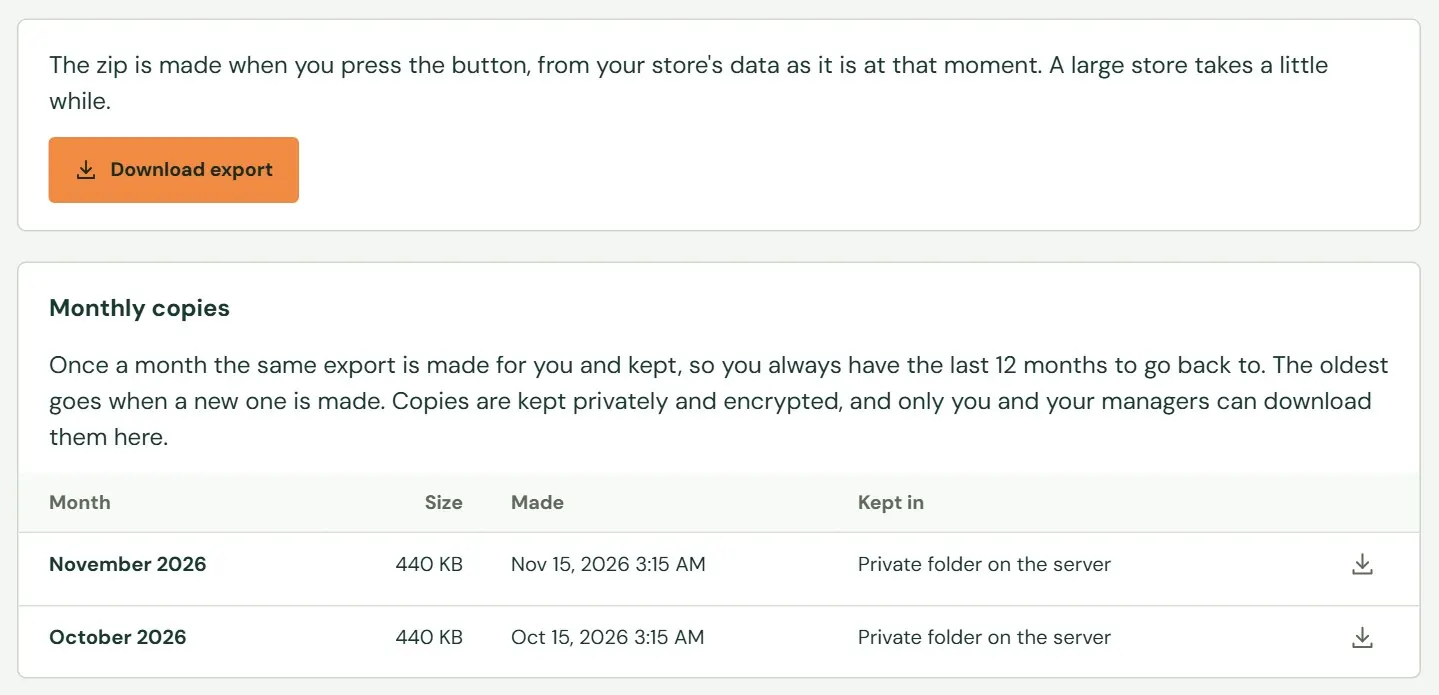
- 1Makes a zip of the store's Storehouse records at this moment and downloads it.
- 2The copies made for you once a month, the last 12 kept.
- 3Where the copy is kept, privately, for your store.
- 4Downloads that month's copy.
- Go to Store settings, then Export your data.
- Press Download export. The screen notes: The zip is made when you press the button, from your store's data as it is at that moment. A large store takes a little while. Stay on the page until the download starts.
- Open the zip from your downloads. Its name is the store's short name, -export- and a date and time.
Making the export changes nothing in the store. Each download is recorded with who made it and when, in the audit log (Find who changed a store record, in Chapter 41 of Core Roadside).
If something stops it, nothing downloads and the page says The export stopped, so nothing was downloaded: followed by the reason. Try again; if it stops again, write to support@dirtroadsoftware.com with the reason it gave.
This zip is Storehouse's. The product spreadsheet under Products is for editing products (Download your products as a spreadsheet, in Chapter 19 of Core Roadside), and the export a closing store gets is a separate one (Download the store's records during closure, in Chapter 39 of Core Roadside).
Find the monthly copy
Included on Counter + Stock and Whole Store plans.
Once a month Roadside makes the same export for you and keeps it, unless the export is larger than 100 MB: then the copy isn't kept, the page says so, and you can still download one with the button above. In the screen's words: Once a month the same export is made for you and kept, so you always have the last 12 months to go back to. The oldest goes when a new one is made. Copies are kept privately and encrypted, and only you and your managers can download them here.
The Monthly copies table has a row for each copy: Month, the copy's Size, when it was Made, where it is Kept in, and a download button. Each copy holds the store's records as they stood when it was made.
- Go to Store settings, then Export your data, and find Monthly copies.
- Find the month and check Made for the day and time the copy was taken.
- Press the download button at the end of its row. The zip's name is the store's short name, -export- and the month, such as -2026-10.
Until the first copy is made, the table reads No monthly copies yet. The first one is made within a day. If a month's copy could not be made, a line under the heading says so, such as The copy for <month> couldn't be made yet. It's tried again every day. The Download export button still works meanwhile. If a kept copy cannot be read back, the page says The copy of <month> couldn't be read back, so nothing was downloaded. Try again in a little while.
Something here does not match your screen? Write to support@dirtroadsoftware.com with the name of the screen, what you pressed and what you expected. A picture of the screen helps.