
Record a vendor credit and use it on a bill
A credit memo from a vendor is recorded once and taken off one or more bills. A Manager can take it off a bill again or void it.
In this chapter
Record a vendor's credit memo
Included on Counter + Stock and Whole Store plans.
A vendor sends a credit memo for a price it corrected, a rebate, or bags it agrees were short. Record the memo once, then take it off that vendor's bills as they come. Store owners, Managers and Staff can record one. A credit changes no stock and no cost, and it is not in the QuickBooks files.
The credit for a vendor return is recorded on the return, which applies it there in the same press (Record the vendor's credit for a return, in Chapter 11). Do not record that memo here as well.
- Vendor credit
- A credit memo from a vendor, taken off one or more bills.
- Go to Purchase orders and press the Vendor credits tab. The list shows every credit. To narrow it, choose a vendor or a status at the top and press Apply.
- Fill in Record a credit. Choose the Vendor and type the Credit memo number and the Amount ($). Received starts at today's date: change it to the day the memo came. A Note can say what the credit is for.
- Check the vendor and the amount. Only a Manager or the Store owner can void a credit that was recorded wrong. Press Record the credit.
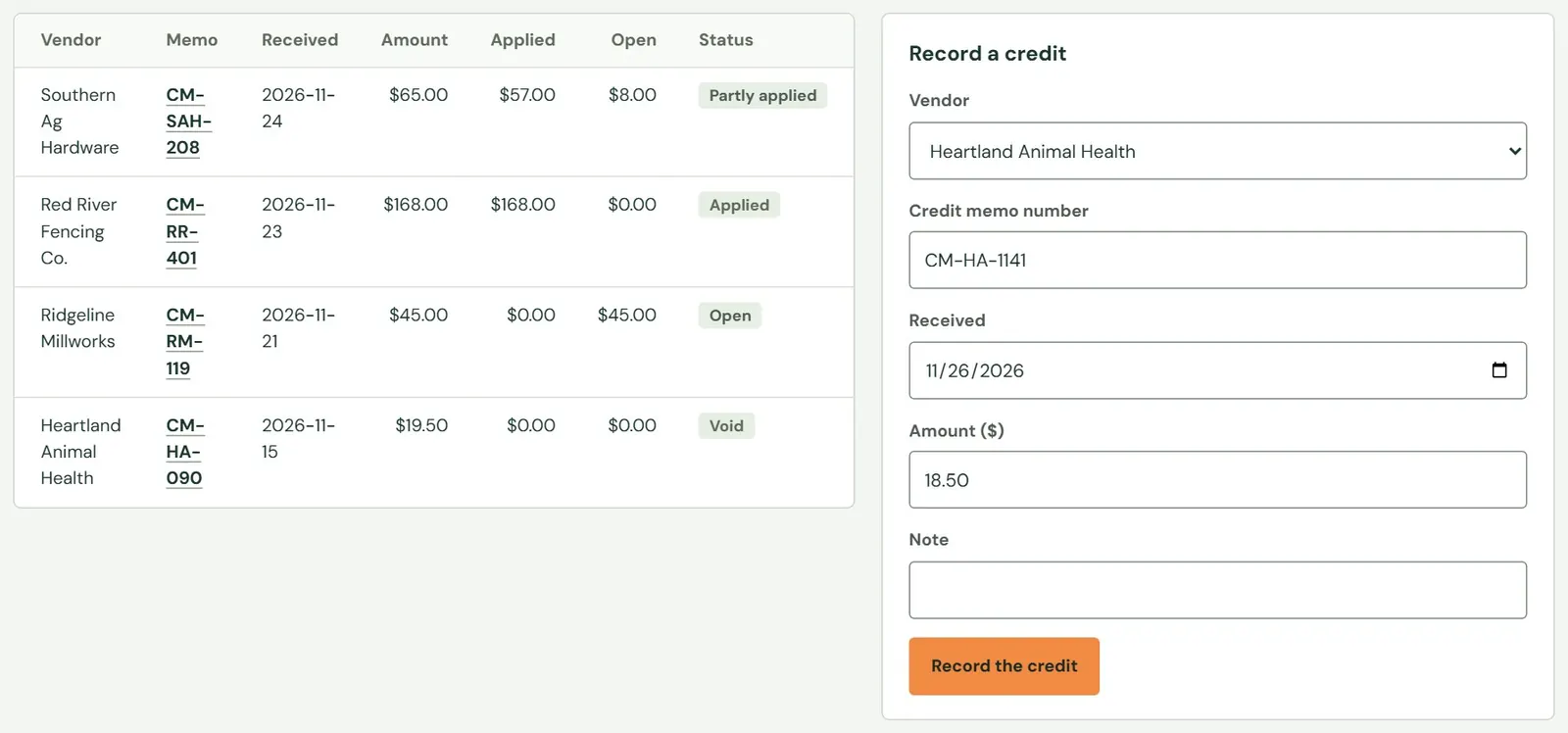
- 1Open: what is left of the credit to apply.
- 2Status: Open, Partly applied, Applied or Void.
- 3Credit memo number: type the number printed on the vendor's memo.
- 4Record the credit saves the memo and opens its page.
Roadside says Credit <memo> recorded. Apply it from a bill of the vendor's. and opens the credit's page. It worked when Open equals the Amount and the status reads Open. A memo number can be recorded once for each vendor. A second try is refused with That vendor's memo <memo> is recorded already.
To see where a credit went, press its memo number in the list. The Applied to table on its page names each bill or return, the date and the amount.
Take a credit off a bill
Included on Counter + Stock and Whole Store plans.
A credit is used from the bill it comes off, and only on a bill of the same vendor that is Matched or Approved. Store owners, Managers and Staff can apply one. One credit can go on several bills, and one bill can take several credits.
- Open the bill from the Vendor bills tab. Its Vendor credits section shows Total, Credits applied and Amount due. A bill that is a Draft, or needs review, has no such section: match it first (Match a bill to the order and the receipt, in Chapter 12).
- Find the credit under Apply a credit. Each of the vendor's open credits has a box, oldest first, labelled with its memo number, the day it was received and how much it has left. The amount in the box starts at what the credit has left or what is due on the bill, whichever is less. Type a smaller amount to use part of the credit.
- Check the amount before you apply it. Applying lowers the bill's Amount due and leaves its Total as it is, and Staff cannot take a credit off again. Press the Apply credit button for that memo.
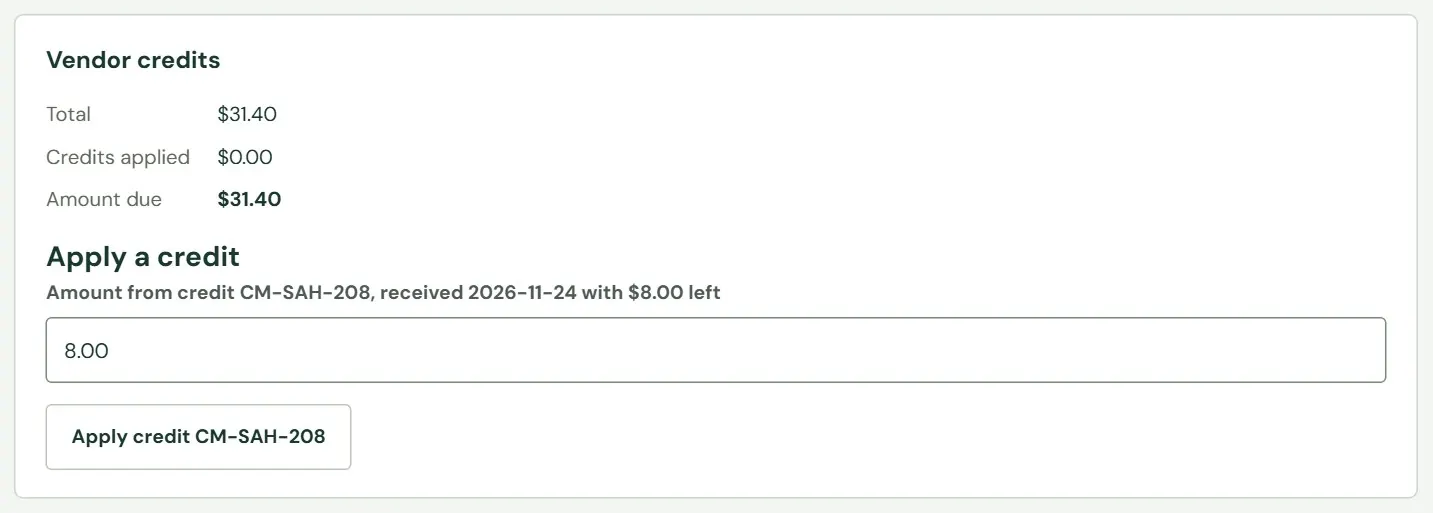
- 1Amount due: the bill's total less the credits applied to it.
- 2The amount to take from this credit. Type less to use part of it.
- 3Apply credit, with the memo's number, takes that amount off what is due.
Roadside says Credit <memo> applied: <amount> off what's due. It worked when Credits applied shows the amount, Amount due has fallen by it, and the credit's Open has fallen by the same. The credit reads Partly applied while some is left and Applied when none is.
- That's more than the credit has left to apply. or That's more than is left due on the bill. Type a smaller amount.
- That credit was already applied. The form was sent twice. The credit came off once.
- When the vendor has nothing to apply, the section says the vendor has no open credits and links to Record a credit.
Once Amount due reaches $0.00, Apply a credit leaves that bill. Applying a credit pays nothing: Paying a vendor, in Chapter 13 says how bills are paid.
Take a credit back off, or void it
Included on Counter + Stock and Whole Store plans.
A credit applied to the wrong bill is taken off again, and a memo recorded by mistake is voided. Both are for a Manager or the Store owner. Staff can open a credit's page, where they read A manager or the store owner can take this credit off what it's applied to, or void it.
- Go to the Vendor credits tab and press the credit's memo number. Applied to lists each Document, the day it was Applied, the Amount and its Status.
- Know what comes back. Taking a credit off a bill raises that bill's Amount due by the amount. Taking it off a return lowers the return's Credited. Either way the amount goes back into the credit's Open, to apply again.
- Press the Remove icon on the line and confirm. Roadside asks Take <amount> of this credit off and names the bill or the return. It then says <amount> taken off. It's the credit's to apply again. The line stays in the table, and its status reads Removed with the date.
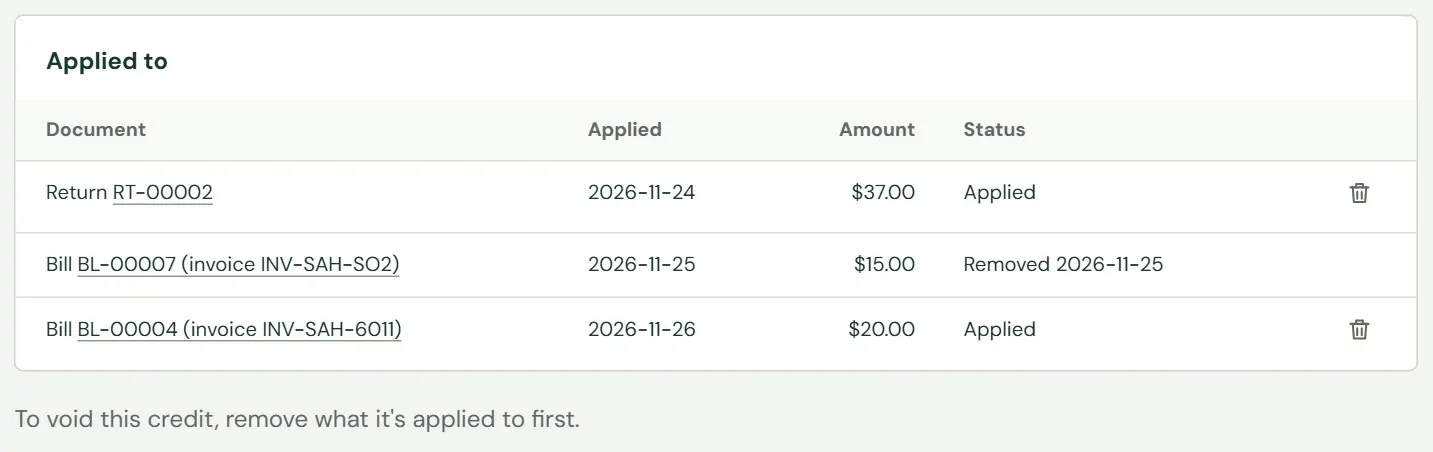
- 1Applied to: each bill or return the credit was put on.
- 2Removed, with the date: this amount came off again and is back in Open.
- 3The Remove icon takes the credit off that bill or return.
Void a credit only when the memo itself was recorded by mistake. A credit with anything applied cannot be voided, and its page reads To void this credit, remove what it's applied to first.
- Take the credit off everything it is applied to, as above.
- Be sure it is the wrong memo. Voiding cannot be undone. Press Void the credit and confirm. Roadside asks Void credit <memo>? It can't be undone.
Roadside says Credit voided. Its memo number can be entered again. The credit stays in the list as Void, with $0.00 open. A bill with a credit applied cannot be voided either: take the credit off here, then void the bill (Void a bill entered by mistake, in Chapter 13).
Something here does not match your screen? Write to support@dirtroadsoftware.com with the name of the screen, what you pressed and what you expected. A picture of the screen helps.