
Find counts that look wrong
A size sold past zero belongs on the Recount list. If the figures on screen disagree with the stock record itself, open Stock check to see which totals can be rebuilt.
In this chapter
Recount sizes that went below zero
Included on Counter + Stock and Whole Store plans.
The screen describes sizes with less than nothing on hand, or sold past what was on hand since they were last counted. An oversold entry can come from any stock movement that takes units out and leaves the size below zero at that location. A special order for one bag with none on hand puts the size at minus one. Check the customer's order before treating it as a missing bag (Take a special order, in Chapter 8).
- Choose a Location and press Show. Every location shows up to 1,000 rows, most negative first. Staff can read the list. If it is empty, the message reads Nothing needs a recount. No size is below zero, and none has been sold past its stock since its last count.
- Compare On hand now with Oversold entries. Latest oversold and Last counted tell you when. A delivery can bring a negative figure back to zero. The size can still be listed for an oversold entry.
- Tick the sizes to check at one active location. A Store owner or Manager starts the count. Starting keeps the expected figures and moves no stock. Press Start a count of the ticked sizes. If Roadside asks you to choose a location, filter to that location and tick its sizes again. You cannot tick an inactive location or stock in transit.
- Count the sizes on the sheet that opens. Send it for review (Send a count for review, in Chapter 16). Posting clears oversold entries made before each size was counted. An entry made at the same moment or later stays. A size still below zero also stays listed.
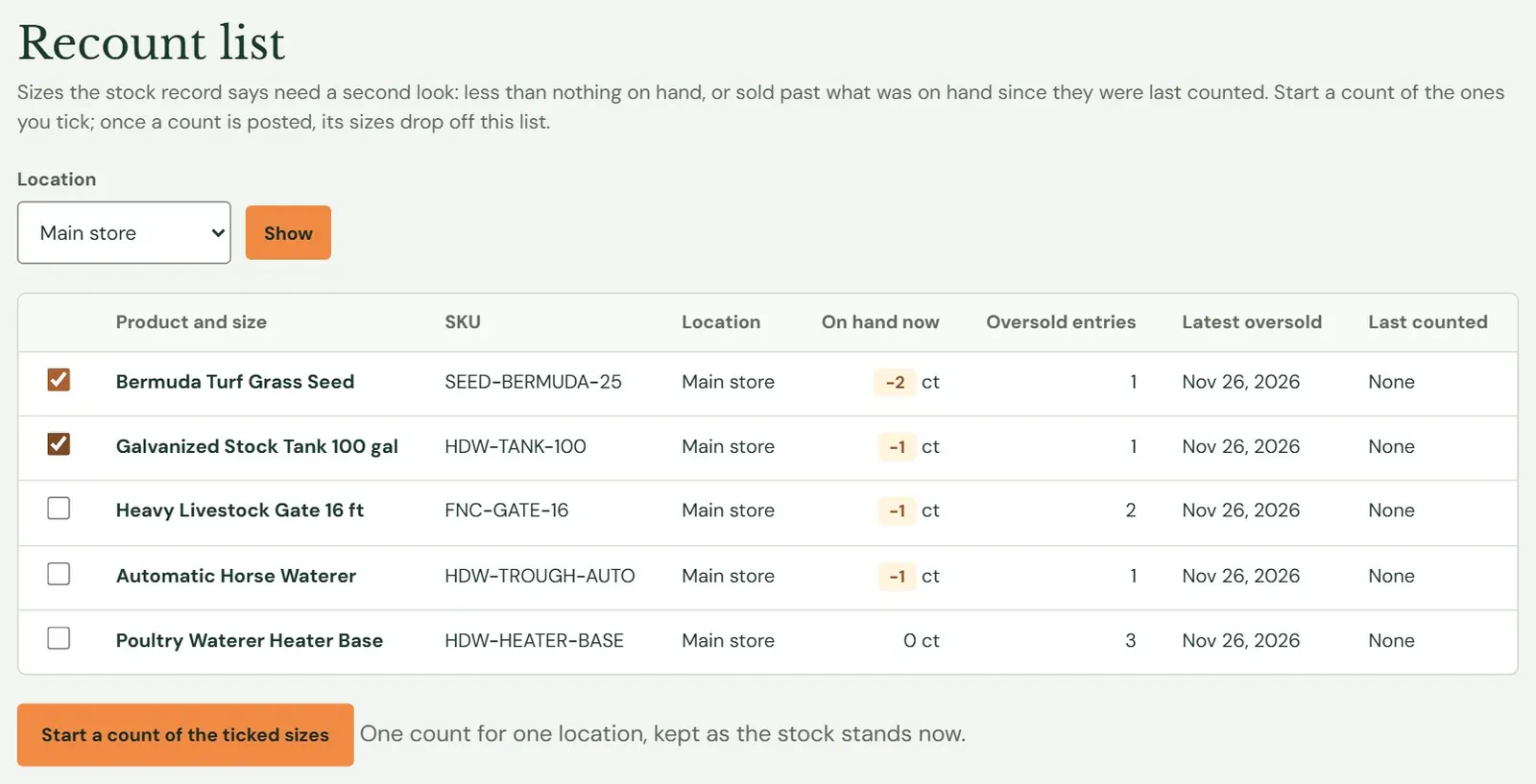
- 1Check how many the record says are here.
- 2Check how many stock movements are flagged as oversold.
- 3Compare the count date with the latest oversold entry.
- 4Start a sheet for the sizes you ticked at this location.
For the cashier's side, see the Crossroads POS manual's When stock runs short and When stock looks wrong.
Check Storehouse's totals against the stock record
Included on Counter + Stock and Whole Store plans.
Stock check compares the saved totals with the records behind them. The same check runs each night. Opening it changes nothing. If the records agree but a bag is missing from the shelf, use Start a count, in Chapter 16 to count what is there.
- Open Stock check and read the result. Every balance matches the stock record. means there is nothing to rebuild. If a row appears, match its Product and size and Where to the stock you are checking.
- Read What differs. Storehouse ERP checks stock on hand against its movements, stock reserved against active holds, and stock on order against outstanding purchase order quantities. It checks totals at each location and across locations, and checks lot balances too.
- Look for Needs a person. For example, a lot movement with no matching stock movement needs someone to look at the record. You can still preview repairs for the other sizes. Send the SKU, location and wording of any finding left for a person to Dirt Road through Send a question about Roadside, in Chapter 40 of Core Roadside.
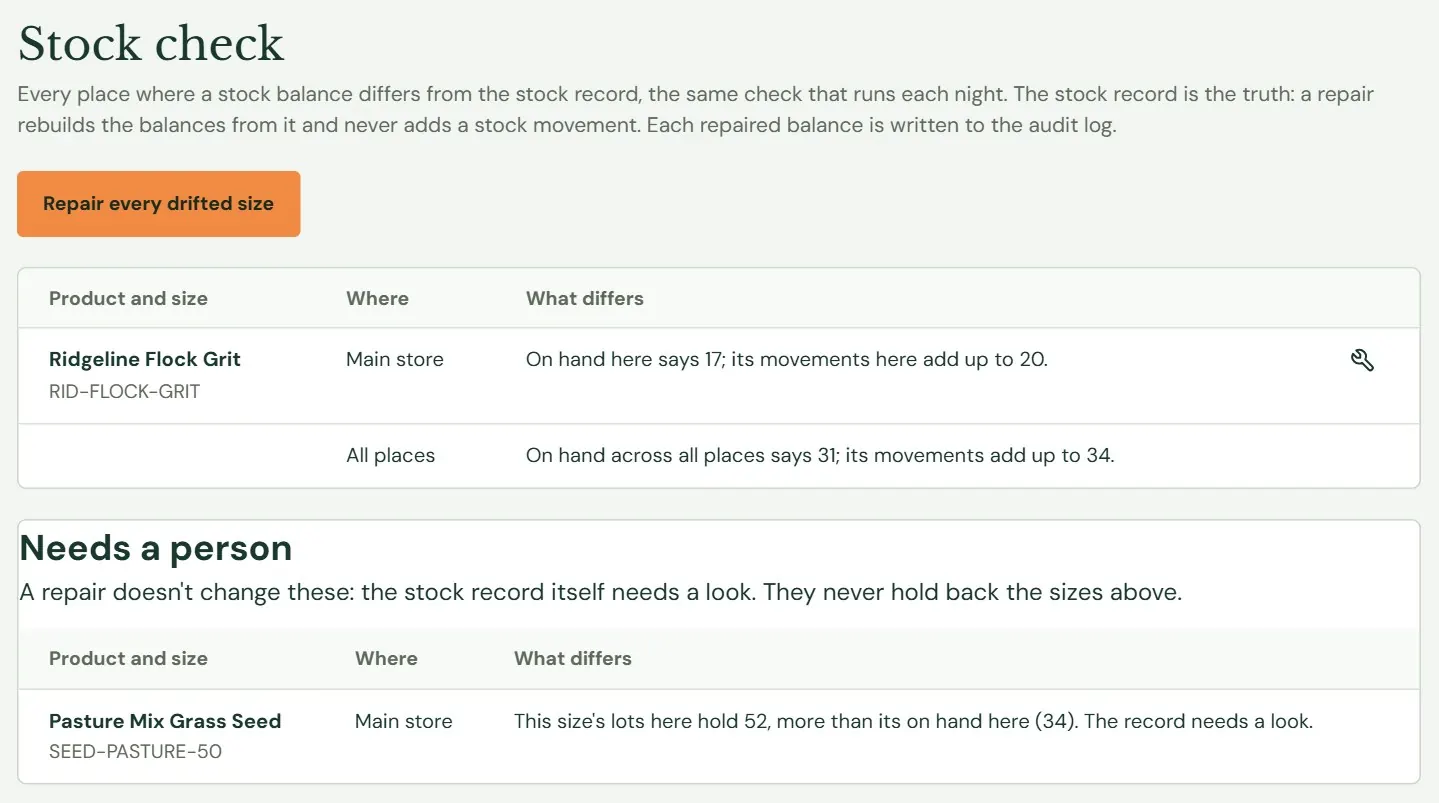
- 1Read which total disagrees with the record.
- 2Identify the finding to send to Dirt Road.
- 3Preview the sizes whose totals can be rebuilt.
Rebuild a total that drifted
Included on Counter + Stock and Whole Store plans.
- Preview the repair. Press Repair on one size or Repair every drifted size for up to 50 sizes at a time. This shows the proposed changes. If none remain, return to the list.
- Compare the figures at each location. For On hand, Reserved or On order, compare the saved figure with After the repair and read Why. Check Not repaired here, Can't be repaired and Roadside's stock for anything that will still need attention.
- Confirm only if you want Storehouse's totals rebuilt from the record. A repair adds no stock movement, changes no physical count and leaves Roadside's own stock figures alone. Each repaired balance goes in the audit log. Press Repair in the preview and confirm, or choose Cancel to leave the totals as they are.
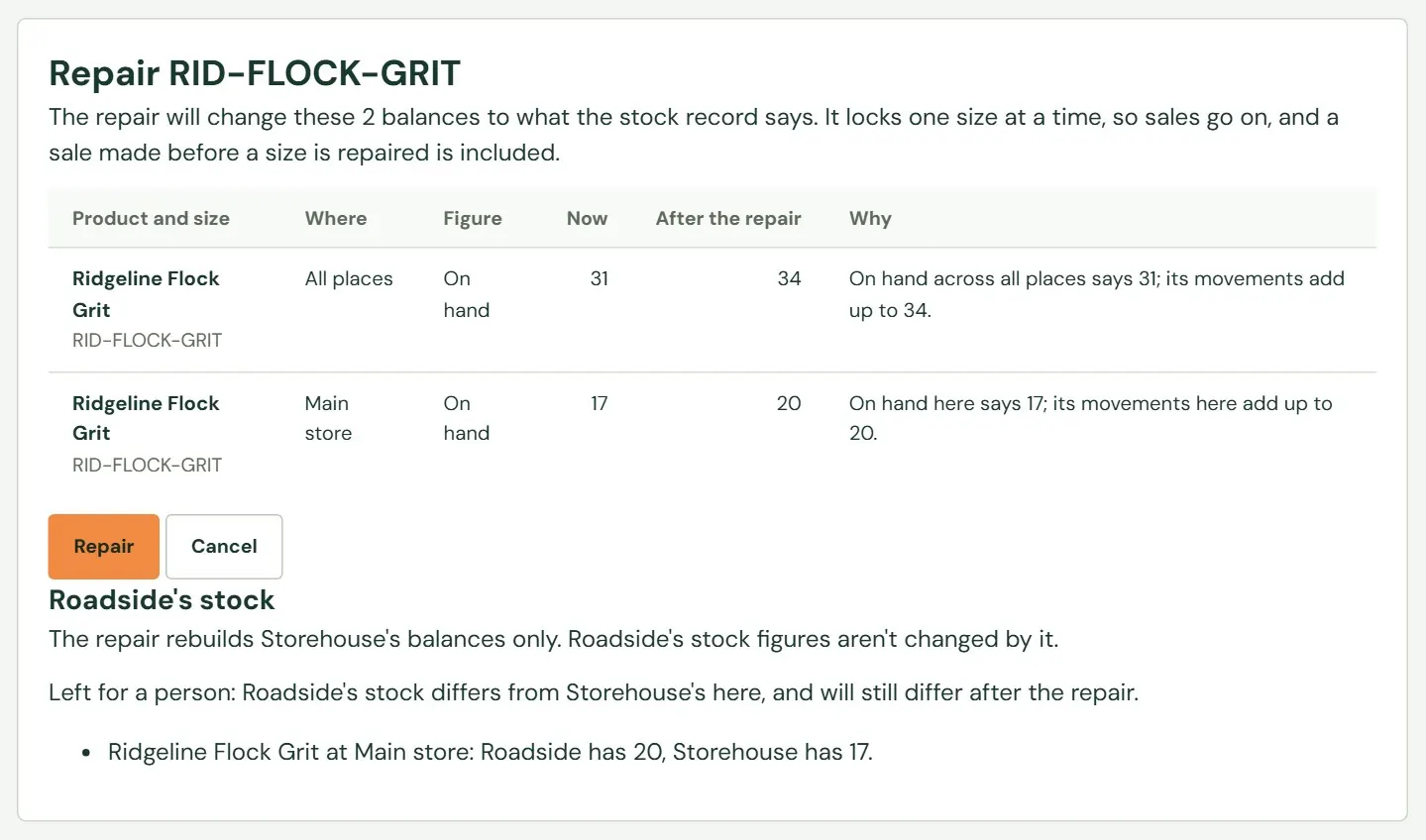
- 1Read the saved figure for this size and location.
- 2Check what the rebuilt total would be.
- 3Read what the repair leaves for a person.
- 4Confirm the rebuild only after reviewing the figures.
The result gives the rows and sizes rebuilt, or the reason a size was refused. Repaired differences drop off the list. Preview the next group if any remain. If a balance already matches, it needs no repair.
For Needs a person or a message that Roadside's stock still differs, send Dirt Road the SKU, location and wording through Store account > Support.
Something here does not match your screen? Write to support@dirtroadsoftware.com with the name of the screen, what you pressed and what you expected. A picture of the screen helps.