
Order an item for one customer
A customer wants something you do not keep. Take the special order, follow it onto the vendor's order, and call the customer when it comes in.
In this chapter
Take a special order
Included on Counter + Stock and Whole Store plans.
The form takes a phone or counter request as a real order for the customer, unpaid. It's paid at pickup, and we call when it's in. For a size the store special-orders, the sale takes what is on hand, and only the part that takes on hand below zero goes on the vendor's draft purchase order: with 4 on hand and 10 ordered, 6 go on the draft. When those come in they are set aside for that customer.
- Special order
- An item ordered from a vendor for one customer, set aside for them when it comes in, and paid for at pickup.
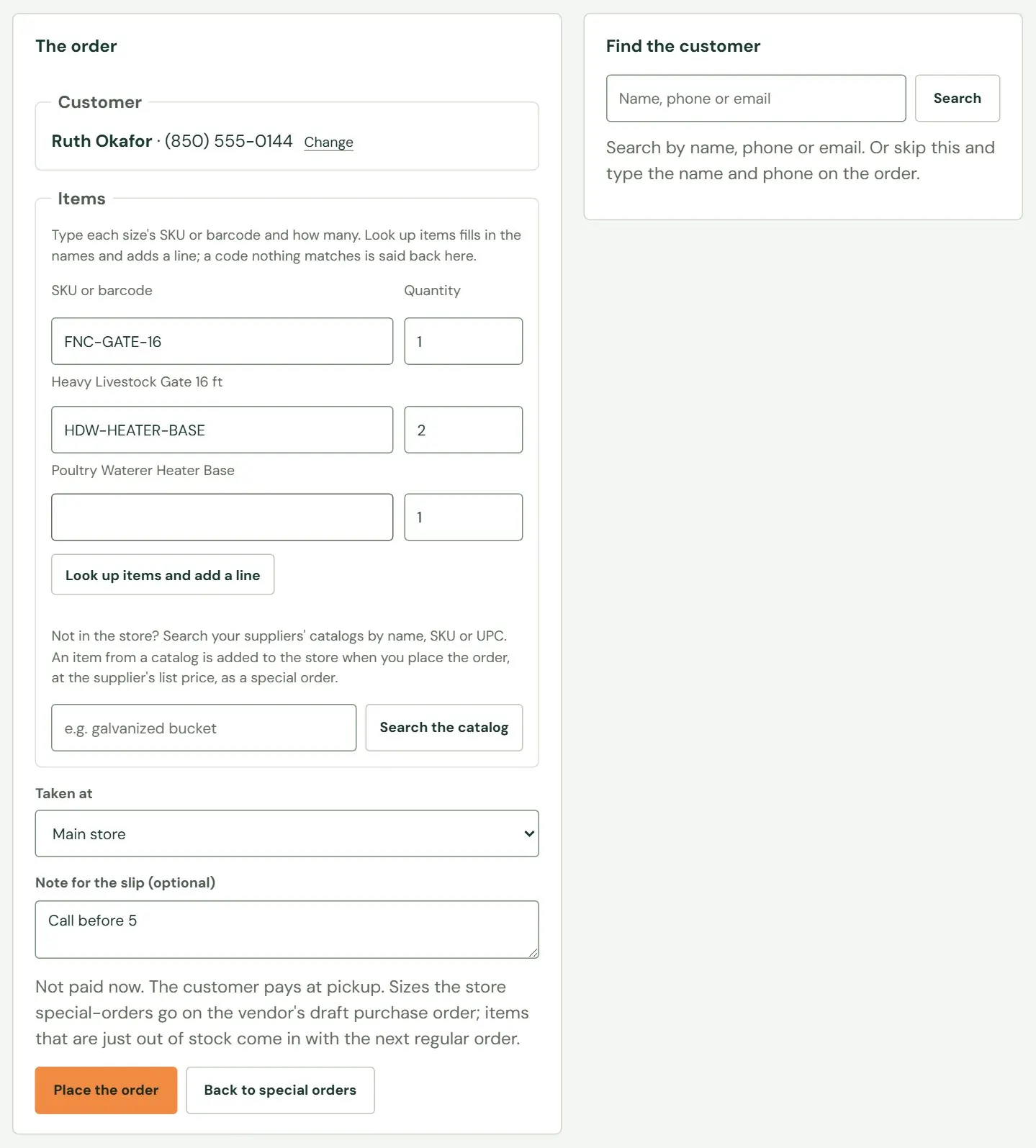
- 1Find the customer, or type their name and phone.
- 2Type each item's SKU or barcode and how many.
- 3Search the vendors' price lists for an item the store does not carry.
- 4Type what the slip should say, such as when to call.
- 5Press to place the unpaid order.
- Open Special orders and press Take a special order.
- Find the customer. Search Name, phone or email on the right and press Use. Or type Customer's name and Phone to call when it's in: a phone that matches a customer on file puts the order on that customer's record, and one that matches nobody makes a customer with that name and phone.
- Add the items. Type each size's SKU or barcode and its Quantity, then press Look up items and add a line. The names fill in, and a code nothing matches is said back, as in No size has the SKU or barcode OM-300, and no supplier's catalog has it. Check it, or search the catalog by name.
- For an item the store does not carry, type a name, SKU or UPC under Not in the store?, press Search the catalog and press Add to the order beside the one you want. The search reads your vendors' price files (Upload a vendor's price list, in Chapter 5).
- Choose Taken at in a store with more than one location. The special-order lines go on the vendor's draft for that location.
- Type a Note for the slip (optional), up to 200 characters, such as Call before 5.
- Know what placing does. It makes the customer's order, unpaid, and its sale takes the stock at once. A special-order size with none on hand goes below zero: one bag with none on the shelf leaves −1 on hand, and the size shows on the Recount list until a count of it is posted (Recount sizes that went below zero, in Chapter 18). What went below zero goes on the vendor's draft order, or waits when the size has no preferred vendor item or no cost on it (Follow a special order to its purchase order, in Chapter 8). An item added from a price file becomes a product of the store, for sale in the store only, set to special order, priced at the file's list price, with that vendor as its preferred vendor.
- Press Place the order. The panel at the top reads Order W-1024 placed for Ruth Okafor. and We'll call the phone when it's in. Not paid: the customer pays the total at pickup. Each line says why: Special order, Not in stock: comes with the next regular order, or In stock, held for pickup.
- Press Print slip for the customer or the order board. The slip reads Not paid. We'll call you when it's in. Open the order goes to the order, and Take another clears the form.
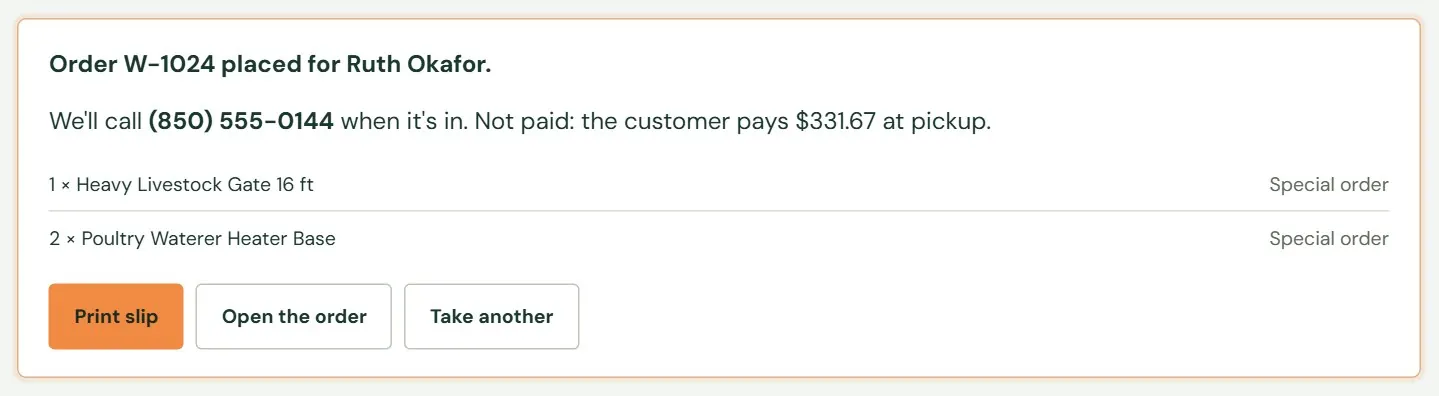
- 1Check the order number and the customer's name.
- 2Read what happens to each line.
- 3Press to print the slip.
The order is in Sales > Orders. Without a customer the form says Find the customer, or type their name and phone number. A special order needs someone to call. An ordinary item that is out is refused with its name and isn't in stock and isn't a special-order item, so it can't be ordered here. The rest of the message says a Manager can make it a special-order item, which changes it everywhere, the website included. The customer pays at pickup, recorded on the order (Record what the customer paid at pickup, in Chapter 28 of Core Roadside). On Day summary that money is listed as Special-order pickups (office) (Take the checks and cash to the bank, in Chapter 4 of Counter & Charge Accounts).
Included on Online Store, Counter + Online Store and Whole Store plans. A customer's Order from our supplier request from the website opens this form filled in, from the request in Messages.
Follow a special order to its purchase order
Included on Counter + Stock and Whole Store plans.
Special orders lists, newest first, the special-order lines that took on hand below zero, with the quantity below zero: the 6 of an order for 10 with 4 on hand. A line that stock covered has no row. Each row gives the customer, order, size, quantity, purchase order, state and age. Check it before you change an order that is already on a vendor's order.
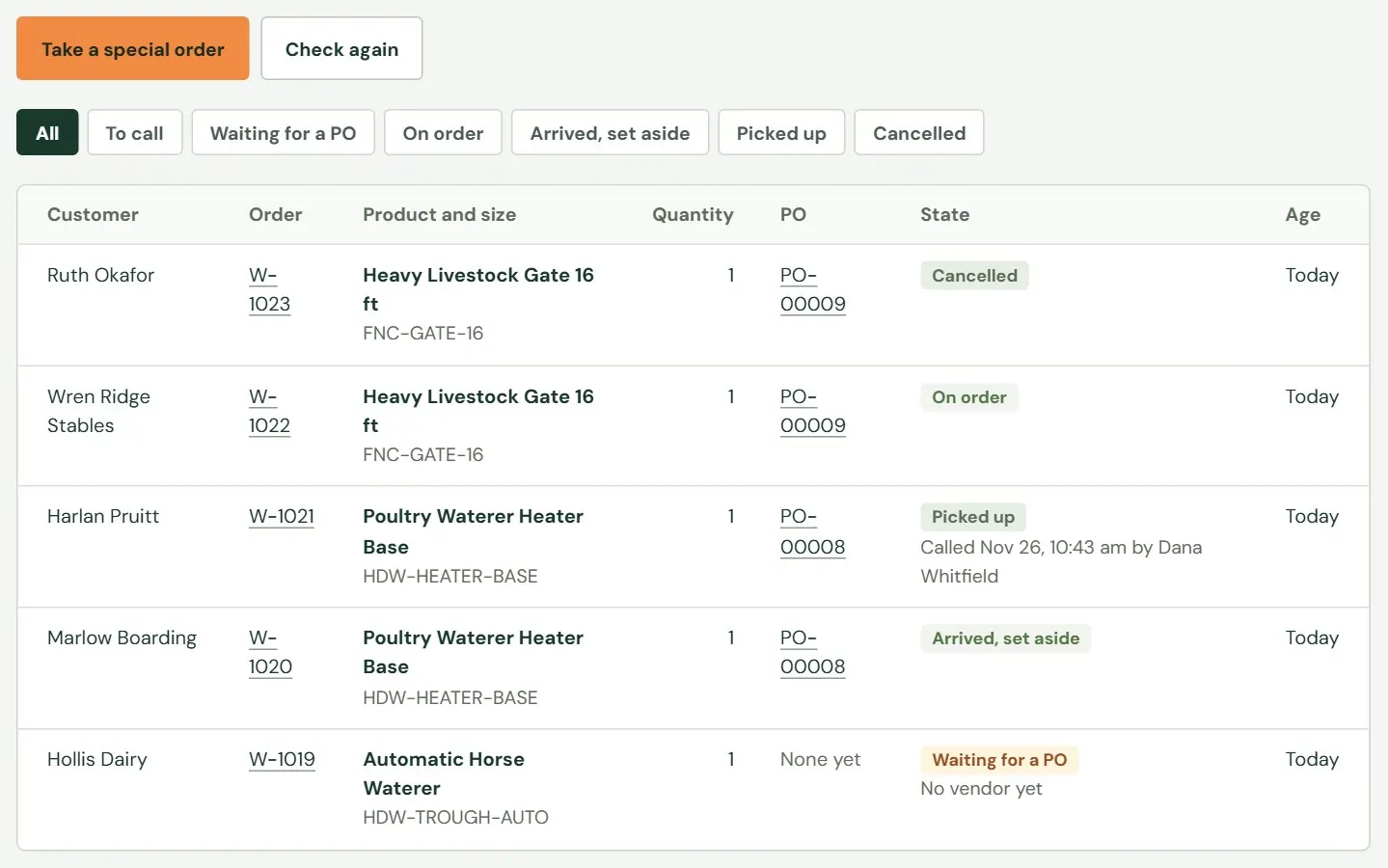
- 1Choose which lines to show.
- 2Read where each line stands.
- 3Open the purchase order the line is on.
- 4Read why a line is still waiting.
- 5Press to put waiting lines on orders and set aside what came in.
- Open Special orders and choose a chip: All, To call, Waiting for a PO, On order, Arrived, set aside, Picked up or Cancelled.
- Read the line's State and PO. PO reads None yet until the line is on an order. The order's number opens it.
- Fix a line that is waiting. No vendor yet means the size has no preferred vendor (Compare the vendors for one size, in Chapter 4). The vendor item has no cost yet means that vendor's item needs a cost (Record what a vendor sells you, in Chapter 4).
- Press Check again. It puts waiting lines that are ready on purchase orders and sets aside what has come in. Roadside says Checked. Nothing changed. or, for example, Checked. 1 put on a purchase order. 1 set aside for the customer.
- Send the vendor's draft order when it is ready (Send the order and put it on order, in Chapter 6). On the order, the line reads For: with the customer, the order number and the quantity.
A waiting line goes on the vendor's newest draft order for that location, added to the size's line when the draft has one, or on a draft made for it with the note Made for special orders. The line moves from Waiting for a PO to On order with the order's number. When a receipt against that order is posted, what came goes to its customers first, oldest order first. A line that got all it wants reads Arrived, set aside. A line that got part stays On order, with a note such as 1 of 2 arrived. It is not taken from stock a second time: the order's sale took it when the order was placed.
Roadside tries every waiting line again by itself each hour, and at once when someone presses Check again, so press it after fixing a vendor or a cost. Both also pick up special orders from the last 30 days that never reached the list. Other notes under a state can read Order completed before it arrived, The order was completed before it came in, so call the customer. or Called with the date and who.
Call the customer when it comes in
Included on Counter + Stock and Whole Store plans.
Nothing tells the customer when the goods arrive. To call lists each order with something set aside, until someone marks it called: the customer, the phone, the order, what is set aside, the purchase order, and when it arrived.
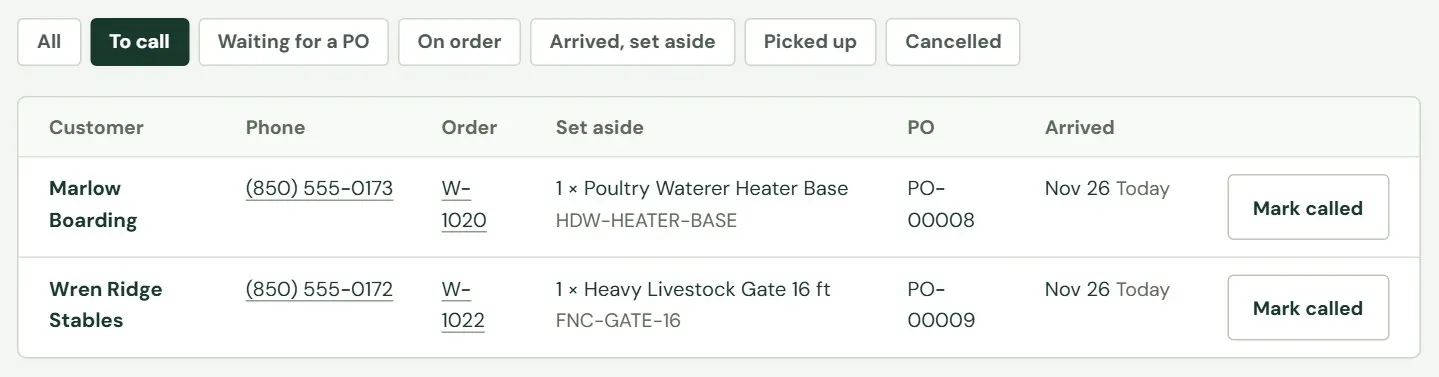
- 1Call this number.
- 2Read when it came in and how long it has waited.
- 3Press once the customer knows it is in.
- Open Special orders and choose To call.
- Phone the customer. A row with no number reads No phone on the order: open the order for another way to reach them.
- Know what Mark called does. It records who called and when. When everything on the order has arrived, it also marks the order ready for pickup, and that sends the customer the order's ready email when the store's ready emails are on, as Mark ready for pickup does (Tell a customer their order is ready, in Chapter 28 of Core Roadside). With only part arrived, it records the call and nothing more.
- Press Mark called. Roadside says Marked called: Ruth Okafor, order W-1021. It's ready for pickup., or the same without the last sentence when something is still to come.
It worked when the row leaves To call and the order's line on the main list reads Called with the date and who. A second press says That order was already marked called on the date by the person. With nobody waiting, To call reads Nobody to call. Items that come in for a special order show here until someone marks the customer called. At pickup, the customer pays on the order (Record what the customer paid at pickup, in Chapter 28 of Core Roadside).
Cancel a special order
Included on Counter + Stock and Whole Store plans.
A special order is cancelled on its order, with the order's own Cancel order card (Cancel an online order, in Chapter 27 of Core Roadside). On a special order the card adds Cancelling this order does not cancel the supplier purchase order. Cancelling cannot be undone, and with Email the customer ticked the customer is emailed.
| Where the line was | What cancelling does to it |
|---|---|
| Waiting for a PO | It comes off the list as cancelled. No order had it. |
| On a draft purchase order | Its quantity comes off the draft's line. A line left at 0 is removed. |
| On a sent purchase order | The order keeps the line. The list notes Cancelled after the PO was sent, so the PO line still has it. Change the order with the vendor, or receive it as the store's stock. |
| Arrived, set aside | The list notes Cancelled after it arrived, so the stock is the store's to sell. |
- Check the line on Special orders first, to know where it stands (Follow a special order to its purchase order, in Chapter 8).
- Open the order from the list's Order column, or from Sales > Orders.
- Fill in the Cancel order card and press it, as Cancel an online order, in Chapter 27 of Core Roadside describes.
- Call the vendor when the line was on a sent order and the store does not want the item.
It worked when Special orders shows the line as Cancelled, with its note when the vendor's order had it.
Something here does not match your screen? Write to support@dirtroadsoftware.com with the name of the screen, what you pressed and what you expected. A picture of the screen helps.